Extract text from PDF
Extract all text from a PDF to a TXT file or copy it instantly. Keep line breaks or reflow into paragraphs. Free online and private.
Extract Text from PDF – The Complete Guide
PDFs are made for reading, not for editing. When you need to reuse the words in a PDF — quote a paragraph in an essay, paste a clause into an email, translate a document, feed text into another program or just edit a document whose original file is lost — copying text page by page with the mouse is slow and frustrating. Selections jump between columns, line breaks end up in the middle of sentences and headers and footers get mixed into the text.
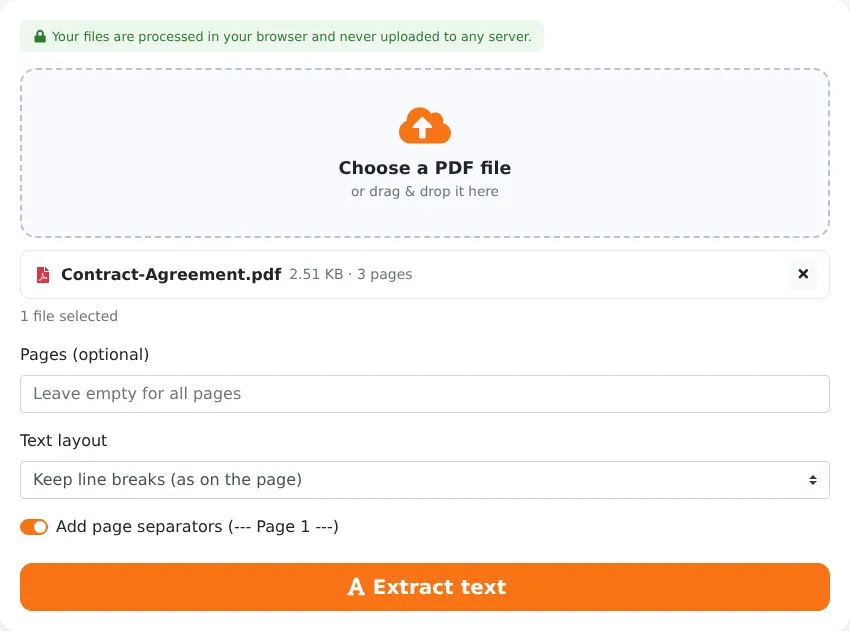
Our free Extract text from PDF tool pulls out all the text from a PDF — or from the pages you choose — in one click. Keep the original line breaks or join lines into flowing paragraphs, add page separators, preview the result, copy it to the clipboard or download it as a .txt file. It works in your browser, so your document stays private.
Key Features at a Glance
- Extracts text from all pages or a selected range.
- Two layouts: keep line breaks as on the page, or reflow lines into paragraphs.
- Optional page separators such as “--- Page 3 ---”.
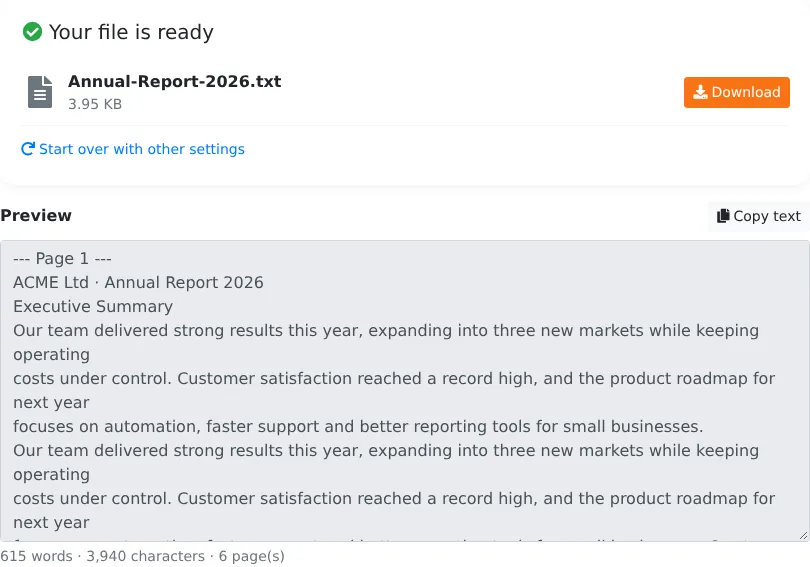
- Instant preview with word, character and page counts.
- One-click “Copy text” and a .txt download in UTF-8.
- Detects scanned PDFs without a text layer and tells you so.
- Private processing in your browser, with no upload and no limits.
How to Extract Text from a PDF in 4 Steps
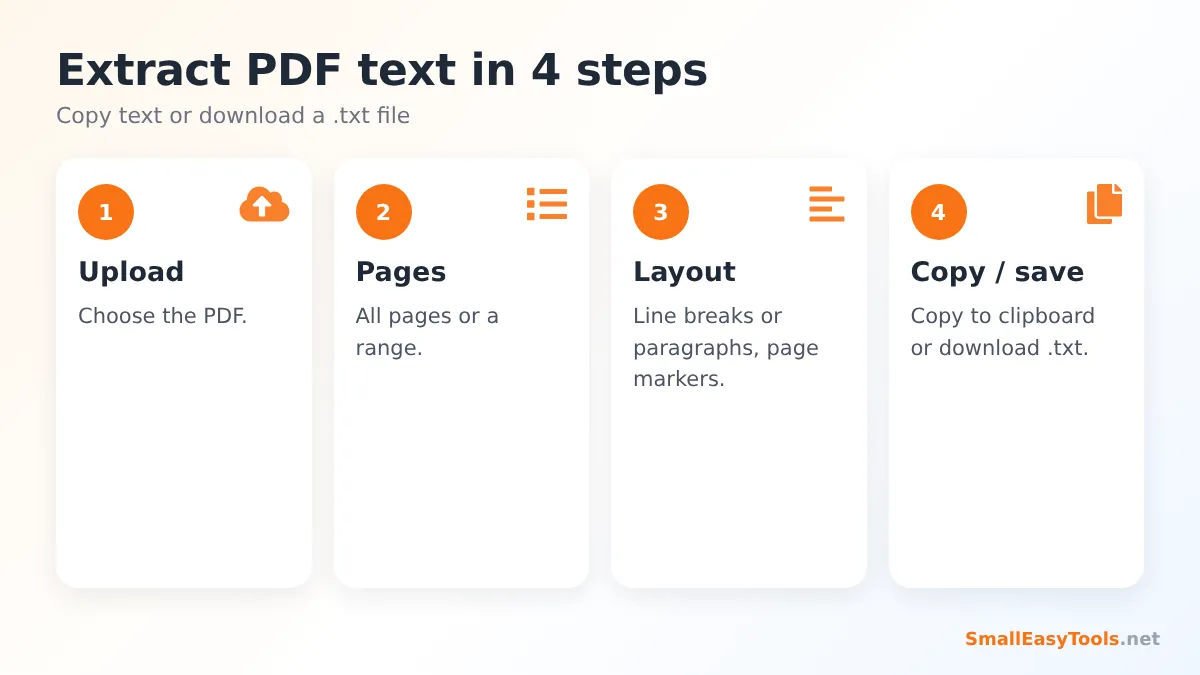
- Upload your PDF by clicking the upload area or dragging the file onto it.
- Choose the pages (optional). Leave the field empty for all pages, or enter ranges such as 2-5, 9.
- Choose the text layout and whether to add page separators.
- Click “Extract text”. Review the preview, click Copy text to copy everything to your clipboard, or download the .txt file.
Keep Line Breaks or Join into Paragraphs?
Keep line breaks (as on the page)
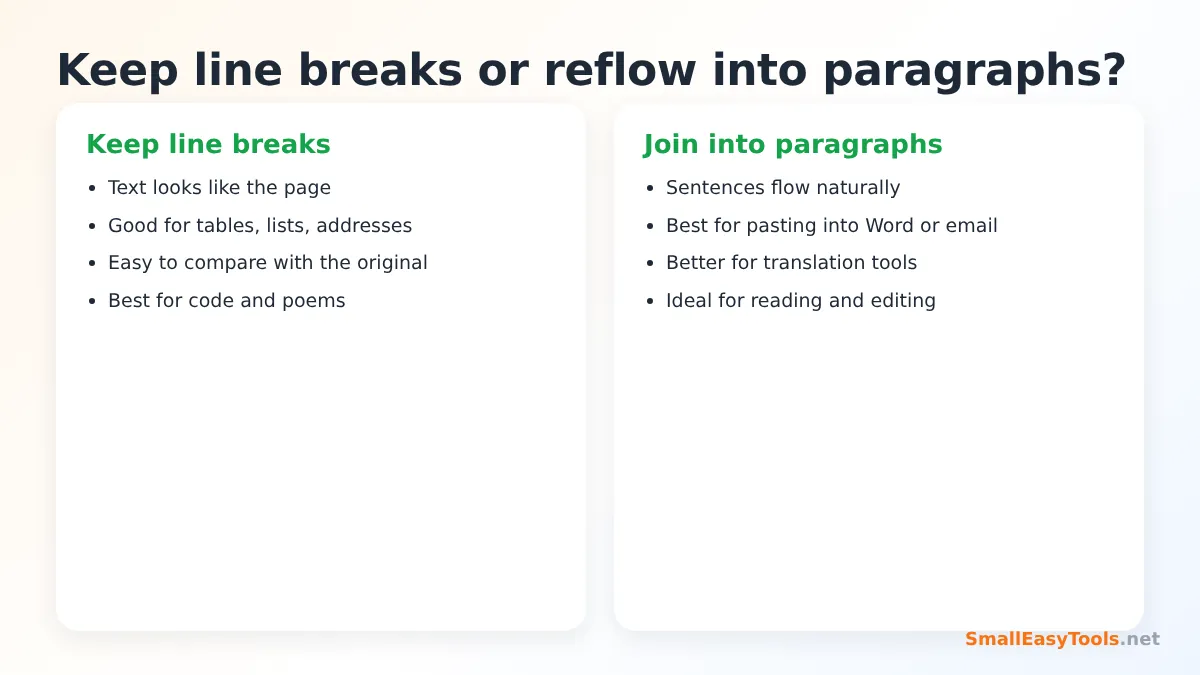
Every line of the PDF becomes a line of text, just as it appears on the page. This preserves the visual structure of lists, addresses, tables, poems, code samples and forms, and makes it easy to compare the extracted text with the original page side by side.
Join lines into paragraphs (reflowed)
PDF pages break text into lines to fit the page width, so a single sentence may span three lines. When you paste such text into Word, an email or a translation tool, you get awkward breaks in the middle of sentences. The reflow option joins lines that belong to the same paragraph and keeps real paragraph breaks, giving you clean, flowing text that is ready to edit. Hyphenated words split across lines are joined as well.
Page separators
With separators enabled, the text of each page starts with a marker like “--- Page 4 ---”. This is helpful when you need to cite page numbers or find where a passage came from. Turn it off for a continuous text.
What Kind of PDFs Contain Text?
There are two very different kinds of PDF:
- Digital PDFs are created by software — exported from Word, Google Docs, an accounting system, a website or a design program. They contain real text, which you can select in a PDF reader. This tool extracts their text accurately.
- Scanned PDFs contain photographs of paper pages. To a computer, they are pictures, not text. If you cannot select individual words in your PDF reader, the PDF is probably scanned. Extracting text from such files requires OCR (optical character recognition), which this tool does not perform; it will tell you that no selectable text was found.
Some PDFs are a mix: scanned pages with an invisible OCR text layer added by the scanner. In those files, the tool extracts the OCR text, whose accuracy depends on the scanner’s recognition.
Common Uses
Editing a document when the original is lost
You have the PDF of a CV, a policy or a report, but not the Word file. Extract the text with reflowed paragraphs, paste it into a word processor and rebuild the formatting. This is often much faster than retyping.
Quoting and research
Students and researchers can extract passages from articles and reports with page markers, making it easy to cite the right page.
Translation
Translation tools work best with clean paragraphs. Extract with reflow enabled and paste the text into your translator.
Data entry and analysis
Extract text from invoices, statements or reports to search for figures, copy them into a spreadsheet or analyse them with other tools. Keep the line breaks option for table-like content.
Accessibility
Plain text can be read by screen readers, enlarged in any editor or converted to audio, which helps readers who find PDFs difficult.
Word counts
The preview shows the number of words, characters and pages, which is handy for checking the length of essays, translations and articles. For detailed statistics, see PDF statistics.
Text vs Markdown vs Copy-Paste
- Extract PDF text (this tool) gives plain text — universal and clean.
- PDF to Markdown also tries to keep headings and lists as Markdown formatting, which is ideal for wikis, documentation and AI tools.
- Manual copy-paste in a PDF reader works for a sentence or two but quickly becomes painful for whole documents, multi-column layouts and many pages.
Tips for Better Results
- Use reflow for prose and line breaks for tables, lists and addresses.
- Limit the page range to skip covers, tables of contents and appendices you do not need.
- Turn off separators when you want continuous text for editing.
- Check multi-column pages. The tool reads text in visual order, but complex layouts such as newspapers can mix columns. Review the result.
- Unlock protected PDFs first with Remove PDF password if copying is restricted.
Turning the Text Back into a PDF
After editing the extracted text, you can create a new clean PDF with TXT to PDF, or format it with headings and lists using Markdown to PDF.
Real-World Examples
Job seeker updating a CV
A candidate only has an old CV as a PDF. Extracting the text with reflow and pasting it into a new template saves an hour of retyping.
Paralegal reviewing contracts
A paralegal extracts the text of a 30-page agreement with page separators, searches for every mention of “termination” and references the exact pages in a summary memo.
Blogger repurposing a guide
A blogger turns a downloadable PDF guide into web articles by extracting the text and editing it into posts.
Privacy
The text is extracted by PDF.js, running inside your browser. Your PDF and the extracted text are never sent to a server — which matters when the document is a contract, a medical report or a financial statement.
Troubleshooting
“No selectable text was found”
The PDF is a scan or contains text as images. It needs OCR software to recognise the characters.
Strange characters appear
Some PDFs use fonts with non-standard character encodings, which can make extracted text unreadable even though it looks fine on screen. Try opening the original source document instead, or ask the sender for a properly exported PDF.
Words run together or spaces are missing
Some PDF generators position each word separately without real spaces. Try the other layout option, which sometimes handles spacing differently.
Columns are mixed up
For complex layouts, extract one page at a time and rearrange the text manually.
Understanding How Text Is Stored in a PDF
A PDF does not store text the way a word processor does. Instead of paragraphs and sentences, it stores instructions like “draw these characters at this position in this font”. A single line on the page may be made of several separate pieces, and the document usually has no record of where a paragraph begins or ends. Extraction tools therefore have to reconstruct reading order and line structure from the positions of the characters on the page.
Our tool groups characters that share the same vertical position into lines and orders them from left to right and top to bottom. In reflow mode, it then decides whether two lines belong to the same paragraph by looking at the vertical gap between them and at sentence punctuation. This works very well for normal documents. Layouts with several columns, text boxes, sidebars or rotated text are harder to reconstruct perfectly, which is why it is always worth reviewing the result before using it.
Extracting Text on a Phone
The tool works in mobile browsers. Upload a PDF from your Files app, choose the layout and tap “Extract text”. Use the Copy text button to copy everything to the clipboard and paste it into a notes app, email or messaging app. The .txt file can be saved to your device or shared. For long documents, limiting the page range keeps the preview manageable on a small screen.
Mistakes to Avoid
- Expecting formatting. Plain text has no bold, fonts, colours or images. Rebuild formatting in your editor, or use PDF to Markdown for basic structure.
- Trusting text from complex layouts blindly. Check tables and multi-column pages carefully, especially numbers.
- Ignoring copyright. Extracting text for personal study, quotation with attribution or accessibility is common; republishing someone else’s document is a different matter.
Used well, text extraction saves hours of retyping and makes the content of your PDFs reusable — in documents, emails, spreadsheets, translation tools and research notes.
Frequently Asked Questions
Is Extract text from PDF free?
Yes — no registration, no limits and no watermark.
Can I extract text from a scanned PDF?
Only if it already contains an OCR text layer. Pure image scans need OCR.
Can I extract text from specific pages?
Yes. Enter pages or ranges, such as 3-7.
Does it keep formatting like bold and fonts?
No. The result is plain text. For headings and lists, try PDF to Markdown.
What encoding is the .txt file?
UTF-8, which supports characters from all languages.
Are my files uploaded?
No. Extraction happens in your browser.
Can I extract text from several PDFs at once?
Process them one after another, or merge them first with Merge PDF and extract the combined file.
Is there a page limit?
No fixed limit. Very long documents take a little longer because every page is read on your device.
Can I extract text from a password-protected PDF?
If the PDF needs a password to open, unlock it first with Remove PDF password. Copy restrictions can also be removed there.
Does it work on phones?
Yes. Use the Copy text button to paste the text into any app.
Related Tools
- PDF to Markdown – extract text with headings and lists.
- TXT to PDF – turn edited text back into a PDF.
- PDF statistics – word counts and document details.
- Extract images from PDF – save the pictures too.
- Compare PDFs – find text differences between versions.
Similar tools Maybe You Like or need
Convert PDF to Markdown with automatic headings, lists and paragraphs. Ideal for documentation, GitHub, Notion and AI tools. Free and private.
Fill in fillable PDF forms online: text fields, checkboxes and dropdowns load automatically. Import JSON, flatten when done. Free and private.
Merge PDF files online for free. Combine multiple PDFs into one document, reorder files by drag and drop, add blank separator pages. Private, no upload, no watermark.
Most Popular Online Tools
Convert kilometers per hour to miles per hour (km/h to mph) instantly. 1 km/h = 0.621371192 mph. Free speed converter with formula and chart.
Free WhatsApp link generator. Create a wa.me click-to-chat link with your phone number and a pre-filled message for websites, ads and social bios.
Free hosting checker. Find out which company hosts any website, plus its IP address and server location. Ideal for research and migrations.
Free DNS lookup tool. Check A, AAAA, CNAME, MX, NS, TXT and SOA records of any domain instantly to verify DNS settings and troubleshoot email or website issues.
Free strong password generator. Create secure random passwords with custom length, numbers, symbols and upper/lowercase letters instantly.
Free IP lookup tool. See your IP address or check any IP to find its country, city, ISP, time zone and more. Fast, accurate and no sign-up.