Remove PDF password
Unlock a password-protected PDF you have the password for and save an unprotected copy. Removes print/copy restrictions too. Free and private.
Remove PDF Password – The Complete Guide
Password-protected PDFs are everywhere. Banks send monthly statements locked with your date of birth or account number, mobile operators protect bills, employers encrypt payslips, and government portals issue tax certificates that need a code to open. That protection makes sense while the file travels by email — but once the document is safely on your own computer, typing the password every single time becomes tedious. Worse, many programs simply refuse to work with encrypted files: you cannot merge them, upload them to some portals, compress them or print them in batches.
Our free Remove PDF password tool creates an unlocked copy of a PDF that you are allowed to open. Enter the password once, and you get a file that opens without any prompt and without printing or copying restrictions. Everything happens in your browser, so neither your document nor your password is ever sent to a server.
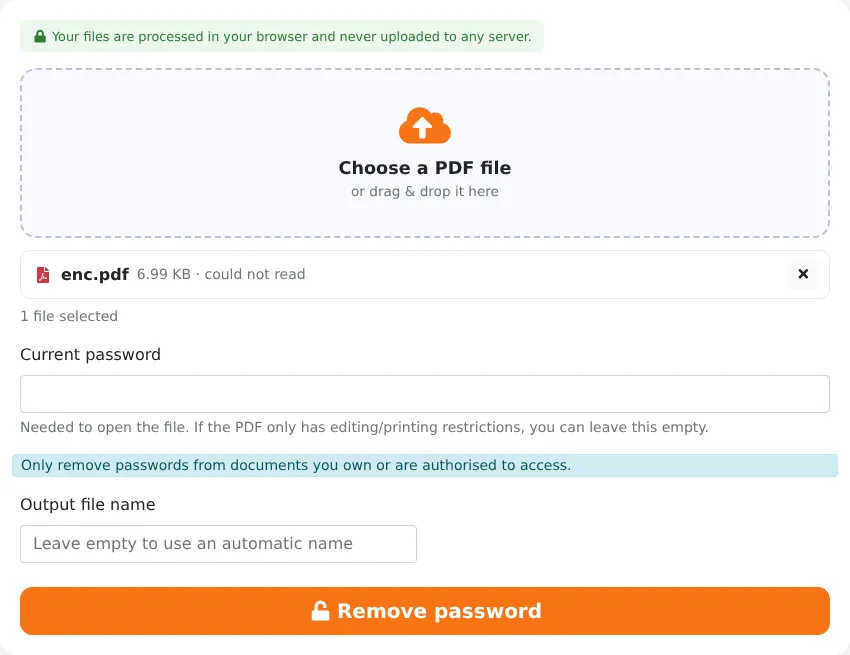
Please note: this tool is for documents you own or are authorised to access. It does not guess or crack unknown passwords. If you do not know the open password of a file, ask the sender.
How to Remove a Password from a PDF in 4 Steps
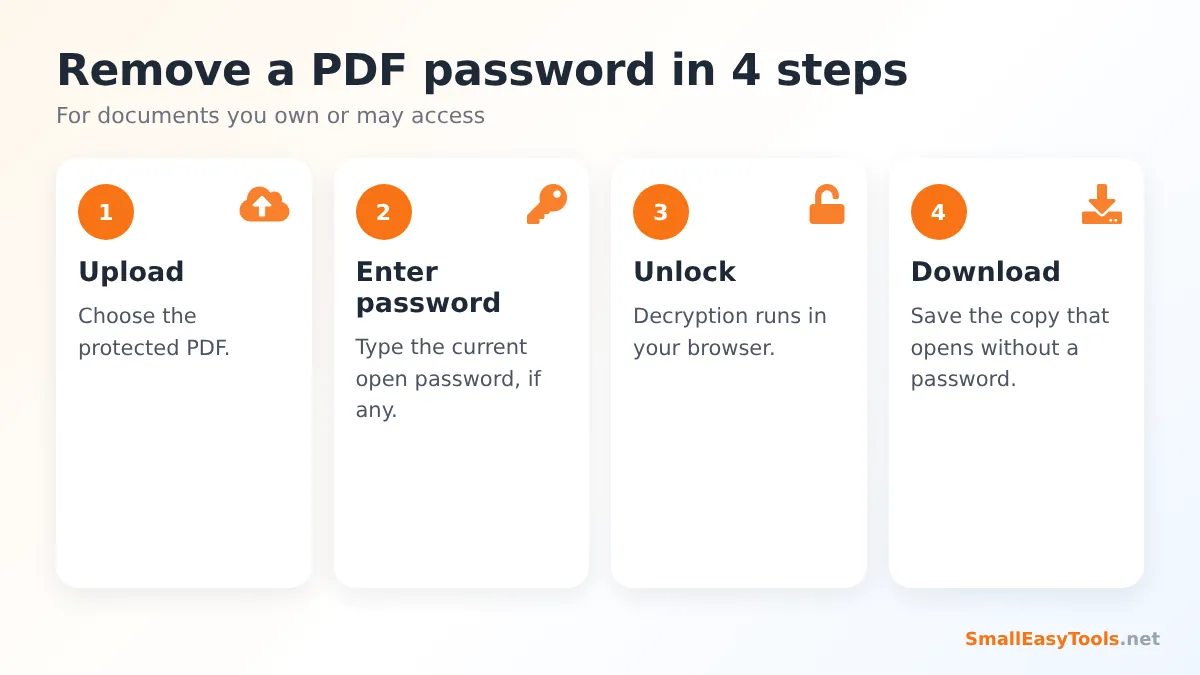
- Upload the protected PDF by clicking the upload area or dragging the file onto it.
- Enter the current password. If the file only has printing or copying restrictions and opens without a password, leave the field empty.
- Click “Remove password”. The file is decrypted in your browser in a second or two.
- Download the unlocked copy. It opens in any PDF reader without a password prompt, and printing, copying and editing are allowed.
Two Kinds of PDF Locks
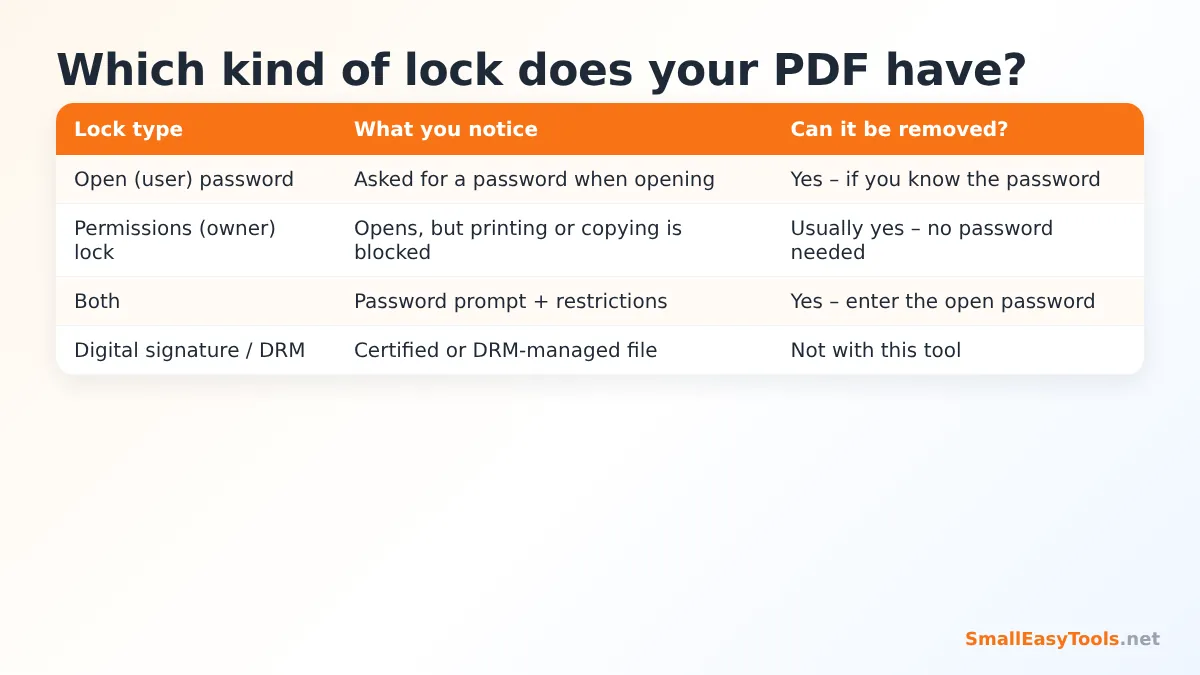
Open password (user password)
When you double-click the file, your PDF reader asks for a password before showing anything. The content is fully encrypted. To remove this lock, you must know the password — which you usually do, because the sender told you or because it follows a known pattern (for example, many banks use part of your date of birth or customer number). Enter it in the tool, and the unlocked copy no longer asks for it.
Permissions password (owner password)
The file opens normally, but some features are greyed out: you cannot print, select text, copy, fill in forms or edit. These restrictions are controlled by a separate owner password. In most cases our tool can remove such restrictions without the owner password, because you are already able to open and read the document. Leave the password field empty and click “Remove password”.
Both
Some files have an open password and restrictions. Enter the open password and both locks are removed.
Certified documents and DRM
Digitally signed or certified PDFs, and files protected by commercial DRM systems (such as some e-books), use different mechanisms. This tool does not bypass DRM. Note also that removing encryption from a digitally signed document can invalidate its signature, so keep the original for official purposes.
What Happens When You Remove a Password?
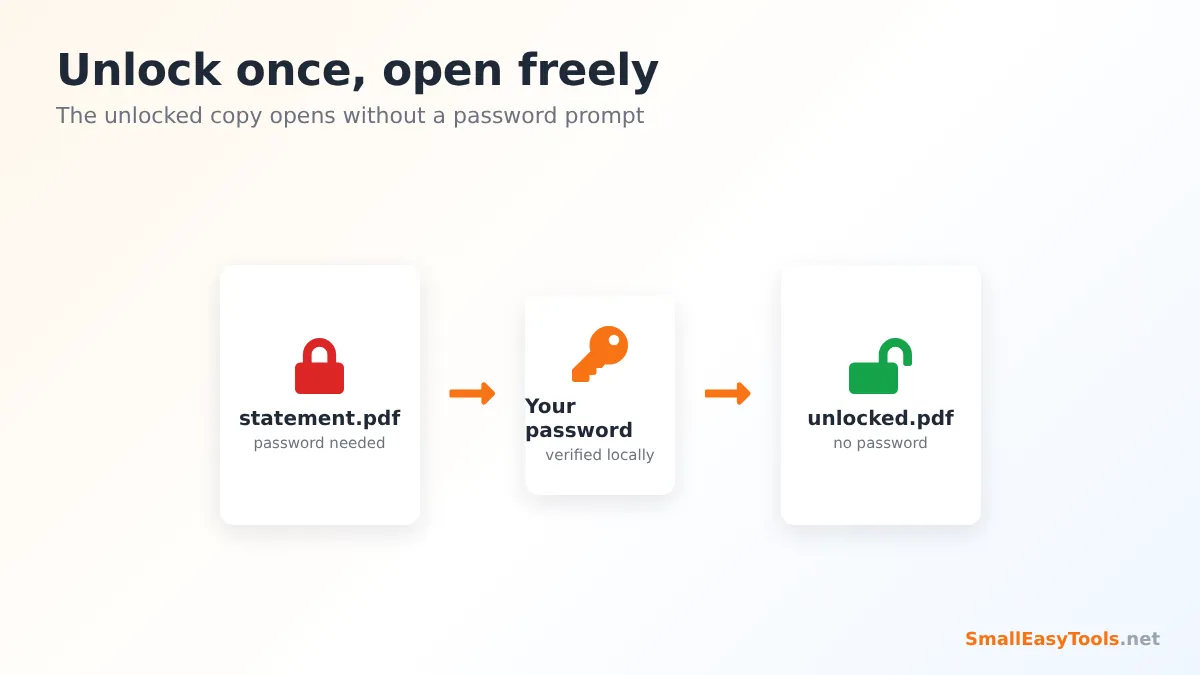
The tool uses qpdf — a respected open-source PDF toolkit — compiled to run inside your web browser. It opens the encrypted file with the password you provide, decrypts every object and saves a new, unencrypted PDF. The pages, text, fonts, images, links, bookmarks and form fields remain exactly as they were; only the encryption and the restrictions are gone. Your original protected file is not changed.
Why Remove a PDF Password?
Convenience for your own records
If you keep years of bank statements or utility bills for your tax return, opening each one with a password is slow. Unlocked copies stored in a secure folder on your computer are much easier to search and review.
Merging and organising documents
Tools that combine, split or reorganise PDFs need to read the content. Unlock the file first, then use Merge PDF, Split PDF or Organize PDF.
Uploading to portals
Visa, loan and job application portals frequently reject encrypted PDFs, because their systems cannot read or preview them. Many applicants only discover this at the last minute. Removing the password creates a file the portal accepts. If the portal also has a size limit, run Compress PDF afterwards.
Printing and annotating
Restrictions can block printing or highlighting even in documents you have every right to use, such as your own course materials or a contract you signed. Removing restrictions lets you print and annotate normally.
Converting to other formats
To turn pages into images or extract text, the document must be readable. After unlocking, use PDF to JPG, Extract PDF text or PDF to Markdown.
Finding the Password for Bank and Utility Statements
If a statement arrived by email, the password rule is usually explained in the email itself or on the provider’s website. Common patterns include:
- part of your name combined with your date of birth;
- the last digits of your account, card or customer number;
- your mobile number or national ID number;
- a password you created in the provider’s online portal.
Check the exact format (for example DDMMYYYY or DDMMYY, upper or lower case letters) carefully — one wrong character is enough for the password to fail.
Keep Unlocked Files Safe
Once you remove a password, the document is readable by anyone who gets hold of the file. Follow a few sensible habits:
- Store unlocked copies in a private folder on a device protected by a login password or encryption.
- Do not email unlocked financial or identity documents; if you need to send one, protect it again with Protect PDF with password, using a new password you share separately.
- Remove hidden information before sharing with Remove PDF metadata.
- Delete unlocked copies you no longer need.
Privacy: Why Local Processing Matters Here
Many “unlock PDF” websites ask you to upload the file and the password to their server. That means a stranger’s server briefly holds both your confidential document and the key to it. Our tool never does this. The decryption engine runs in your browser tab, the password is used only in your device’s memory, and the unlocked file goes straight to your downloads. There is nothing stored and nothing to leak.
Troubleshooting
“The password is not correct, or the file is damaged”
Check for typing mistakes, the Caps Lock key, the date format and whether letters should be upper or lower case. Copying the password from an email can add an invisible space at the end — try typing it manually. If you are sure the password is right, the file may be damaged; try Repair PDF on an unlocked copy obtained from the sender.
“This PDF needs a password to open”
The file has an open password and the field was empty. Enter the password you use to open the file.
I do not know the password
This tool does not crack passwords. Ask the person or organisation that sent the file, or log in to their portal to download an unprotected version.
The unlocked file still shows restrictions
Make sure you opened the downloaded copy (its name ends with “unlocked”) and not the original file.
Real-World Examples
Preparing a loan application
A bank asks for six months of statements from another bank in a single PDF. Each statement arrived password-protected. The applicant unlocks each file with the known password, merges them in date order with Merge PDF, compresses the result to meet the upload limit, and submits a single tidy document.
Building a tax folder
At the end of the year, a freelancer collects invoices, payment confirmations and bank statements for the accountant. Unlocked copies can be searched for amounts and dates, combined by month and annotated, which saves hours compared with entering passwords repeatedly.
Printing lecture notes
A university shares course handouts that were accidentally saved with printing disabled. Since the students are authorised to use the material, the restriction can be removed so they can print the notes for revision.
Uploading a certificate to a job portal
An exam board issues a protected digital certificate. The job portal cannot read encrypted files and shows an error. After unlocking the certificate, the upload works immediately.
Remove Password vs Repair vs Convert
Sometimes a PDF refuses to open for reasons other than a password. Here is how to tell the difference:
- If your reader shows a password prompt, the file is encrypted — use this tool.
- If the reader says the file is damaged or cannot be opened without asking for a password, use Repair PDF.
- If the file opens but buttons are disabled, it has permission restrictions — use this tool with an empty password field.
- If you can check the encryption status and other properties, the PDF metadata viewer shows them before you decide.
In short: the tool is a convenience for documents that already belong to you. It saves you from typing the same password again and again, and it makes your own files work smoothly with other software, without ever exposing them to a third-party server. Unlock what you need, keep the copies in a safe place, and protect them again whenever you share them.
Frequently Asked Questions
Is Remove PDF password free?
Yes — no registration, no watermark and no limits.
Do I need to know the password?
For files that ask for a password when opening, yes. For files that only restrict printing, copying or editing, usually not.
Is it legal to remove a PDF password?
Removing protection from your own documents, or documents you are authorised to access, is generally fine. Do not use the tool to access documents you are not entitled to open.
Does it change the content of my PDF?
No. Text, images, links and layout stay the same; only the encryption is removed.
Are my file and password uploaded?
No. Everything is processed locally in your browser.
Can I add a new password later?
Yes, with Protect PDF with password.
Will this tool work on my phone?
Yes. It works in Chrome, Safari, Firefox and other modern mobile browsers. The unlocked file is saved to your downloads or Files app.
Does removing the password affect the file size?
Usually only slightly. The unlocked copy can be a little smaller or larger depending on how the original was saved. To make it significantly smaller, use Compress PDF.
Can I unlock several PDFs at once?
Unlock them one after another. Each takes only a moment. If they share the same password, the field keeps your entry until you close the page.
What happens to digital signatures?
Removing encryption rewrites the file, which can invalidate a digital certificate signature. Keep the original signed file whenever its signature needs to be verifiable.
Related Tools
- Protect PDF with password – encrypt a PDF with AES-256.
- Merge PDF – combine unlocked statements into one file.
- Compress PDF – shrink files for upload portals.
- PDF metadata viewer – see a document’s properties and encryption status.
- Repair PDF – fix damaged PDF files.
Similar tools Maybe You Like or need
Add a password to a PDF with strong AES-256 encryption. Control printing, copying and editing permissions. Free, private, processed in your browser.
Fix damaged PDF files that will not open. Rebuilds the structure and recovers pages, with a deep-recovery fallback. Free and private.
Most Popular Online Tools
Convert kilometers per hour to miles per hour (km/h to mph) instantly. 1 km/h = 0.621371192 mph. Free speed converter with formula and chart.
Free WhatsApp link generator. Create a wa.me click-to-chat link with your phone number and a pre-filled message for websites, ads and social bios.
Free hosting checker. Find out which company hosts any website, plus its IP address and server location. Ideal for research and migrations.
Free DNS lookup tool. Check A, AAAA, CNAME, MX, NS, TXT and SOA records of any domain instantly to verify DNS settings and troubleshoot email or website issues.
Free strong password generator. Create secure random passwords with custom length, numbers, symbols and upper/lowercase letters instantly.
Free IP lookup tool. See your IP address or check any IP to find its country, city, ISP, time zone and more. Fast, accurate and no sign-up.