PDF to JPG
Convert PDF pages to high-quality JPG images online. Choose 72–600 DPI, adjustable quality, all pages or selected pages. Free, private, no upload.
PDF to JPG Converter – The Complete Guide
PDF is the best format for documents, but it is not always the most practical. You cannot post a PDF on Instagram, many websites only accept image uploads, a PowerPoint slide needs an image of that chart, and a quick preview on WhatsApp works better with a picture than with a file your contact has to open separately. In all of these cases the answer is to convert PDF pages to JPG images.
Our free PDF to JPG converter turns every page — or only the pages you choose — into high-quality JPG images. You decide the resolution, from small web images at 72 DPI to print-quality 300 DPI and beyond, and you can fine-tune JPEG quality to balance sharpness against file size. The images are created in your browser, so your PDF is never uploaded anywhere.
How to Convert PDF to JPG in 4 Steps
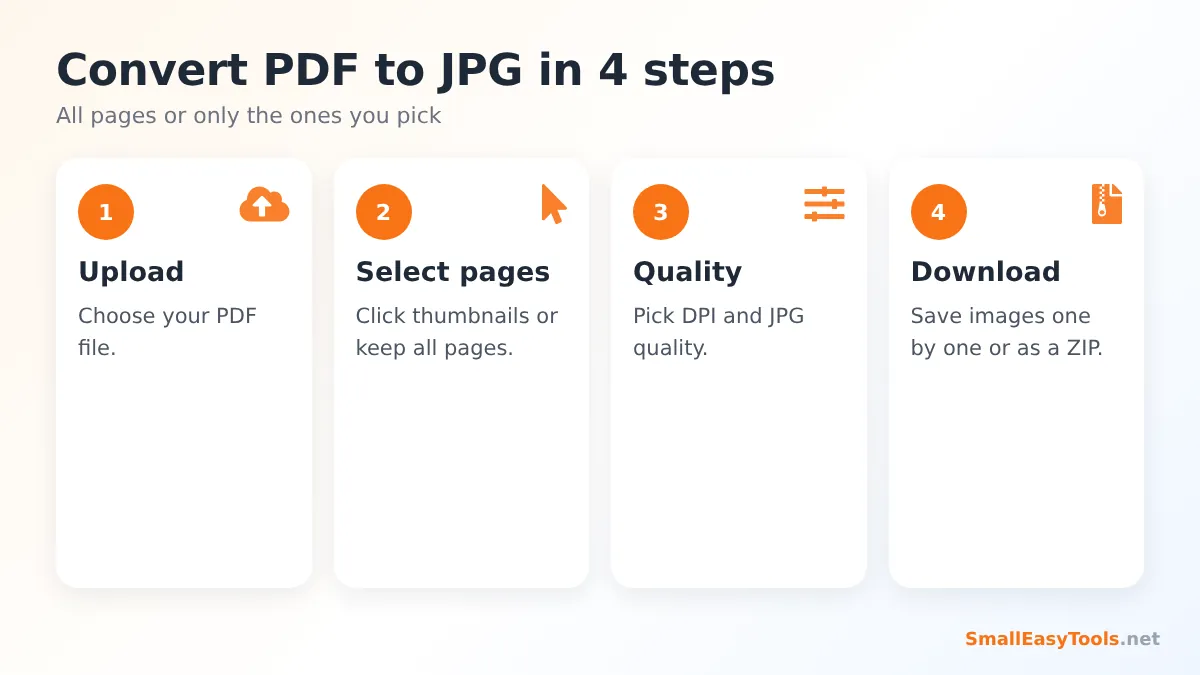
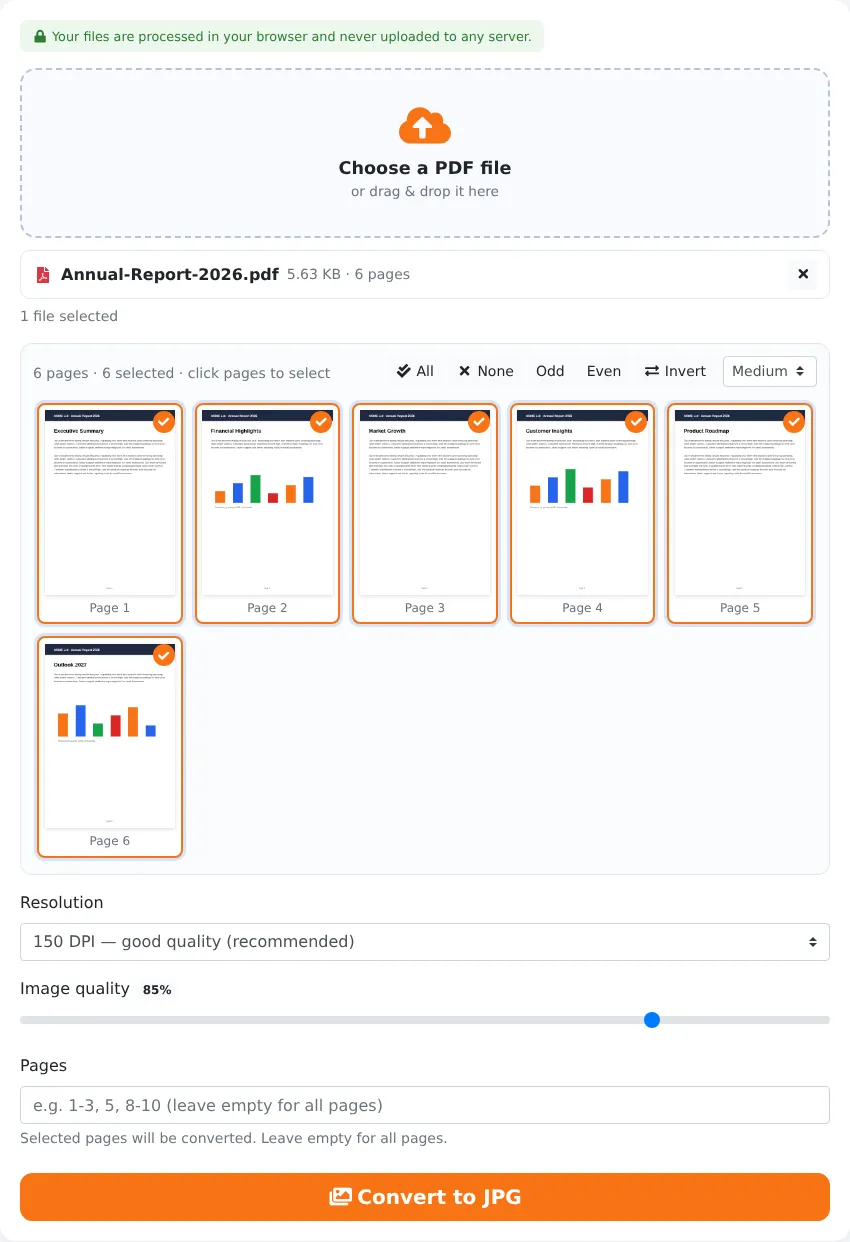
- Upload your PDF by clicking the upload area or dragging the file onto it. Thumbnails of every page appear.
- Select pages. All pages are selected by default. Click thumbnails to deselect pages you do not need, or type a range such as 1-3, 7.
- Choose resolution and quality. 150 DPI at 85% quality is a great default; choose 300 DPI for printing.
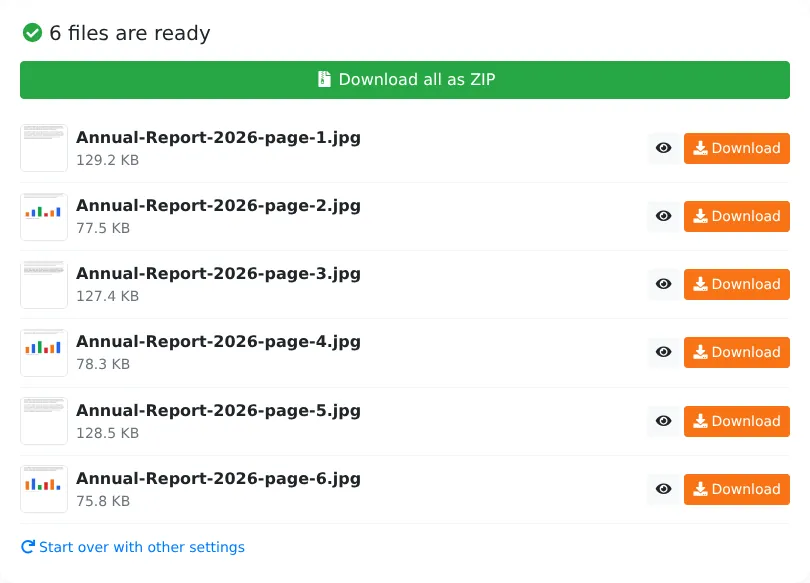
- Click “Convert to JPG” and download. Download images one by one or click Download all as ZIP. Files are named by page, for example report-page-1.jpg, report-page-2.jpg.
Which Resolution (DPI) Should You Choose?
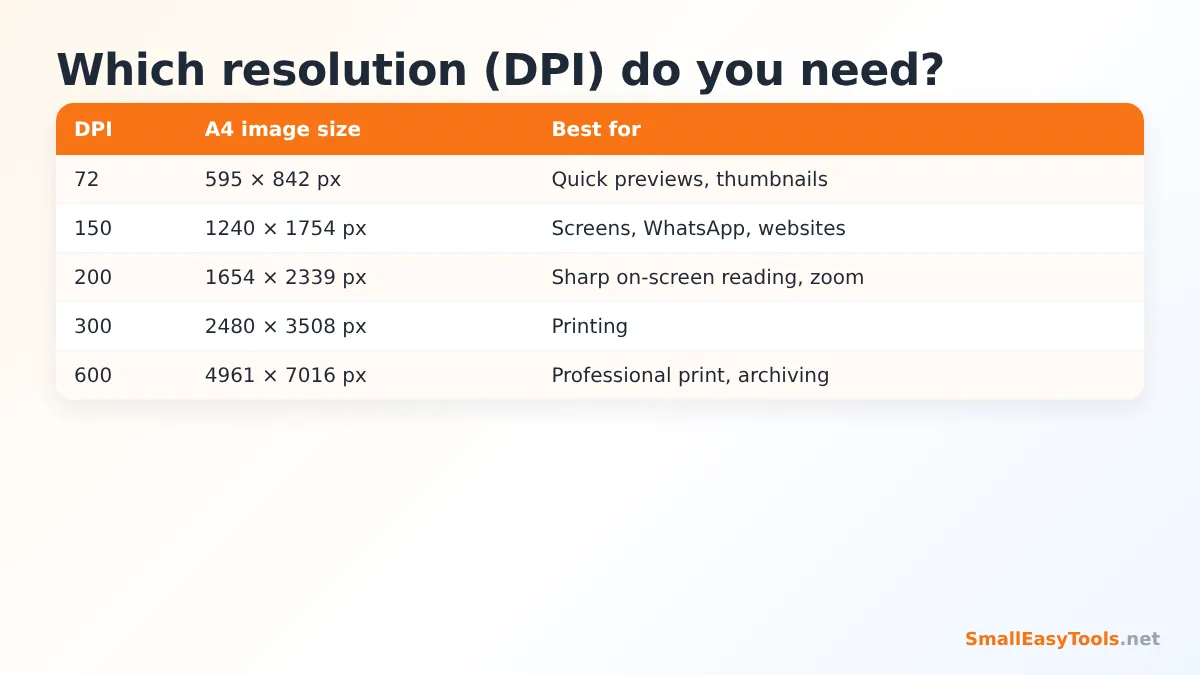
DPI (dots per inch) determines how many pixels each page gets. An A4 page is about 8.3 × 11.7 inches, so:
- 72 DPI gives roughly 595 × 842 pixels — fine for thumbnails, quick previews and small web images.
- 110 DPI gives roughly 910 × 1290 pixels — good for sharing on messaging apps.
- 150 DPI (recommended) gives roughly 1240 × 1754 pixels — sharp on laptop and phone screens and good for most websites, social media and presentations.
- 200 DPI gives roughly 1654 × 2339 pixels — high quality for zooming in on details or small text.
- 300 DPI gives roughly 2480 × 3508 pixels — print quality, the standard for professional printing.
- 600 DPI gives roughly 4961 × 7016 pixels — for archiving or very detailed technical drawings. Conversion is slower and files are large.
A simple rule: use 150 DPI for screens and 300 DPI for paper.
JPEG Quality Explained
JPG is a “lossy” format: it saves space by discarding detail the eye is unlikely to notice. The quality slider controls how much is discarded:
- 90–100%: almost indistinguishable from the original, but larger files.
- 80–89% (default 85%): the sweet spot — excellent quality with sensible file sizes.
- 60–79%: smaller files; slight artefacts may appear around sharp text.
- Below 60%: very small files, visible blockiness. Use only when size matters more than appearance.
JPG, PNG or WebP?
JPG is the most compatible image format: every phone, computer, website and app can open it. It is ideal for pages containing photos, scans and colourful designs. However, it is not always the best choice:
- For pages that are mostly text, line drawings or diagrams, PNG keeps edges perfectly crisp — use PDF to PNG. PNG also supports transparent backgrounds.
- For the smallest files on websites, WebP is usually 25–35% smaller than JPG at similar quality — use PDF to WebP.
- To pick the format per job and convert only specific pages, use PDF selected pages to images.
Common Uses for PDF to JPG
Sharing on social media
Instagram, Facebook, LinkedIn and X accept images, not PDFs. Convert a flyer, event poster, menu or infographic to JPG at 150 DPI and post it directly. For LinkedIn carousel posts, convert each slide of a PDF presentation to a separate image.
Adding pages to presentations and documents
Need a chart from a PDF report in your PowerPoint, Google Slides or Word document? Convert that page to JPG and insert the image. If you only need part of the page, trim it first with Crop PDF and then convert, so the image contains only the chart.
Uploading to websites that only accept images
Some job portals, marketplaces and government forms accept only JPG uploads for documents such as certificates and ID cards. Convert the page at 150–200 DPI and, if needed, reduce the file size with the quality slider.
Quick previews in messaging apps
A JPG appears directly in a WhatsApp or Telegram chat, while a PDF must be downloaded and opened. Converting the first page to JPG makes a perfect preview.
Creating thumbnails
Websites that offer PDF downloads (brochures, e-books, reports) often show a cover image. Convert page 1 at 72–110 DPI for a light, fast-loading thumbnail.
Editing in image software
Converting a page to an image lets you edit it in Photoshop, Canva or GIMP — for example to annotate, blur personal details or combine with other graphics.
Converting Only Certain Pages
Large documents can have hundreds of pages, and you rarely need all of them as images. Click the thumbnails to choose exactly the pages you want, or type ranges in the pages field: 1 converts only the cover, 2-5 converts pages 2 to 5, and 1, 4, 10-12 converts a mix. Fewer pages means faster conversion and a smaller ZIP.
Tips for the Best Results
- Match DPI to the destination — 150 for screens, 300 for print.
- Keep quality at 80–90% unless you have a strict file-size limit.
- Use PNG for text-heavy pages if you notice fuzzy edges around letters.
- Remove passwords first. Encrypted PDFs must be unlocked with Remove PDF password before conversion.
- Rotate pages first with Rotate PDF pages if any are sideways, so the images come out the right way up.
- Use the ZIP download for more than a few pages — one click instead of many.
How Does the Conversion Work?
The converter uses PDF.js, the same PDF rendering engine built into the Firefox browser. It draws each selected page onto an invisible canvas at the resolution you chose, exactly as a PDF viewer would display it, including fonts, vector graphics and images. The canvas is then encoded as a JPG with your chosen quality. Because the white page background is drawn first, the images never have the black or transparent backgrounds some converters produce.
All of this takes place in your browser on your own device. There is no upload, no server queue and no waiting for an email with a download link.
Privacy and Security
PDFs frequently contain private information: contracts, invoices, payslips, medical letters and identity documents. Uploading them to an unknown website is a real risk. Our tool processes everything locally, so the original PDF and the generated images stay on your device. Close the tab and nothing remains.
Troubleshooting
Conversion is slow
High DPI values multiply the number of pixels: a page at 300 DPI has four times as many pixels as at 150 DPI, and 600 DPI has sixteen times as many. Reduce the DPI or convert fewer pages at once, especially on phones.
The text looks blurry
Increase the DPI to 200 or 300, raise the quality, or switch to PNG for crisp text.
The images are too large
Lower the DPI or the quality slider. You can also shrink the finished images with the Image Optimizer.
Some text or fonts look different
Rarely, PDFs reference fonts that are not embedded in the file. The converter substitutes a similar font. Opening and re-saving the PDF in the program that created it, with fonts embedded, fixes this.
The PDF will not open
Try Repair PDF first, then convert the repaired copy.
Real-World Examples
Restaurant menu on Instagram
A café designs its new menu in Canva and exports it as a two-page PDF. To post it on Instagram and Facebook, the owner converts both pages to JPG at 150 DPI. The images look crisp on phones and upload in seconds.
Chart for a presentation
An analyst needs a chart from page 14 of a 60-page PDF report. Instead of taking a blurry screenshot, she selects only page 14, converts it at 200 DPI, and crops the chart in an image editor. The result is sharp even on a large projector screen.
Certificate for a job portal
A graduate’s degree certificate is a PDF, but the job portal asks for a JPG under 1 MB. Converting at 150 DPI with 80% quality gives a 400–600 KB image that clearly shows every detail.
E-book cover thumbnail
A blogger offers a free PDF guide and wants a cover image for the download page. Converting page 1 at 110 DPI produces a lightweight image that loads quickly and looks great on the website.
Screenshots vs Proper Conversion
Many people simply take a screenshot of a PDF page. It works in a hurry, but a screenshot is limited to the pixels on your screen, often includes toolbars and scroll bars, and its quality depends on the zoom level of your viewer. A proper conversion renders the page at exactly the resolution you choose, with no interface elements and with consistent page edges. For a single quick message a screenshot is fine; for anything you will publish, print or submit, converting gives a noticeably more professional result.
Image Size Cheat Sheet for Popular Platforms
Different destinations prefer different image sizes. These settings work well for a standard A4 or Letter page:
- Instagram and Facebook posts: 150 DPI, 85% quality. Portrait pages display nicely in a 4:5 feed.
- LinkedIn carousels: 150 DPI for each slide; keep text large so it stays readable on phones.
- WhatsApp and Telegram: 110–150 DPI. Messaging apps recompress images, so very high resolutions waste data.
- Website blog images: 110–150 DPI with 75–80% quality, or use WebP for even faster pages.
- Office printing: 300 DPI, 90% quality.
- Online application forms: 150 DPI and lower the quality until the file fits the limit.
Frequently Asked Questions
Is the PDF to JPG converter free?
Yes — no sign-up, no watermark and no page limits.
Can I convert all pages at once?
Yes. All pages are selected by default; download them together as a ZIP.
Can I convert just one page?
Yes. Click only that page’s thumbnail or type its number in the pages field.
What DPI is best?
150 DPI for screens and the web, 300 DPI for printing.
Does it work on iPhone and Android?
Yes, in any modern mobile browser. On iPhone, open an image and use Share → Save Image to save it to Photos.
Are my files uploaded?
No. Conversion happens entirely in your browser.
How do I convert the images back to a PDF?
Use JPG to PDF and add the images in order.
Related Tools
- JPG to PDF – turn images back into a PDF document.
- PDF to PNG – lossless images with optional transparency.
- PDF to WebP – the smallest images for websites.
- Extract images from PDF – save the original photos embedded in a PDF.
- Compress PDF – shrink a PDF instead of converting it.
Similar tools Maybe You Like or need
Convert PDF pages to high-quality PNG images online. Choose 72–600 DPI, transparent background, all pages or selected pages. Free, private, no upload.
Convert JPG images to PDF online. Combine many images into one PDF, choose A4 or Letter, orientation, margins and quality. Free and private.
Pick specific PDF pages with visual thumbnails and convert them to PNG, JPG or WebP images at any resolution. Free and private.
Most Popular Online Tools
Convert kilometers per hour to miles per hour (km/h to mph) instantly. 1 km/h = 0.621371192 mph. Free speed converter with formula and chart.
Free WhatsApp link generator. Create a wa.me click-to-chat link with your phone number and a pre-filled message for websites, ads and social bios.
Free hosting checker. Find out which company hosts any website, plus its IP address and server location. Ideal for research and migrations.
Free DNS lookup tool. Check A, AAAA, CNAME, MX, NS, TXT and SOA records of any domain instantly to verify DNS settings and troubleshoot email or website issues.
Free strong password generator. Create secure random passwords with custom length, numbers, symbols and upper/lowercase letters instantly.
Free IP lookup tool. See your IP address or check any IP to find its country, city, ISP, time zone and more. Fast, accurate and no sign-up.