Crop PDF
Crop PDF pages online with smart auto-crop that removes white margins, or set exact margins in mm. Free, private and accurate.
Crop PDF Pages Online – The Complete Guide
Many PDFs waste a surprising amount of space. Academic papers and books have wide white margins designed for printing, scanned pages come with dark scanner borders, slides exported to PDF have empty areas around the content, and invoices or receipts sit in a corner of a huge A4 page. On a phone or e-reader, those margins make the actual text tiny. When printing, they waste paper. And when placing a page in another document, the white space gets in the way.
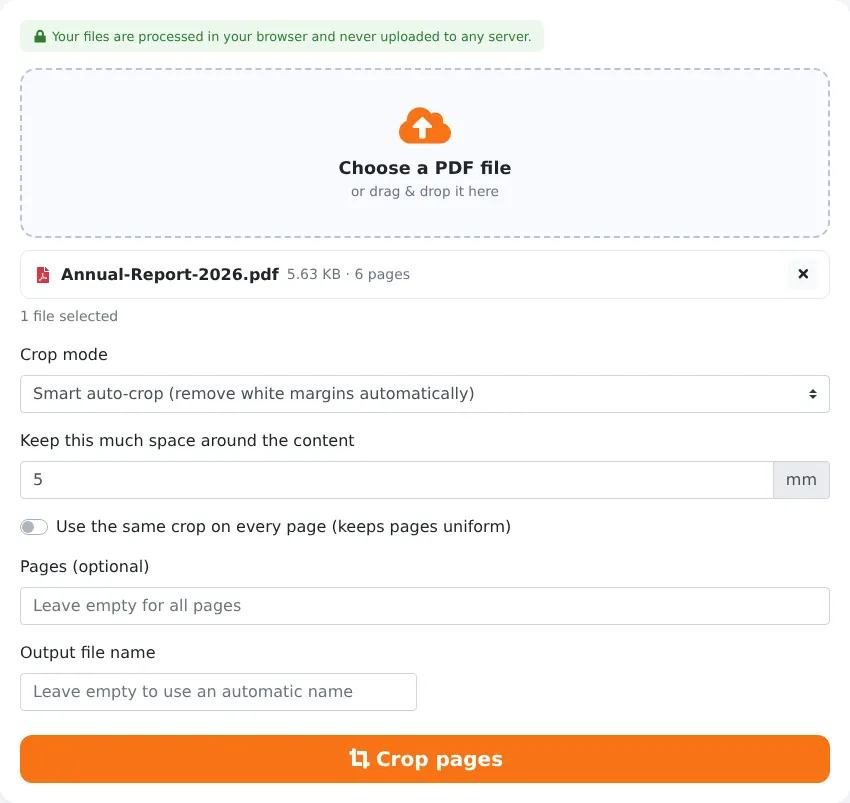
Our free Crop PDF tool trims pages in two ways: smart auto-crop, which detects the content on each page and removes the empty margins automatically, or manual margins, where you specify exactly how many millimetres to cut from each side. You can apply the same crop to every page for a uniform look, limit cropping to certain pages and keep a little breathing room around the content. Everything runs in your browser, so your document stays private.
Key Features at a Glance
- Smart auto-crop that finds the content on every page and removes white margins.
- Adjustable padding so content does not touch the new page edge.
- Option to use one crop box for all pages, keeping page sizes uniform.
- Manual mode with separate top, bottom, left and right margins in millimetres.
- Crop all pages or only a selected range.
- Correct handling of rotated pages.
- Lossless: text stays searchable and images keep their quality.
How to Crop a PDF in 4 Steps
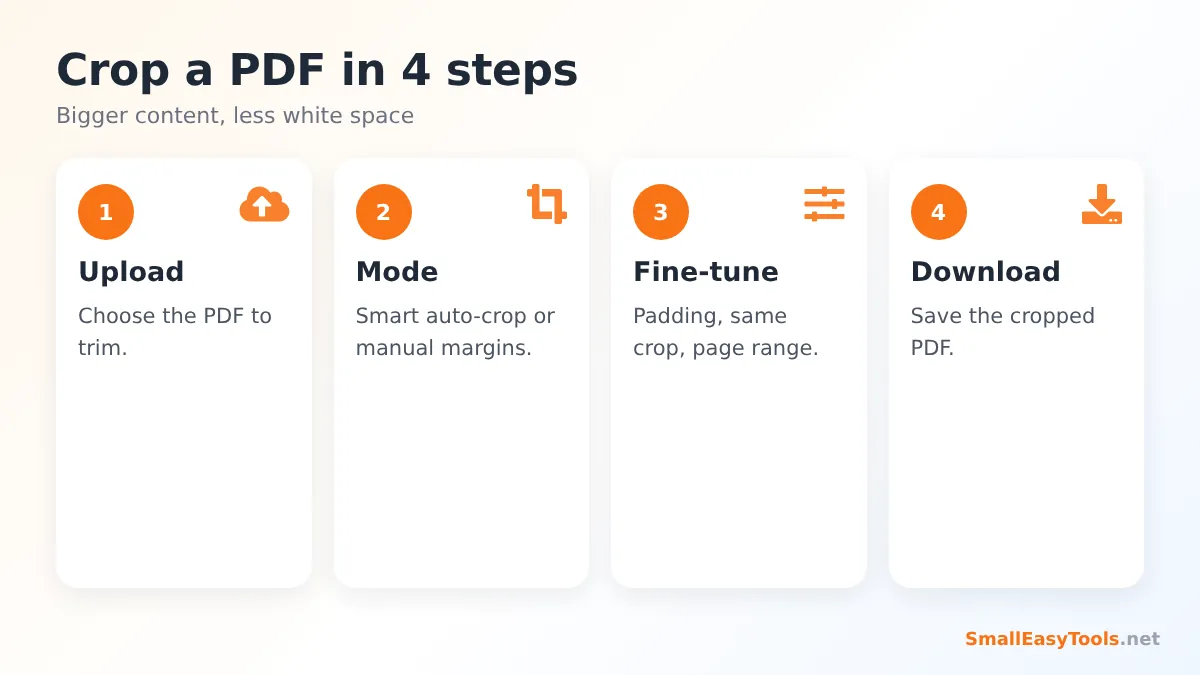
- Upload the PDF by clicking the upload area or dragging the file onto it.
- Choose a crop mode: Smart auto-crop (recommended) or Manual margins.
- Fine-tune: set the padding to keep around the content, choose whether all pages should share the same crop, or enter the margins to cut in manual mode. Optionally limit cropping to specific pages.
- Click “Crop pages” and download the cropped PDF.
Smart Auto-Crop vs Manual Margins
Smart auto-crop
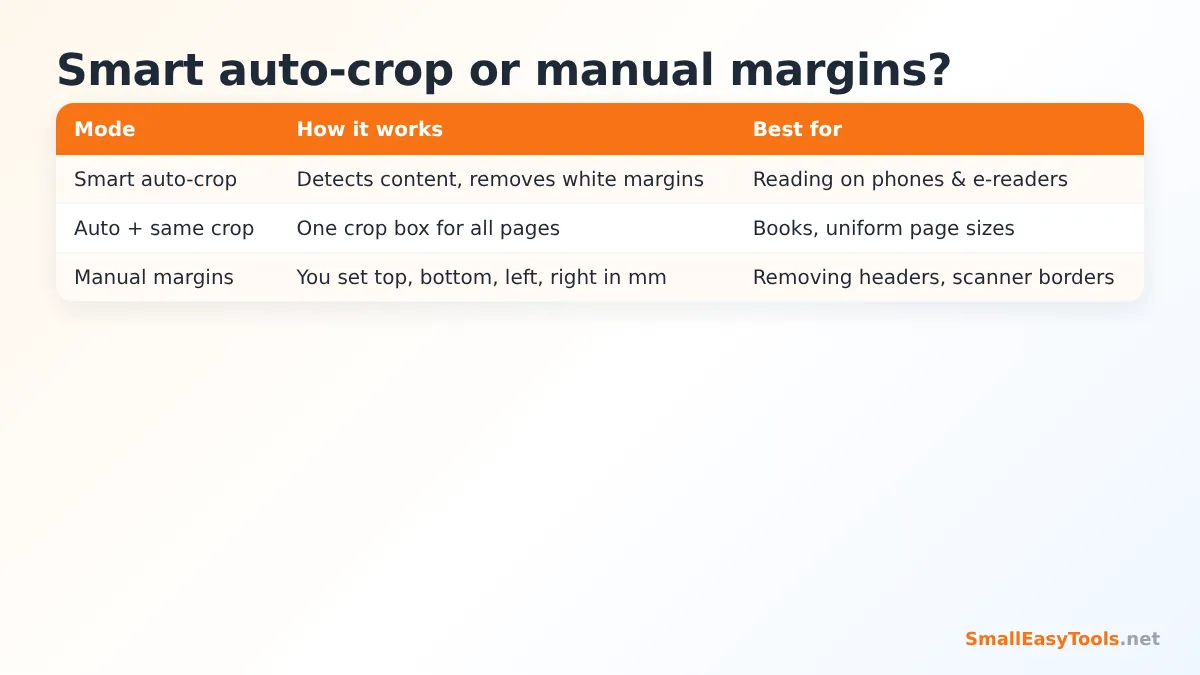
The tool renders each page, finds the area that contains text, lines or images, and sets the crop box tightly around it — plus the padding you choose (5 mm by default). Every page is cropped individually, so a page with a small amount of content is trimmed more than a full page. This is ideal for reading documents on small screens, cutting out a single figure or receipt, or removing the empty half of a sparsely filled page.
Same crop on every page
Tick “Use the same crop on every page” and the tool calculates one crop box that fits the content of all pages. The pages stay the same size as each other, which looks better when reading a book or printing a document, and avoids pages “jumping” in size as you scroll.
Manual margins
Enter how many millimetres to remove from the top, bottom, left and right. Use manual mode to remove things that auto-crop would keep because they are content — such as page headers and footers, a running title, scanner shadows, punch-hole marks or a dark border along one edge.
What Cropping Does (and Does Not) Do
Every PDF page has a crop box that tells PDF readers which part of the page to show and print. Cropping changes this box. The content outside the box is hidden from view and from printing, and the visible page becomes smaller. The page content itself is not re-rendered or recompressed, so:
- text stays sharp, selectable and searchable;
- images and vector graphics keep their full quality;
- the file size stays practically the same.
An important consequence: cropping hides content but does not necessarily delete it from the file. Someone with advanced PDF software could reset the crop box and see the hidden areas again. Never rely on cropping to remove confidential information. If you need to get rid of sensitive content permanently, remove the whole page with Remove PDF pages, or convert the cropped pages to images, for example with an image-based level of Compress PDF.
Reasons to Crop PDF Pages
Easier reading on phones, tablets and e-readers
On a 6-inch screen, wide margins can shrink text to an unreadable size. Auto-cropping a book, paper or manual makes the text noticeably larger without zooming and scrolling sideways.
Removing scanner borders
Scans often have dark or grey edges where the scanner lid did not cover the paper. Manual margins of a few millimetres remove them for a cleaner look.
Isolating a figure, table or receipt
To use a chart or table from a report in a presentation, crop the page tightly around it and then convert it with PDF to PNG. Receipts and tickets that occupy only part of an A4 page can be trimmed in the same way.
Preparing pages for printing several per sheet
Before using PDF N-up to print 2 or 4 pages per sheet, cropping the margins lets the content appear larger on paper.
Removing headers and footers
Running headers, confidentiality notices or page numbers in the margins can be trimmed off with manual margins when you want a clean extract.
Crop vs Resize vs Add Margins
- Crop PDF cuts away part of the page and makes the visible page smaller.
- Resize PDF pages changes the paper size, for example from Letter to A4, scaling the content to fit.
- Add PDF margins does the opposite of cropping: it adds white space around the content, for example for binding or notes.
A useful combination: crop away uneven scanner borders, then resize all pages to A4 so the document prints consistently.
Tips for Perfect Crops
- Keep some padding. 3–8 mm around the content looks natural; 0 mm can feel cramped and may cut off anti-aliased edges.
- Use “same crop” for books and long documents to keep page sizes consistent.
- Use manual mode for headers and footers, because auto-crop treats them as content.
- Crop only specific pages when a document mixes full-page content with sparse pages.
- Rotate first with Rotate PDF pages if pages are sideways, so top and bottom margins mean what you expect.
- Check the result on the device where you will read or print it.
Privacy
Cropping runs entirely in your browser. PDF.js renders pages to find the content area, and pdf-lib updates the crop boxes. Your document is never uploaded to a server.
Troubleshooting
Auto-crop leaves a lot of space
Something faint is being detected as content — a light page border, a watermark, a footer or scanner noise. Use manual margins instead.
Auto-crop cuts too close
Increase the padding value.
Pages now have different sizes
Tick “Use the same crop on every page”.
The cropped area reappears in another program
Some editors ignore crop boxes. Convert the pages to images if the hidden area must be gone permanently.
The PDF will not load
Unlock password-protected files with Remove PDF password, or fix damaged files with Repair PDF.
Real-World Examples
Reading research papers on a phone
A student reads academic papers on the train. Journal PDFs have generous margins designed for printing, so the text is tiny on a phone. Auto-cropping with “same crop on every page” and 4 mm padding makes the text about 20–30% larger without any zooming or horizontal scrolling.
Receipts for an expense report
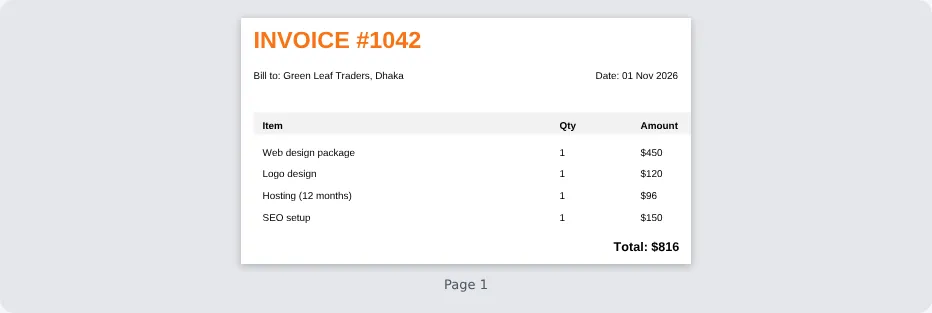
A scanned A4 page contains a small receipt in the top-left corner. Smart auto-crop trims the page to the receipt, which then fills the screen when the finance team opens it.
Scanned book pages
A book scanned on a flatbed scanner shows a dark shadow along the spine and a grey border on the outside of every page. Manual margins of 12 mm on the inner side and 6 mm on the outer side remove both, producing a much cleaner digital copy.
Slides for a handout
Presentation slides exported to PDF often contain empty space around small charts. Cropping them before printing four slides per page with PDF N-up makes the content legible on paper.
Cropping on a Phone or Tablet
The tool works in any modern mobile browser. Upload a PDF, keep Smart auto-crop selected and tap “Crop pages”. The cropped PDF downloads to your device and is often much easier to read on that same small screen. Manual mode works too: just enter the margins in millimetres. As a reference, 10 mm is about the width of a fingernail.
Mistakes to Avoid
- Using crop to hide secrets. As explained above, cropped content can still exist in the file.
- Cutting into content. Large manual margins can remove page numbers, footnotes or the edge of tables. Check every page type in your document.
- Mixing page sizes unintentionally. Without “same crop”, each page gets its own size. That is great for reading but can look uneven when printed.
- Cropping before adding numbers. If you plan to add page numbers or headers, add them after cropping so they sit within the visible area.
A Quick Glossary
- Crop box – the visible area of a PDF page; cropping changes it.
- Media box – the full physical size of the page, including any hidden area.
- Padding – the white space kept between the content and the new page edge.
- Margin – in manual mode, the amount cut from each side of the page.
Frequently Asked Questions
Is Crop PDF free?
Yes, with no registration, watermark or limits.
Can I crop white margins automatically?
Yes. Smart auto-crop detects the content and removes empty margins.
Can I crop only one page?
Yes. Enter its page number in the Pages field.
Does cropping reduce quality?
No. Only the visible area changes; content is not recompressed.
Does cropping make the file smaller?
Not significantly, because the hidden content remains in the file. Use Compress PDF to reduce size.
Are my files uploaded?
No. Cropping happens in your browser.
Can I undo a crop?
Your original file is never changed, so you can always start again from it.
Does it work with scanned PDFs?
Yes. Auto-crop detects the scanned content; manual margins are best for removing dark scanner borders.
Can I crop scanned documents with dark borders?
Yes. Use manual margins to cut the dark borders off each side.
Does it work on phones?
Yes. Smart auto-crop is especially useful for making PDFs easier to read on small screens.
Will links and text still work after cropping?
Yes. Cropping only changes the visible area; text remains searchable and links keep working.
Related Tools
- Resize PDF pages – change the paper size.
- Add PDF margins – add white space around content.
- PDF N-up – several pages per sheet.
- PDF page size checker – see each page’s dimensions.
- Scan to PDF – create clean scans from photos.
Similar tools Maybe You Like or need
Change PDF page size to A4, Letter, A3, Legal or any custom size. Fit, fill or stretch content and add margins. Free online and private.
Analyse a PDF: page count, word and character count, images, fonts, links, form fields, attachments, reading time. Free online PDF analyzer.
Merge PDF files online for free. Combine multiple PDFs into one document, reorder files by drag and drop, add blank separator pages. Private, no upload, no watermark.
Most Popular Online Tools
Convert kilometers per hour to miles per hour (km/h to mph) instantly. 1 km/h = 0.621371192 mph. Free speed converter with formula and chart.
Free WhatsApp link generator. Create a wa.me click-to-chat link with your phone number and a pre-filled message for websites, ads and social bios.
Free hosting checker. Find out which company hosts any website, plus its IP address and server location. Ideal for research and migrations.
Free DNS lookup tool. Check A, AAAA, CNAME, MX, NS, TXT and SOA records of any domain instantly to verify DNS settings and troubleshoot email or website issues.
Free strong password generator. Create secure random passwords with custom length, numbers, symbols and upper/lowercase letters instantly.
Free IP lookup tool. See your IP address or check any IP to find its country, city, ISP, time zone and more. Fast, accurate and no sign-up.