Scan to PDF
Turn phone photos of documents into clean, scanner-quality PDFs. Smart document enhancement, black & white mode and page sizing. Free and private.
Scan to PDF with Your Phone – The Complete Guide
Most people no longer own a scanner, yet we still need to scan paper all the time: a signed form, a utility bill for proof of address, a doctor’s note, receipts for an expense claim, a handwritten assignment or an old certificate. The camera in your phone is more than good enough to capture these documents — but a plain photo is not a scan. Photos of paper look grey and yellowish, shadows fall across the text, and a set of separate images is awkward to send.
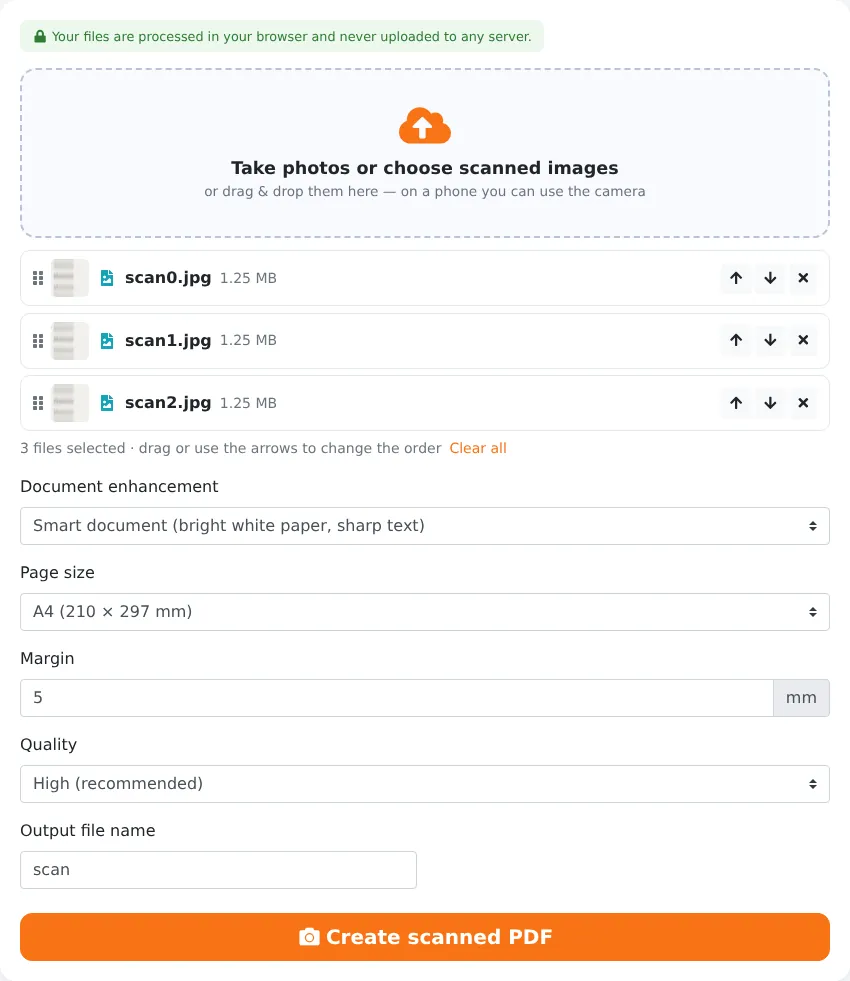
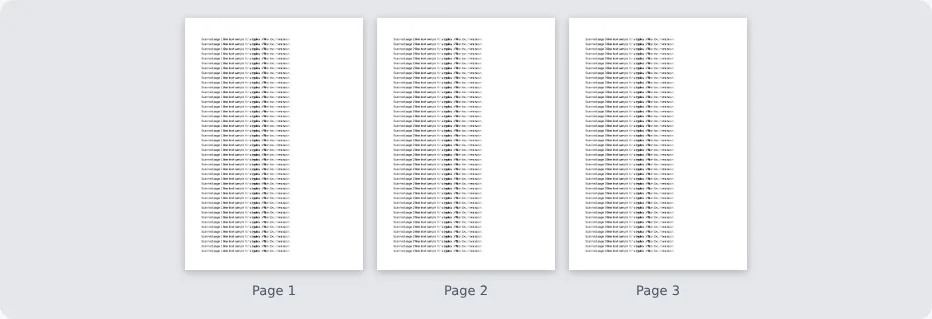
Our free Scan to PDF tool turns photos of paper into clean, scanner-like pages and combines them into one PDF. Its smart document enhancement brightens the paper to white and darkens the text, or you can choose black and white, grayscale or boosted colour. Arrange the pages, pick a paper size, and download a professional multi-page PDF. No app to install, no account, and your photos never leave your device.
Key Features at a Glance
- Works with photos from any phone camera or existing scanned images.
- Five enhancement modes: smart document, black and white, grayscale, colour boost and none.
- Combines any number of pages into one PDF, in the order you choose.
- Standard page sizes such as A4 and Letter, or the size of each photo.
- Adjustable margins and three quality levels for small or high-quality files.
- Runs entirely in your browser — private, free and without watermarks.
How to Scan Documents to PDF in 4 Steps
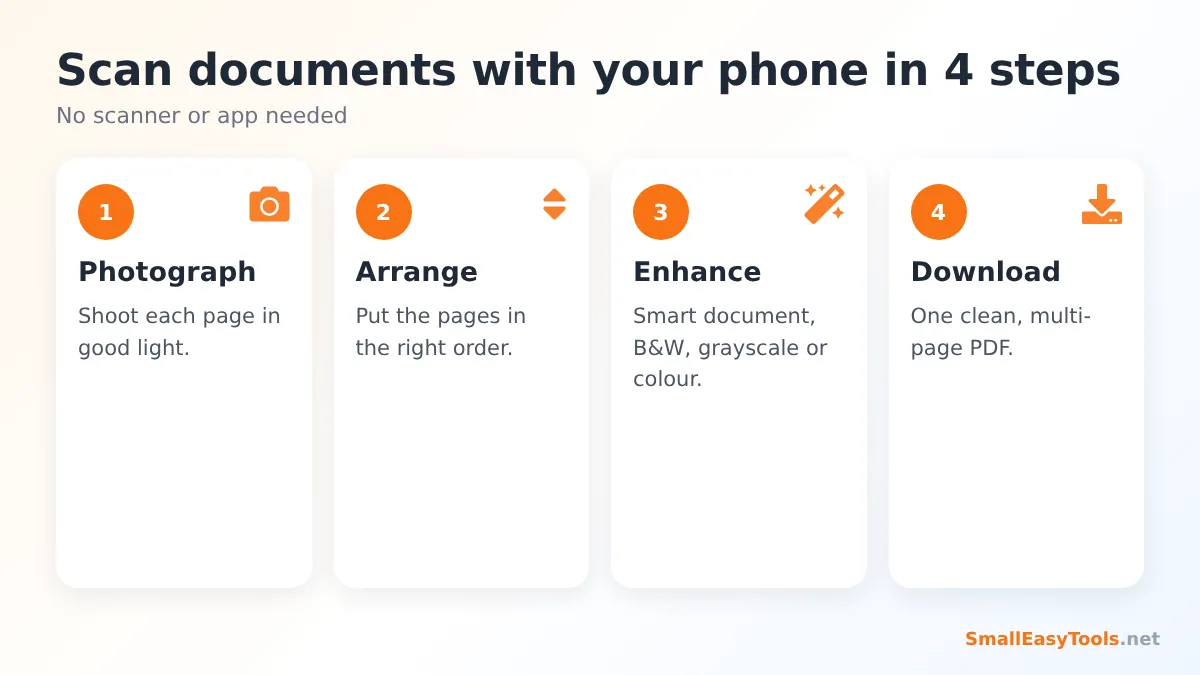
- Photograph each page with your phone camera, or select existing photos or scans. On a phone, tapping the upload area lets you choose from your gallery or files.
- Arrange the pages. Drag the cards or use the arrows to put pages in the right order. Remove any blurry shot and add a better one.
- Choose an enhancement and settings: Smart document is the best default for letters and forms.
- Tap “Create scanned PDF” and download your document.
The Five Enhancement Modes
Smart document (recommended)
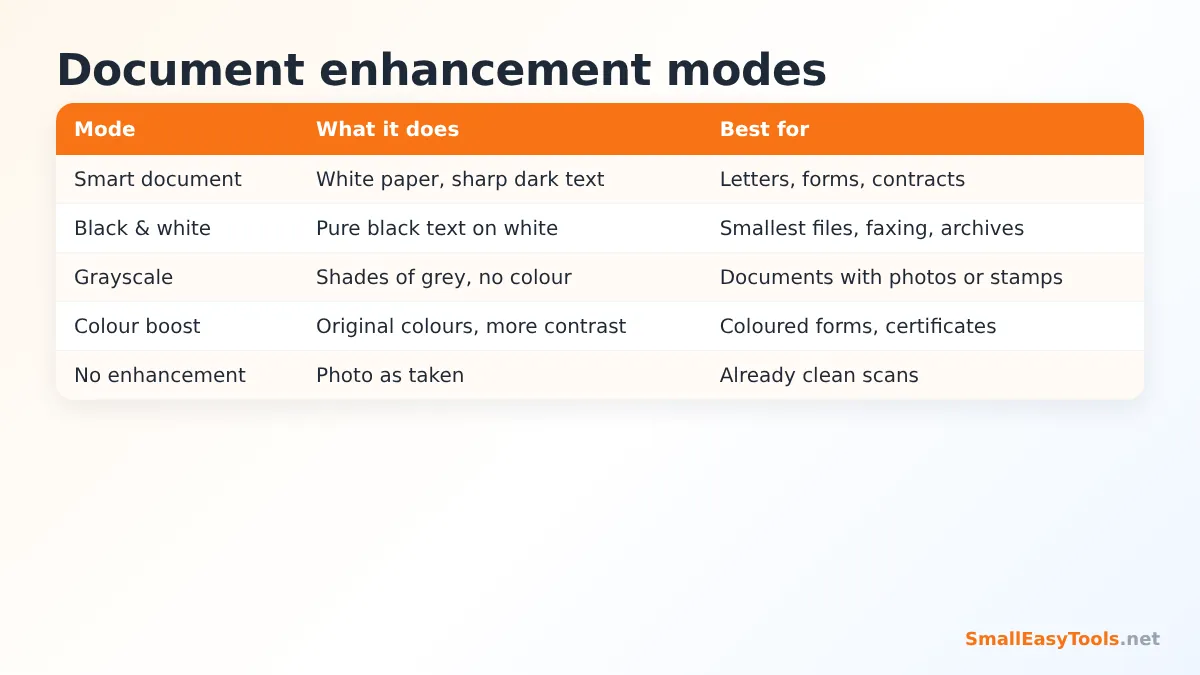
Analyses the brightness of the photo and stretches it so that the paper becomes clean white and the text becomes dark and sharp. Shadows and the yellowish tint of indoor lighting are reduced. This is the best choice for letters, forms, contracts, invoices and most printed documents.
Black and white
Converts every pixel to pure black or pure white. Files become very small and text looks crisp, like a fax or photocopy. Ideal for text-only documents, archiving and strict upload limits. Not suitable for photos, coloured stamps or signatures in blue ink that must remain visible as such.
Grayscale
Removes colour while keeping shades of grey, so photos, logos and stamps remain recognisable. A good compromise when a document contains images.
Colour boost
Keeps the original colours but increases contrast. Use it for coloured certificates, ID cards, diplomas, brochures and documents where colour carries meaning (for example highlighted text or coloured stamps).
No enhancement
Uses the photos as they are. Choose this when your images are already clean scans and you only need to combine them into a PDF.
How to Take Good Document Photos
The enhancement can only work with what the camera captures. These tips make a dramatic difference:
- Use plenty of even light. Daylight near a window is ideal. Avoid a single ceiling lamp directly above you, because your phone and hands will cast shadows on the paper.
- Turn off the flash on glossy paper and photos, as it creates bright reflections that hide text.
- Hold the phone parallel to the paper, directly above the centre. Tilting the phone makes the page look like a trapezoid.
- Fill the frame with the page. Get close enough that the document covers almost the whole photo, leaving only a thin border of background. The less background, the cleaner the result.
- Use a plain, contrasting surface. A dark table under white paper is better than a patterned tablecloth.
- Flatten the paper. Unfold creases and hold curled pages down at the edges, outside the frame.
- Tap to focus on the text before taking the photo, and keep still. Check that small print is sharp before moving on.
- Use the main camera, not the front camera, and avoid digital zoom.
Choosing Page Size, Margin and Quality
Page size
A4 is the standard in most countries and Letter in the United States and Canada. Choosing a standard size means your PDF prints at the right size and looks like a proper scanned document. “Same as each photo” keeps the photo dimensions, which is useful for receipts and odd-sized documents.
Margin
The default 5 mm margin gives each page a neat white border. Set 0 mm if you want the photo to reach the edge of the page.
Quality
- Best – maximum detail, larger files.
- High (recommended) – excellent readability with sensible file sizes.
- Medium – smallest files, ideal for portals with 1–2 MB limits.
If the file is still too large, reduce it further with Compress PDF, or choose the Black and white mode, which produces the smallest scans.
What You Can Scan
Proof of address and identity
Utility bills, bank letters and ID documents for rental, banking or job applications. Use Colour boost for ID cards and Smart document for letters. Consider adding a watermark such as “Copy for rental application” with Add text watermark before sending.
Receipts and invoices
Scan receipts as soon as you get them — thermal paper fades over time. One PDF per month makes tax time much easier.
Signed forms
Print, sign by hand, scan and send back. Or skip the printing entirely and sign digitally with Sign PDF.
Homework and handwritten notes
Students can scan handwritten assignments into one PDF for online submission. Smart document makes pencil and pen writing much more legible.
Old documents and certificates
Digitise birth certificates, school diplomas, letters and family records to keep a backup copy safe from fire, water or loss.
Whiteboards and flip charts
Capture meeting notes on a whiteboard; the enhancement helps remove glare and grey backgrounds.
After Scanning: Useful Next Steps
- Fix sideways pages with Rotate PDF pages.
- Trim dark borders around pages with Crop PDF.
- Combine the scan with other documents using Merge PDF.
- Add page numbers with Add page numbers for long documents.
- Protect sensitive scans with Protect PDF with password.
Scan to PDF vs JPG to PDF
Both tools turn images into a PDF, but they serve different purposes. JPG to PDF keeps your photos exactly as they are, which is right for real photographs and already clean images. Scan to PDF processes each image to make paper look white and text look dark, which is right for documents photographed with a phone. If your images are a mix of formats, Images to PDF accepts them all.
Is a Phone Scan Good Enough?
For almost all everyday purposes, yes. A modern phone camera captures 12 megapixels or more — comparable to a flatbed scanner at 300 DPI for an A4 page. Most organisations that accept uploaded documents care that the document is legible, complete and not cropped, not about the device that captured it. Take care that all four edges of the page are visible, nothing is covered by fingers, and the text is sharp. For legal originals or professional archiving, an official scan or certified copy may still be required.
Privacy
The documents we scan are some of the most personal we have: IDs, bank letters, medical notes and contracts. Many scanning apps upload pages to a cloud service, sometimes for OCR or storage, and some require an account. Our tool processes every image inside your browser. Nothing is uploaded, stored or analysed on a server.
Troubleshooting
The background around the page turns black
The enhancement darkens anything that is not paper. Fill the frame with the page when photographing, or trim the borders afterwards with Crop PDF.
The text is faint
Use better light and try Black and white mode, which forces text to pure black.
The PDF is too large
Choose Medium quality or the Black and white mode.
Pages are in the wrong order
Drag the cards before creating the PDF, or reorder pages later with Organize PDF.
iPhone HEIC photos are not accepted
Most browsers convert HEIC to JPG automatically when you select photos. If not, convert them first with HEIC to JPG.
Real-World Examples
Renting a flat
A letting agent asks for a payslip, a bank letter and a utility bill as one PDF by the end of the day. Without a scanner, the applicant photographs each document on the kitchen table by the window, uses Smart document enhancement and A4 pages, and sends a clean three-page PDF within five minutes.
Monthly expenses
A field sales representative collects fuel and meal receipts during the week. Every Friday, the receipts are photographed and turned into one PDF in Black and white mode — small enough to email, and legible for the finance team.
Handwritten exam practice
A student completes practice papers by hand. Scanning them in Smart document mode makes pencil writing dark and readable, so the teacher can mark the work online.
Scanning on iPhone and Android
On both platforms, open this page in your browser and tap the upload area. Depending on your phone, you can choose “Take photo” or “Camera” to shoot pages directly, or “Photo library”, “Gallery” or “Files” to pick photos you have already taken. Shooting all pages first in the camera app and then selecting them together is usually fastest. After creating the PDF, iPhone users can tap Share to save it to Files, AirDrop it or attach it to an email; Android users find it in the Downloads folder.
Frequently Asked Questions
Is Scan to PDF free?
Yes — no app, no account, no watermark and no limits.
Do I need a scanner?
No. Photos from any phone camera work.
Can I scan multiple pages into one PDF?
Yes. Add all page photos and arrange them in order.
Which enhancement mode should I use?
Smart document for most papers, Black and white for the smallest files, Colour boost for coloured certificates and IDs.
Does it make the text searchable?
No. The pages are images. Searchable text requires OCR, which this tool does not perform.
Does it work on iPhone and Android?
Yes, in any modern mobile browser.
Are my photos uploaded?
No. Everything is processed on your device.
How many pages can I scan into one PDF?
There is no fixed limit. Dozens of pages work well on phones; very long documents are faster on a computer.
Related Tools
- JPG to PDF – convert photos without enhancement.
- Compress PDF – shrink scans for upload portals.
- Grayscale PDF – convert existing PDFs to black and white.
- Remove blank PDF pages – clean up scanned documents.
- Sign PDF – sign without printing.
Similar tools Maybe You Like or need
Convert TXT files or pasted text to a clean PDF with your choice of font, size, margins, line spacing and page numbers. Free and private.
Extract the original embedded images from a PDF as PNG or JPG. Skip tiny icons and duplicate logos automatically. Free and private.
Merge PDF files online for free. Combine multiple PDFs into one document, reorder files by drag and drop, add blank separator pages. Private, no upload, no watermark.
Most Popular Online Tools
Convert kilometers per hour to miles per hour (km/h to mph) instantly. 1 km/h = 0.621371192 mph. Free speed converter with formula and chart.
Free WhatsApp link generator. Create a wa.me click-to-chat link with your phone number and a pre-filled message for websites, ads and social bios.
Free hosting checker. Find out which company hosts any website, plus its IP address and server location. Ideal for research and migrations.
Free DNS lookup tool. Check A, AAAA, CNAME, MX, NS, TXT and SOA records of any domain instantly to verify DNS settings and troubleshoot email or website issues.
Free strong password generator. Create secure random passwords with custom length, numbers, symbols and upper/lowercase letters instantly.
Free IP lookup tool. See your IP address or check any IP to find its country, city, ISP, time zone and more. Fast, accurate and no sign-up.