Add text watermark to PDF
Add a text watermark like CONFIDENTIAL or DRAFT to PDF pages. Diagonal, tiled or positioned, with custom font, colour, opacity and rotation. Free and private.
Add a Text Watermark to PDF – The Complete Guide
A watermark is a simple message stamped across the pages of a document: CONFIDENTIAL, DRAFT, COPY, SAMPLE, PAID, a company name, or the name of the person receiving the document. It tells every reader, at a glance, how the document should be treated. It discourages unauthorised copying, prevents a draft from being mistaken for a final version, and makes it obvious who a leaked copy came from.
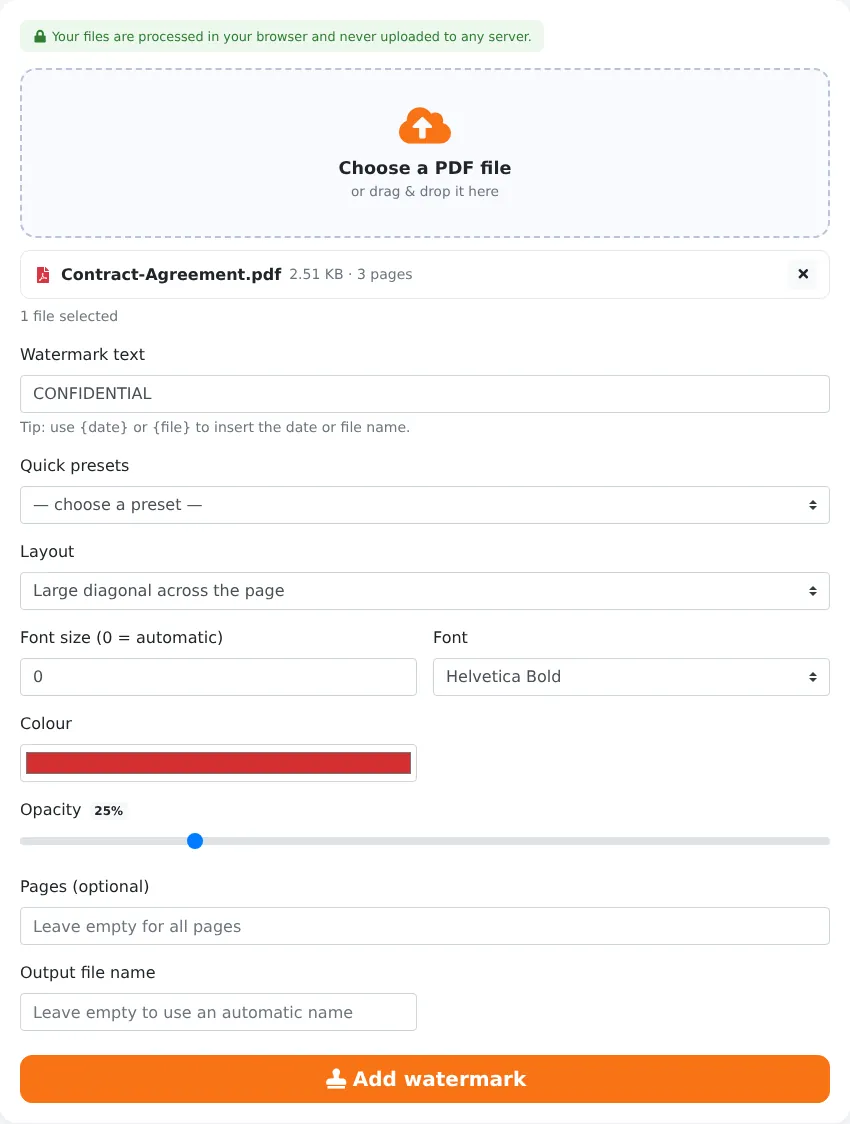
Our free Add text watermark to PDF tool adds a watermark to every page — or only the pages you choose — in three layouts: a large diagonal text across the page, repeated tiles that cover the whole page, or text at a specific position. You control the text, font, size, colour, opacity and rotation, and you can insert the date or the file name automatically. The watermark is added in your browser, so your document is never uploaded.
Key Features at a Glance
- Seven ready-made presets: CONFIDENTIAL, DRAFT, COPY, SAMPLE, DO NOT COPY, PAID and APPROVED.
- Three layouts: large diagonal, repeated tiles or a precise position.
- Automatic font sizing that fits the text to the page.
- Full control over font, colour, opacity and rotation.
- Dynamic text with {date} and {file} placeholders.
- Watermark all pages or only selected pages.
- Works correctly on rotated and mixed-size pages.
- No upload, no account — and no watermark of our own.
How to Watermark a PDF in 4 Steps
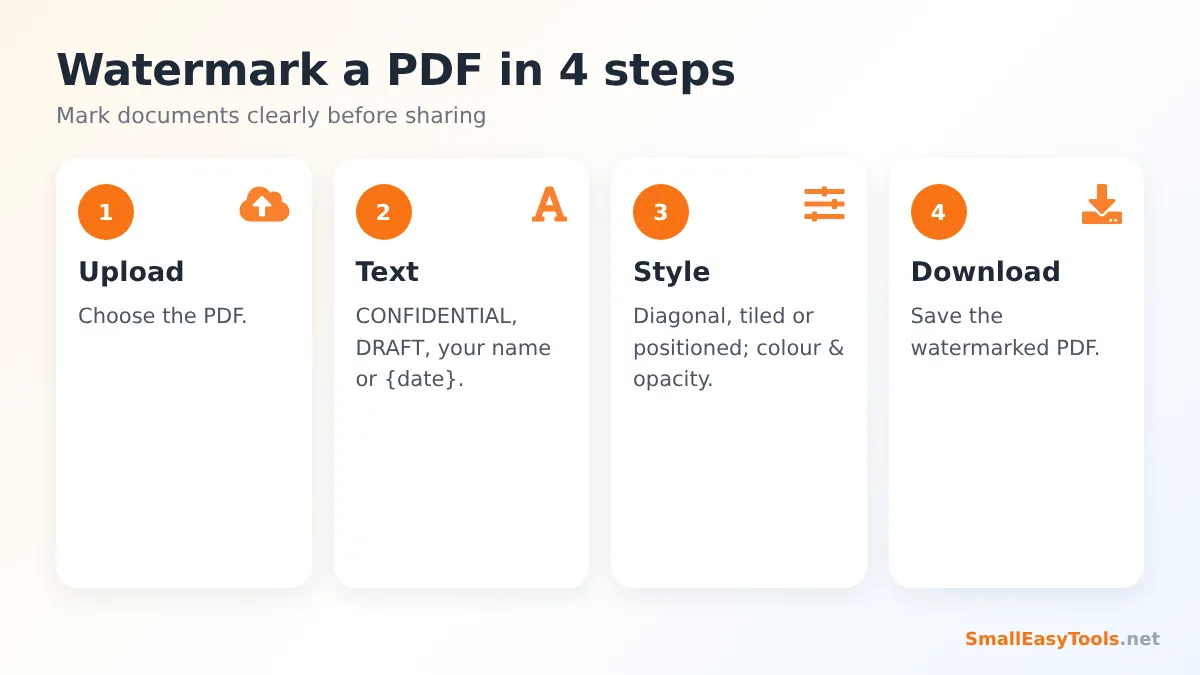
- Upload your PDF by clicking the upload area or dragging the file onto it.
- Enter the watermark text or choose a quick preset: CONFIDENTIAL, DRAFT, COPY, SAMPLE, DO NOT COPY, PAID or APPROVED.
- Choose the style: layout (diagonal, tiled or positioned), font, size, colour, opacity and, for tiled or positioned text, the rotation angle. Optionally limit the watermark to certain pages.
- Click “Add watermark” and download the watermarked PDF.
Three Watermark Layouts
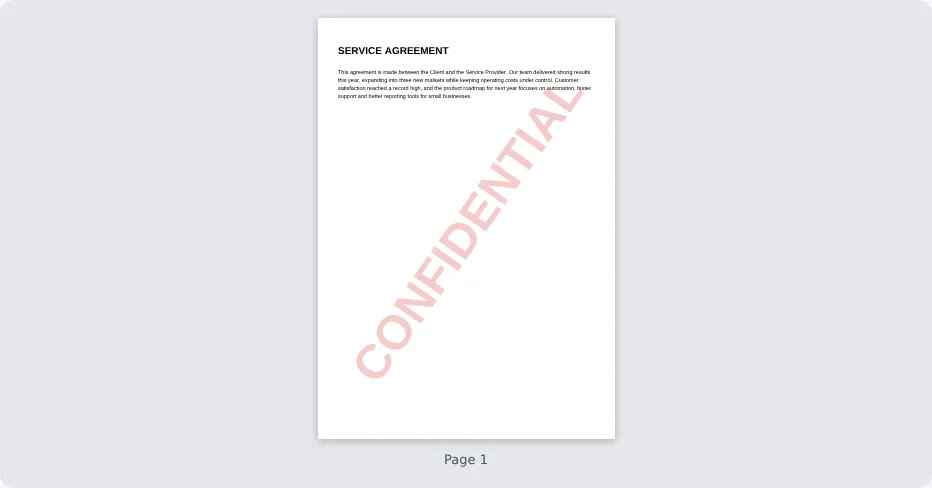
Large diagonal across the page
The classic watermark: one large line of text running from the bottom-left to the top-right corner. It is instantly recognisable, works on every page size and is the best choice for status labels like DRAFT or CONFIDENTIAL. With the font size set to 0 (automatic), the text is sized to fit the page diagonal perfectly.
Repeated tiles
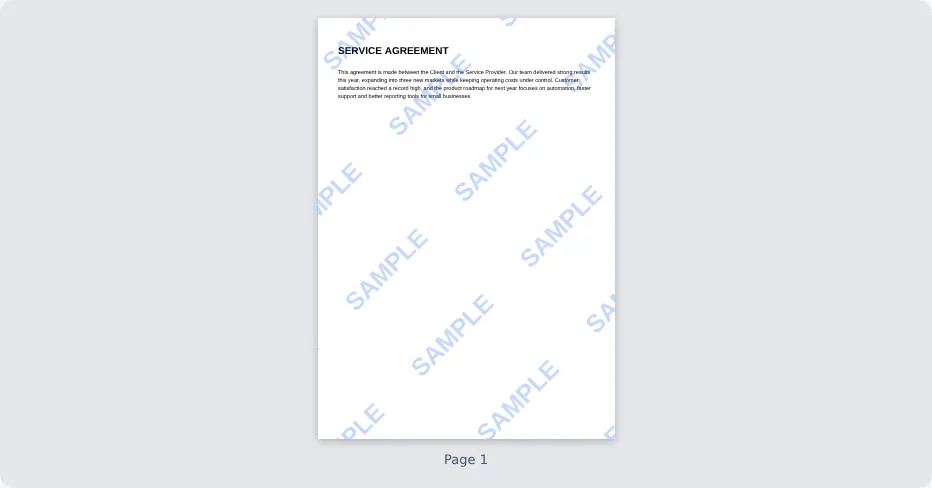
The text is repeated in a grid across the entire page. Tiled watermarks are much harder to remove by cropping or by covering a single area, so they are preferred for documents you send to people you do not fully trust — such as samples of paid content, preview copies of reports, photos of identity documents or design proofs.
At a position
Place the text in a corner, along an edge or in the centre, with any rotation. Use this for subtle labels like “Internal use only” at the top, a reference number at the bottom, or a small “COPY” stamp in a corner.
Choosing the Right Style
Opacity
Opacity controls how see-through the watermark is. The default of 25% is clearly visible while keeping the document perfectly readable. Use 10–20% for subtle branding and 40–60% when the watermark must be impossible to ignore, for example on sample documents.
Colour
Red is the traditional colour for warnings such as CONFIDENTIAL or DO NOT COPY. Grey is neutral and professional for DRAFT or COPY. Blue or your brand colour works well for company names. Avoid colours that are too close to the colour of the document’s own text.
Font and size
Bold sans-serif fonts like Helvetica Bold are the most legible for watermarks. Leave the size at 0 for automatic sizing in the diagonal layout, or set it yourself for tiles and positioned text.
Rotation
45° is the classic angle. Use 0° for horizontal labels and –45° if you prefer the text to run from top-left to bottom-right.
Dynamic Watermarks with {date} and {file}
You can insert placeholders into the watermark text:
{date}inserts today’s date — for example DRAFT {date} becomes DRAFT 01/11/2026. This is useful to show which version of a draft someone has.{file}inserts the file name — handy when watermarking documents for an archive.
A powerful technique is to put the recipient’s name in the watermark, for example Prepared for Northwind Ltd – {date}. If a document is shared beyond its intended audience, you can immediately see where it came from. People are also far less likely to forward a document that carries their own name across every page.
When to Use a Watermark
Drafts and reviews
Mark work-in-progress documents as DRAFT so nobody signs, prints or publishes the wrong version.
Confidential business documents
Board papers, financial forecasts, HR documents and strategy decks should carry a CONFIDENTIAL watermark as a constant reminder to handle them carefully.
Copies of identity documents
When you send a copy of your passport, ID card or driving licence to a landlord, hotel or employer, add a watermark such as “Copy for [company] – rental application – {date}”. This makes it much harder for the copy to be misused for another purpose, such as opening an account in your name.
Samples and previews
Photographers, designers, writers and researchers share previews with clients before payment. A tiled SAMPLE watermark lets the client evaluate the work while discouraging use without paying.
Paid invoices and approved documents
Stamp invoices as PAID and approved plans as APPROVED to keep records clear.
Text Watermark vs Image Watermark vs Header and Footer
- Text watermark (this tool) – best for words, status labels and names.
- Image watermark – use your logo or a stamp image instead of text.
- Header and footer – small text in the top or bottom margin, such as a document title or “Internal”.
- Letterhead – place your company letterhead behind the content.
How Secure Is a Watermark?
A watermark is a deterrent and a label, not encryption. It is drawn as part of the page, so it cannot be switched off in a PDF reader like a layer, but a determined person with editing software might be able to remove or cover a simple watermark. Tiled watermarks are significantly harder to remove than a single diagonal line. For real access control, combine a watermark with Protect PDF with password, disabling editing and copying. For the strongest protection of images and scans, you can also flatten the document so that the watermark becomes part of the page image — for example by compressing it with an image-based level in Compress PDF.
Real-World Examples
Consultant sharing a proposal
A consultant sends a draft proposal to three stakeholders for comments. Each copy is watermarked with DRAFT – for [name] – {date}. Comments come back on the right version, and the final unwatermarked version is sent once approved.
Tenant protecting an ID copy
A tenant sends a scan of their passport to a letting agency with a tiled watermark: “For ABC Lettings only – {date}”. The agency can verify identity, but the copy is useless for anything else.
Online course creator
A teacher sells worksheet bundles and offers a free preview of a few pages. The preview pages carry a tiled SAMPLE watermark; buyers receive the clean version.
Privacy
Watermarking is often done on confidential documents, so uploading them to a server would defeat the purpose. Our tool draws the watermark with the pdf-lib library inside your browser. The original and watermarked files never leave your device.
Troubleshooting
The watermark is too strong and hides the text
Lower the opacity to 15–25% or choose a lighter colour.
The watermark is too faint when printed
Increase opacity to 35–50% and use a darker colour; printers often lighten pale colours.
Special characters do not appear
The standard PDF fonts support Latin characters. Characters from other scripts may be replaced. Use Latin text, or add a logo with the image watermark tool.
Only some pages need a watermark
Enter the pages, such as 1-3, in the Pages field.
Watermark Text Ideas
Not sure what to write? Here are common watermark texts and when to use them:
- CONFIDENTIAL – internal reports, HR files, financial information, legal documents.
- DRAFT or DRAFT {date} – documents still under review.
- COPY or NOT AN ORIGINAL – copies of certificates, diplomas and official letters.
- SAMPLE or PREVIEW – free previews of paid products, templates and reports.
- DO NOT COPY – exam papers, training material, proprietary documents.
- PAID – settled invoices for your records.
- APPROVED, REJECTED or VOID – status of plans, applications and cancelled documents.
- For [recipient] only – {date} – identity document copies and documents shared outside your organisation.
- Your company or brand name – portfolios, proposals and marketing materials.
Best Practices for Professional Watermarks
- Keep it short. One to four words are read instantly; long sentences become clutter.
- Keep the document readable. A watermark should never prevent the reader from reading the content. Test at 100% zoom and on a printout.
- Be consistent. Use the same style for all documents of the same type so readers recognise the meaning immediately.
- Watermark last. Add the watermark after merging, organizing and numbering pages, and before password protection.
- Keep a clean master copy. Store the original without a watermark, and create watermarked copies for sharing.
Watermarking on a Phone
The tool works in any modern mobile browser. Upload a PDF from your Files app or email, choose a preset such as CONFIDENTIAL or type your own text, adjust the opacity and tap “Add watermark”. The watermarked copy can be shared directly from your phone.
Frequently Asked Questions
Is the watermark tool free?
Yes. No registration, no limits — and of course we add no watermark of our own.
Can I add a watermark to all pages?
Yes. Leave the Pages field empty.
Can I make the watermark transparent?
Yes. Adjust the opacity slider from 5% to 100%.
Can I add the date automatically?
Yes. Include {date} in the watermark text.
Can a watermark be removed?
Simple watermarks may be removable with editing software. Tiled watermarks combined with password protection are much harder to remove.
Are my files uploaded?
No. Watermarking happens in your browser.
Can I watermark only the first page?
Yes. Type 1 in the Pages field.
Will the watermark print?
Yes. It is part of the page, so it appears on screen and on paper.
Can I use my own colour and font?
Yes. Choose any colour with the colour picker and select from Helvetica, Times and Courier in regular or bold weights.
Does the watermark change the original file?
No. You download a new watermarked copy; the original stays untouched.
Related Tools
- Add image watermark – stamp a logo onto your pages.
- Protect PDF with password – lock the watermarked file.
- Add header and footer – subtle labels in the margins.
- Add page numbers – number your pages.
- Sign PDF – add your signature.
Similar tools Maybe You Like or need
Add your logo or any image as a watermark on PDF pages. Choose position, size, opacity, rotation or tile it across the page. Free online.
Add page numbers to a PDF in any position and style: 1, Page 1 of 10, Roman numerals, custom text. Skip cover pages, choose font and colour. Free.
Merge PDF files online for free. Combine multiple PDFs into one document, reorder files by drag and drop, add blank separator pages. Private, no upload, no watermark.
Most Popular Online Tools
Convert kilometers per hour to miles per hour (km/h to mph) instantly. 1 km/h = 0.621371192 mph. Free speed converter with formula and chart.
Free WhatsApp link generator. Create a wa.me click-to-chat link with your phone number and a pre-filled message for websites, ads and social bios.
Free hosting checker. Find out which company hosts any website, plus its IP address and server location. Ideal for research and migrations.
Free DNS lookup tool. Check A, AAAA, CNAME, MX, NS, TXT and SOA records of any domain instantly to verify DNS settings and troubleshoot email or website issues.
Free strong password generator. Create secure random passwords with custom length, numbers, symbols and upper/lowercase letters instantly.
Free IP lookup tool. See your IP address or check any IP to find its country, city, ISP, time zone and more. Fast, accurate and no sign-up.