Compress PDF
Reduce PDF file size online for free. Lossless optimisation or strong compression for scanned PDFs, with before/after size comparison. Private, no upload.
Compress PDF Online – How to Reduce PDF File Size
“The file you uploaded is too large.” If you have ever applied for a visa, a job, a university place or a government service online, you have probably seen this message. Upload portals often limit PDFs to 1, 2 or 5 MB, email services refuse attachments over roughly 20–25 MB, and WhatsApp and Messenger have their own limits. Meanwhile a few scanned pages from a phone or office scanner can easily weigh 10–30 MB.
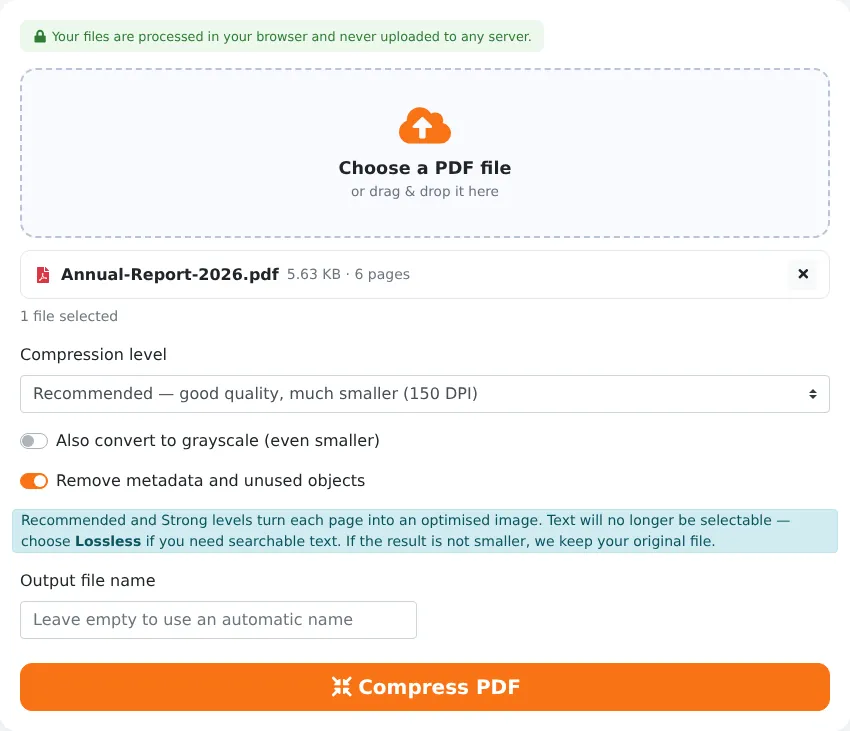
Our free Compress PDF tool shrinks PDF files directly in your browser. You can choose a lossless mode that keeps text searchable, or stronger modes that turn each page into an optimised image and can reduce scanned documents by 70–90%. You always see the original and the new size side by side, and if compression cannot make a file smaller, the tool tells you and gives you back the original instead of a bigger file.
How to Compress a PDF in 4 Steps
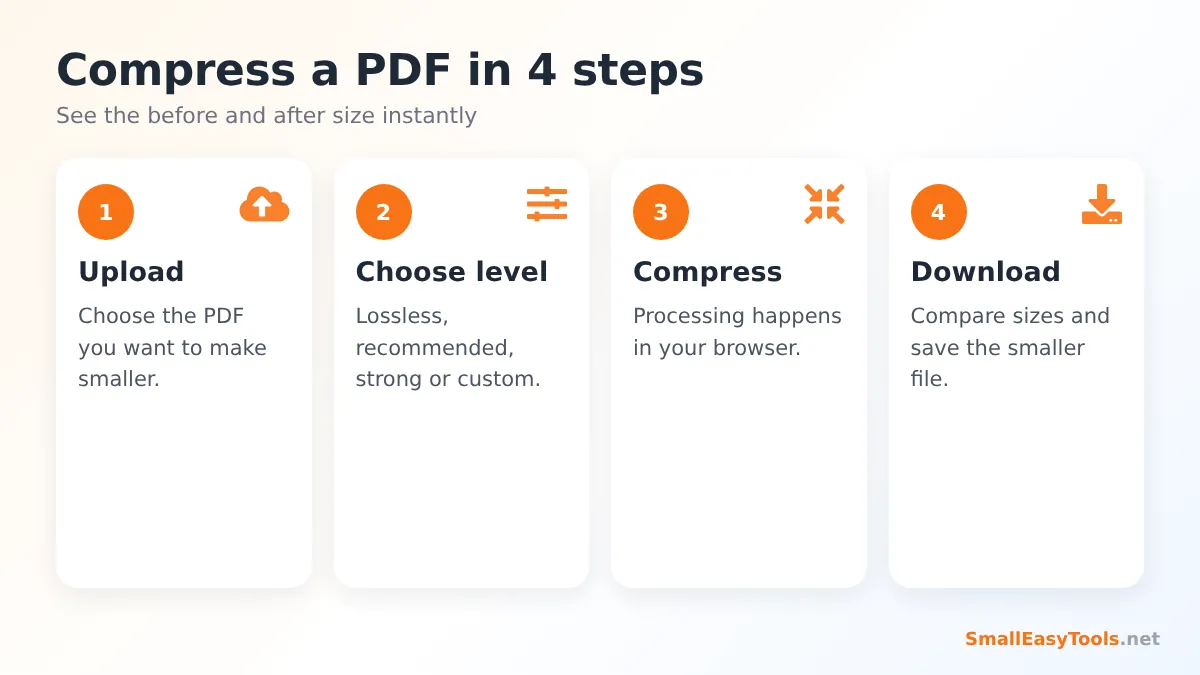
- Upload the PDF by clicking the upload box or dragging the file onto it.
- Choose a compression level: Lossless, Recommended, Strong or Custom (explained below). Optionally tick “convert to grayscale” for extra savings.
- Click “Compress PDF”. A progress bar shows each page being processed.
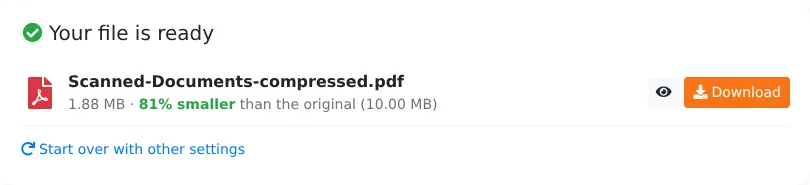
- Check the result and download. The result shows the new size and the percentage saved compared with the original.
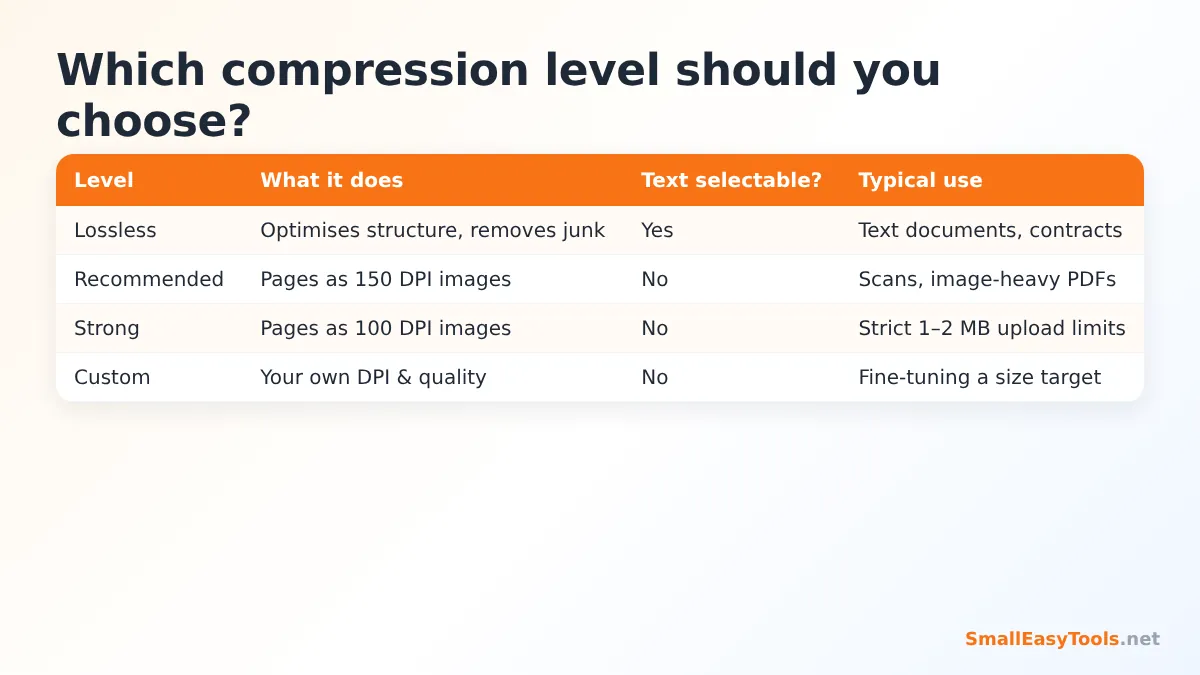
Which Compression Level Should You Choose?
Lossless
Lossless compression optimises the PDF’s internal structure without touching what you see. It recompresses data streams, packs objects together, removes unused resources and (optionally) strips metadata. Text stays selectable and searchable, links keep working and images are untouched. Savings are usually modest — often a few percent, sometimes much more for files created by inefficient software — but there is zero quality loss. Choose it for contracts, reports and documents exported from Word or Google Docs.
Recommended (150 DPI)
This level renders every page as an image at 150 dots per inch and stores it as an optimised JPEG. For scanned documents — which are already images — this is the sweet spot: the text remains easy to read on screen and when printed on an office printer, while the file shrinks dramatically. The trade-off is that text is no longer selectable.
Strong (100 DPI)
Use this when you must meet a very strict limit, such as a 1 MB or 2 MB upload. The result is still readable on screen, but fine print may look softer when zoomed in.
Custom
Choose your own resolution (50–300 DPI) and JPEG quality (20–95%). If Recommended is slightly too large for a portal, try 120 DPI at 65% quality; if it looks too soft, try 180 DPI at 75%.
Grayscale option
Colour images take more space than grayscale ones. If colour does not matter — typical for text documents, forms and receipts — tick “Also convert to grayscale” to save additional space. For a dedicated black-and-white conversion that keeps more detail, see Grayscale PDF.
How Much Can a PDF Be Compressed?
It depends entirely on what the PDF contains:
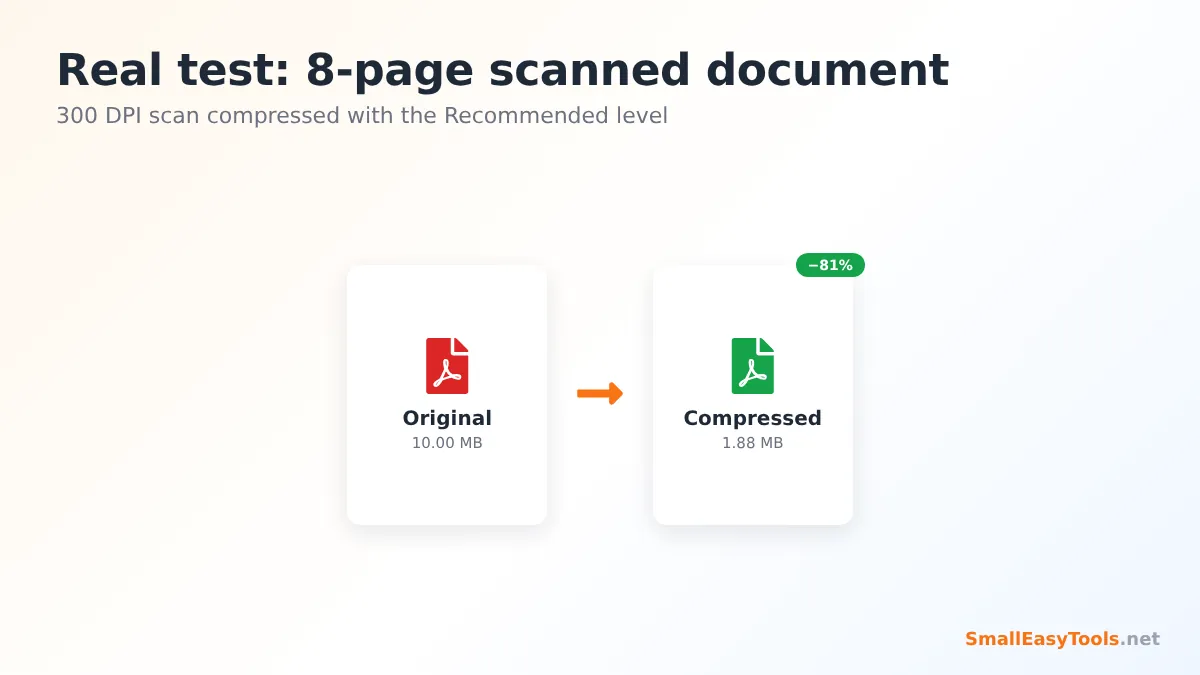
- Scanned documents and phone photos: the biggest savings. High-resolution scans often contain far more pixels than needed for reading, so the Recommended level can cut them by 70–90%.
- Documents with many photos (brochures, catalogues, photo reports): large savings with Recommended or Strong.
- Text-only documents exported from Word or Google Docs: these are usually already small and efficient. Lossless mode may save only a little — and image-based modes can even make them bigger, because a page of text stored as vectors is smaller than a picture of that page. That is why we always compare sizes and keep the original if it is smaller.
Why Is My PDF So Large?
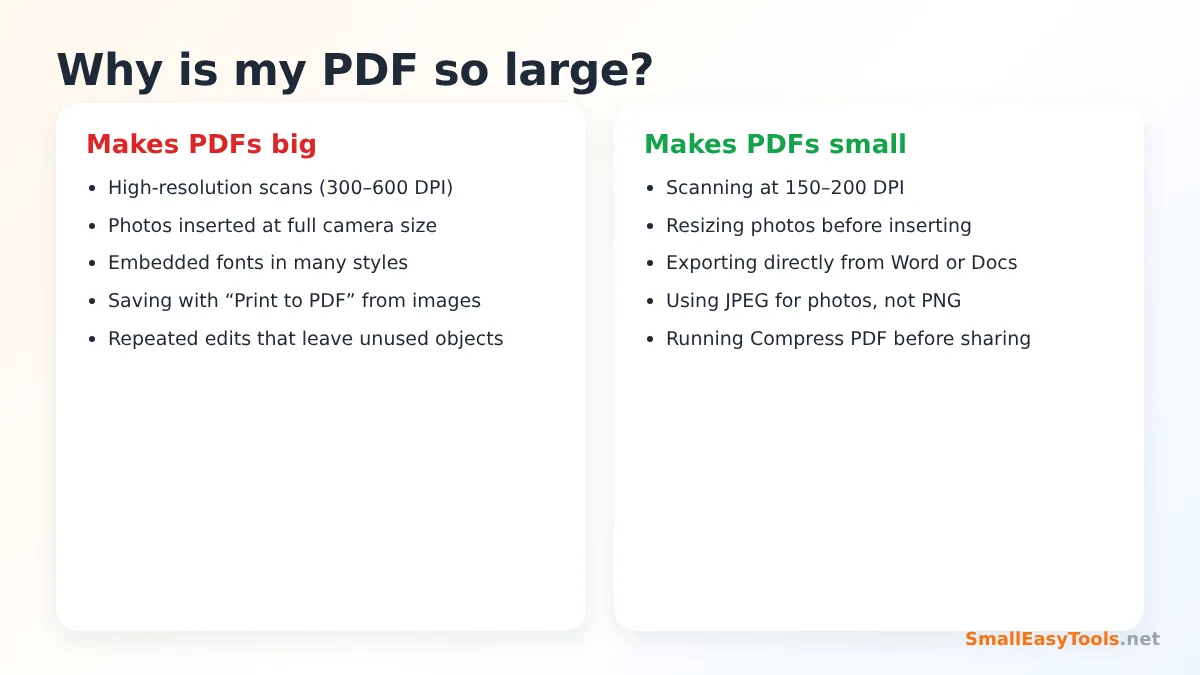
A few habits create oversized PDFs:
- Scanning at 300–600 DPI in colour. For documents you will only read on screen or upload, 150–200 DPI grayscale is usually enough.
- Inserting full-size camera photos into documents. A modern phone photo can be 4000 × 3000 pixels. Resize photos before inserting them, or run them through our Image Optimizer.
- Using “Print to PDF” on images or screenshots instead of exporting the original document.
- Saving PNG screenshots of text — PNG is great for graphics but large for photos.
- Repeatedly editing a PDF in some editors, which can leave unused objects behind. Lossless compression removes them.
Meeting Common Size Limits
Under 1 MB or 2 MB (government and job portals)
Start with Recommended. If the file is still too large, try Strong, or Custom with a lower DPI. Removing unnecessary pages first (for example blank backs of scanned pages) helps a lot — Remove blank PDF pages does this automatically.
Under 5 MB or 10 MB (universities, insurance, banks)
Recommended is usually enough even for documents with 20–30 scanned pages.
Email attachments
Many providers cap attachments at around 20–25 MB per email. If one file is still too large after compression, use Split PDF with the “maximum file size” mode and send the parts in separate emails.
WhatsApp and messaging apps
Small files send faster and use less mobile data for you and the recipient. Recommended compression is ideal for sharing scans on WhatsApp.
Compression and Text Selection
A frequent question is: “After compressing, I can no longer copy text from my PDF — why?” The Recommended, Strong and Custom levels convert each page into a JPEG image. The page looks the same, but the text is now part of a picture. If you need to search or copy text:
- use the Lossless level, or
- keep the original file for editing and send the compressed copy only where size matters.
For scanned documents this does not matter, because a scan never contained selectable text in the first place.
Tips to Get the Smallest File Without Losing Readability
- Remove what you do not need — blank pages, duplicate pages, unnecessary appendices — with Remove PDF pages.
- Crop away large empty borders on scans with Crop PDF; less image area means less data.
- Compress with Recommended first, then check readability by zooming to 100%.
- Go stronger only if required by a specific limit.
- Use grayscale for text documents where colour is not important.
- Keep your original in case you need higher quality later.
Is It Safe to Compress PDFs Online?
Many compression websites upload your document to their servers. Our tool performs every step inside your browser: the PDF is read from your device, the pages are processed in memory and the compressed file is offered as a download. Nothing is sent to our server, so you can safely compress ID cards, bank statements, medical documents and contracts.
Troubleshooting
“This PDF is already well optimised”
The tool could not make the file smaller, so it returned your original. This is common for text-based documents. Try the Lossless level, or accept that the file is already as small as it reasonably gets.
The PDF is password protected
Remove the password first with Remove PDF password (you need to know it), compress, and then protect it again if necessary with Protect PDF with password.
Compression is slow
Image-based compression renders every page, which takes longer for documents with hundreds of pages or on older phones. Close other tabs or use a computer for very large files.
The text looks blurry
Increase the resolution in Custom mode (for example 180–200 DPI) or use Recommended instead of Strong.
Real-World Examples
Visa application with a 2 MB limit
An applicant scans a six-page bank statement at 300 DPI in colour. The file is 14 MB, and the embassy portal accepts only 2 MB per document. With the Recommended level and grayscale enabled, the statement drops to around 1.5 MB and every figure remains readable. The applicant keeps the original scan in case the embassy later requests a higher-quality copy.
Sending a project report by email
A 40-page engineering report with dozens of site photos weighs 48 MB. Lossless compression barely helps because the photos dominate the size. The Recommended level brings it to about 9 MB, small enough for most email providers. Because the report also needs to remain searchable, the author shares the compressed copy for reading and keeps the original, text-searchable version on the shared drive.
Teacher uploading worksheets
A school learning platform limits uploads to 5 MB. Worksheets scanned on the staff-room copier are 8–12 MB each. Compressing them with Recommended reduces each file to 1–2 MB, which also means students on mobile data can download them quickly.
Archiving years of receipts
A small business keeps scanned receipts for tax purposes. Compressing each monthly PDF with the Strong level cuts storage needs by more than 80%, and the receipts remain legible on screen — which is all that is needed for archive records.
Lossless vs Image Compression: A Closer Look
To understand why the two approaches give such different results, it helps to know what is inside a PDF. A text document exported from a word processor stores letters as text with references to fonts, and lines and shapes as compact drawing instructions. Such a file is already tiny, and lossless optimisation can only tidy the structure. A scanned document, by contrast, is a series of photographs of paper. Each page contains millions of pixels, often far more than necessary to read the text. Image compression rebuilds those pictures at a sensible resolution and with efficient JPEG encoding, which is why scans shrink so dramatically while text-based files hardly change. When you are not sure what kind of PDF you have, try selecting text in a PDF viewer: if you can highlight individual words, it is text-based; if the whole page highlights as one block, or nothing at all, it is a scan.
Frequently Asked Questions
Is Compress PDF free?
Yes — no registration, no watermark and no daily limits.
Will compression reduce quality?
Lossless mode does not change how the document looks. Image-based levels reduce detail slightly; Recommended is chosen to keep documents clearly readable.
How small can I make a PDF?
Scanned documents can often be reduced by 70–90%. Text-only documents are usually already small.
Why did my file get larger?
It did not — if the compressed version would be larger, we give you the original file instead and tell you.
Can I compress several PDFs?
Compress them one after another, or merge them first with Merge PDF and compress the combined file.
Does it work on Android and iPhone?
Yes, in any modern mobile browser.
Are my files uploaded?
No. All processing happens in your browser on your device.
Related PDF Tools
- Split PDF – split by maximum file size for email limits.
- Grayscale PDF – convert colour PDFs to black and white.
- Remove blank PDF pages – delete empty scanned pages automatically.
- Merge PDF – combine files before compressing them together.
- Linearize PDF – optimise PDFs for fast viewing on websites.
- Image Optimizer – shrink photos before putting them in documents.
Similar tools Maybe You Like or need
Convert colour PDFs to grayscale (black and white) for cheaper printing and smaller files. Choose resolution and contrast. Free and private.
Merge PDF files online for free. Combine multiple PDFs into one document, reorder files by drag and drop, add blank separator pages. Private, no upload, no watermark.
Linearize a PDF (Fast Web View) so the first page appears instantly when opened from a website. Free online optimizer, no upload.
Most Popular Online Tools
Convert kilometers per hour to miles per hour (km/h to mph) instantly. 1 km/h = 0.621371192 mph. Free speed converter with formula and chart.
Free WhatsApp link generator. Create a wa.me click-to-chat link with your phone number and a pre-filled message for websites, ads and social bios.
Free hosting checker. Find out which company hosts any website, plus its IP address and server location. Ideal for research and migrations.
Free DNS lookup tool. Check A, AAAA, CNAME, MX, NS, TXT and SOA records of any domain instantly to verify DNS settings and troubleshoot email or website issues.
Free strong password generator. Create secure random passwords with custom length, numbers, symbols and upper/lowercase letters instantly.
Free IP lookup tool. See your IP address or check any IP to find its country, city, ISP, time zone and more. Fast, accurate and no sign-up.