Split PDF
Split a PDF into multiple files by page ranges, every N pages, single pages or maximum file size. Free, fast and private — no upload required.
Split PDF Online – The Complete Guide
Large PDF files are hard to work with. An email server rejects a 40 MB attachment, a job portal only accepts a 2 MB upload, or you need to send just one chapter of a 200-page manual to a colleague. Sometimes you received a single scanned file containing twenty different invoices, and your accounting software needs each invoice as its own document. In all of these situations the answer is the same: split the PDF into smaller, more useful files.
Our free Split PDF tool gives you five different ways to divide a document — by custom ranges, every N pages, one file per page, into two halves, or by a maximum file size. Everything runs inside your web browser, so your document is never uploaded to a server, and the split files keep exactly the same quality as the original.
This guide walks you through each split mode, explains which one to choose for common tasks, and covers the problems people most often run into.
How to Split a PDF in 4 Steps
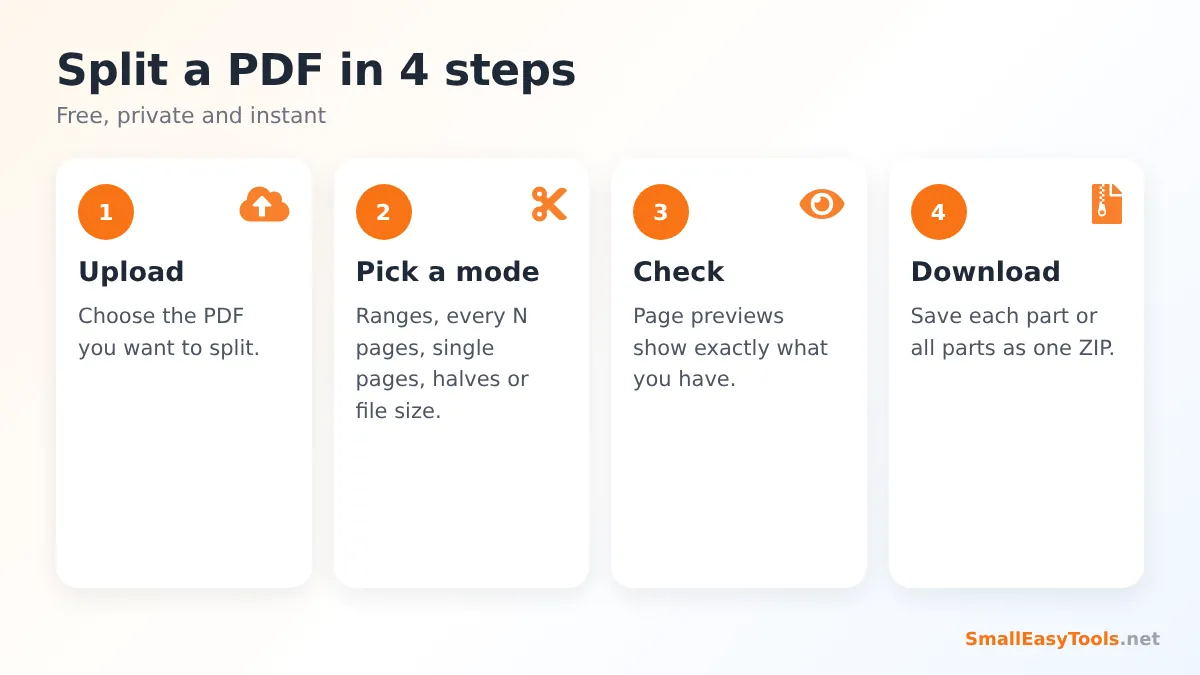
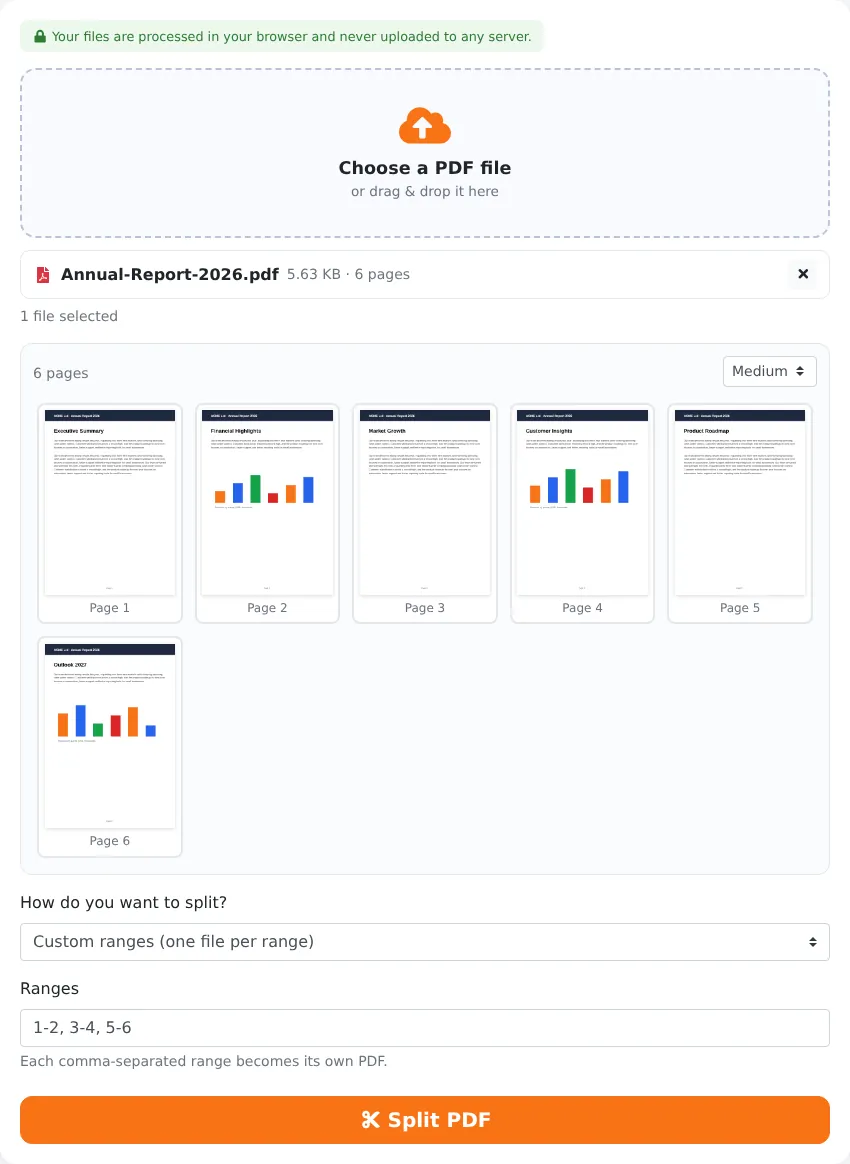
- Upload your PDF. Click the upload area or drag the file onto it. A grid of page thumbnails appears so you can see exactly what is in the document before splitting.
- Choose how to split. Pick one of the five modes described below and fill in the details — for example the ranges 1-3, 4-10, 11-15 or “2 pages per file”.
- Click “Split PDF”. The new files are created instantly in your browser. A progress bar shows each part being built.
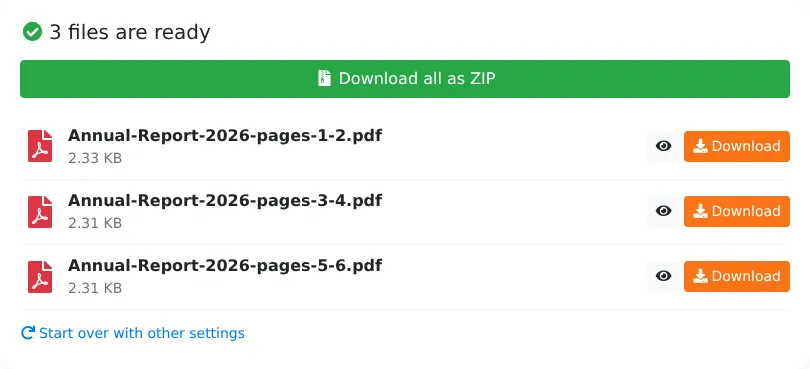
- Download. Save each part individually, or click Download all as ZIP to get every file in a single archive with clear names such as report-pages-1-3.pdf.
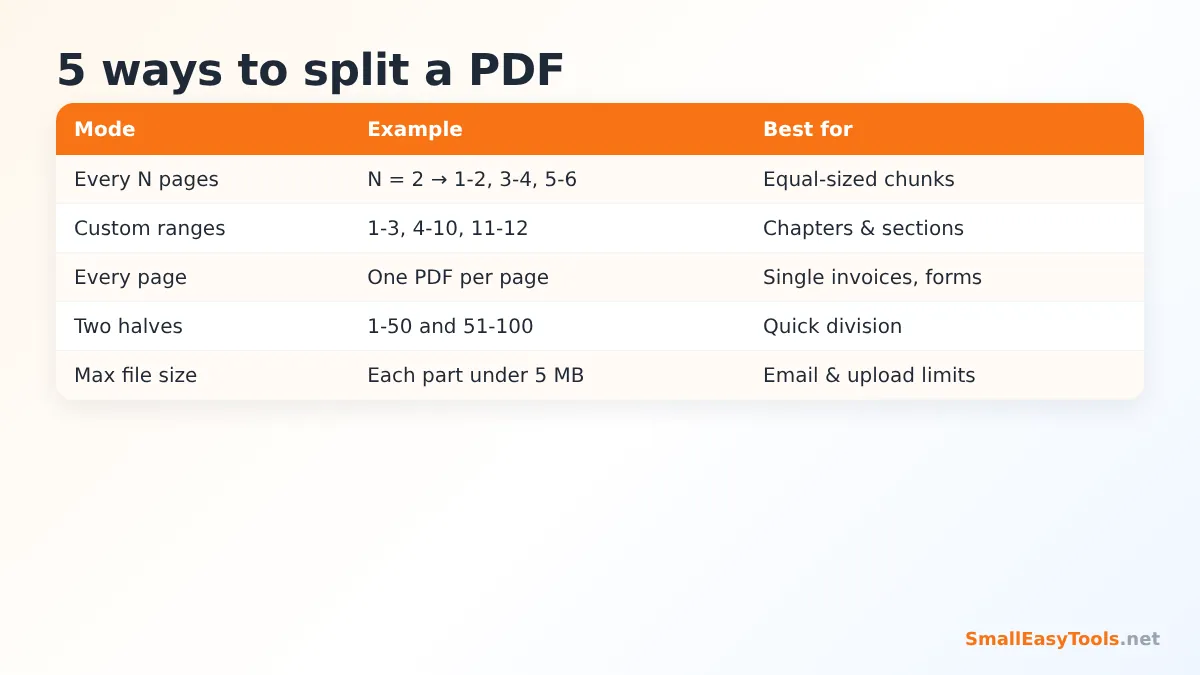
The 5 Split Modes Explained
1. Every N pages
This mode cuts the document into equal chunks. With N = 1 you get one file per page; with N = 10, a 95-page document becomes ten files of ten pages and a last file of five pages. It is perfect for documents with a regular structure, such as a stack of two-page forms scanned in one go — set N to 2 and every form becomes its own PDF.
2. Custom ranges (one file per range)
Type ranges separated by commas, such as 1-3, 4-12, 13-20, and each range becomes a separate PDF. This is the most flexible mode and the right choice for books, reports and manuals where chapters have different lengths. You can use single pages too: 1, 2-5, 6 creates three files.
3. Extract every page as a separate PDF
Every page becomes its own file. This is useful when each page is a self-contained document — for example monthly payslips combined into one PDF, or a scan of twenty one-page invoices. For large documents, use “Download all as ZIP” rather than clicking each file.
4. Into two halves
A quick way to divide a document in the middle. A 100-page PDF becomes pages 1–50 and 51–100; with an odd number of pages, the first half gets the extra page.
5. By maximum file size
This smart mode is designed for upload and email limits. Enter a limit such as 5 MB, and the tool adds pages to each part until the next page would push it over the limit, then starts a new part. Pages are never cut in half, so if a single page is larger than the limit (for example a very high-resolution scan), that page becomes a part on its own — in that case, run Compress PDF first.
What Happens When You Split a PDF?
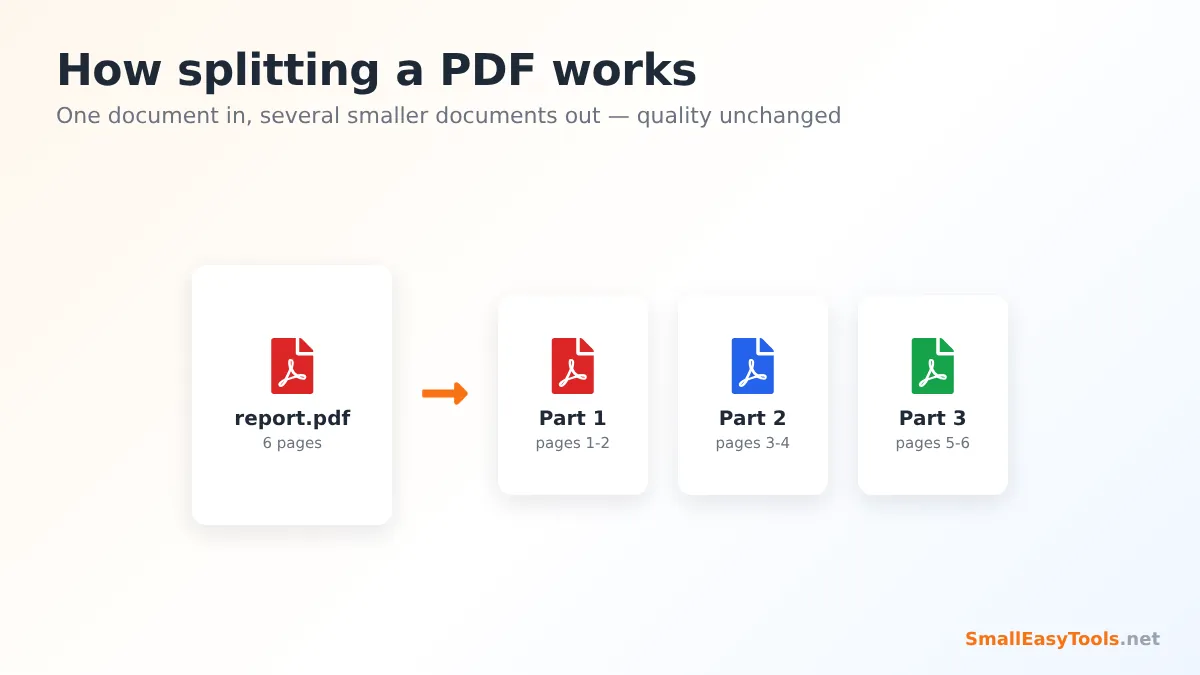
Splitting does not cut, re-print or convert anything. The tool reads your PDF, creates new empty documents and copies the selected pages — including their text, fonts, images and links — into them. The consequences are good news:
- No quality loss. Text stays sharp and searchable; images keep their resolution.
- Your original is untouched. You always download new files and keep the source document as it was.
- Each part is a normal PDF. It opens in any PDF reader, browser or phone.
One detail worth knowing: shared resources such as fonts are copied into each part that uses them. That means the combined size of all parts can be slightly larger than the original file. It is normal and only noticeable with documents that embed many fonts.
Which Split Mode Should I Use?
To email a large PDF
Use By maximum file size with a limit a little below your email provider’s attachment limit (many limit attachments to around 20–25 MB in total). If the parts are still too big or there are too many of them, compress the document first and then split it.
To upload to a government, visa or job portal
Portals often require separate uploads for each document type (“passport”, “bank statement”, “certificate”). If you scanned everything into one PDF, use Custom ranges to create one file per document, and name each download clearly.
To share one chapter of a book or manual
Use Custom ranges with a single range, or the Extract PDF pages tool, which lets you click the exact pages you want.
To separate scanned invoices or forms
If every invoice is one page, use Extract every page. If every form is two pages, use Every N pages with N = 2. Afterwards you can rename the files according to invoice number.
Split vs. Extract vs. Remove Pages
Three of our tools look similar but do different jobs:
- Split PDF creates several files that together contain the whole document (or the ranges you choose).
- Extract PDF pages creates one new file with only the pages you pick — ideal for “I only need pages 4, 7 and 9”.
- Remove PDF pages keeps the document as one file but deletes the pages you do not want.
And when you want to go the other way — combine files — use Merge PDF.
Page Range Tips
Page ranges are written with a hyphen and separated by commas. A few shortcuts make them faster to type:
- Open-ended ranges: 10- means “page 10 to the end”, and -5 means “from the beginning to page 5”.
- Spaces are fine: 1-3, 4-6 and 1-3,4-6 mean the same thing.
- Check the page count first: the number of pages is shown above the thumbnails. If you type a page number that does not exist, the tool tells you instead of creating a broken file.
- Printed page numbers vs. PDF page numbers: a book may start numbering at page 1 after ten pages of front matter. The tool always uses the physical position in the PDF, so use the thumbnails to find the right numbers.
Splitting PDFs on a Phone
The tool works in Chrome and Safari on Android and iPhone. Tap the upload box, choose the PDF from your Files app or downloads, select a mode and tap Split. On iPhone, open each part with the eye icon and use the Share button to save it to Files or send it on WhatsApp. For documents with hundreds of pages, a computer is faster because the work is done by your device’s processor.
Common Problems and Solutions
The PDF is password protected
Encrypted PDFs must be unlocked before they can be split. Use Remove PDF password with your password, then split the unlocked copy.
The parts are still too large
Scanned documents store each page as a large image. Compress the document first with Compress PDF — scans often shrink by 70–90% — and then split the smaller file.
“Page range is outside the document”
You entered a page number larger than the document. Check the page count shown above the previews and correct the range.
Some pages are sideways or upside down
Splitting keeps the original orientation. Fix the parts with Rotate PDF pages.
The file will not open
If the PDF is damaged, run Repair PDF first and then split the repaired copy.
Is It Safe to Split PDFs Online?
Most online PDF services upload your file to their servers, process it there and send the result back. Our tool works differently: the PDF library runs inside your browser, reads the file from your device and builds the parts in your computer’s memory. Your document never leaves your device, which makes the tool suitable for contracts, bank statements, medical records and identity documents.
Real-World Examples
Teacher sharing chapters
A teacher has a 120-page course book as one PDF and wants to post one chapter per week. Using Custom ranges with the chapter page numbers creates twelve neatly named files in one go.
Small business separating invoices
A shop scans all supplier invoices at the end of the month into one PDF. With Extract every page, each invoice becomes its own file that can be attached to the right entry in the accounting software.
Student submitting an assignment
A university system accepts files up to 10 MB, but the thesis with photos is 26 MB. After compressing it to 9 MB the problem is solved; if compression is not enough, By maximum file size creates parts that each fit the limit.
Lawyer preparing exhibits
Evidence is often delivered as one large bundle. Splitting it into exhibits by range, then adding Bates numbers, produces a professional, well-organised set of files.
Naming and Organising Your Split Files
Good file names save time later. The tool names each part after the original file and its page range, such as contract-pages-1-4.pdf, so you always know where a part came from. Before you send the files, consider renaming them by content — contract-signature-page.pdf or invoice-1042.pdf — so the recipient understands each file without opening it. If you split a document into many parts, keep them in a folder named after the original and, where order matters, start each name with a number (01, 02, 03…) so the files sort correctly in any file manager.
Frequently Asked Questions
Is splitting PDFs free?
Yes. There is no sign-up, watermark or limit on the number of files.
Does splitting reduce quality?
No. Pages are copied exactly, so text and images look the same as in the original.
Can I split a PDF into single pages?
Yes. Choose “Extract every page as a separate PDF” or “Every N pages” with N = 1.
Can I split by file size?
Yes. Choose “By maximum file size” and enter the limit in MB. Each part is kept below that size whenever possible.
How do I download all parts at once?
Click “Download all as ZIP” in the results panel.
Is my file uploaded?
No. Everything happens in your browser, on your own device.
Can I split a scanned PDF?
Yes. Scanned pages are split like any other page. Compress them first if the files are large.
How do I combine the parts again?
Use Merge PDF and add the parts in the order you want.
Related PDF Tools
- Merge PDF – combine several PDFs into one file.
- Extract PDF pages – save only the pages you select.
- PDF to ZIP – every page as a separate PDF inside a ZIP.
- Compress PDF – reduce file size before or after splitting.
- Organize PDF – reorder, rotate and delete pages visually.
Similar tools Maybe You Like or need
Merge PDF files online for free. Combine multiple PDFs into one document, reorder files by drag and drop, add blank separator pages. Private, no upload, no watermark.
Extract selected pages from a PDF into a new document. Click page thumbnails or type ranges like 1-3, 7. Free, private and instant.
Convert a PDF into a ZIP archive containing every page as its own PDF, with optional JPG images of each page. Free and private.
Most Popular Online Tools
Convert kilometers per hour to miles per hour (km/h to mph) instantly. 1 km/h = 0.621371192 mph. Free speed converter with formula and chart.
Free WhatsApp link generator. Create a wa.me click-to-chat link with your phone number and a pre-filled message for websites, ads and social bios.
Free hosting checker. Find out which company hosts any website, plus its IP address and server location. Ideal for research and migrations.
Free DNS lookup tool. Check A, AAAA, CNAME, MX, NS, TXT and SOA records of any domain instantly to verify DNS settings and troubleshoot email or website issues.
Free strong password generator. Create secure random passwords with custom length, numbers, symbols and upper/lowercase letters instantly.
Free IP lookup tool. See your IP address or check any IP to find its country, city, ISP, time zone and more. Fast, accurate and no sign-up.