Extract PDF pages
Extract selected pages from a PDF into a new document. Click page thumbnails or type ranges like 1-3, 7. Free, private and instant.
Extract PDF Pages Online – The Complete Guide
You have a 90-page PDF and need just three pages from it: the signature page of a contract, the chart on page 42 of an annual report, the chapter on your topic from a textbook, or the one invoice from a monthly statement. Sending the whole document would be confusing for the recipient, slow to download and might expose information that is none of their business. The solution is to extract the pages you need into a new PDF.
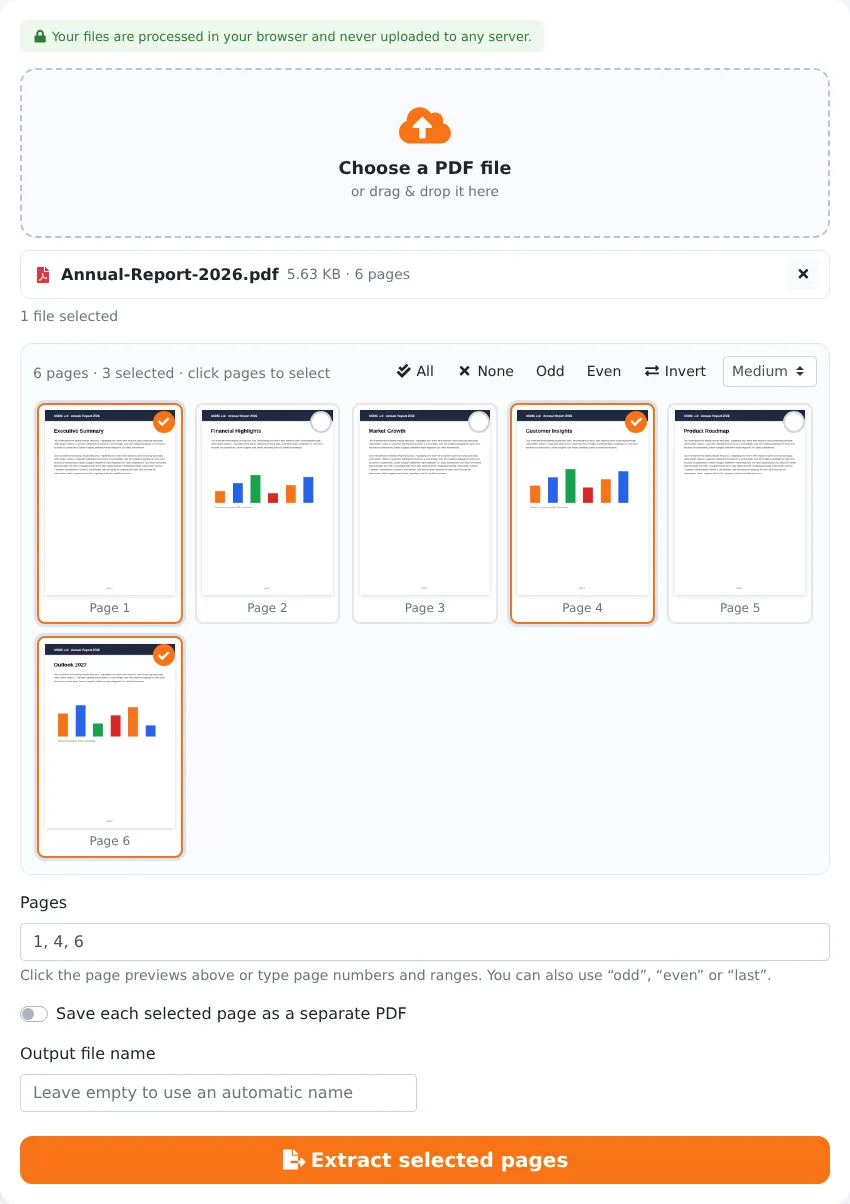
Our free Extract PDF pages tool lets you pick pages visually from thumbnails or by typing page numbers, and saves them either as one combined PDF or as separate PDFs, one per page. Your original document is never changed, the extracted pages keep their full quality, and the whole process runs in your browser without uploading anything.
Key Features at a Glance
- Pick pages visually from thumbnails or type ranges like 1, 4, 10-12.
- Save the selection as one combined PDF or as one PDF per page.
- Download all extracted files at once as a ZIP archive.
- Odd, Even, All, None and Invert selection helpers.
- Pages are copied exactly — text stays searchable and images stay sharp.
- Choose your own file name for the new document.
- Works on computers, tablets and phones.
- No upload, no account and no watermark.
How to Extract Pages from a PDF in 4 Steps
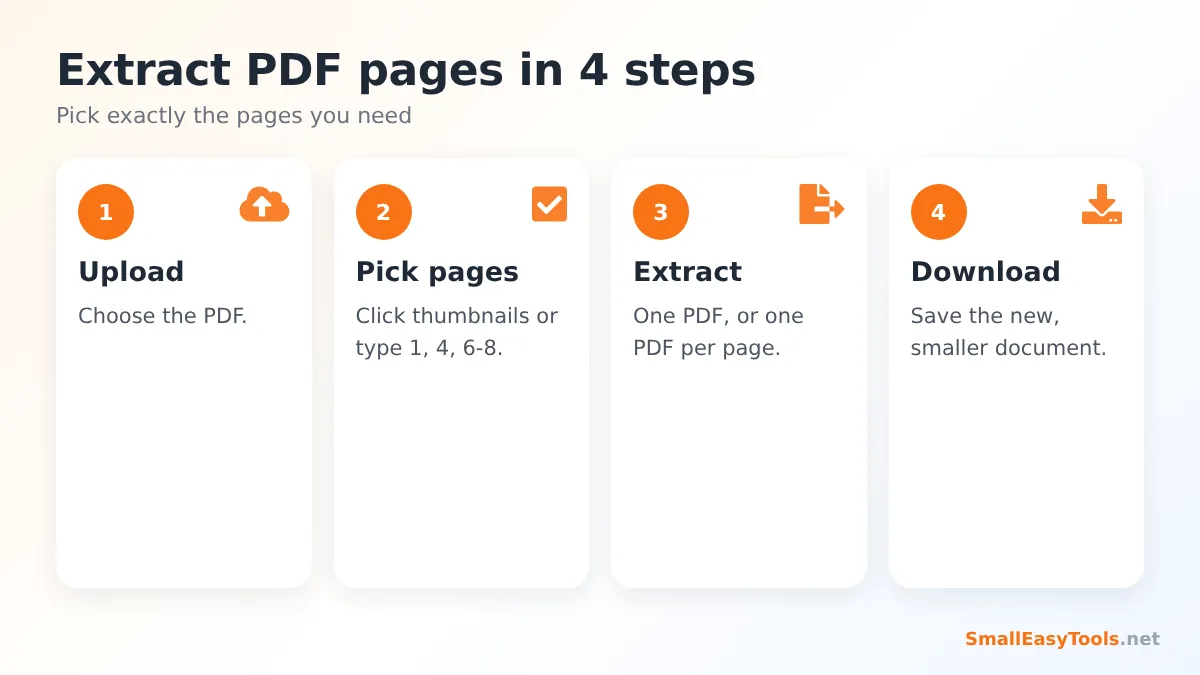
- Upload the PDF. Click the upload area or drag the file onto it. A thumbnail grid of all pages appears.
- Pick the pages you want. Click thumbnails to select them, or type numbers and ranges such as 1, 4, 6-8 in the pages field. Selected pages are highlighted and the counter shows how many you have chosen.
- Choose the output. By default all selected pages go into one new PDF. Tick “Save each selected page as a separate PDF” to get individual files instead.
- Click “Extract selected pages” and download the result. With several files, use Download all as ZIP.
Extract, Split, Remove or PDF to ZIP?
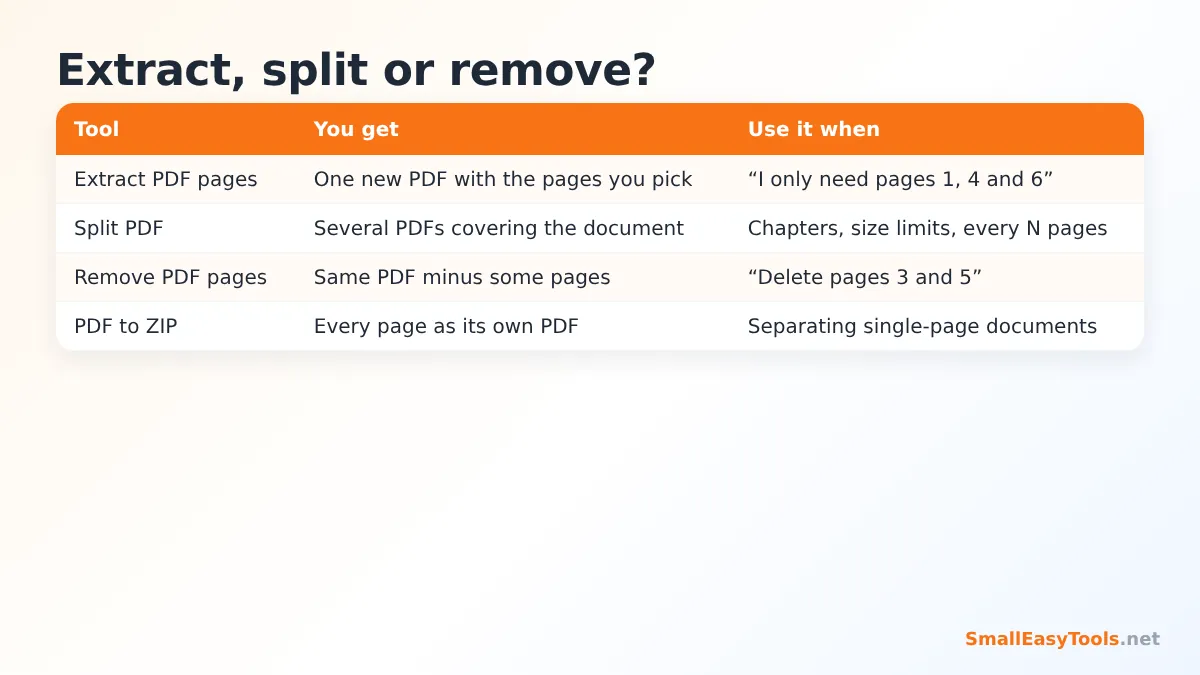
Several of our tools work with pages, and it helps to know which one fits your task:
- Extract PDF pages – you want a few specific pages in a new document. Everything else is left out.
- Split PDF – you want to divide the whole document into parts, by ranges, every N pages or by file size.
- Remove PDF pages – you want to keep almost everything and drop a few pages.
- PDF to ZIP – you want every page as its own PDF file, packed into a ZIP archive.
A useful rule of thumb: if you are selecting fewer than half of the pages, extract them; if you are selecting more than half, remove the others instead.
One PDF or Separate PDFs?
One combined PDF (default)
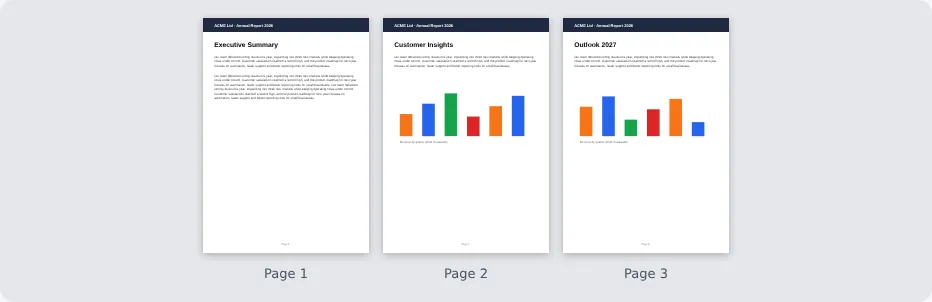
All selected pages are saved in a single new document, in the same order as in the original. This is what you want when sending an excerpt — “the relevant pages of the contract” or “chapter 3 of the manual” — as one attachment.
One PDF per page
With the separate option ticked, each selected page becomes its own PDF, named after the original file and the page number. This is ideal when each page is an independent document: invoices, receipts, certificates, payslips or forms that need to be filed or uploaded individually.
Need the pages in a different order? Extract them first, then rearrange the new file with Organize PDF or Reorder PDF pages.
Selecting Pages Quickly
- Click to toggle. Each click on a thumbnail selects or deselects a page.
- Type ranges. 5-9 selects pages 5 to 9; 12- selects page 12 to the end; -3 selects the first three pages.
- Use the buttons. All, None, Odd, Even and Invert help with patterns, such as extracting only the odd (front) pages of a duplex scan.
- Change the thumbnail size. Larger previews make it easier to identify the right page by its content.
Why Extract Pages Instead of Sending the Whole PDF?
Privacy
Large documents often contain far more information than the recipient needs: account numbers, personal details of other people, internal comments or pricing. Extracting only the necessary pages is one of the easiest ways to practise data minimisation — sharing the least information required.
Clarity
“Please see page 63” is easy to overlook. A three-page PDF containing exactly what you are talking about gets read and understood.
Smaller files
Fewer pages mean smaller files that send faster, fit within upload limits and open quickly on phones. For even smaller files, follow up with Compress PDF.
Reusing content
Extract a cover page, a standard terms page or a form, and reuse it in other documents by combining it with Merge PDF or inserting it with Insert PDF pages.
Real-World Examples
The signature page
A client has signed a 40-page agreement and needs to forward proof of signature to the bank. Extracting only the signature page (and perhaps the cover page with the parties’ names) creates a short, clear document for the bank’s file.
Study material
A student needs chapter 4 of a 300-page textbook PDF for revision on a tablet. Extracting pages 81–112 creates a lightweight file that loads instantly and is easier to annotate.
Invoices from a supplier statement
A monthly supplier statement contains 15 invoices, one per page. The accountant only needs the four invoices related to a specific project. Selecting those four pages with “separate PDF” ticked produces four files that can be attached to the project’s records.
Evidence for an insurance claim
A homeowner needs to send the policy’s coverage page and the relevant terms to support a claim. Rather than forwarding the entire 60-page policy document, the homeowner extracts the five relevant pages.
Extracting Pages as Images or Text
Sometimes you do not need a PDF at all. If you need a page as a picture for a presentation or social media, use PDF to JPG or PDF to PNG and select only that page. If you need the words to paste into an email or a document, Extract PDF text copies the text from the pages you choose. And to save the original photos embedded in a PDF, use Extract images from PDF.
Quality and Compatibility
Extraction copies pages without re-rendering them. Text stays sharp and searchable, vector graphics stay crisp at any zoom level, images keep their original resolution, and page sizes and orientation are preserved. The extracted PDF opens in every PDF reader — browsers, Adobe Acrobat Reader, Preview on Mac, and the built-in viewers on Android and iPhone.
Privacy
Extracting pages is often done precisely to protect private information, so it would make little sense to upload the full document to a server first. Our tool reads the PDF in your browser, copies the selected pages into a new document in your device’s memory and offers it as a download. Nothing is uploaded, logged or stored.
Troubleshooting
“Please select at least one page to extract”
No pages are selected. Click at least one thumbnail or type a page number.
The page numbers don’t match the printed numbers
The tool uses each page’s position in the file. Books and reports often start their printed numbering after the cover and contents pages. Use the thumbnails to confirm.
The PDF is password protected
Unlock it first with Remove PDF password.
The extracted file is still large
Scanned pages contain large images. Compress the extracted file with Compress PDF.
Extracting Pages on a Phone
The tool works fully in mobile browsers. Tap the upload area and choose the PDF from your Files app, Google Drive or downloads. Tap the thumbnails of the pages you need — selected pages are highlighted — and tap “Extract selected pages”. On iPhone, the new PDF opens in a preview; use the Share button to save it to Files or send it directly. On Android, it lands in your Downloads folder. For long documents, typing a range like 40-45 is faster than scrolling through hundreds of thumbnails on a small screen.
Combining Pages from Several PDFs
Sometimes the pages you need are spread across different documents — the cover letter from one file, the price table from another and the terms from a third. A simple workflow handles this:
- Extract the needed pages from each PDF with this tool.
- Combine the extracted files with Merge PDF, in the order you want.
- Fine-tune the order or rotate pages with Organize PDF if necessary.
- Add page numbers to the final document so the recipient can refer to it easily.
Alternatively, merge all the source documents first and then extract the pages you need from the combined file — whichever is quicker for you.
Mistakes to Avoid
- Taking pages out of context. When sharing an excerpt of a contract or policy, include the pages that define important terms, or the recipient may misunderstand the extracted clauses.
- Forgetting the cover page. A short excerpt without a title can be confusing later. Extracting the cover page as well, or naming the file clearly, helps.
- Relying on printed page numbers. Always check the thumbnails to make sure you are selecting the right physical pages.
Frequently Asked Questions
Is Extract PDF pages free?
Yes — no sign-up, watermark or limits.
Can I extract non-consecutive pages?
Yes. Select any combination, such as 2, 7, 15-18.
Can I save each page as a separate PDF?
Yes. Tick “Save each selected page as a separate PDF”.
Does extraction reduce quality?
No. Pages are copied exactly.
Is the original PDF changed?
No. You get a new file; the original stays as it is.
Can I extract pages on my phone?
Yes, in any modern mobile browser.
Are my files uploaded?
No. Everything happens in your browser.
Can I extract pages from several PDFs at once?
Extract from each file separately, then combine the results with Merge PDF.
Do links and bookmarks survive?
Links on the extracted pages keep working. Bookmarks pointing to pages that were not extracted are not included.
Can I extract a range and single pages together?
Yes. Mix them freely, for example 1, 3, 8-14, 20. Pages always appear in their original order in the new file.
Can I extract pages from a scanned PDF?
Yes. Scanned pages are extracted like any other page, at their original quality.
Related Tools
- Split PDF – divide a document into several parts.
- Remove PDF pages – delete the pages you don’t need.
- PDF to ZIP – every page as a separate PDF in a ZIP.
- Merge PDF – combine extracted pages from several files.
- Extract PDF text – copy the words instead of the pages.
Similar tools Maybe You Like or need
Insert pages from one PDF into another at the beginning, end, after any page or repeatedly every N pages. Free online and private.
Convert a PDF into a ZIP archive containing every page as its own PDF, with optional JPG images of each page. Free and private.
Merge PDF files online for free. Combine multiple PDFs into one document, reorder files by drag and drop, add blank separator pages. Private, no upload, no watermark.
Most Popular Online Tools
Convert kilometers per hour to miles per hour (km/h to mph) instantly. 1 km/h = 0.621371192 mph. Free speed converter with formula and chart.
Free WhatsApp link generator. Create a wa.me click-to-chat link with your phone number and a pre-filled message for websites, ads and social bios.
Free hosting checker. Find out which company hosts any website, plus its IP address and server location. Ideal for research and migrations.
Free DNS lookup tool. Check A, AAAA, CNAME, MX, NS, TXT and SOA records of any domain instantly to verify DNS settings and troubleshoot email or website issues.
Free strong password generator. Create secure random passwords with custom length, numbers, symbols and upper/lowercase letters instantly.
Free IP lookup tool. See your IP address or check any IP to find its country, city, ISP, time zone and more. Fast, accurate and no sign-up.