Organize PDF
Organize PDF pages visually: drag to reorder, rotate, duplicate, delete and add blank pages. Free online PDF organizer that works in your browser.
Organize PDF Pages Online – The Complete Guide
A PDF is rarely perfect the first time. Scanned pages come out in the wrong order, a landscape table lies on its side, an empty page sneaks in between chapters, the cover page is missing from the front, or you need the same form page twice. Fixing each problem with a separate tool is slow. What you really want is to see all pages at once and rearrange them the way you would rearrange paper sheets on a desk.
That is exactly what our free Organize PDF tool does. It shows every page as a thumbnail that you can drag into a new position, rotate, duplicate or delete. You can add blank pages, reverse the whole document with one click, and reset everything if you change your mind. When you are happy, save a new, organized PDF. All of it happens in your browser — your document is never uploaded.
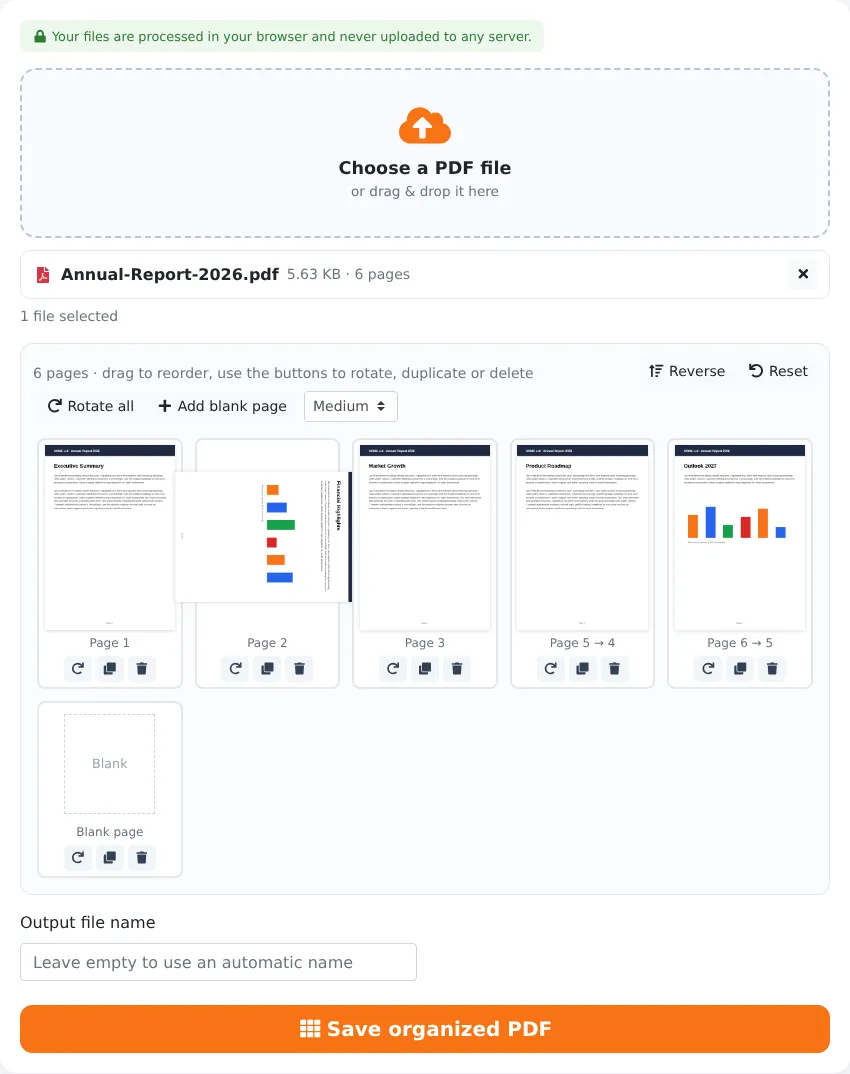
How to Organize a PDF in 4 Steps
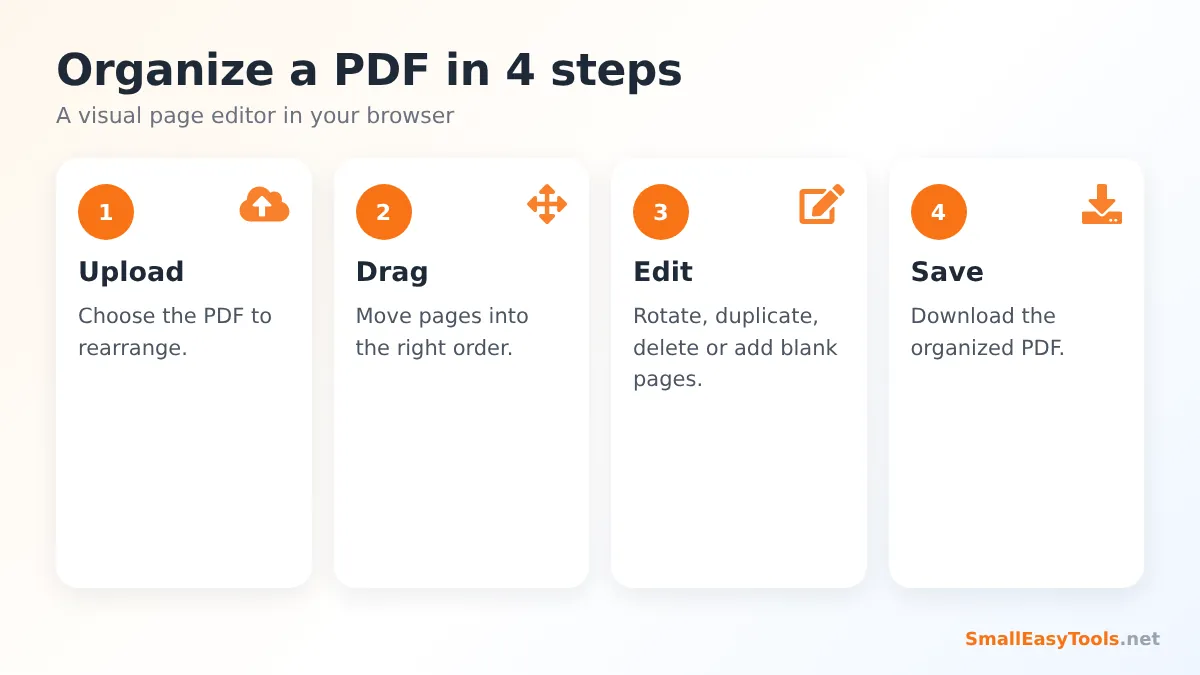
- Upload the PDF. Click the upload area or drag the file onto it. After a moment, a grid of page thumbnails appears.
- Drag pages into the right order. Click and hold a page, move it to its new position and let go. On phones and tablets, press and hold, then drag. Labels such as “Page 5 → 4” show where each page has moved.
- Edit individual pages. Use the buttons under each thumbnail to rotate it by 90°, duplicate it or delete it. Use the toolbar to rotate all pages, add a blank page, reverse the order or reset.
- Click “Save organized PDF” and download the new file. Your original stays unchanged.
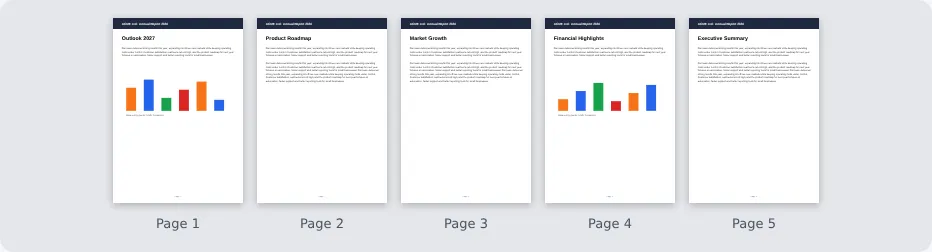
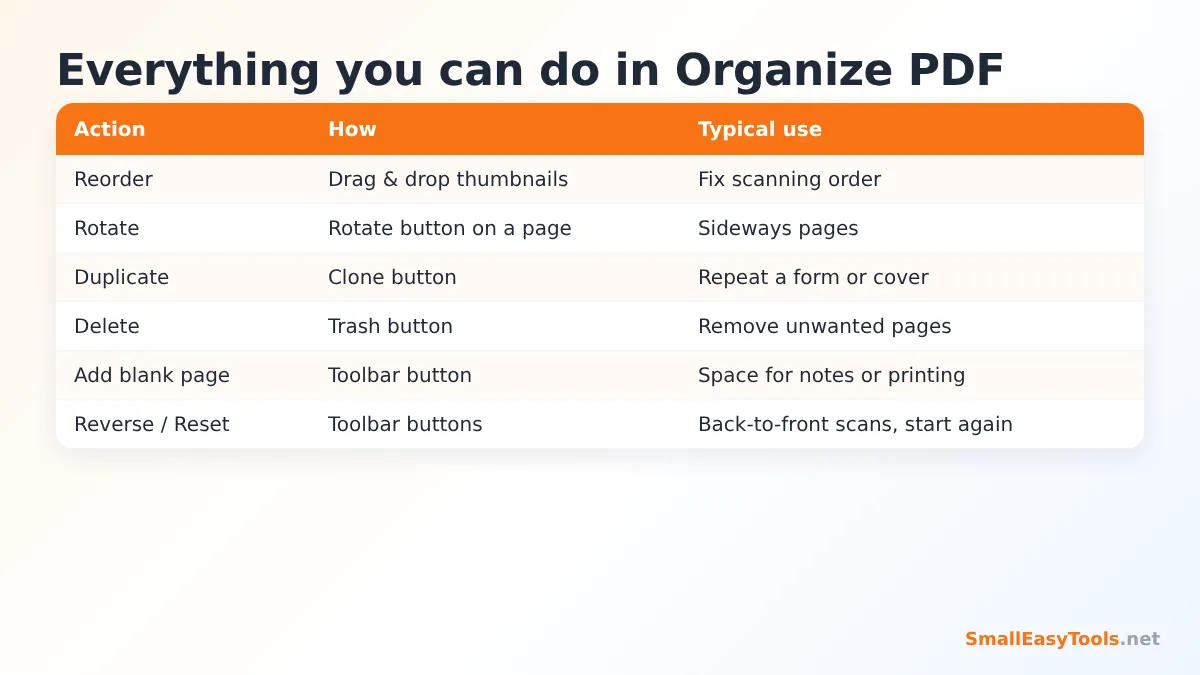
Everything You Can Do in the Organizer
Reorder by drag and drop
Drag any page to a new place. This is the quickest way to fix a scanning mistake, move an appendix to the end, put the cover page first or rearrange slides of a presentation. You can zoom the thumbnails with the size selector (Small, Medium or Large) to see more pages at once or to read their content more easily.
Rotate single pages or all pages
The rotate button turns a page 90° clockwise each time you click it — click twice for 180°, three times for 270°. The toolbar’s Rotate all button turns every page at once. Rotation is stored in the PDF itself, so it is permanent and works in every PDF reader. If you only need to rotate pages and nothing else, the dedicated Rotate PDF pages tool offers a smart mode that detects mismatched pages automatically.
Duplicate pages
The duplicate button inserts a copy of the page directly after it. This is handy for forms that need to be filled in more than once, timesheets, attendance lists, printed handouts with repeated sections, or when you want a copy of the cover page at the end. For duplicating many pages with more options, see Duplicate PDF pages.
Delete pages
Click the trash button to remove a page from the new document. Deleted pages disappear from the grid immediately, so you always see the final result. For deleting many pages by number, Remove PDF pages is faster, and Remove blank PDF pages finds empty pages automatically.
Add blank pages
“Add blank page” appends an empty page, which you can drag to any position. Blank pages are useful for notes, to make chapters start on a right-hand page when printing double-sided, or to separate sections. For inserting many blank pages at regular intervals, use Add blank pages to PDF.
Reverse and reset
Reverse flips the whole page order — perfect for documents scanned back to front. Reset restores the original order and rotation, so you can experiment without fear of making permanent mistakes.
Common Situations Where Organizing Helps
Fixing scanned documents
Office scanners and phone scanning apps often produce pages in the wrong order — especially when scanning double-sided documents in two passes, or when a stack of paper was shuffled. Seeing all pages as thumbnails makes it easy to spot pages that do not belong where they are and drag them into place.
Assembling a document from several files
First combine your files with Merge PDF, then open the merged file in the organizer to fine-tune the order, remove duplicate covers and rotate any sideways pages. This two-step workflow gives you full control over the final document.
Preparing a presentation handout
Slides exported to PDF can be rearranged to match a revised talk, with unused backup slides deleted. Afterwards, PDF N-up can place several slides on one sheet to save paper.
Reports with appendices
When a report is assembled from contributions by several people, appendices and figures often end up in the wrong place. Drag them to the end, delete outdated versions and add a blank page before each section if the document will be printed double-sided.
Application packs
Many applications (visa, university, mortgage) require documents in a specific order: application form, ID, proof of address, bank statements, certificates. Organizing the scanned pack in that order makes the reviewer’s job easier and reduces the chance of a request for missing documents.
Organize vs Other Page Tools
We offer several specialised page tools. Organize PDF combines the most common operations in one visual editor, while the specialised tools are faster for one specific job:
- Reorder PDF pages – drag pages or type a new page order such as 3,1,2,4-10.
- Reverse PDF pages – reverse the whole document or only a range.
- Extract PDF pages – keep only selected pages in a new file.
- Insert PDF pages – insert pages from another PDF at a specific position.
- Split PDF – divide one document into several files.
How the Organizer Works Behind the Scenes
When you upload a PDF, the tool uses PDF.js to draw small previews of each page. The editor itself only keeps a list of instructions — which page goes where, how much it is rotated, which pages are duplicated or removed and where blank pages are added. When you click Save, the pdf-lib library builds a new PDF by copying the original pages in your chosen order and applying the rotations. Because pages are copied, not re-rendered, text remains searchable and selectable, links continue to work and images keep their full quality.
The thumbnails are loaded gradually as you scroll, so even documents with hundreds of pages open quickly. Everything runs locally in your browser, which means there are no upload waits and no file size restrictions imposed by a server — only the memory of your device.
Tips for Organizing Large Documents
- Use the Small thumbnail size to see many pages at once when moving pages over long distances.
- Use Large thumbnails when you need to read headings to decide on the order.
- Work in stages: first delete unwanted pages, then reorder, then rotate. Fewer pages make dragging easier.
- Split very large documents first, organize the parts and merge them again, if your device struggles with hundreds of pages.
- Name the result clearly in the output file name field, for example application-pack-final.
- Add page numbers last with Add page numbers, so the numbering follows the final order.
Real-World Examples
An estate agent’s property pack
An agent merges a floor plan, an energy certificate, photos and the sales brochure into one PDF. In the organizer, the brochure is moved to the front, the floor plan rotated to landscape and two outdated photo pages deleted. The pack is ready for buyers in two minutes.
A teacher’s exam booklet
A teacher combines question pages from several worksheets. The organizer is used to arrange questions from easy to difficult, duplicate the answer sheet page so students have extra space, and add a blank page at the end for rough work.
Household paperwork
A family scans all insurance documents at once. The pages for car, home and health insurance are mixed up. Dragging them into groups and deleting blank backs results in one well-ordered reference file.
Privacy and Security
Organizing a document often involves personal or confidential content. Our tool processes your PDF entirely in your browser. The file is not uploaded, stored or seen by anyone else, and closing the tab clears everything from memory. You can use it for contracts, medical records, financial documents and other sensitive material with peace of mind.
Troubleshooting
Dragging does not work on my phone
Press and hold a thumbnail for a moment before moving it. Scrolling and dragging use the same gesture on touch screens, so a short hold tells the editor that you want to drag.
The PDF will not open
Password-protected files must first be unlocked with Remove PDF password. Damaged files can often be fixed with Repair PDF.
I deleted the wrong page
Click Reset to restore the original document and start again, or upload the original once more.
The saved PDF is larger than expected
Duplicated pages and images add size. If you need a smaller file, use Compress PDF afterwards.
Organizing PDFs on a Phone or Tablet
The organizer works in Chrome, Safari, Samsung Internet and other mobile browsers. Open the page, tap the upload area and choose a PDF from your Files app, Google Drive or email downloads. On a touch screen, press and hold a thumbnail for a moment until it lifts, then drag it to its new position. The rotate, duplicate and delete buttons under each page work with a single tap. Tablets are particularly comfortable for organizing, because you can see many thumbnails at once and drag them precisely with a finger or stylus. For documents with hundreds of pages, a computer is faster, since all processing uses your device’s own memory.
Frequently Asked Questions
Is Organize PDF free?
Yes. There is no registration, watermark or page limit.
Can I reorder pages by dragging?
Yes. Drag thumbnails to any position on computers, tablets and phones.
Can I rotate just one page?
Yes. Use the rotate button under that page’s thumbnail.
Can I add a blank page?
Yes. Click “Add blank page” and drag the new page where you need it.
Does organizing reduce quality?
No. Pages are copied exactly; text and images are unchanged.
Is my original file changed?
No. You download a new, organized copy.
Can I undo changes?
Yes. The Reset button restores the original order and rotation at any time before saving.
Are my files uploaded?
No. Everything is processed in your browser.
Related Tools
- Merge PDF – combine files before organizing them.
- Reorder PDF pages – change the order by typing page numbers.
- Rotate PDF pages – fix orientation with smart mode.
- Remove PDF pages – delete pages by number.
- Split PDF – divide the organized document into parts.
Similar tools Maybe You Like or need
Remove unwanted pages from a PDF. Click the pages to delete or type page numbers, then download a clean PDF. Free, private, no upload.
Insert pages from one PDF into another at the beginning, end, after any page or repeatedly every N pages. Free online and private.
Merge PDF files online for free. Combine multiple PDFs into one document, reorder files by drag and drop, add blank separator pages. Private, no upload, no watermark.
Most Popular Online Tools
Convert kilometers per hour to miles per hour (km/h to mph) instantly. 1 km/h = 0.621371192 mph. Free speed converter with formula and chart.
Free WhatsApp link generator. Create a wa.me click-to-chat link with your phone number and a pre-filled message for websites, ads and social bios.
Free hosting checker. Find out which company hosts any website, plus its IP address and server location. Ideal for research and migrations.
Free DNS lookup tool. Check A, AAAA, CNAME, MX, NS, TXT and SOA records of any domain instantly to verify DNS settings and troubleshoot email or website issues.
Free strong password generator. Create secure random passwords with custom length, numbers, symbols and upper/lowercase letters instantly.
Free IP lookup tool. See your IP address or check any IP to find its country, city, ISP, time zone and more. Fast, accurate and no sign-up.