Add page numbers to PDF
Add page numbers to a PDF in any position and style: 1, Page 1 of 10, Roman numerals, custom text. Skip cover pages, choose font and colour. Free.
Add Page Numbers to PDF – The Complete Guide
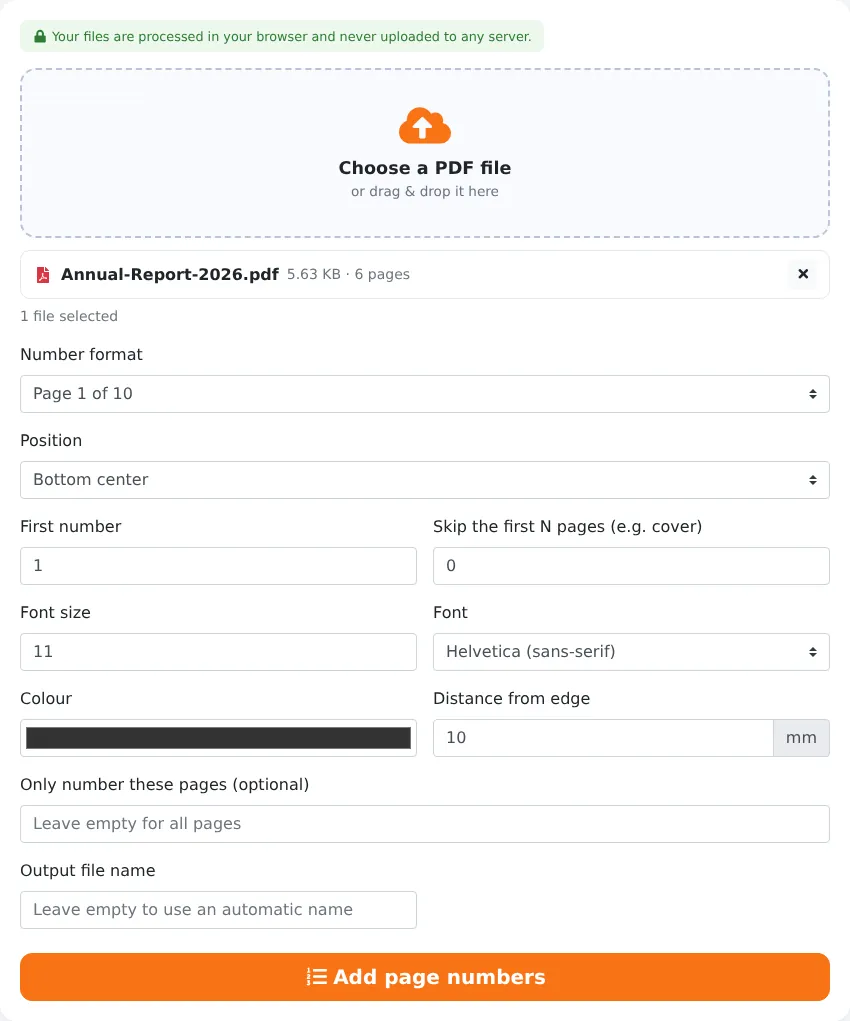
Page numbers seem like a small detail until they are missing. In a meeting, someone says “look at the table on page 14” and everyone scrolls helplessly. A printed report gets dropped and the loose sheets cannot be put back in order. A lawyer asks you to refer to a specific page of a contract. A teacher wants students to cite the page where they found a quote. In all of these situations, a document without page numbers causes confusion.
Unfortunately, many PDFs are created without them — scanned documents, merged files, exported slides and documents assembled from several sources. Our free Add page numbers to PDF tool fixes this in seconds. Choose from formats like 1, Page 1, Page 1 of 10, 1 / 10 and Roman numerals, or write your own custom text. Place the numbers in any corner or centre, use book-style outer corners, skip the cover page, start from any number and choose font, size and colour. It all happens in your browser, privately.
Key Features at a Glance
- Eight formats including Page 1 of 10, Roman numerals and fully custom text.
- Placeholders for page number, total, date and file name.
- Nine positions plus book-style outer corners for double-sided printing.
- Skip the cover or any number of opening pages.
- Start counting from any number to continue earlier documents.
- Five fonts, any size and any colour.
- Number only a selected range of pages.
- Correct placement on rotated pages, all processed privately in your browser.
How to Add Page Numbers in 4 Steps
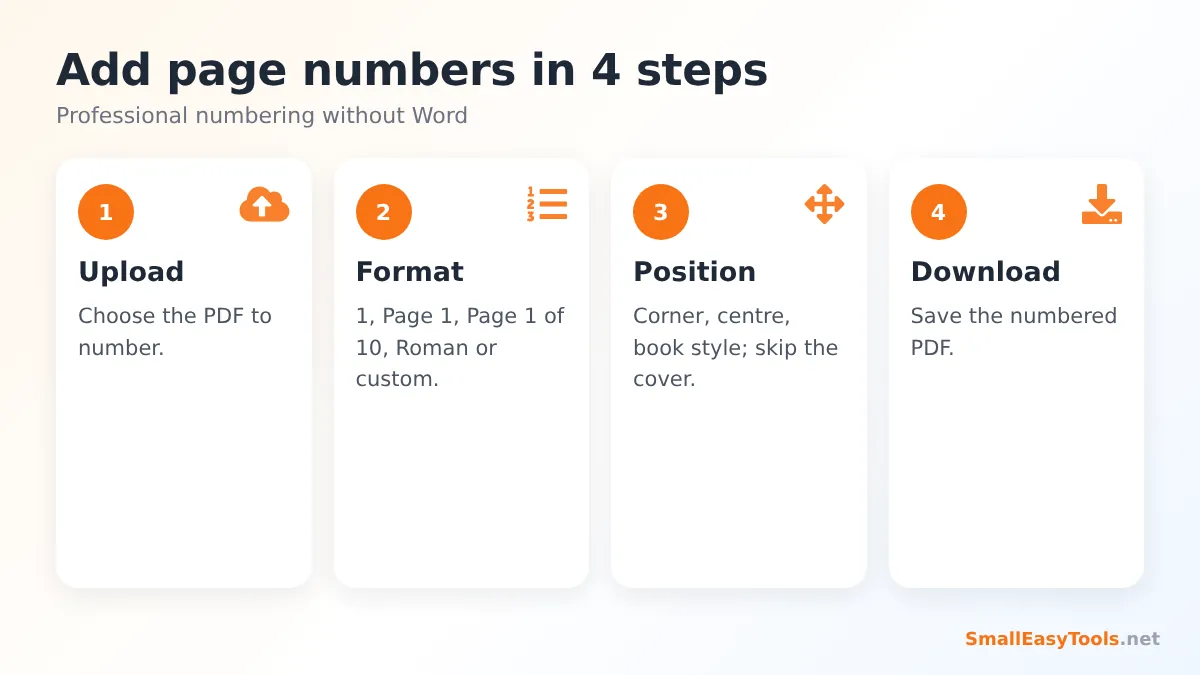
- Upload your PDF by clicking the upload area or dragging the file onto it.
- Choose a number format such as “1, 2, 3”, “Page 1”, “Page 1 of 10”, Roman numerals or a custom text.
- Set the position and options: where the number appears, the first number, how many pages to skip, the font, size, colour and distance from the edge.
- Click “Add page numbers” and download the numbered PDF.
Choosing a Page Number Format
1, 2, 3
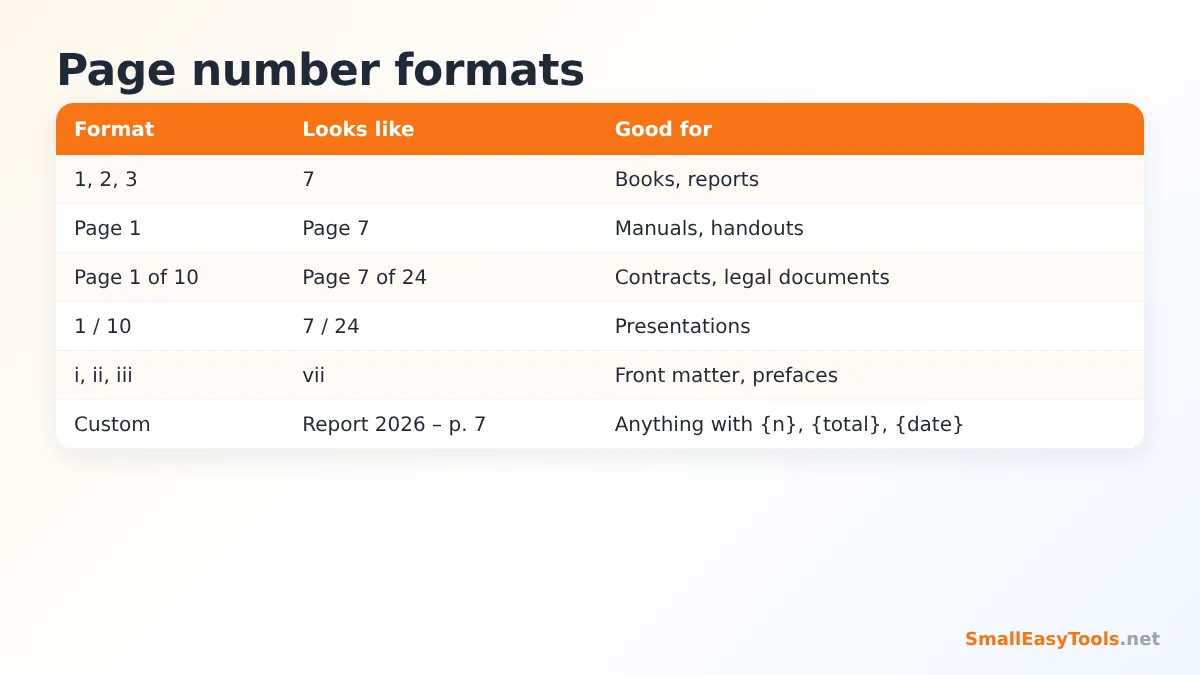
The classic, minimal format used in books, reports and essays. It is unobtrusive and works for almost any document.
Page 1
Slightly more explicit, which helps in manuals, handouts and forms where readers might otherwise confuse the page number with other numbers on the page.
Page 1 of 10
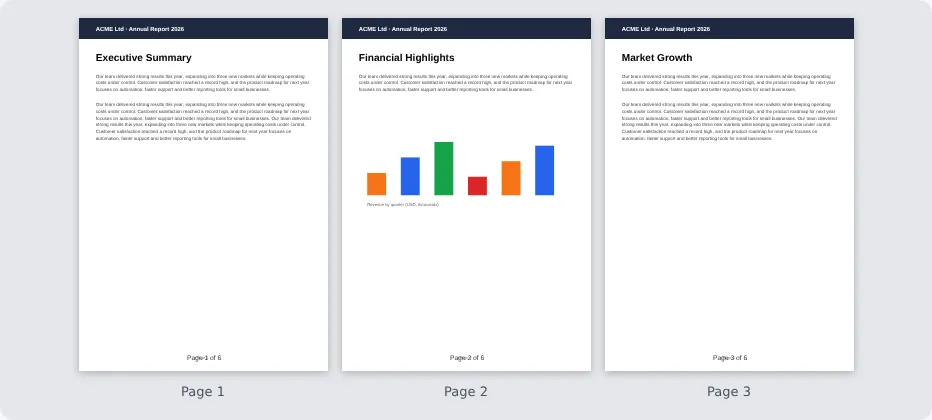
Shows the reader both the current position and the total length. This is the preferred format for contracts, legal documents, invoices with several pages and official submissions, because it makes it obvious if a page is missing.
1 / 10
A compact version of “Page 1 of 10”, popular for presentations and slide handouts.
- 1 -
A decorative style often used in printed newsletters and booklets.
Roman numerals (i, ii, iii or I, II, III)
Traditionally used for front matter — the title page, preface, table of contents and acknowledgements — before the main text starts again at 1. Theses, dissertations and books commonly use this convention.
Custom text
Write any text with placeholders: {n} for the page number, {total} for the total number of pages, {date} for today’s date and {file} for the file name. For example, Annual Report 2026 – page {n} of {total} or {file} · {n}.
Positioning Page Numbers
You can place numbers at the top or bottom of the page, on the left, in the centre or on the right. A few conventions help you decide:
- Bottom centre is the most common and neutral choice for reports, essays and letters.
- Bottom right is easy to find when flipping through printed pages quickly and is common in business documents.
- Top right is often required by academic style guides together with a short header.
- Bottom outer corner (book style) places numbers on the right for odd pages and on the left for even pages, so they are always on the outside edge of a double-sided printed document or booklet. This is how printed books do it.
The distance from edge setting (in millimetres) moves the number closer to or further from the page edge. Around 10 mm works for most documents; increase it if the number collides with an existing footer or if your printer cuts off content near the edges.
Skipping the Cover and Starting at Any Number
Most documents should not show a number on the cover page. Use Skip the first N pages to leave the first page (or the first several pages, such as a cover and table of contents) unnumbered. Combine it with First number to control where the count starts:
- Skip 1 page, first number 1 → the cover has no number and the second page shows “1”.
- Skip 0 pages, first number 2 → numbering continues from a previous document. This is useful when a long report is split into separate files and the second file must continue the page numbers of the first.
- Skip 3 pages, Roman numerals, then run the tool again on the rest with Arabic numerals — a classic thesis layout.
You can also restrict numbering to a range with Only number these pages, for example 3-20 to leave out appendices at the end.
Font, Size and Colour
Choose from Helvetica (clean, modern sans-serif), Times (classic serif that matches many printed documents) and Courier (typewriter style), in regular or bold weights. A size of 9–11 points suits most documents; larger sizes make numbers easier to see in presentations or large-format prints. A dark grey colour such as the default #333333 looks softer than pure black while remaining clearly readable. You can also match a brand colour.
Why Page Numbers Matter
Navigation and reference
Readers can jump directly to a page, and participants in meetings or classes can refer to the same place without confusion.
Completeness and authenticity
“Page 3 of 12” tells the recipient exactly how many pages they should have. For contracts and legal documents, this helps show that no page has been added or removed. For even stronger referencing in legal work, consider Bates numbering, which gives each page a unique identifier across a whole set of documents.
Printing
Printed documents get shuffled. Page numbers make it easy to put them back in order.
Professional appearance
A consistently numbered document simply looks more finished and trustworthy — whether it is a proposal to a client, a tender submission or a university assignment.
Recommended Workflow
Add page numbers as one of the last steps, after the content and order of the document are final. A typical sequence is:
- Combine files with Merge PDF.
- Arrange, rotate and delete pages with Organize PDF.
- Add a header or footer with Add header and footer if needed.
- Add page numbers with this tool.
- Compress with Compress PDF and protect with Protect PDF with password if required.
If you add pages later, the existing numbers will not update automatically, so it is best to number at the end.
Real-World Examples
Tender submission
A construction company merges a cover letter, company profile, certificates and pricing into one 48-page tender document. The cover is skipped and the rest is numbered “Page 1 of 47” at the bottom right, as requested in the tender instructions.
University thesis
A student numbers the front matter with Roman numerals and the main text with Arabic numerals starting at 1, matching the university’s formatting guidelines.
Scanned meeting documents
A secretary scans a board pack of 60 pages. Adding “Page 1 of 60” before distribution lets board members refer to specific pages in the meeting.
Printed booklet
A club prints a newsletter as a folded booklet. Book-style outer corner numbering keeps the numbers on the outside edges. The booklet layout itself is created with PDF booklet.
Privacy
The page numbers are drawn onto your pages by the pdf-lib library running in your browser. The document never leaves your device and is not stored anywhere. That makes the tool suitable for confidential contracts, legal filings and internal reports.
Troubleshooting
The numbers overlap existing text
Choose another position, reduce the font size, or increase the distance from the edge.
Numbers appear sideways on some pages
The page is rotated in the PDF. Our tool accounts for page rotation, but if a page’s content itself is sideways, rotate it first with Rotate PDF pages.
The cover page has a number
Set “Skip the first N pages” to 1.
The total in “Page X of Y” is not what I expected
The total counts the numbered pages. If you skip pages or number only a range, the total reflects the numbered pages plus the first number offset.
The file is protected
Unlock it first with Remove PDF password.
Page Numbering Conventions by Document Type
- Business reports: bottom centre or bottom right, starting at 1 after the cover page. Many organisations use “Page X of Y”.
- Academic papers (APA style): page numbers in the top right corner of every page, including the title page.
- Theses and dissertations: lower-case Roman numerals for front matter, Arabic numerals from the first chapter, often bottom centre. Always check your institution’s guidelines.
- Legal documents: “Page X of Y” at the bottom centre is common; litigation documents often use Bates numbers instead.
- Books and booklets: outer corners (right on odd pages, left on even pages), no number on the title page and blank pages.
- Presentations: “X / Y” in a bottom corner, small and unobtrusive.
Numbering on a Phone
The tool works in mobile browsers, so you can number a document while away from your desk. Upload the PDF from your Files app or downloads, choose a format and position, and tap “Add page numbers”. The numbered file is saved to your downloads or can be shared directly from the preview on iPhone.
Frequently Asked Questions
Is adding page numbers free?
Yes — no registration, no watermark and no limits.
Can I add “Page 1 of 10”?
Yes. Choose that format from the list.
Can I skip the cover page?
Yes. Set “Skip the first N pages” to 1 or more.
Can I use Roman numerals?
Yes, in lower case (i, ii, iii) or upper case (I, II, III).
Can I start numbering from a number other than 1?
Yes. Set the First number field.
Will page numbers change the existing content?
No. The numbers are added on top; everything else stays the same.
Are my files uploaded?
No. Everything is processed in your browser.
Can I number only some pages?
Yes. Type a range such as 3-20 in “Only number these pages”. Pages outside the range are left without numbers.
Can I add page numbers on my phone?
Yes. The tool works in all modern mobile browsers.
Related Tools
- Add header and footer – add text at the top and bottom of every page.
- Add Bates numbers – unique page identifiers for legal documents.
- Merge PDF – combine files before numbering.
- Add text watermark – mark pages as Draft or Confidential.
- PDF booklet – print numbered documents as booklets.
Similar tools Maybe You Like or need
Add a text watermark like CONFIDENTIAL or DRAFT to PDF pages. Diagonal, tiled or positioned, with custom font, colour, opacity and rotation. Free and private.
Rotate PDF pages permanently by 90°, 180° or 270°. Rotate all or selected pages, with a smart mode that fixes only sideways pages. Free and private.
Merge PDF files online for free. Combine multiple PDFs into one document, reorder files by drag and drop, add blank separator pages. Private, no upload, no watermark.
Most Popular Online Tools
Convert kilometers per hour to miles per hour (km/h to mph) instantly. 1 km/h = 0.621371192 mph. Free speed converter with formula and chart.
Free WhatsApp link generator. Create a wa.me click-to-chat link with your phone number and a pre-filled message for websites, ads and social bios.
Free hosting checker. Find out which company hosts any website, plus its IP address and server location. Ideal for research and migrations.
Free DNS lookup tool. Check A, AAAA, CNAME, MX, NS, TXT and SOA records of any domain instantly to verify DNS settings and troubleshoot email or website issues.
Free strong password generator. Create secure random passwords with custom length, numbers, symbols and upper/lowercase letters instantly.
Free IP lookup tool. See your IP address or check any IP to find its country, city, ISP, time zone and more. Fast, accurate and no sign-up.