Protect PDF with password
Add a password to a PDF with strong AES-256 encryption. Control printing, copying and editing permissions. Free, private, processed in your browser.
Protect PDF with Password – The Complete Guide
Every day, sensitive PDFs travel by email and messaging apps: payslips, bank statements, tax returns, contracts, medical reports, scanned passports and business plans. Email is convenient, but it is not a safe. Messages are forwarded, mailboxes are hacked, attachments are sent to the wrong person by autocomplete, and laptops are lost. A password-protected PDF adds a simple but powerful layer of security: even if the file ends up in the wrong hands, it cannot be opened without the password.
Our free Protect PDF with password tool encrypts your document with AES-256, the strongest encryption standard supported by PDF and the same algorithm used by banks and governments. You can also control whether recipients may print, copy or edit the document. The encryption happens inside your browser — your unprotected file never leaves your device.
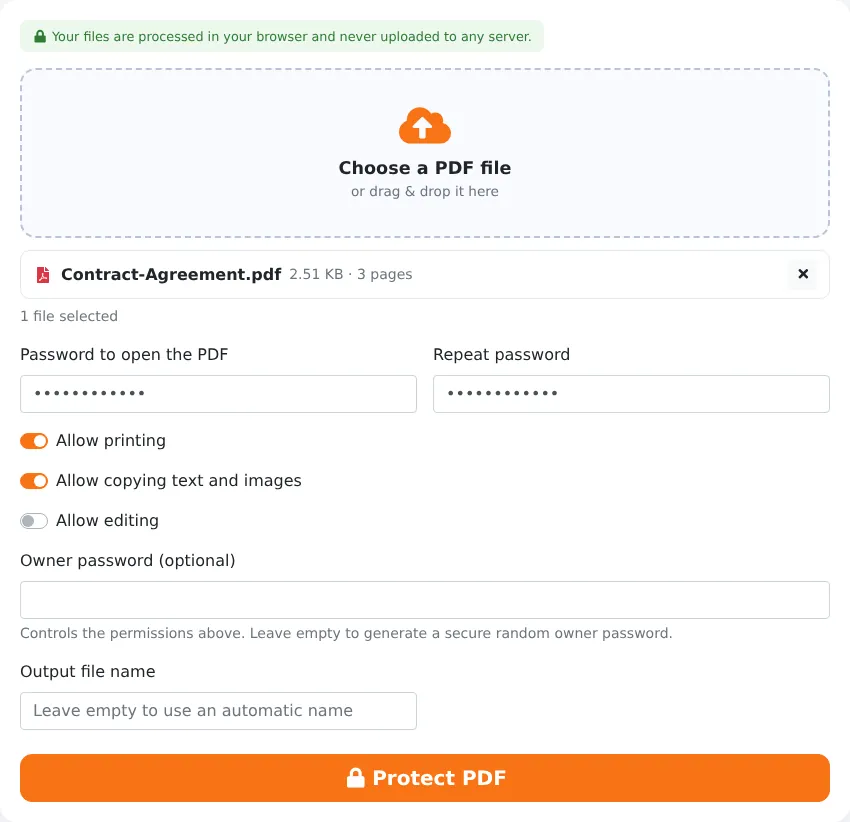
How to Password-Protect a PDF in 4 Steps
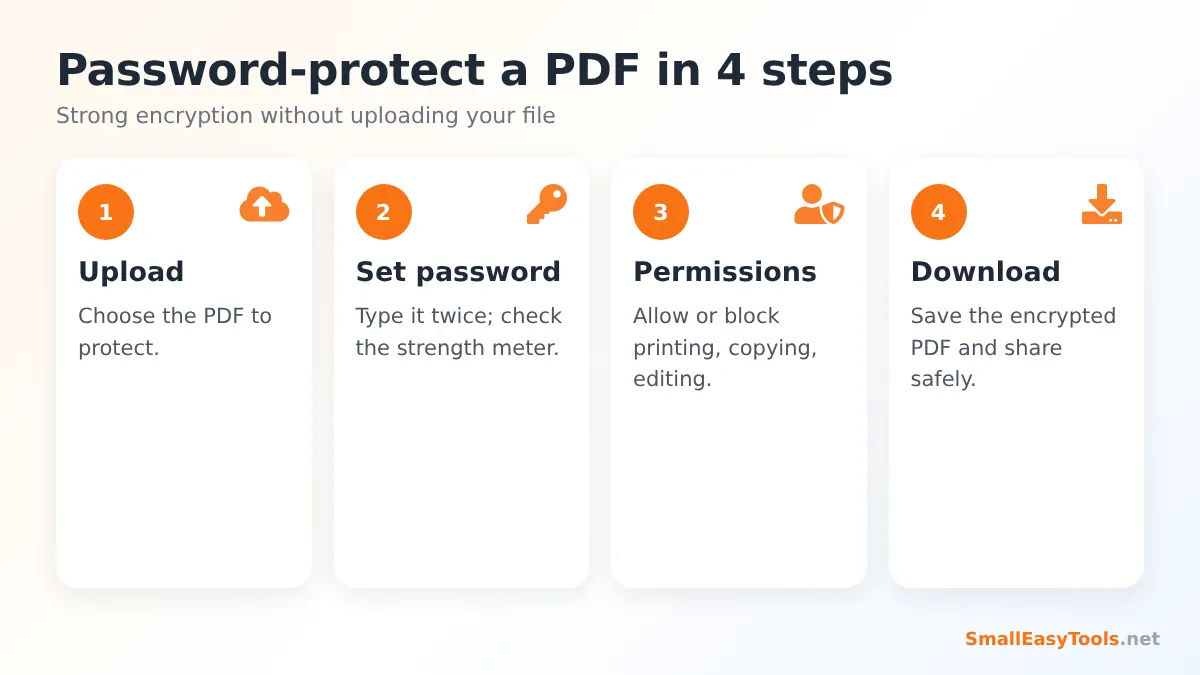
- Upload the PDF you want to protect by clicking the upload area or dragging the file onto it.
- Enter a password twice. A strength meter shows how hard the password would be to guess. The tool checks that both entries match, so a typo cannot lock you out.
- Choose permissions. Decide whether people who open the file may print it, copy text and images, or edit it. Optionally set an owner password.
- Click “Protect PDF” and download the encrypted file. Test it by opening it — your PDF reader should ask for the password.
How PDF Encryption Works
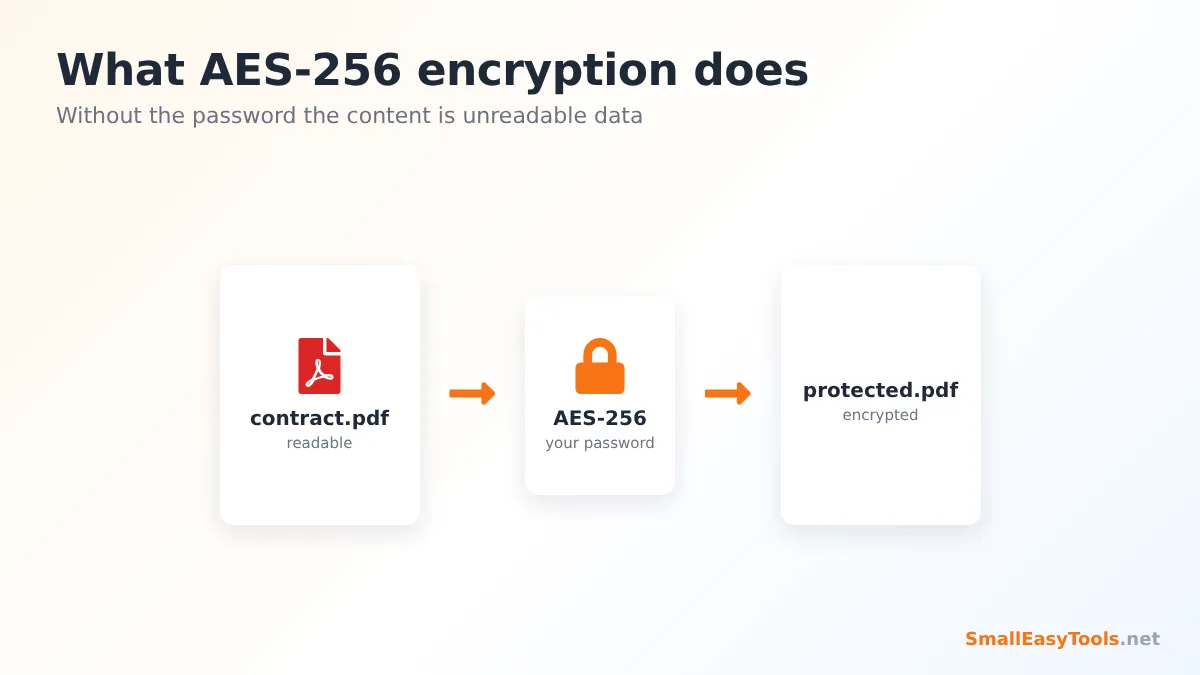
A password-protected PDF is not just a PDF with a lock icon. When you protect a file, the contents of every page — text, images and fonts — are scrambled with a key derived from your password. A PDF reader can only unscramble the content after you enter the correct password. Without it, the file contains nothing but random-looking data.
The strength of this protection depends on two things: the encryption algorithm and the password. Older PDF tools used the RC4 algorithm with 40- or 128-bit keys, which can be broken with modern computers. Our tool always uses AES with 256-bit keys, which is considered unbreakable by brute force with current technology. That leaves the password itself as the only real weak point — which is why choosing a good one matters.
Open Password vs Owner Password
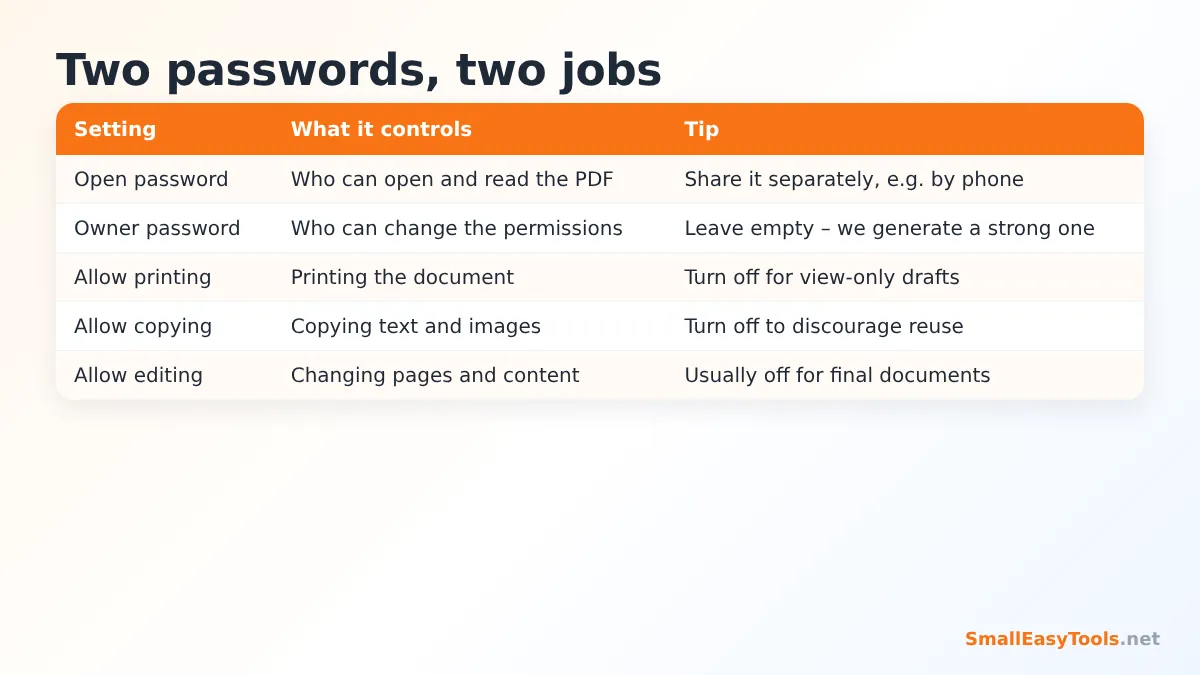
PDF encryption uses two different passwords:
- The open password (also called the user password) is required to open and read the document. This is the password you share with the people who should see the file.
- The owner password (also called the permissions password) controls the restrictions. Someone who knows it can change permissions or remove the protection in software such as Adobe Acrobat.
If you leave the owner password empty, our tool generates a long, random one for you. That is the recommended setting for most people: recipients can open and read the document with the open password, but the permissions you chose cannot easily be changed.
Understanding Permissions
Allow printing
Turn this off for drafts, confidential proposals or exam papers that should only be read on screen. Leave it on for documents that recipients need to print and sign.
Allow copying text and images
Turning this off discourages people from copying passages, figures or photos into other documents — useful for e-books, research previews and creative portfolios.
Allow editing
Usually off for final documents such as contracts and invoices, so the content cannot be changed by standard PDF editors.
An honest note: permissions are respected by mainstream PDF programs, but they are enforced by the software, not by the encryption itself. Someone who can open the document could still take screenshots or use tools that ignore the restrictions. The open password is the part that provides real, cryptographic protection. Use permissions as a polite barrier, and the open password as your security.
How to Choose a Strong PDF Password
AES-256 is only as strong as the password protecting it. Attackers who get a protected PDF can try millions of password guesses per second offline, so short or predictable passwords can be cracked. Follow these guidelines:
- Use at least 12 characters. Length matters more than complexity.
- Avoid personal information such as names, birthdays, phone numbers or the company name — these are the first things attackers try.
- Use a passphrase: three or four unrelated words with a number or symbol, for example Copper-Lantern-Rain-47, is long, strong and easy to type.
- Use a different password for every important document or every recipient.
- Generate one with our Password Generator and check it with the Password Strength Checker.
How to Share the Password Safely
The most common mistake is sending the password in the same email as the protected PDF. If that email is intercepted or forwarded, the protection is worthless. Instead:
- send the password through a different channel — a phone call, a text message or a messaging app;
- agree on a password in person beforehand for regular exchanges, such as monthly reports to an accountant;
- never write the password in the file name or the email subject.
Important: There Is No Password Recovery
Because AES-256 is so strong, a forgotten open password cannot be recovered — not by us, not by Adobe and not by any honest service. Before you delete the unprotected original, store the password safely, for example in a password manager. Keep an unprotected copy in a secure location if you might need it later.
Common Use Cases
Sending payslips and HR documents
HR departments protect each employee’s payslip with an individual password so that a misdirected email does not expose salary details.
Sharing documents with your accountant or bank
Bank statements, tax forms and ID scans should always be encrypted before being emailed. A password agreed by phone keeps them safe in transit and in the recipient’s inbox.
Client deliverables
Consultants, designers and lawyers protect drafts and confidential reports, disabling editing so the content cannot be altered before it is approved.
Personal archives
Medical records, insurance policies and property documents stored in cloud drives are safer encrypted, in case the cloud account is ever compromised.
Is It Safe to Encrypt PDFs Online?
It is a fair question: why would you upload a confidential document to a website in order to protect it? With our tool, you do not. The encryption engine (qpdf, compiled to WebAssembly) runs inside your browser. Your PDF and your password are processed in your device’s memory and are never sent to our server. You can even disconnect from the internet after the page has loaded and the tool will still work.
Troubleshooting
“The PDF could not be encrypted”
The file may be damaged. Run Repair PDF first and then protect the repaired copy.
The PDF is already protected
Remove the existing protection first with Remove PDF password (you need the current password), then apply new settings.
A recipient cannot open the file
Very old PDF readers may not support AES-256. Ask the recipient to use a current version of Adobe Acrobat Reader, a modern browser, or the built-in viewers on Windows, macOS, Android or iOS.
Can I compress or merge after protecting?
Do those steps before protecting. Merge with Merge PDF, shrink with Compress PDF, sign with Sign PDF, and encrypt last.
Real-World Examples
A freelancer sending invoices with bank details
Invoices often contain bank account details that fraudsters would love to alter. Protecting the invoice with editing disabled, and sharing the open password with the client by phone the first time, reduces the risk of tampering and accidental exposure.
A school sending student reports
Report cards and assessment results are personal data. Encrypting each report with a password known only to the parents ensures that a mistyped email address does not expose a child’s results to strangers.
A small business sharing a business plan
When seeking investors or partners, a business plan may be sent to people the owner has not met before. Protecting the file and disabling printing and copying discourages casual forwarding and reuse, while still letting serious readers review the plan.
Personal identity documents
Scans of passports, national ID cards and driving licences are a goldmine for identity thieves. If you must send them by email — for example to a landlord or a new employer — always protect them first, and delete the email from your sent folder afterwards.
Protecting PDFs: A Recommended Workflow
To get the best result, do all edits first and encrypt last, because most PDF tools cannot change an encrypted file:
- Combine the documents you want to send with Merge PDF.
- Remove pages you do not want to share with Remove PDF pages.
- Add page numbers or a “Confidential” watermark if appropriate.
- Sign the document if required.
- Compress it if it is large.
- Remove hidden metadata such as the author name and software.
- Finally, protect it with a strong password and share the password separately.
What Password Protection Does Not Do
It is good to understand the limits of any security measure. Encryption protects the file while it is stored or sent. Once someone who knows the password opens it, they can read it, and in many readers they can save or forward it. Encryption also does not hide the file name or the size of the file, so avoid revealing information in the name (use document-2026-11.pdf rather than john-smith-salary.pdf). Finally, protection is only as good as the password and how it is shared.
Password protection is one of the simplest habits that genuinely improves your privacy. It costs a minute, works with every modern PDF reader, and turns a document that anyone could read into one that only the people you trust can open. If you regularly send personal or business documents by email, make encryption a standard last step before you click “Send”.
Frequently Asked Questions
Is this tool free?
Yes, completely free, without registration or watermarks.
What encryption is used?
AES-256, the strongest standard encryption available for PDF files.
Can I recover a forgotten password?
No. Strong encryption means a lost password cannot be recovered, so store it safely.
Can I stop people printing my PDF?
Yes. Turn off “Allow printing”. Mainstream PDF readers respect this setting.
Will the PDF look different after protection?
No. The content is unchanged; only access to it is protected.
Is my file uploaded?
No. Encryption happens entirely in your browser.
Can I use the same password for several files?
You can, but separate passwords are safer: if one password is discovered, the other documents stay protected.
Can the recipient change the password?
Only someone who can open the file can remove or change the protection, and if you leave the owner password empty, permissions cannot easily be changed in standard software.
Related Tools
- Remove PDF password – unlock PDFs you have the password for.
- Password Generator – create strong, random passwords.
- Remove PDF metadata – delete hidden author and software information before sharing.
- Add text watermark – mark documents as “Confidential”.
- Sign PDF – sign before you protect and send.
Similar tools Maybe You Like or need
Unlock a password-protected PDF you have the password for and save an unprotected copy. Removes print/copy restrictions too. Free and private.
Sign a PDF online for free: draw, type or upload your signature and click to place it on the page. Add date and name. Private, no account needed.
Remove hidden metadata from PDF files: author, title, software, dates and XMP history. Clean several files at once. Free and private.
Most Popular Online Tools
Convert kilometers per hour to miles per hour (km/h to mph) instantly. 1 km/h = 0.621371192 mph. Free speed converter with formula and chart.
Free WhatsApp link generator. Create a wa.me click-to-chat link with your phone number and a pre-filled message for websites, ads and social bios.
Free hosting checker. Find out which company hosts any website, plus its IP address and server location. Ideal for research and migrations.
Free DNS lookup tool. Check A, AAAA, CNAME, MX, NS, TXT and SOA records of any domain instantly to verify DNS settings and troubleshoot email or website issues.
Free strong password generator. Create secure random passwords with custom length, numbers, symbols and upper/lowercase letters instantly.
Free IP lookup tool. See your IP address or check any IP to find its country, city, ISP, time zone and more. Fast, accurate and no sign-up.