Sign PDF
Sign a PDF online for free: draw, type or upload your signature and click to place it on the page. Add date and name. Private, no account needed.
Sign PDF Online – The Complete Guide
Not long ago, signing a document meant printing it, signing with a pen, scanning it and emailing it back — often with a crooked, grey scan as the result. Today most everyday agreements can be signed electronically: rental agreements, offer letters, freelance contracts, school permission forms, delivery confirmations and NDAs. All you need is a way to put your signature on the PDF.
Our free Sign PDF tool lets you draw, type or upload your signature, click the exact place on the page where it belongs, adjust its size and download the signed document. You can add your printed name and the date under the signature, and sign one page, the last page or every page. No printer, no scanner and no account — and because everything happens in your browser, your document is never uploaded.
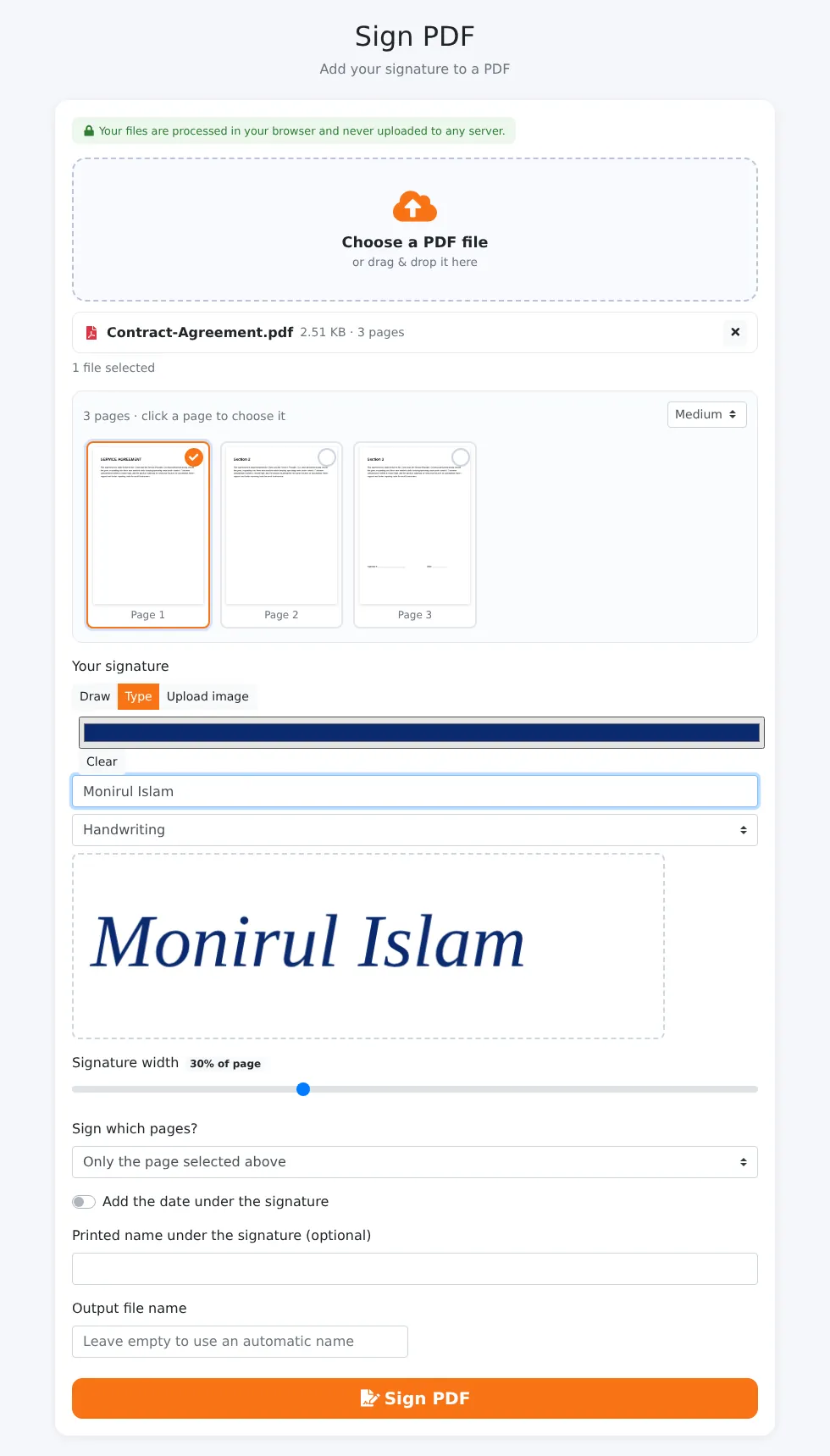
How to Sign a PDF in 4 Steps
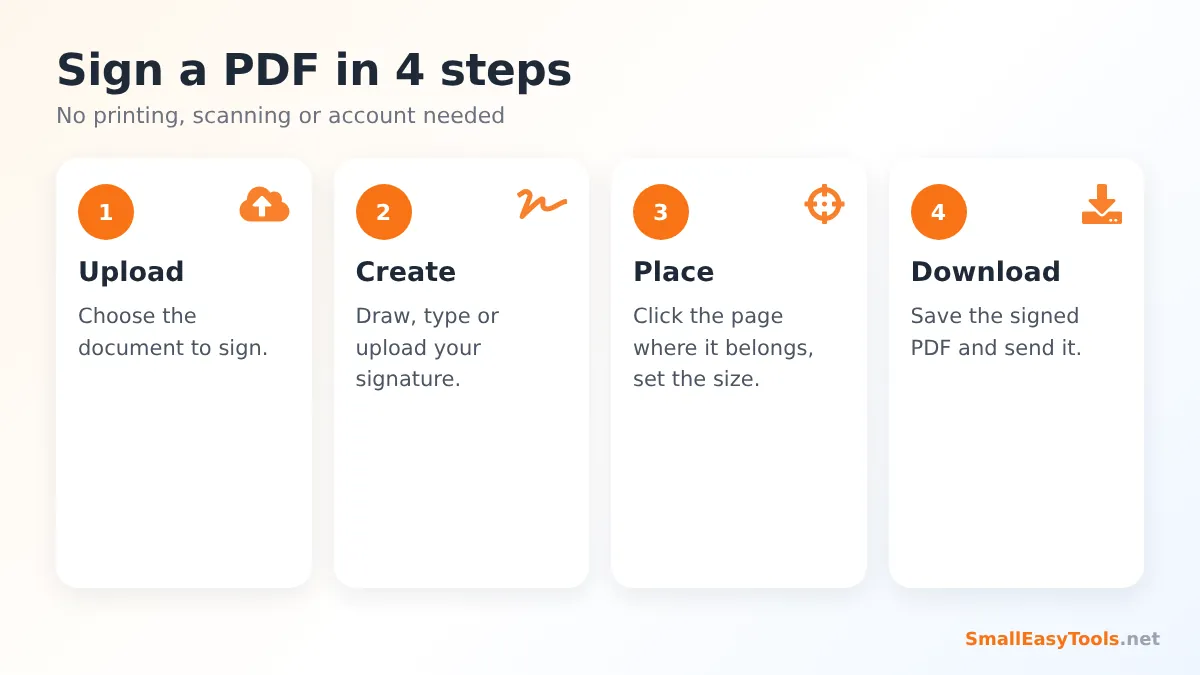
- Upload the PDF you need to sign. Page thumbnails appear; click the page where the signature should go (usually the last page).
- Create your signature. Draw it with your mouse, touchpad, finger or stylus; type your name in a handwriting style; or upload a photo of your signature.
- Place it. Click on the page preview where the signature should appear and adjust the size with the width slider. Optionally add the date and your printed name below it.
- Click “Sign PDF” and download the signed document, ready to send back.
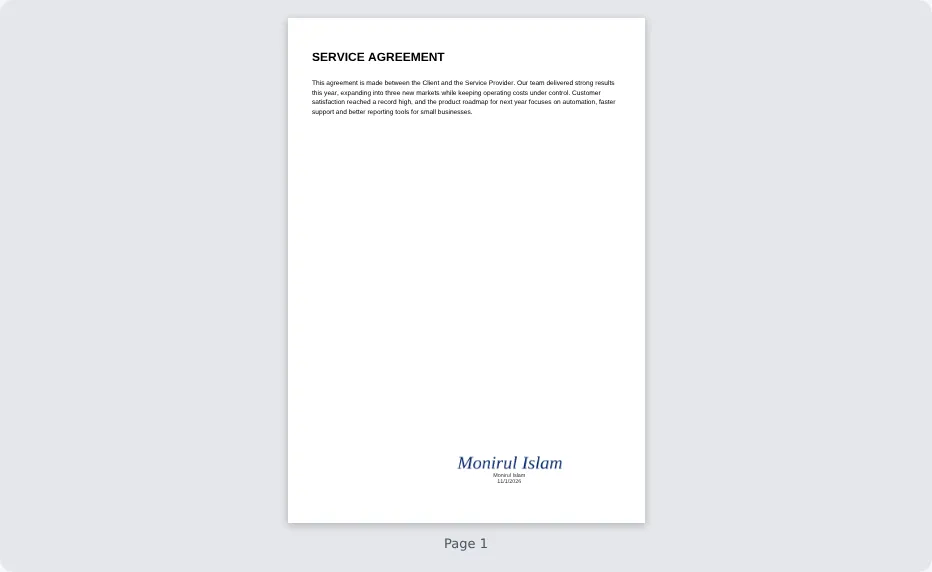
Three Ways to Create Your Signature
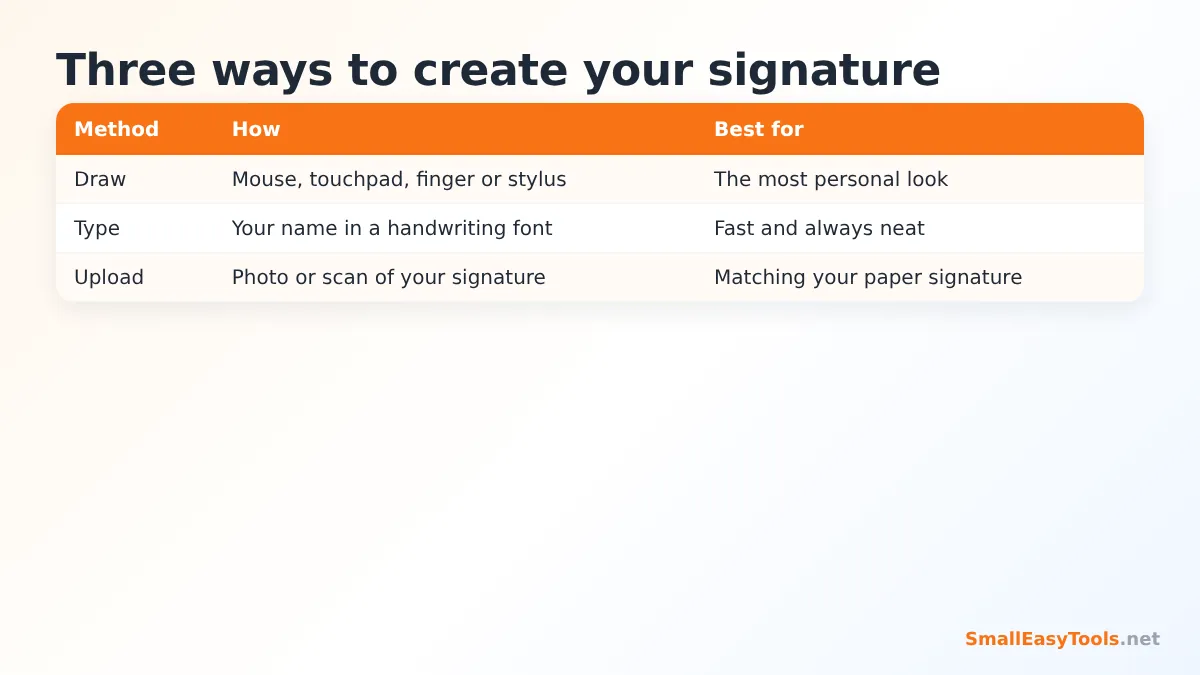
Draw
Drawing gives the most authentic, personal result. On a phone or tablet, use your finger or a stylus — it feels almost like signing on paper. On a laptop, a touchpad works better than a mouse for most people. Sign larger than you normally would and keep the movement fluid; the signature is scaled down when it is placed, which makes small wobbles disappear.
Type
Type your name and it is rendered in a handwriting-style font. This is fast, always neat and perfectly acceptable for most informal and business agreements. It is a good choice if you are using a mouse.
Upload
Sign a blank sheet of white paper with a dark pen, take a well-lit photo and upload it. This reproduces your real paper signature. For the cleanest result, crop the photo closely around the signature before uploading. If you want to create a reusable signature image, our Signature Generator can help.
Placing and Sizing the Signature
After creating the signature, a preview of the selected page appears. Click wherever the signature should go — typically on a signature line, next to “Signed by” or above your printed name. The signature is centred on the point you click. Use the Signature width slider to make it larger or smaller, measured as a percentage of the page width; around 25–35% looks natural on an A4 or Letter page.
Which pages to sign
- Only the selected page – the usual choice for a single signature line.
- Last page – convenient for contracts where the signature block is at the end.
- Every page – places the signature in the same position on all pages. Some agreements require initials or signatures on every page to show that each page was reviewed and none was replaced.
Date and printed name
Tick Add the date to print today’s date under the signature, and enter your name to print it in clear letters. Many forms require both, and they make the signature easier to identify.
Is an Electronic Signature Legally Valid?
In many countries, electronic signatures are legally recognised for a wide range of everyday agreements. Examples include the ESIGN Act and UETA in the United States, the eIDAS Regulation in the European Union and the Electronic Communications Act in the United Kingdom, and many other countries have similar laws. These laws generally accept that a signature should not be rejected just because it is electronic, provided the parties intended to sign and agreed to do business electronically.
However, there are important exceptions and nuances. Some documents — such as wills, certain property transfers, court filings or notarised documents — may require a handwritten signature, witnesses or an advanced or qualified electronic signature with a certificate. Requirements differ by country and by document type. A signature image added with this tool is a simple electronic signature. It is ideal for everyday business and personal paperwork; for high-value or regulated transactions, check what the recipient or the law requires. (This is general information, not legal advice.)
Simple Signature vs Digital Signature
The terms are often confused:
- An electronic signature (what this tool creates) is a visible mark — your drawn, typed or uploaded signature — placed on the document to show your agreement.
- A digital signature uses a cryptographic certificate issued to you. It is invisible maths embedded in the file that proves who signed and that the document has not changed since. It requires a certificate from a trusted provider and specialised software.
For most invoices, offer letters, rental agreements, permission slips and freelance contracts, a simple electronic signature is what people expect.
Good Practices When Signing PDFs
- Read the whole document before signing. Electronic signing is so fast that it is tempting to skip this step.
- Fill in the form first. If the document has form fields, complete them with Fill PDF form fields and then sign.
- Flatten after filling with Flatten PDF forms so entered values cannot be changed easily.
- Keep a copy of exactly what you signed, with a clear file name like lease-signed-2026-11-01.pdf.
- Protect sensitive signed documents with Protect PDF with password before emailing them.
- Do not share your signature image casually; treat it like any other personal identifier.
Signing on a Phone
The tool works in mobile browsers such as Chrome and Safari. Open the PDF from your email or files, tap the page to sign, draw your signature with your finger, tap the place on the preview and download. On iPhone, use Share → Save to Files to keep the signed copy, then attach it to your reply. A stylus gives the smoothest result on tablets.
Your Signature Stays Private
A signature is sensitive personal data, and the documents we sign are often confidential. Many online signing services store both on their servers. Our tool does not: your signature is created in your browser, placed into the PDF by the pdf-lib library running on your device, and the signed file is saved directly to your downloads. Nothing is uploaded, stored or reused.
Troubleshooting
“Please draw, type or upload your signature first”
The signature box is empty. Create a signature before clicking Sign PDF.
The signature is in the wrong place
Click again on the correct spot in the page preview, then sign again from the original file.
An uploaded signature has a grey background
Photograph the signature on bright white paper in daylight and crop tightly around it. A darker pen also helps.
The PDF is password protected
Unlock it first with Remove PDF password.
Several people need to sign
Each person can sign the file in turn: the first signer downloads the signed PDF and sends it to the next person, who uploads it and adds their own signature in a different position.
Real-World Examples
Accepting a job offer
A candidate receives an offer letter as a PDF with a request to sign and return it within two days. On a phone during the commute, the candidate opens the file, draws a signature with a finger, adds the date and sends the signed copy back by email — no printer needed.
Renting an apartment
A tenancy agreement has a signature line on the last page and initials on every page. The tenant first initials every page using “Every page” with a small width, then signs the last page with a full signature and printed name.
Freelance contracts
A freelancer sends a project agreement to a client. The freelancer signs first, downloads the signed file and sends it on; the client adds their signature in the second signature block. Both keep the fully signed copy.
School forms
Parents receive trip permission slips as PDFs. Instead of printing, they fill in the details, sign with the typed option and return the form the same evening.
Creating a Signature That Looks Professional
A few small details make an electronic signature look natural rather than awkward:
- Size: a real signature is usually about 4–6 cm wide on an A4 page — roughly 25–35% of the page width.
- Position: place the signature so it sits on or slightly above the signature line, not floating far away from it.
- Colour: dark blue or black looks like ink and prints clearly.
- Consistency: use the same method (drawn, typed or uploaded) for all documents with the same organisation, so your signature is recognisable.
- Clean edges: for uploaded signatures, use a high-contrast photo on white paper so no grey background box appears.
Sign PDF vs Fill and Sign Apps
Dedicated e-signature platforms add workflow features such as sending documents to several signers, reminders and audit trails, but they usually require an account and a subscription, and they store your documents on their servers. For the many situations where you simply need to sign a document someone sent you and send it back, a fast, private, free tool is all you need.
Frequently Asked Questions
Is Sign PDF free?
Yes. There is no account, watermark or limit.
Can I sign on my phone?
Yes. You can draw your signature with your finger in any modern mobile browser.
Can I add the date?
Yes. Tick “Add the date under the signature”.
Can I sign every page?
Yes. Choose “Every page (same position)”.
Is an electronic signature legal?
Many countries recognise electronic signatures for everyday agreements, but some documents require special signatures. Check the requirements for your document.
Is my document uploaded?
No. Signing happens entirely in your browser.
Can I use my real handwritten signature?
Yes. Choose the upload option and use a clear photo or scan of your signature on white paper.
Can I change the signature after signing?
Signing creates a new PDF and leaves the original unchanged. If you made a mistake, sign the original file again.
Does signing change the rest of the document?
No. Only the signature, and optionally your name and the date, are added. The text, images and layout of the document stay exactly the same.
Related Tools
- Fill PDF form fields – complete forms before signing.
- Flatten PDF forms – lock filled values in place.
- Signature Generator – design a signature image.
- Add text watermark – mark copies as “Signed” or “Copy”.
- Protect PDF with password – secure the signed document.
Similar tools Maybe You Like or need
Fill in fillable PDF forms online: text fields, checkboxes and dropdowns load automatically. Import JSON, flatten when done. Free and private.
Add a text watermark like CONFIDENTIAL or DRAFT to PDF pages. Diagonal, tiled or positioned, with custom font, colour, opacity and rotation. Free and private.
Add a password to a PDF with strong AES-256 encryption. Control printing, copying and editing permissions. Free, private, processed in your browser.
Most Popular Online Tools
Convert kilometers per hour to miles per hour (km/h to mph) instantly. 1 km/h = 0.621371192 mph. Free speed converter with formula and chart.
Free WhatsApp link generator. Create a wa.me click-to-chat link with your phone number and a pre-filled message for websites, ads and social bios.
Free hosting checker. Find out which company hosts any website, plus its IP address and server location. Ideal for research and migrations.
Free DNS lookup tool. Check A, AAAA, CNAME, MX, NS, TXT and SOA records of any domain instantly to verify DNS settings and troubleshoot email or website issues.
Free strong password generator. Create secure random passwords with custom length, numbers, symbols and upper/lowercase letters instantly.
Free IP lookup tool. See your IP address or check any IP to find its country, city, ISP, time zone and more. Fast, accurate and no sign-up.