Merge PDF
Merge PDF files online for free. Combine multiple PDFs into one document, reorder files by drag and drop, add blank separator pages. Private, no upload, no watermark.
Merge PDF Files Online – The Complete Guide
Merging PDF files is one of the most common document tasks there is. You scan a passport, a bank statement and a payslip separately, and the visa portal accepts only one upload. You receive five invoices from a supplier and your accountant wants a single file. You write a report in Word, design the cover in Canva and export the appendix from Excel — and now you need one clean document to send to a client. In every case the job is the same: take several PDFs and combine them, in the right order, without losing quality.
Our free Merge PDF tool does exactly that, directly in your web browser. There is nothing to install, no account to create and no watermark on the result. Most importantly, your files are never uploaded to a server: the merging happens on your own computer or phone, which makes the tool suitable even for confidential documents such as contracts, medical reports and ID scans.
This guide explains how to merge PDFs step by step, how to get the page order right the first time, what the extra options do, how merging affects file size and quality, and how to fix the most common problems people run into.
How to Merge PDF Files in 4 Steps
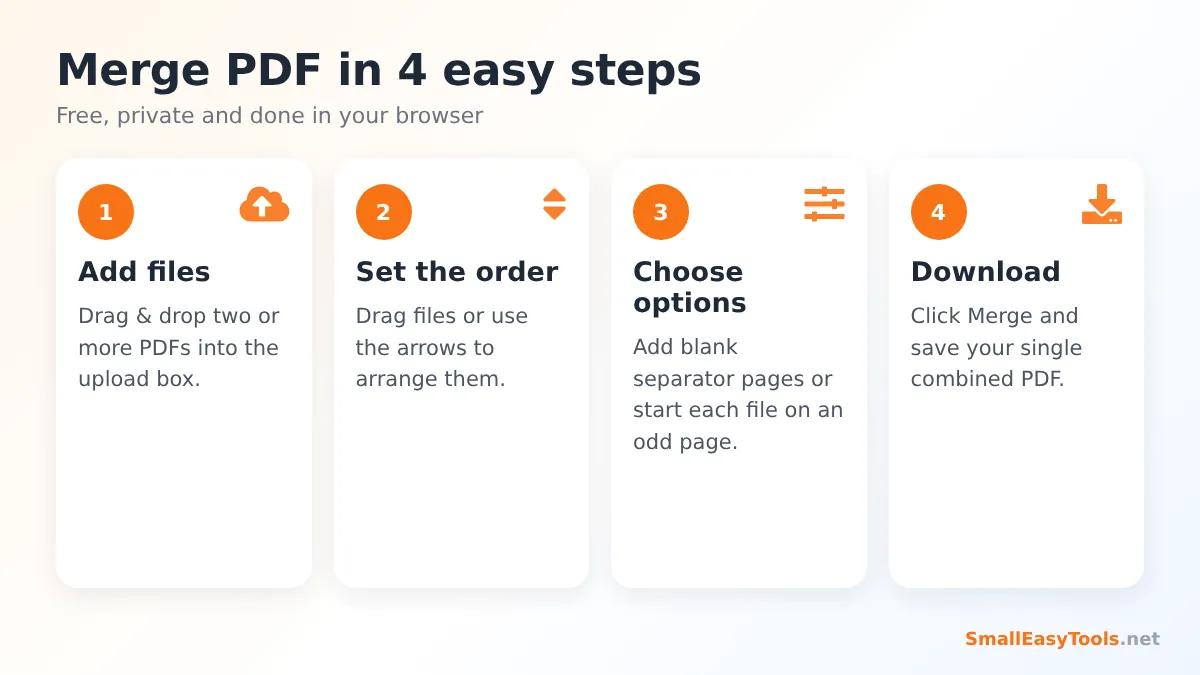
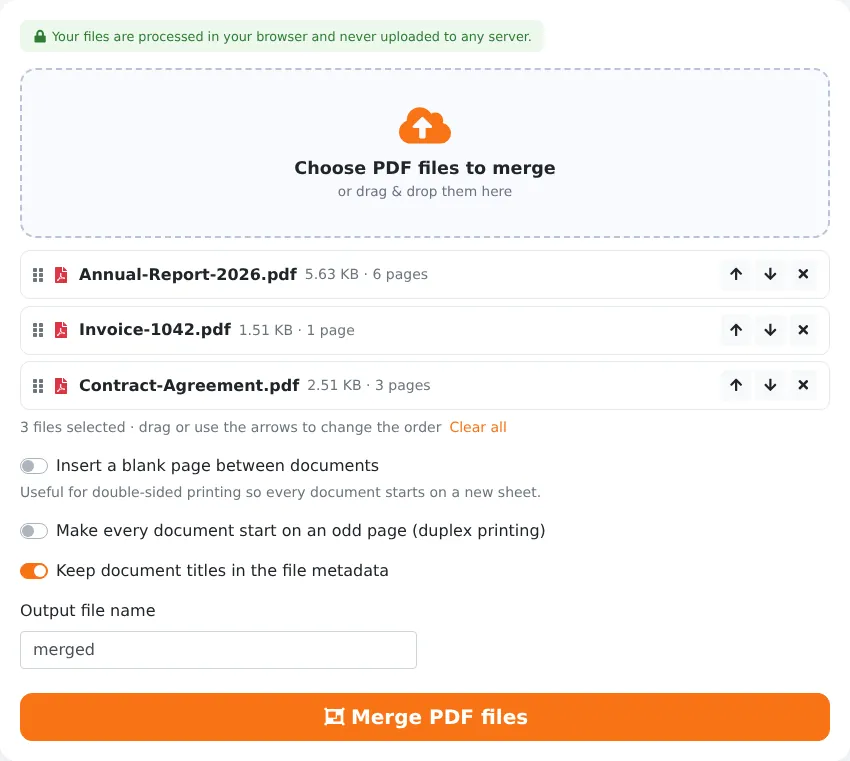
- Add your PDF files. Click the upload box and select two or more PDFs, or simply drag them from your desktop or Downloads folder onto the box. On a phone, tap the box and choose files from your Files app, Google Drive or downloads. You can add more files at any time — they are appended to the end of the list.
- Put the files in the right order. Each file appears in a list with its name, size and number of pages. Drag a file by its handle (the six dots on the left) or use the up and down arrows to move it. The order in this list is exactly the order of the pages in your final PDF.
- Choose your options (optional). If you plan to print double-sided, you can insert a blank page between documents or make every document start on an odd page. You can also type a name for the output file, for example visa-application-documents.
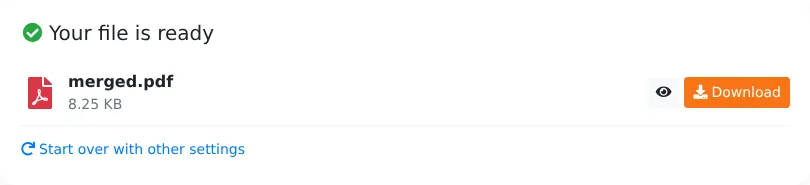
- Click “Merge PDF files” and download. Within a second or two you will see “Your file is ready” with the size of the new PDF. Use the eye icon to preview it in a new tab, then click Download to save it.
What Happens When You Merge PDFs?
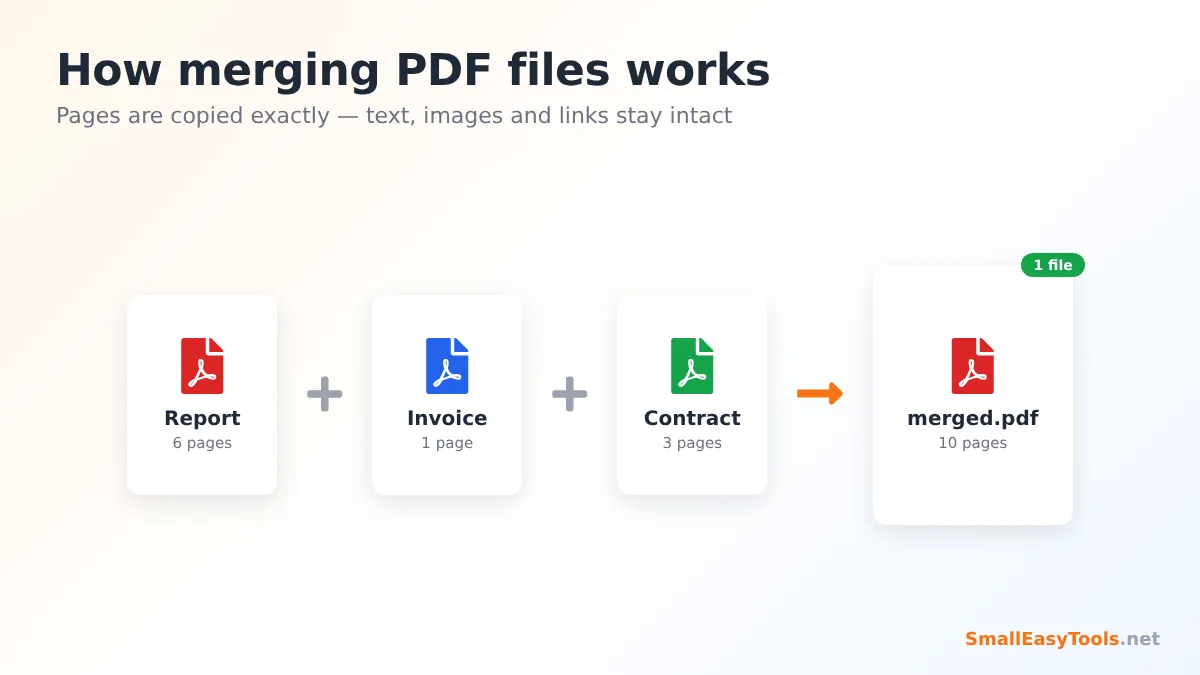
A PDF is made of pages, and every page refers to resources such as fonts, images and drawing instructions. When our tool merges files, it opens each document, copies its pages — together with everything those pages need — into a brand-new PDF, and saves the result. Nothing is re-rendered, flattened or converted to images.
This has a few practical consequences that are worth knowing:
- Quality is preserved 100%. Text stays sharp and selectable, vector graphics stay vector, and photos keep their original resolution. If you could search for a word in the original file, you can search for it in the merged file too.
- Page sizes are kept. If you merge an A4 report with a US Letter invoice and a landscape spreadsheet, each page keeps its own size and orientation. That is correct behaviour for a PDF, but if you need uniform pages, run the result through Resize PDF pages afterwards.
- Links inside pages keep working. Web links printed on a page remain clickable. Internal bookmarks (the outline panel in Adobe Reader) are document-level information, so they are not carried over from the source files.
- Form fields are copied as part of the page. If two forms use exactly the same field names, some PDF readers will treat them as one field. If you are merging filled-in forms, flatten them first with Flatten PDF so the answers become permanent page content.
The Merge Options Explained
Insert a blank page between documents
When you print a merged PDF double-sided, the first page of the second document will often end up on the back of the last page of the first document. That is a problem if the documents belong to different people or need to be separated after printing. Turning on this option adds one empty page after every document (except the last), so each one starts on a fresh side of paper.
Make every document start on an odd page
This is the smarter version of the option above, made for duplex printing. Instead of always adding a blank page, the tool only adds one when it is needed — that is, when the next document would otherwise start on an even (back) page. A 3-page document followed by another document gets one blank page; a 4-page document does not need one. The result: every document starts on the front of a new sheet, using the minimum amount of paper.
Keep document titles in the file metadata
PDFs have hidden properties such as Title, Author and Subject. With this option on, the merged file records the titles of the original documents in its Subject field, which makes it easier to see later what the file contains. You can review or change these properties with the Edit PDF metadata tool.
Output file name
Give your merged PDF a meaningful name before downloading. A name like 2026-11-invoices-green-leaf.pdf is far easier to find later than merged (3).pdf, and it also looks more professional when you email it to a client or upload it to a portal.
Getting the Page Order Right
Most mistakes when merging PDFs are ordering mistakes. A few habits prevent them:
- Rename files before you start. If you prefix file names with numbers — 01-cover.pdf, 02-report.pdf, 03-appendix.pdf — and select them all at once, they will usually appear in the right order immediately.
- Check the page counts in the list. The page count shown next to each file is read directly from the PDF. If a file says “1 page” but you expected ten, you probably selected the wrong version.
- Preview before you send. Use the eye icon in the result panel to scroll through the merged document once. It takes ten seconds and avoids embarrassing mistakes.
- Need to reorder individual pages? Merging works at the file level. If you need to move single pages around after merging — for example put page 7 before page 2 — open the result in Organize PDF, where you can drag page thumbnails, rotate and delete pages.
Merging PDFs on Different Devices
Windows and Mac
Open this page in Chrome, Edge, Firefox or Safari, then drag files from File Explorer or Finder directly onto the upload box. You can select many files at once by holding Ctrl (Windows) or Cmd (Mac) while clicking them in the file picker.
Android and iPhone
The tool works in mobile browsers as well. Tap the upload box, choose “Browse” or “Files”, and pick the PDFs one by one or together. On iPhone, the merged file can be saved to the Files app or shared straight to WhatsApp, Mail or Google Drive from the preview screen. Because everything is processed on the phone itself, very large documents (hundreds of pages with many photos) may take longer on older devices.
Chromebook
Chromebooks handle merging well because the tool runs entirely in the browser. Files from Google Drive can be selected through the Files app.
Ways to Merge PDF Files Compared
There are many ways to combine PDFs. The right one depends on how often you do it, how sensitive the documents are and whether you can install software.
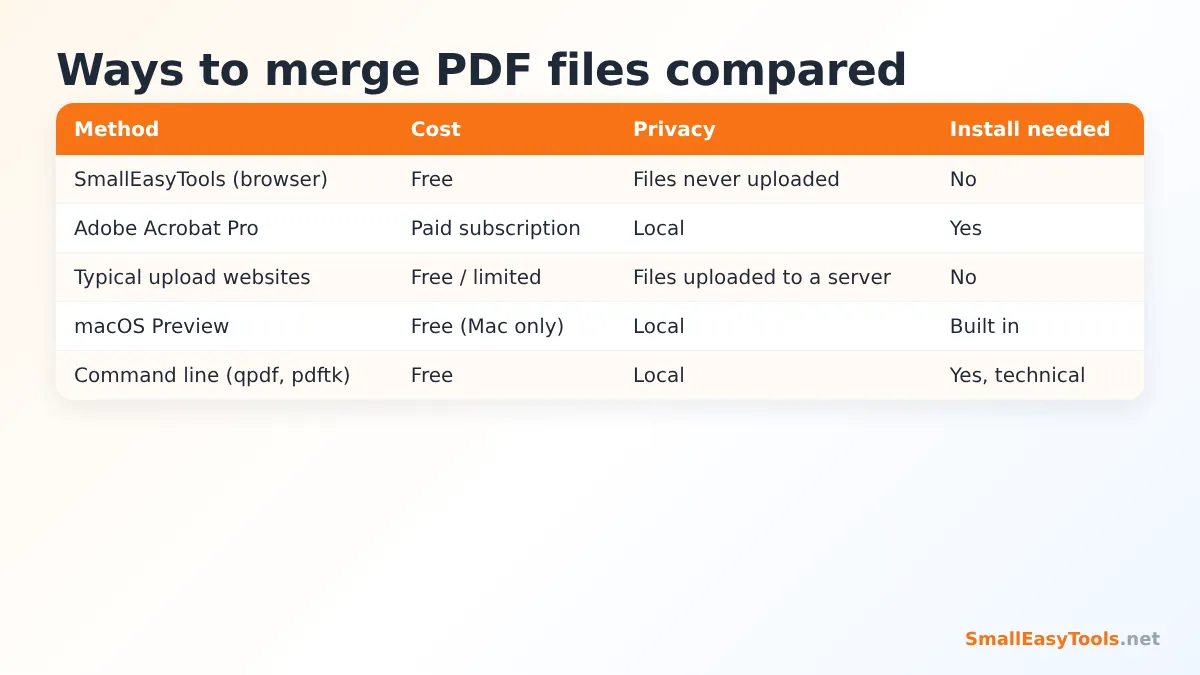
- SmallEasyTools (in your browser): free, nothing to install, and files stay on your device. Ideal for everyday merging on any computer or phone.
- Adobe Acrobat Pro: the most complete PDF editor, with features such as bookmark merging and advanced editing, but it requires a paid subscription.
- Typical upload websites: convenient, but most of them upload your documents to their servers and often limit file sizes or the number of free tasks per day.
- macOS Preview: Mac users can drag page thumbnails from one PDF into another in Preview’s sidebar. It works, but it is fiddly with many files.
- Command-line tools: programs such as qpdf and pdftk are powerful for automation, but they require technical knowledge.
File Size: What to Expect
The size of a merged PDF is usually close to the total size of the original files. Our tool removes duplicate internal structures and saves the file with compressed object streams, so the result is often slightly smaller than the sum of the parts — but merging is not a compression tool.
If the merged file is too large for an email attachment (many email services limit attachments to around 20–25 MB) or for an upload portal with a 2 MB or 5 MB limit, use Compress PDF on the result. For scanned documents, compression can often reduce the size dramatically. If you need to stay under a strict limit and compression is not enough, Split PDF can divide the document into parts below a maximum size.
Common Problems and How to Fix Them
“This PDF is password protected”
Encrypted PDFs cannot be merged until they are unlocked, because their contents cannot be read without the password. Bank statements and payslips are often protected this way. Open them with Remove PDF password (you need to know the password), download the unlocked copy, and then merge it.
“This file could not be opened as a PDF”
The file may be damaged — for example an interrupted download — or it may not be a real PDF (some files are images or Word documents renamed to .pdf). Try Repair PDF first. If the file is actually an image, convert it with JPG to PDF or Images to PDF.
Some pages appear sideways
Pages keep their original orientation. Scanned pages are often sideways from the start. Fix them before or after merging with Rotate PDF pages, which has a smart mode that only rotates pages whose orientation differs from the first page.
The merged file has pages of different sizes
This happens when you combine documents from different sources — A4 from one, US Letter from another. Use PDF page size checker to see the sizes and Resize PDF pages to make them uniform.
Merging is slow on my phone
Very large files are processed in your device’s memory. Close other apps and browser tabs, or merge on a computer. Splitting the job into two smaller merges and then merging the results also helps.
Is It Safe to Merge PDFs Online?
With many online services, the answer depends on what happens to your files after you upload them. With our tool there is no upload at all: the PDF libraries run inside your browser, read the files from your device, build the merged PDF in memory and hand it back to you as a download. You can even disconnect from the internet after the page has loaded and the tool will still work.
That makes it a good fit for documents you would rather not send anywhere: passports and national ID scans, salary slips, tax returns, medical reports, legal contracts and business plans. As always, keep your device itself secure and delete downloaded copies you no longer need.
Practical Examples
Job and university applications
Application portals often ask for “one PDF containing your CV, cover letter and certificates.” Export your CV and cover letter to PDF, scan your certificates with Scan to PDF, merge everything in the order requested, and compress the result if the portal has a size limit.
Visa and government forms
Embassies usually want supporting documents in a specific order. Name your files with numbers, merge them, then add page numbers with Add page numbers to PDF so officers can refer to them easily.
Accounting and bookkeeping
Combine all invoices or receipts for a month into a single file per supplier. Add Bates-style reference numbers with Add Bates numbers if your accountant needs to reference individual pages.
Reports and proposals
Create the cover in a design tool, the main text in a word processor and the financial tables in a spreadsheet, export each to PDF and merge. Finish with Add header and footer for a consistent professional look.
Tips for Professional Results
- Export documents to PDF from the original application (Word, Excel, Google Docs) rather than printing to PDF from a screenshot — text stays searchable and files stay small.
- Keep the original files until you have checked the merged PDF.
- Use consistent page sizes for documents you plan to print.
- Add a simple cover page with a title and date when sending a bundle of documents to someone else.
- If the document will be published on a website, run it through Linearize PDF so the first page appears quickly in browsers.
Frequently Asked Questions
Is the Merge PDF tool really free?
Yes. There is no sign-up, no watermark, no trial period and no limit on the number of merges.
How many PDF files can I merge at once?
There is no fixed limit. The practical limit is your device’s memory; merging dozens of files with hundreds of pages works fine on a typical computer.
Will the merged PDF lose quality?
No. Pages are copied exactly as they are, so text, images and vector graphics keep their original quality.
Can I merge PDFs with different page sizes?
Yes. Each page keeps its own size and orientation. Use Resize PDF pages afterwards if you want them all the same size.
Can I change the order of pages, not just files?
Yes — merge first, then open the result in Organize PDF or Reorder PDF pages to drag individual pages into any order.
Can I merge password-protected PDFs?
You need to remove the password first with Remove PDF password, which requires the correct password.
Are my files uploaded anywhere?
No. Everything happens in your browser on your own device. Your files are never sent to our server or to anyone else.
Does it work on mobile phones?
Yes, on modern Android and iPhone browsers. Very large documents are faster to merge on a computer.
Can I merge images and PDFs together?
Convert the images to PDF first with Images to PDF or JPG to PDF, then merge all the PDFs in one step.
Related PDF Tools
- Split PDF – divide a PDF into several files by range, page or size.
- Organize PDF – reorder, rotate, duplicate and delete pages visually.
- Compress PDF – make the merged file small enough for email and portals.
- JPG to PDF – turn photos and scans into PDFs before merging.
- Add page numbers to PDF – number the pages of your combined document.
- Protect PDF with password – lock the merged file before sharing it.
Similar tools Maybe You Like or need
Split a PDF into multiple files by page ranges, every N pages, single pages or maximum file size. Free, fast and private — no upload required.
Organize PDF pages visually: drag to reorder, rotate, duplicate, delete and add blank pages. Free online PDF organizer that works in your browser.
Reduce PDF file size online for free. Lossless optimisation or strong compression for scanned PDFs, with before/after size comparison. Private, no upload.
Most Popular Online Tools
Convert kilometers per hour to miles per hour (km/h to mph) instantly. 1 km/h = 0.621371192 mph. Free speed converter with formula and chart.
Free WhatsApp link generator. Create a wa.me click-to-chat link with your phone number and a pre-filled message for websites, ads and social bios.
Free hosting checker. Find out which company hosts any website, plus its IP address and server location. Ideal for research and migrations.
Free DNS lookup tool. Check A, AAAA, CNAME, MX, NS, TXT and SOA records of any domain instantly to verify DNS settings and troubleshoot email or website issues.
Free strong password generator. Create secure random passwords with custom length, numbers, symbols and upper/lowercase letters instantly.
Free IP lookup tool. See your IP address or check any IP to find its country, city, ISP, time zone and more. Fast, accurate and no sign-up.