JPG to PDF
Convert JPG images to PDF online. Combine many images into one PDF, choose A4 or Letter, orientation, margins and quality. Free and private.
JPG to PDF Converter – The Complete Guide
Photos are everywhere: a picture of a receipt for an expense claim, phone photos of handwritten notes, scanned certificates, screenshots of a payment confirmation, images of a signed form. But when you need to send those images — to an employer, a university, a bank, an embassy or a client — the request is almost always the same: “Please upload a single PDF.” PDFs keep pages in order, open the same way on every device, print at the right size and look far more professional than a pile of loose image attachments.
Our free JPG to PDF converter turns one or many JPG (JPEG) images into a clean PDF in seconds. You can drag images into the right order, choose a standard paper size such as A4 or Letter, set margins, decide how each image is placed on the page and reduce the file size if you need to meet an upload limit. Everything happens in your web browser, so your photos never leave your device.
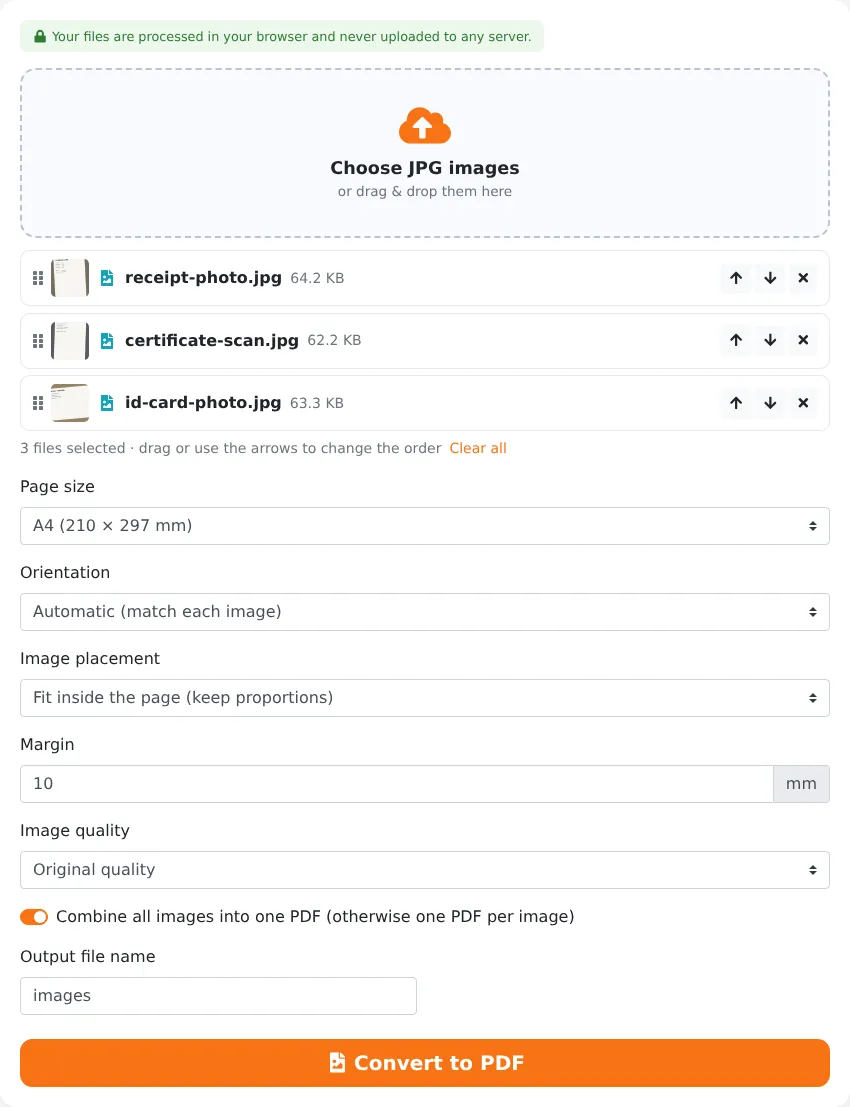
How to Convert JPG to PDF in 4 Steps
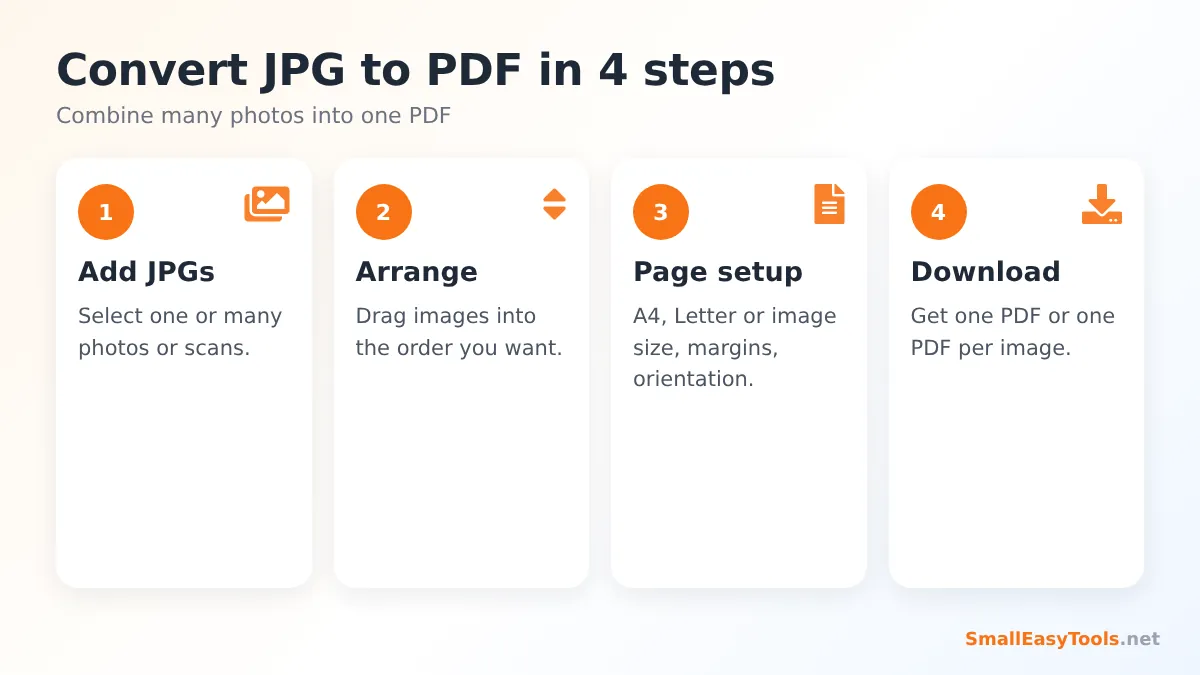
- Add your images. Click the upload area or drag JPG files onto it. You can select many images at once — hold Ctrl (Windows) or Cmd (Mac), or tap several photos on your phone.
- Arrange the order. Each image becomes one page. Drag the cards in the file list to put them in the right order, or remove any image you added by mistake.
- Choose the layout. Select the page size (A4, Letter, Legal and more, or “Same as each image”), the orientation, how the image is placed and the margin.
- Click “Convert to PDF” and download. The PDF is created instantly in your browser. Give it a meaningful name before converting, such as expense-receipts-march.
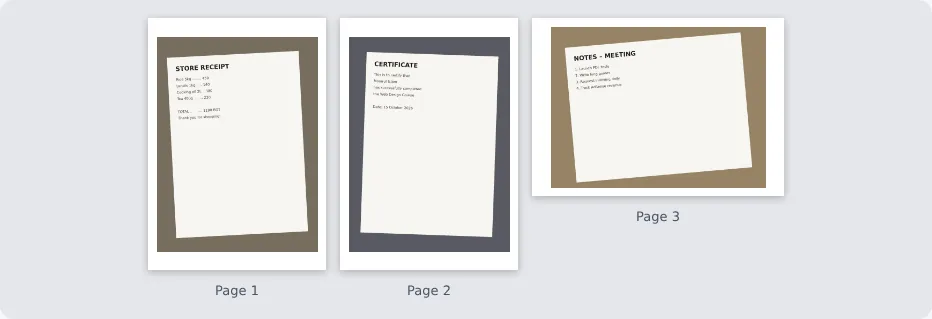
Choosing the Right Page Size
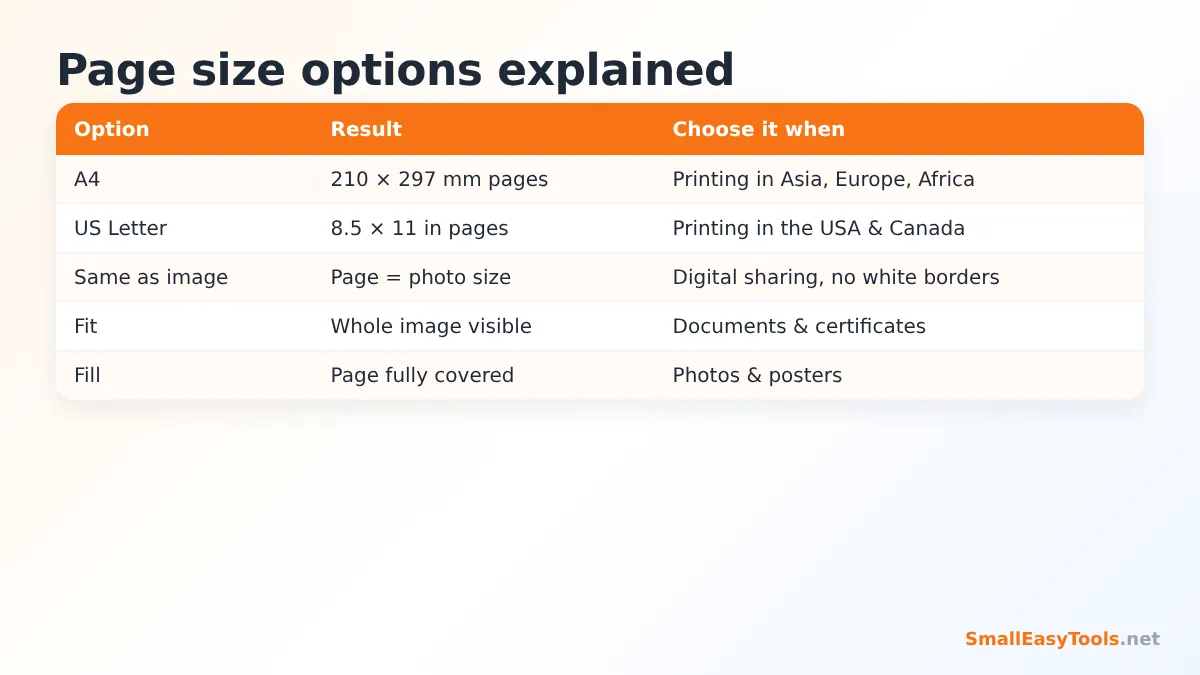
A4 or Letter (recommended for documents)
If the PDF will be printed, submitted to an organisation or attached to an official application, choose a standard paper size. Most of the world uses A4 (210 × 297 mm); the United States and Canada mostly use Letter (8.5 × 11 inches). With a standard size, every page in the PDF has the same dimensions, even if your photos have different shapes and resolutions, and the document prints correctly without awkward scaling.
Same as each image
This option makes every page exactly the size of its image. It is ideal for photo albums, screenshots, design portfolios and comics — anything that is mainly viewed on screen — because there are no white borders. The downside is that pages can have different sizes, which looks less tidy when printed.
Orientation
“Automatic” rotates each page to match its image: a landscape photo gets a landscape page and a portrait photo a portrait page, so images are as large as possible. Choose Portrait or Landscape to force every page into the same orientation.
Image Placement: Fit, Fill or Stretch
- Fit inside the page (default) keeps the full image visible and preserves its proportions. If the image shape does not match the paper shape, you will see white space at the sides or top and bottom. This is the safest choice for documents, because nothing gets cut off.
- Fill the page enlarges the image until it covers the whole page area, cropping anything that sticks out. Use it for photos where a full-bleed look matters more than the edges.
- Stretch to the page forces the image to the exact page shape. It can distort faces and text, so use it only for images that already have nearly the same proportions as the paper.
Margins
The margin is the white border around each image, set in millimetres. 10 mm is a good default for documents; it keeps content away from the edge, where many printers cannot print. Set 0 mm for edge-to-edge pages.
Reducing the PDF Size
Modern phones take photos of 3–8 MB each. Ten photos can easily create a 50 MB PDF — far too large for most upload forms and email. The Image quality setting solves this:
- Original quality embeds your JPG files exactly as they are, without recompression. Best quality, largest file.
- High re-encodes images at a high JPEG quality. The file becomes noticeably smaller with no visible difference for documents.
- Medium creates much smaller files and is ideal for upload portals with 1–2 MB limits.
If the result is still too large, run it through Compress PDF, which can reduce scanned and photo-based PDFs by 70–90%. You can also shrink the photos first with our Image Optimizer.
One PDF or One PDF per Image?
By default all images are combined into one PDF, one image per page, in the order shown in the list. Untick “Combine all images into one PDF” to create a separate PDF for each image instead — useful when a portal asks for individual files (“upload your passport”, “upload your degree certificate”). With several results, click “Download all as ZIP” to get everything in one go.
Tips for Converting Phone Photos of Documents
Photos of paper documents often look grey, tilted and shadowy. A few simple habits make a big difference:
- Use good, even light. Daylight near a window is better than a ceiling lamp that casts your phone’s shadow on the paper.
- Hold the phone parallel to the page and fill the frame with the document.
- Use a dark background so the edges of the paper are clearly visible.
- Turn off the flash on glossy paper to avoid glare.
- Enhance automatically: for the best scanned look, use Scan to PDF, which brightens the paper, sharpens text and can convert to black and white for smaller files.
What About Other Image Formats?
This converter is optimised for JPG/JPEG, the format used by almost all phone cameras and scanners. For other formats we have dedicated tools:
- PNG to PDF – screenshots and graphics with sharp edges and transparency.
- WebP to PDF – images saved from websites.
- Images to PDF – mix JPG, PNG, WebP, GIF and BMP files in one PDF.
iPhone photos are often saved as HEIC. Convert them first with HEIC to JPG, then create the PDF here.
Real-World Examples
Expense claims
An employee photographs twelve restaurant and taxi receipts during a business trip. Converting them into one A4 PDF with “Fit inside the page” and “High” quality produces a small, tidy document that the finance team can print and file.
Visa and job applications
Many application portals require each document as a PDF under 1 or 2 MB. Photograph the certificate, convert it with “Medium” quality, and the file usually fits the limit. If a portal asks for several pages in one file, add all photos and drag them into order.
School assignments
Students who write by hand can photograph each page of homework and convert the photos into one PDF for submission on Google Classroom, Moodle or Teams.
Photo portfolios
Photographers and designers can send a portfolio as a single PDF using “Same as each image” so that every photo fills its page without borders.
After Converting: What Next?
Once you have your PDF, you can continue working with it in our other free tools:
- Add page numbers with Add page numbers.
- Sign it with Sign PDF.
- Combine it with other PDFs using Merge PDF.
- Protect it with Protect PDF with password before sending personal documents.
- Turn it back into images with PDF to JPG.
Is It Safe to Convert Photos Online?
Your images often contain sensitive information: ID cards, bank details, addresses, signatures. That is why this converter never uploads them. The PDF is built by a JavaScript library running in your browser tab, using your own device’s memory and processor. When you close the tab, everything is gone. There is no account, no storage and no copy of your files anywhere else.
Troubleshooting
Some photos appear sideways
Phones store orientation information inside the photo, and some old apps ignore it. The quickest fix is to rotate the affected pages of the finished PDF with Rotate PDF pages — select only the sideways pages and turn them 90°.
The pages are in the wrong order
Drag the images in the file list before converting. If you already created the PDF, use Organize PDF to reorder pages visually.
The PDF is too large
Choose “Medium” image quality, or compress the finished file with Compress PDF.
The image looks small with lots of white space
Choose “Same as each image”, set the margin to 0 mm, or use “Fill the page”.
JPG vs PDF: Why Convert at All?
JPG is excellent for storing a single photograph, but it was never designed for documents. A PDF solves several problems at once. It holds many pages in a fixed order, so a ten-page contract cannot arrive as ten loose attachments in random order. It has a defined page size, so it prints on A4 or Letter paper without the guesswork of image scaling. It opens in the same way on Windows, Mac, Android, iPhone and every web browser. And most organisations simply require it: online application forms, HR systems, accounting software and court filing systems typically accept PDFs for documents. Converting your images to PDF is therefore less about the file format and more about presenting your documents in the way the recipient expects.
There is also a practical benefit for you. One PDF is easier to keep track of than a folder of photos named IMG_4021.jpg to IMG_4033.jpg. Give the PDF a clear name, such as 2026-tax-receipts.pdf, and you will find it in seconds next year.
Image Resolution and Print Quality
When an image is placed on a page, its pixels are spread across the page area. A photo that is 3000 pixels wide printed across a 190 mm wide area (A4 with margins) gives about 400 pixels per inch — more than enough for sharp printing. A small 600-pixel-wide image on the same page gives only about 80 pixels per inch and will look soft or pixelated when printed. If your images look blurry in the PDF, the cause is almost always the source image, not the conversion. Use the original photos from your camera or phone rather than the compressed copies saved from messaging apps, which reduce resolution heavily.
Frequently Asked Questions
Is the JPG to PDF converter free?
Yes, completely free with no registration and no watermark.
How many images can I convert at once?
There is no fixed limit. Dozens of images work smoothly; for hundreds of high-resolution photos, a computer is faster than a phone.
Does converting reduce image quality?
Not with “Original quality” — your JPG data is embedded unchanged. The High and Medium options deliberately reduce quality to make the file smaller.
Can I convert JPG to PDF on my phone?
Yes. It works in Chrome, Safari, Samsung Internet and other modern mobile browsers.
Can I make one PDF per image?
Yes. Untick “Combine all images into one PDF”.
What is the difference between JPG and JPEG?
None — they are two names for the same format. Both .jpg and .jpeg files are supported.
Are my photos uploaded to a server?
No. The conversion happens entirely in your browser.
Related Tools
- PDF to JPG – convert PDF pages back into images.
- Scan to PDF – turn phone photos into clean scanned documents.
- Images to PDF – combine mixed image formats.
- Compress PDF – make the PDF small enough for uploads.
- Merge PDF – combine your new PDF with other documents.
Similar tools Maybe You Like or need
Convert PNG images to PDF online. Combine many images into one PDF, choose A4 or Letter, orientation, margins and quality. Free and private.
Convert Images images to PDF online. Combine many images into one PDF, choose A4 or Letter, orientation, margins and quality. Free and private.
Convert PDF pages to high-quality JPG images online. Choose 72–600 DPI, adjustable quality, all pages or selected pages. Free, private, no upload.
Most Popular Online Tools
Convert kilometers per hour to miles per hour (km/h to mph) instantly. 1 km/h = 0.621371192 mph. Free speed converter with formula and chart.
Free WhatsApp link generator. Create a wa.me click-to-chat link with your phone number and a pre-filled message for websites, ads and social bios.
Free hosting checker. Find out which company hosts any website, plus its IP address and server location. Ideal for research and migrations.
Free DNS lookup tool. Check A, AAAA, CNAME, MX, NS, TXT and SOA records of any domain instantly to verify DNS settings and troubleshoot email or website issues.
Free strong password generator. Create secure random passwords with custom length, numbers, symbols and upper/lowercase letters instantly.
Free IP lookup tool. See your IP address or check any IP to find its country, city, ISP, time zone and more. Fast, accurate and no sign-up.