WebP to PDF
Convert WebP images to PDF online. Combine many images into one PDF, choose A4 or Letter, orientation, margins and quality. Free and private.
WebP to PDF Converter – The Complete Guide
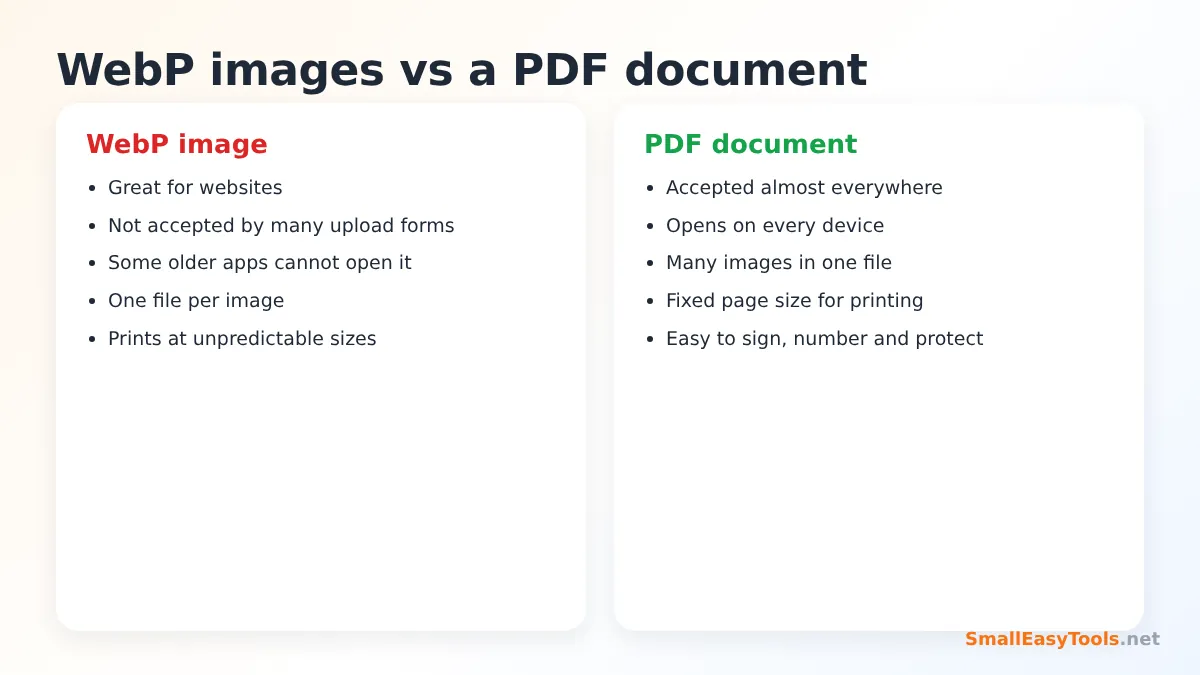
You save an image from a website — a product photo, a chart, a recipe card, an infographic, a ticket confirmation — and discover it is a .webp file. WebP is excellent for websites because it keeps images small, but outside the browser it can be inconvenient: some older programs cannot open it, many upload forms do not accept it, and printing it at the right size is not straightforward. When you need to share, print, archive or submit such images, a PDF is the most universal format.
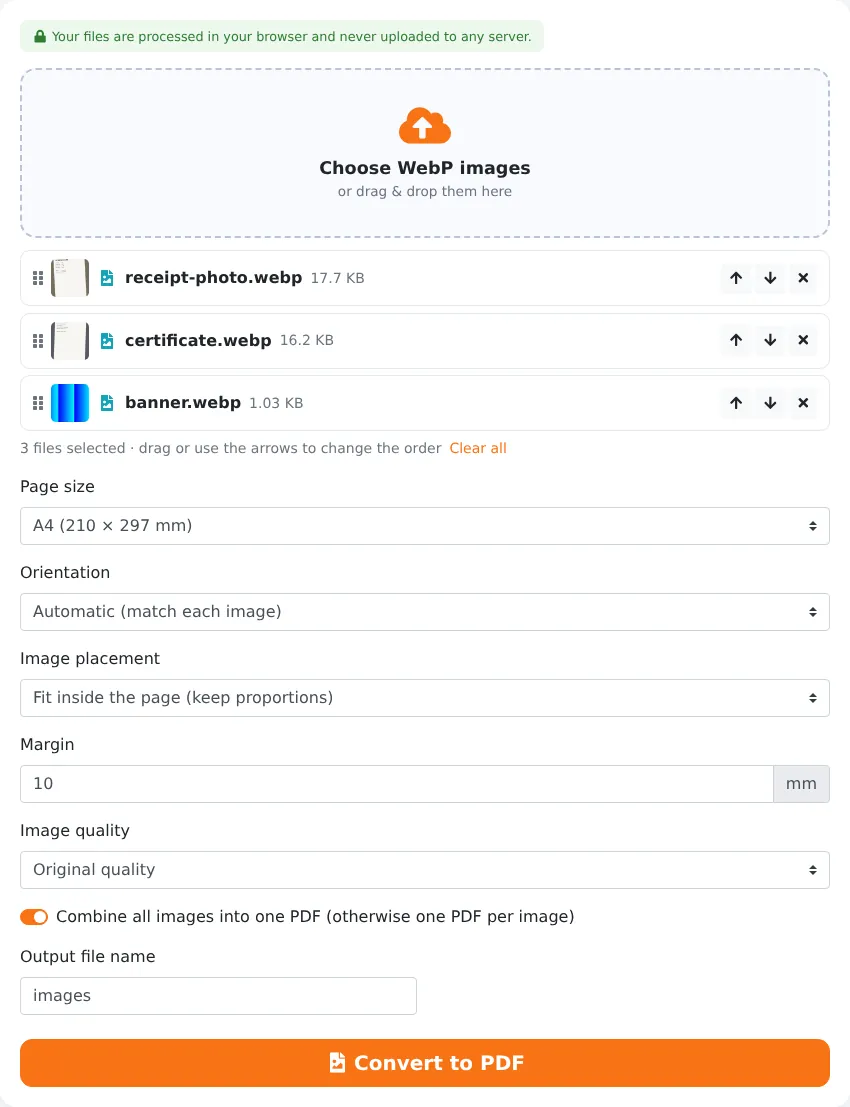
Our free WebP to PDF converter turns one or many WebP images into a PDF document. Drag the images into order, choose A4, Letter or the image’s own size, decide how images fit on the page and add margins. The conversion happens entirely in your browser, so your images are never uploaded.
Key Features at a Glance
- Converts one or many WebP images in a single step.
- Drag-and-drop ordering with arrow buttons.
- Standard paper sizes or pages that match each image exactly.
- Automatic orientation per image, or fixed portrait or landscape.
- Fit, fill or stretch placement and adjustable margins.
- Optional image compression for smaller files.
- One combined PDF or one PDF per image, with ZIP download.
How to Convert WebP to PDF in 4 Steps
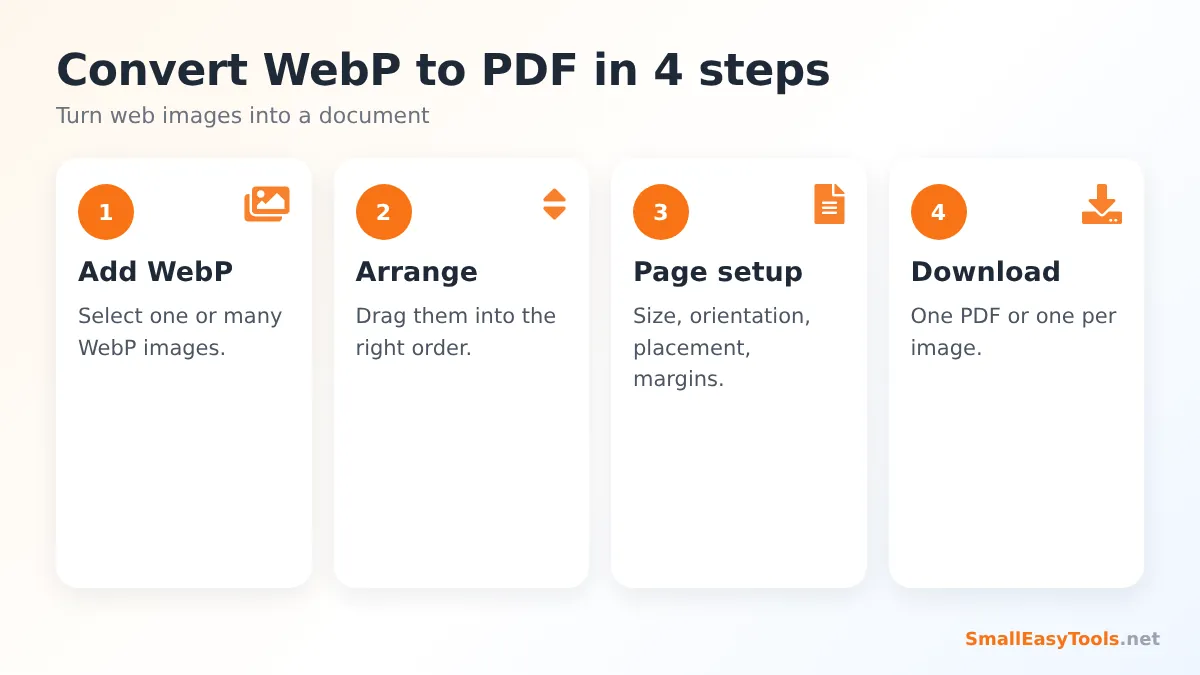
- Add your WebP images by clicking the upload area or dragging the files onto it.
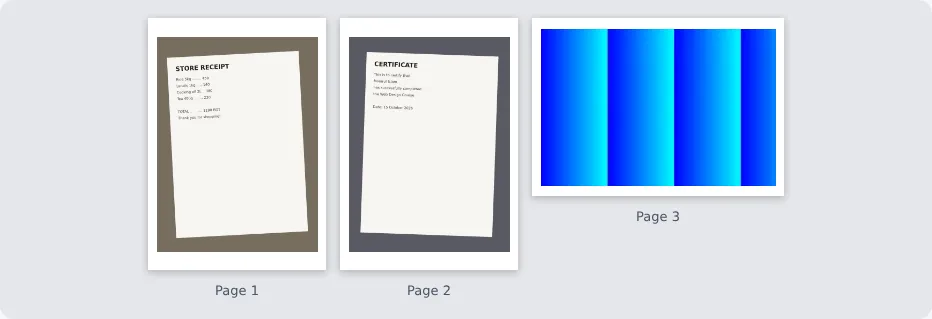
- Arrange them in the order you want; each image becomes one page.
- Choose the page setup: size, orientation, placement, margin and image quality.
- Click “Convert to PDF” and download your document.
Why Convert WebP Images to PDF?
Upload forms and official submissions
Job portals, university applications, government services and insurance claims typically accept PDF, and sometimes JPG or PNG — rarely WebP. Converting to PDF avoids rejected uploads.
Printing
A PDF with a fixed page size prints exactly as expected. Printing a WebP image directly can result in odd scaling, cropped edges or a tiny image in the corner of the page.
Sharing with anyone
PDFs open on every computer, phone and tablet. Recipients do not need to know what a WebP file is or install anything.
Combining many images
Ten images saved from a website become one tidy document, in the order you choose, instead of ten separate attachments.
Archiving
PDF is a widely used format for long-term document storage. Saving important web content — receipts, confirmations, instructions — as a PDF makes it easier to find and open years later.
Page Layout Options
Page size
Use A4 or Letter for anything that will be printed or submitted. Use Same as each image for on-screen documents such as visual collections, where every page should match its image exactly and no white borders are wanted.
Orientation
Automatic gives wide images a landscape page and tall images a portrait page. Choose portrait or landscape to force a uniform look.
Placement
- Fit keeps the whole image visible with its original proportions.
- Fill covers the page and crops whatever extends beyond it.
- Stretch forces the image to the page shape — use carefully.
Margins and quality
A 10 mm margin suits printing; 0 mm creates edge-to-edge pages. Image quality “Original” keeps images as sharp as possible, while “High” and “Medium” create smaller PDFs for email and uploads.
A Note on Transparency and Animation
WebP images can have transparent areas. On a PDF page, those areas show the white page beneath, just as they would on white paper. If you choose a compressed quality setting, transparent areas are filled with white during re-encoding. Animated WebP images are converted using a single frame, because PDF pages are static.
Saving Images from Websites as WebP
When you right-click an image and choose “Save image as…”, many browsers save the format the website delivered — often WebP. That is perfectly fine for this tool. Please respect copyright: images on websites usually belong to their creators. Converting images for personal use — such as saving your own order confirmation, a recipe for your kitchen or a reference for your studies — is very different from republishing someone else’s work.
WebP to PDF vs Other Converters
- Images to PDF – combine WebP with JPG, PNG, GIF and BMP in one document.
- WebP to JPG or WebP to PNG – when you need an image file in a more compatible format rather than a document.
- PDF to WebP – the reverse: turn PDF pages into WebP images for your website.
Real-World Examples
Online order records
A shopper saves order confirmation images and product photos from an online store, all in WebP. Converting them into one PDF creates a neat record for a warranty claim.
Recipe collection
A home cook saves recipe cards from cooking websites. Converting them into an A4 PDF with fit placement makes them easy to print and keep in a binder.
Design inspiration board
A designer collects reference images from various websites and converts them into a PDF with “Same as each image” page size to share with a client as a mood board.
Course materials
A student saves diagrams from an online course and combines them into a PDF study guide to annotate on a tablet.
Privacy
Your images are processed by JavaScript inside your browser. They are not uploaded, stored or seen by anyone else.
Troubleshooting
A file is not accepted
Check that it is really a WebP image. Some files saved from websites have a misleading extension. For mixed formats, use Images to PDF.
The image looks small on the page
Small web images do not have enough pixels to fill an A4 page sharply. Choose “Same as each image” or accept a smaller image with margins.
The PDF is too large
Choose High or Medium image quality, or compress the PDF afterwards with Compress PDF.
Pages are in the wrong order
Drag the images before converting, or reorder pages later with Organize PDF.
What Is WebP, and Why Do You See It Everywhere?
WebP is an image format introduced by Google in 2010 and now supported by all major browsers. It can compress images in a lossy way like JPG or a lossless way like PNG, supports transparency like PNG, and can even store animations like GIF — usually with smaller files than any of those formats. Because faster pages improve user experience and can help search performance, many websites, online shops and content platforms now deliver images as WebP automatically. That is why images you save from the web increasingly arrive as .webp files, even if the website originally uploaded a JPG or PNG.
The downside is compatibility outside the browser. While modern operating systems and many apps can now open WebP, some older image viewers, office programs, online forms and printing services still cannot. Converting to PDF solves this for documents, and converting to JPG or PNG solves it for single images.
Converting on a Phone
The converter works in mobile browsers. On Android, images saved from Chrome are usually in your Downloads folder; on iPhone, saved web images may be in Photos or Files. Tap the upload area, select the WebP images, arrange them and tap “Convert to PDF”. The PDF can be saved to your device or shared straight to email or a messaging app.
Tips for Better Results
- Save the largest version of an image. Many websites show small thumbnails; open the image in a new tab or zoom view before saving to get a higher resolution.
- Name the files in order (01, 02, 03…) before uploading if order matters.
- Use “Fit” for documents such as tickets, receipts and certificates so no part is cut off.
- Use “Same as each image” for visual collections without white borders.
- Add page numbers for longer collections with Add page numbers.
- Protect personal documents with Protect PDF with password before sending them by email.
Mistakes to Avoid
- Using tiny thumbnails. A 300-pixel image stretched over an A4 page looks blurry when printed.
- Choosing Stretch for photos. Stretching distorts faces and objects; Fit or Fill keep proportions.
- Ignoring rights. Converting an image does not change who owns it. Use images from other websites only in ways you are allowed to.
A Quick Glossary
- WebP – a modern image format for the web with small file sizes, transparency and animation support.
- PDF – Portable Document Format, a fixed-layout document format that looks the same on every device and printer.
- Fit – the image is scaled to fit inside the page, keeping its proportions.
- Fill – the image covers the page and is cropped where necessary.
- Margin – the white border between the image and the edge of the page.
WebP to PDF in Everyday Life
Most people never think about image formats until a file refuses to upload or open. If you regularly save images from the web — screenshots of bookings, product pictures for comparison, articles you want to read later, or pictures for school projects — keeping them as PDFs organised by topic makes them easier to find, share and print later. A single PDF per project or trip is much easier to manage than dozens of loose image files in a downloads folder.
Frequently Asked Questions
Is WebP to PDF free?
Yes — no registration, watermark or limits.
Can I combine several WebP images into one PDF?
Yes. Add them all and arrange them in order.
Can I create one PDF per image?
Yes. Untick “Combine all images into one PDF”.
Will image quality be reduced?
Not with “Original quality”.
Does it work on phones?
Yes, in any modern mobile browser.
Are my images uploaded?
No. The conversion happens entirely in your browser.
Can I convert animated WebP files?
Yes, but only a single frame is used, because PDF pages are static.
Can I mix WebP with JPG or PNG?
Use Images to PDF, which accepts several formats in one document.
What page size should I choose?
A4 or Letter for printing and official uploads; “Same as each image” for on-screen viewing.
Can I print the PDF?
Yes. Choose A4 or Letter for predictable printing.
Is the PDF searchable?
No. The pages contain images, so text inside them cannot be searched or selected.
How many images can I convert?
There is no fixed limit. Large batches of high-resolution images are faster on a computer.
Related Tools
- PDF to WebP – convert PDF pages to WebP.
- Images to PDF – mix several image formats.
- WebP to JPG – make WebP images compatible with older apps.
- Merge PDF – combine the result with other PDFs.
- Compress PDF – reduce the PDF size.
Similar tools Maybe You Like or need
Convert JPG images to PDF online. Combine many images into one PDF, choose A4 or Letter, orientation, margins and quality. Free and private.
Convert Images images to PDF online. Combine many images into one PDF, choose A4 or Letter, orientation, margins and quality. Free and private.
Merge PDF files online for free. Combine multiple PDFs into one document, reorder files by drag and drop, add blank separator pages. Private, no upload, no watermark.
Most Popular Online Tools
Convert kilometers per hour to miles per hour (km/h to mph) instantly. 1 km/h = 0.621371192 mph. Free speed converter with formula and chart.
Free WhatsApp link generator. Create a wa.me click-to-chat link with your phone number and a pre-filled message for websites, ads and social bios.
Free hosting checker. Find out which company hosts any website, plus its IP address and server location. Ideal for research and migrations.
Free DNS lookup tool. Check A, AAAA, CNAME, MX, NS, TXT and SOA records of any domain instantly to verify DNS settings and troubleshoot email or website issues.
Free strong password generator. Create secure random passwords with custom length, numbers, symbols and upper/lowercase letters instantly.
Free IP lookup tool. See your IP address or check any IP to find its country, city, ISP, time zone and more. Fast, accurate and no sign-up.