PDF to WebP
Convert PDF pages to high-quality WebP images online. Choose 72–600 DPI, adjustable quality, all pages or selected pages. Free, private, no upload.
PDF to WebP Converter – The Complete Guide
If you publish content on the web, page speed matters. Slow pages lose visitors, and page experience is one of the signals search engines consider. Images are usually the heaviest part of a web page, which is why modern websites increasingly use WebP — an image format developed by Google that produces noticeably smaller files than JPG and PNG at similar visual quality, and supports transparency.
When the content you want to publish lives in a PDF — a brochure, a menu, a flyer, an infographic, a price list, a slide or a page from a report — our free PDF to WebP converter turns its pages into lightweight WebP images, ready for your website, blog, online shop or app. Choose the pages, the resolution and the quality, and download individual images or a ZIP. The conversion runs in your browser, so your PDF is never uploaded.
Key Features at a Glance
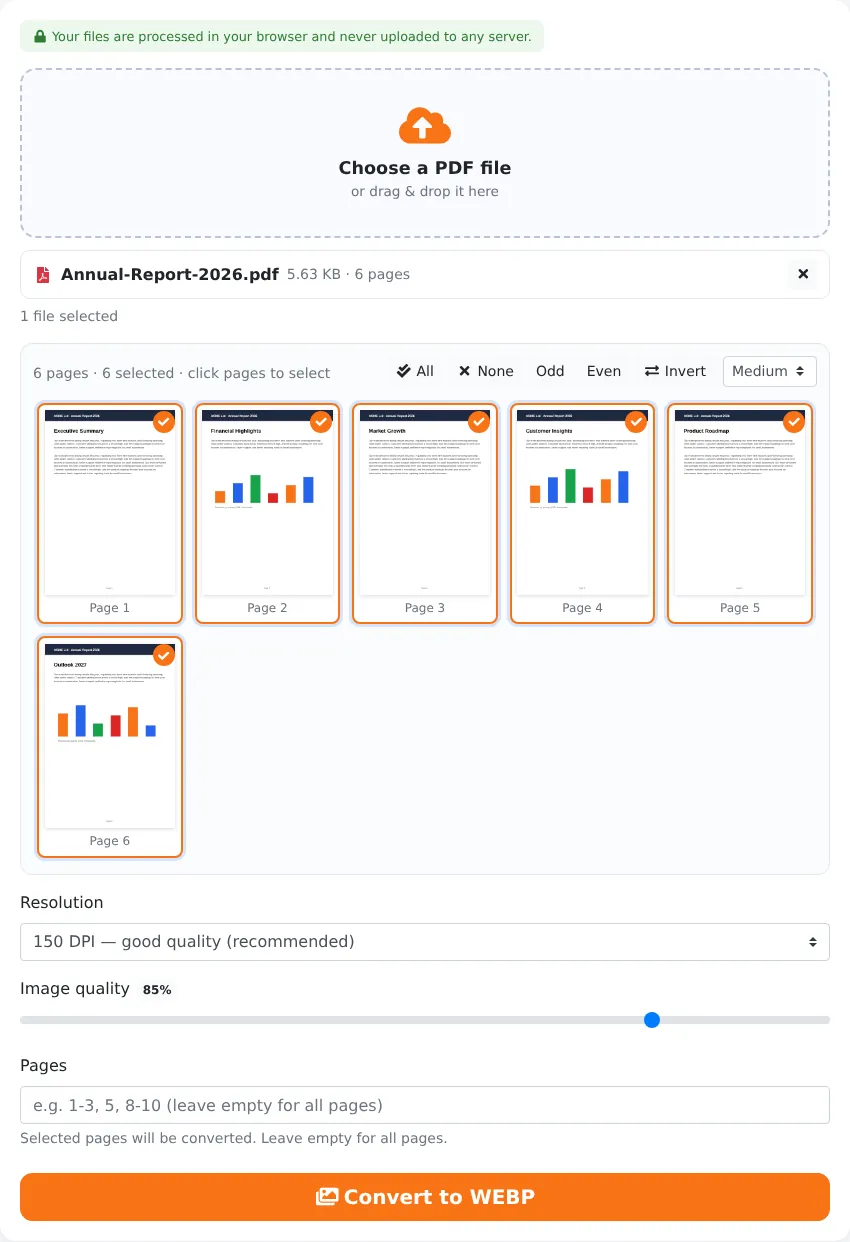
- Converts all pages or only the pages you select.
- Six resolutions from 72 DPI for thumbnails to 600 DPI for fine detail.
- Adjustable quality from 30% to 100% to balance size and sharpness.
- Clear file names numbered by page, plus “Download all as ZIP”.
- White page backgrounds rendered exactly as in a PDF viewer.
- Private, in-browser processing with no upload, account or watermark.
How to Convert PDF to WebP in 4 Steps
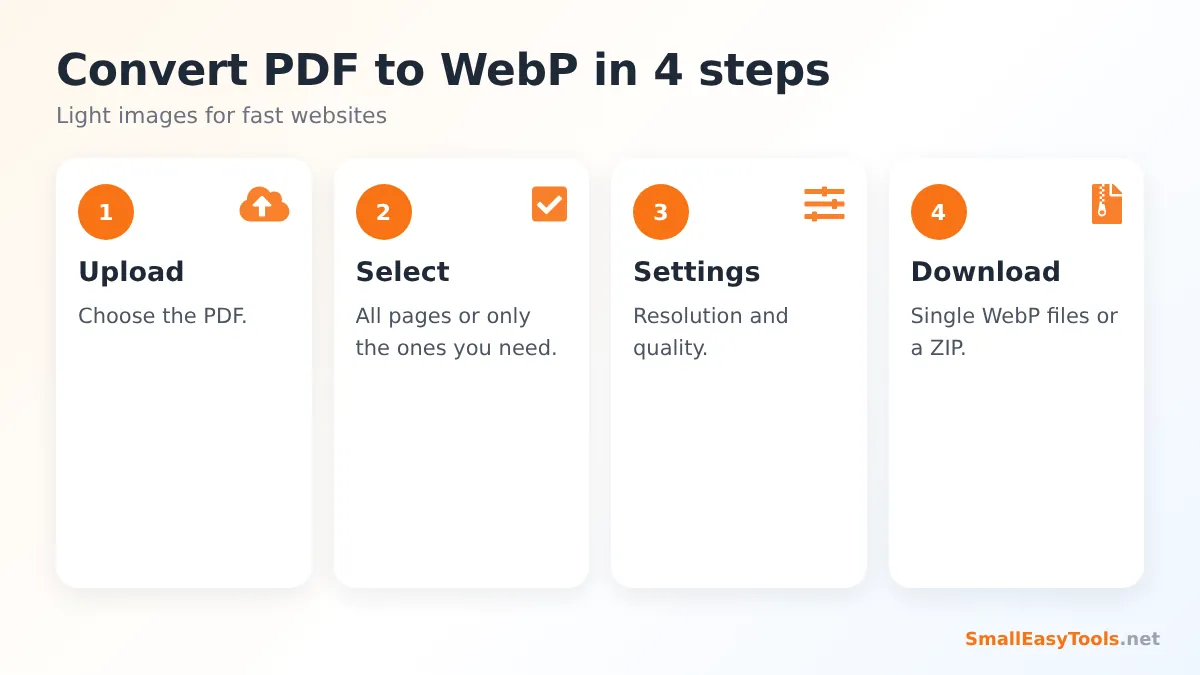
- Upload your PDF by clicking the upload area or dragging the file onto it.
- Select pages. All pages are selected by default; click thumbnails to deselect pages or type ranges like 1, 3-4.
- Choose resolution and quality. 150 DPI at 85% quality is an excellent default for websites.
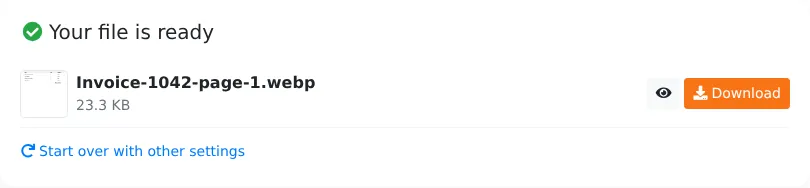
- Click “Convert to WEBP” and download the images individually or as a ZIP.
Why WebP? Comparing Image Formats
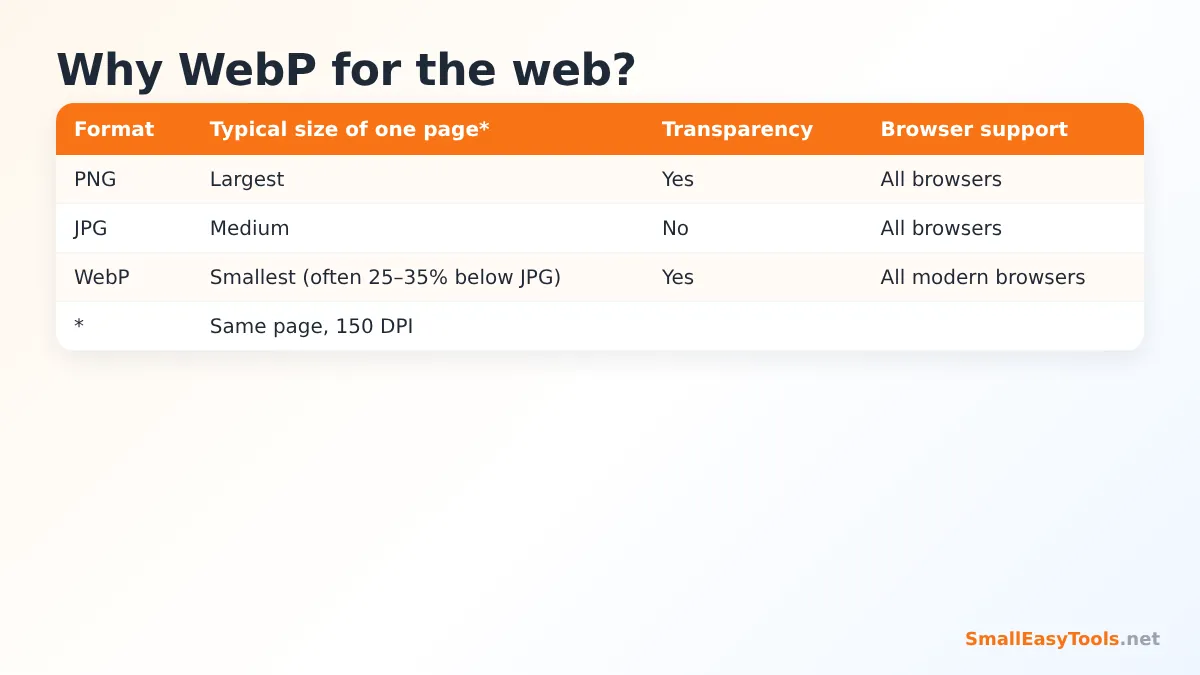
WebP was designed specifically to make the web faster. Compared with the classic formats:
- vs JPG: WebP files are typically around 25–35% smaller at comparable quality, and WebP avoids some of the blockiness JPG shows at low quality settings.
- vs PNG: for complex images, WebP is usually far smaller than PNG; for very simple graphics PNG can still be competitive.
- Transparency: unlike JPG, WebP supports transparent areas.
- Support: all modern browsers — Chrome, Edge, Firefox, Safari and their mobile versions — display WebP images.
For use outside the web, such as in older desktop software, email clients or printing services, JPG or PNG may still be more compatible. In those cases, use PDF to JPG or PDF to PNG.
Choosing Resolution and Quality for the Web
Resolution
Think about the largest size the image will be displayed at. A typical blog content column is 700–900 pixels wide; full-width hero images may be 1,600–2,000 pixels. For an A4 or Letter page:
- 72 DPI ≈ 600 pixels wide – thumbnails and small previews.
- 110 DPI ≈ 900 pixels wide – standard blog and article images.
- 150 DPI ≈ 1,240 pixels wide – sharp on high-density (retina) screens in a content column; the recommended default.
- 200 DPI ≈ 1,650 pixels wide – pages with small text that visitors may zoom into.
- 300 DPI and above – usually unnecessary for the web; use only for very detailed technical drawings.
Quality
75–85% gives an excellent balance for most pages. Text-heavy pages benefit from 85–90% to keep letters crisp. Photo-heavy pages can often go down to 70% without visible loss. Check the result at 100% zoom and choose the lowest quality that still looks good — every kilobyte saved makes your page faster.
Popular Uses for PDF to WebP
Restaurant menus
Many restaurants upload their menu as a PDF, which forces mobile visitors to download a file and zoom. Converting each page to WebP and showing the images directly on the menu page loads faster and looks better. Keep the PDF available as an optional download for printing.
Brochures and catalogues
Show product pages or highlights from a brochure as images on your website, with a link to the full PDF.
Blog posts and tutorials
Illustrate articles with pages from reports, forms or documents. WebP keeps posts light even with many illustrations.
E-commerce
Size charts, care instructions and technical data sheets often exist only as PDFs. Converting them to WebP lets you add them to product galleries.
Event flyers and posters
Post a flyer on your website or share it on platforms that accept WebP, without the weight of a full-resolution PDF.
Previews for downloads
If you offer e-books, white papers or templates, show a WebP cover image next to the download button. Converting page 1 at 110 DPI is usually perfect.
SEO Tips for Images Converted from PDFs
- Rename files descriptively, for example lunch-menu-page-1.webp instead of a generic name.
- Write meaningful alt text that describes what the image shows; it helps accessibility and image search.
- Put important text in HTML too. Search engines read HTML text far better than text inside images. For a menu or price list, add the key items as real text on the page. You can get the text quickly with Extract PDF text.
- Set width and height attributes on images to prevent layout shifts while the page loads.
- Use lazy loading for images below the fold.
Privacy
The conversion uses PDF.js to render pages in your browser and encodes them as WebP on your device. No file is uploaded or stored on a server.
Troubleshooting
“Your browser cannot create WebP images”
Very old browsers cannot encode WebP. Use a current version of Chrome, Edge or Firefox, or convert to JPG or PNG instead.
Text looks soft
Increase the resolution to 200 DPI or raise the quality to 90%.
Images are too large in kilobytes
Lower the resolution or quality. You can also optimise images further with the Image Optimizer.
The PDF is password protected
Unlock it first with Remove PDF password.
How to Use the WebP Images on Your Website
Once you have your WebP files, adding them to a website is straightforward:
- WordPress: recent versions accept WebP uploads in the Media Library. Upload the images and insert them into posts or pages like any other image.
- Shopify, Wix and Squarespace: upload the WebP images to product galleries, sections or blog posts. Some platforms may convert images automatically for different devices.
- Custom HTML: use a normal
<img>tag withsrc,alt,width,heightandloading="lazy"attributes. - Online stores and marketplaces: check the accepted formats first; some marketplaces still require JPG or PNG.
If your site uses a content delivery network or an image optimisation plugin, it may further resize or recompress your images. Starting from a good-quality WebP keeps the final result sharp.
Real-World Examples
A café menu page
A café’s two-page PDF menu is 4 MB. Converting both pages to WebP at 150 DPI and 80% quality produces two images of a few hundred kilobytes in total. The menu page now loads quickly on mobile data, and customers no longer need to download a PDF to see today’s specials.
A real-estate listing
An estate agent receives floor plans as PDFs from the surveyor. Converting them to WebP lets the floor plans appear in the property gallery next to the photos, instead of as a separate download that few visitors open.
A software company’s documentation
A support team converts diagrams from a PDF manual to WebP for its online help centre. The pages load faster than with PNG images, while diagrams remain sharp.
A conference programme
An event organiser converts each page of the printed programme to WebP and adds the images to the event website and app, keeping the printable PDF as an optional download.
Converting on a Phone
The converter runs in mobile browsers as well. Upload the PDF, select the pages, choose the resolution and tap convert. On iPhone, you can open each image and use Share to save it; on Android, the images land in your Downloads folder. For many pages at high resolution, a computer is faster.
Mistakes to Avoid
- Uploading enormous images. 300–600 DPI images are usually far larger than any website needs. Match the resolution to the display size.
- Putting all text in images. Visitors cannot copy it, screen readers cannot read it and search engines understand it less well. Add important text as HTML as well.
- Forgetting alt text. Every image should describe its content for accessibility and SEO.
- Using WebP where it is not supported. For email newsletters and some older systems, JPG is still the safer choice.
A Quick Glossary
- DPI (dots per inch) – how many pixels are created for each inch of the page; higher DPI means larger, sharper images.
- Lossy compression – reduces file size by discarding detail the eye is unlikely to notice; WebP and JPG use it.
- Lossless compression – reduces size without discarding any detail; PNG uses it.
- Quality – the strength of lossy compression; lower quality means smaller files and more visible artefacts.
- Lazy loading – a website technique that loads images only when they are about to appear on screen.
Frequently Asked Questions
Is PDF to WebP free?
Yes — no registration, watermark or limits.
Is WebP better than JPG?
For websites, WebP usually gives smaller files at similar quality. For maximum compatibility outside the web, JPG is safer.
Can I convert specific pages only?
Yes. Select pages in the grid or type their numbers.
Which resolution is best for websites?
150 DPI works well for most content columns; 110 DPI for smaller images.
Can I convert WebP back to PDF?
Yes, with WebP to PDF.
Are my files uploaded?
No. Everything is processed in your browser.
Can I make a transparent WebP from a PDF?
This converter renders pages with a white background, as they appear in PDF readers. For transparent page images, use PDF to PNG with the transparent background option, then convert the PNG to WebP with PNG to WebP.
Does it work on phones?
Yes, in any modern mobile browser that supports WebP encoding.
Will search engines index WebP images?
Yes. Major search engines support WebP. Give each image a descriptive file name and alt text.
How large will each image be?
It depends on the content, resolution and quality. A typical text page at 150 DPI and 85% quality is often well under 100 KB.
Can I convert hundreds of pages?
Yes. Select the pages you need and download them together as a ZIP.
Related Tools
- WebP to PDF – turn WebP images into a PDF.
- PDF to JPG – the most compatible image format.
- PDF to PNG – lossless images with transparency.
- WebP to JPG – convert WebP images for older apps.
- Image Optimizer – make images even lighter.
Similar tools Maybe You Like or need
Convert Images images to PDF online. Combine many images into one PDF, choose A4 or Letter, orientation, margins and quality. Free and private.
Convert PDF pages to high-quality PNG images online. Choose 72–600 DPI, transparent background, all pages or selected pages. Free, private, no upload.
Merge PDF files online for free. Combine multiple PDFs into one document, reorder files by drag and drop, add blank separator pages. Private, no upload, no watermark.
Most Popular Online Tools
Convert kilometers per hour to miles per hour (km/h to mph) instantly. 1 km/h = 0.621371192 mph. Free speed converter with formula and chart.
Free WhatsApp link generator. Create a wa.me click-to-chat link with your phone number and a pre-filled message for websites, ads and social bios.
Free hosting checker. Find out which company hosts any website, plus its IP address and server location. Ideal for research and migrations.
Free DNS lookup tool. Check A, AAAA, CNAME, MX, NS, TXT and SOA records of any domain instantly to verify DNS settings and troubleshoot email or website issues.
Free strong password generator. Create secure random passwords with custom length, numbers, symbols and upper/lowercase letters instantly.
Free IP lookup tool. See your IP address or check any IP to find its country, city, ISP, time zone and more. Fast, accurate and no sign-up.