PDF to PNG
Convert PDF pages to high-quality PNG images online. Choose 72–600 DPI, transparent background, all pages or selected pages. Free, private, no upload.
PDF to PNG Converter – The Complete Guide
Sometimes you need a page from a PDF as an image, and you need it to look exactly like the original: every letter sharp, every line of a diagram clean, every colour precise. That is what PNG is for. Unlike JPG, PNG is a lossless format — it stores every pixel exactly, without the blurry halos JPG compression can leave around text and thin lines. PNG can also keep a transparent background, which is ideal for logos, signatures, stamps and graphics you want to place on top of other designs.
Our free PDF to PNG converter turns any page of a PDF into a high-quality PNG image. Convert all pages or only the ones you select, choose a resolution between 72 and 600 DPI, and optionally remove the white page background. The conversion runs entirely in your browser, so your documents stay on your device.
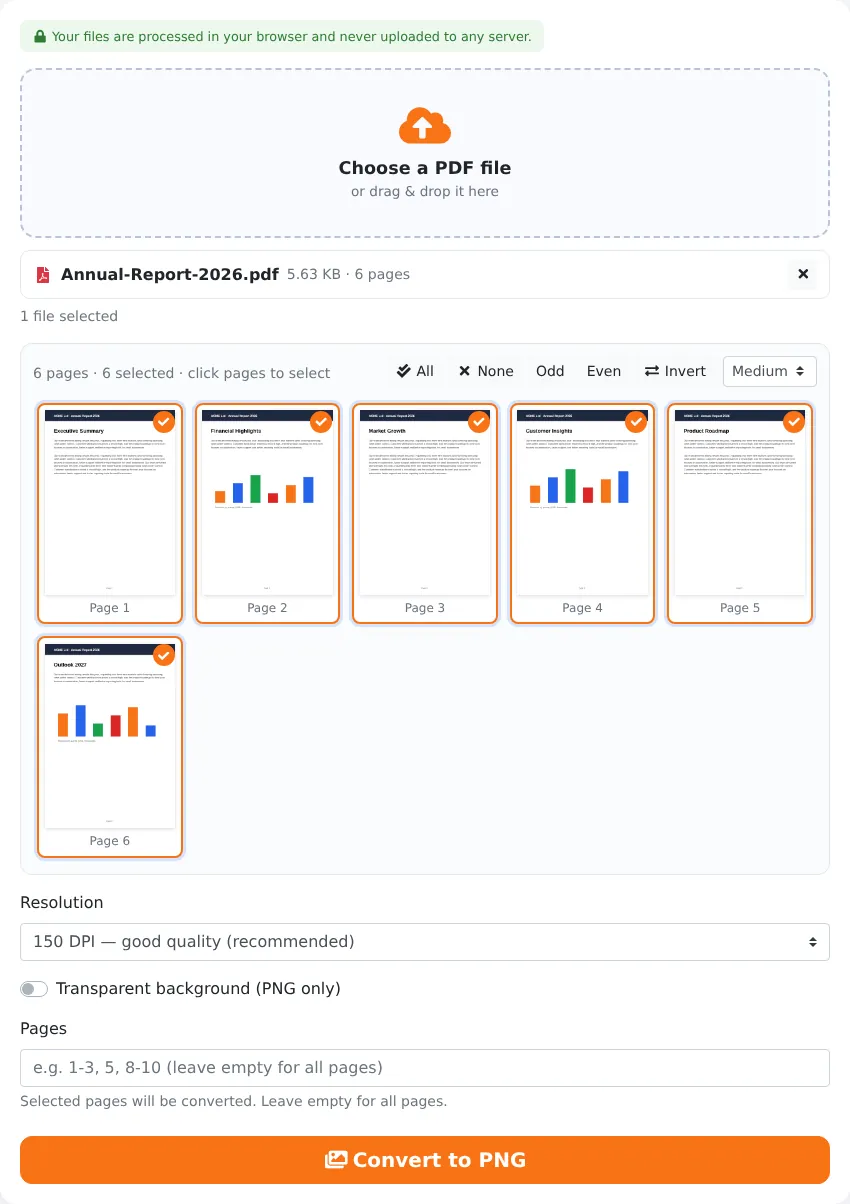
How to Convert PDF to PNG in 4 Steps
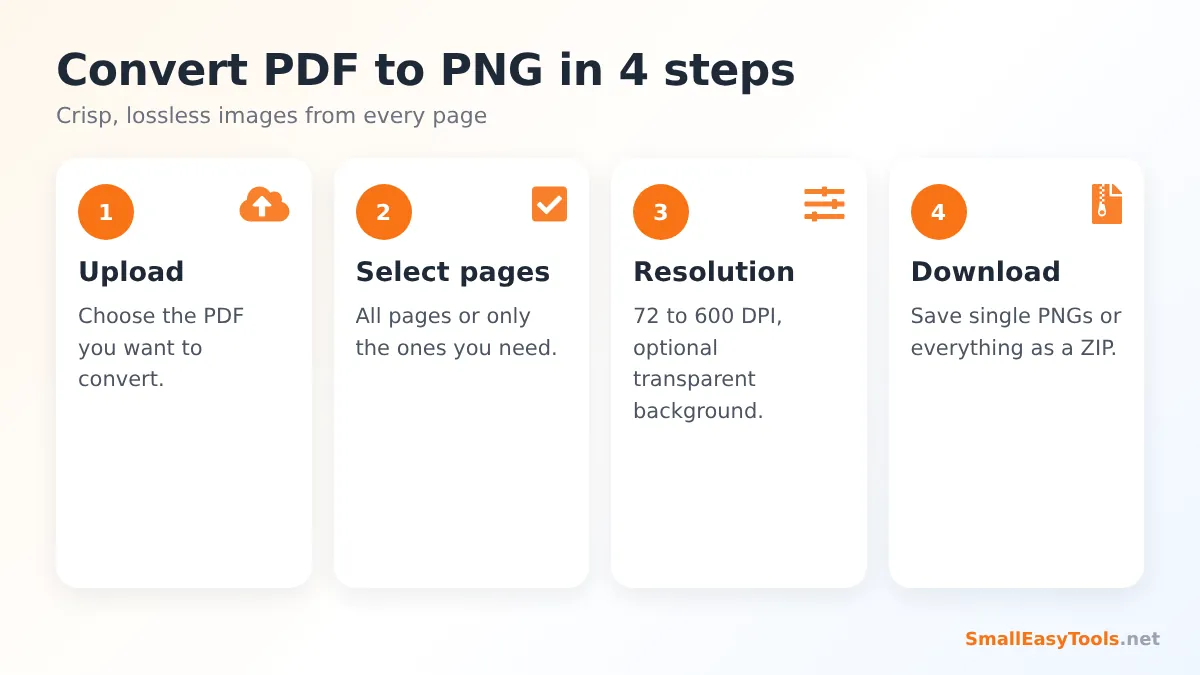
- Upload your PDF. Click the upload area or drag the file onto it. Thumbnails of all pages appear below.
- Select the pages. Every page is selected by default. Click a thumbnail to remove it from the selection, use the All, None, Odd, Even and Invert buttons, or type ranges such as 1, 3-5.
- Choose the resolution (150 DPI is a good default) and tick Transparent background if you want the white page removed.
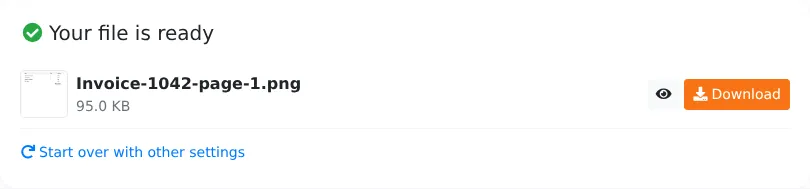
- Click “Convert to PNG” and download each image, or use Download all as ZIP. Files are numbered by page, for example invoice-page-1.png.
PNG vs JPG vs WebP: Which Format Should You Use?
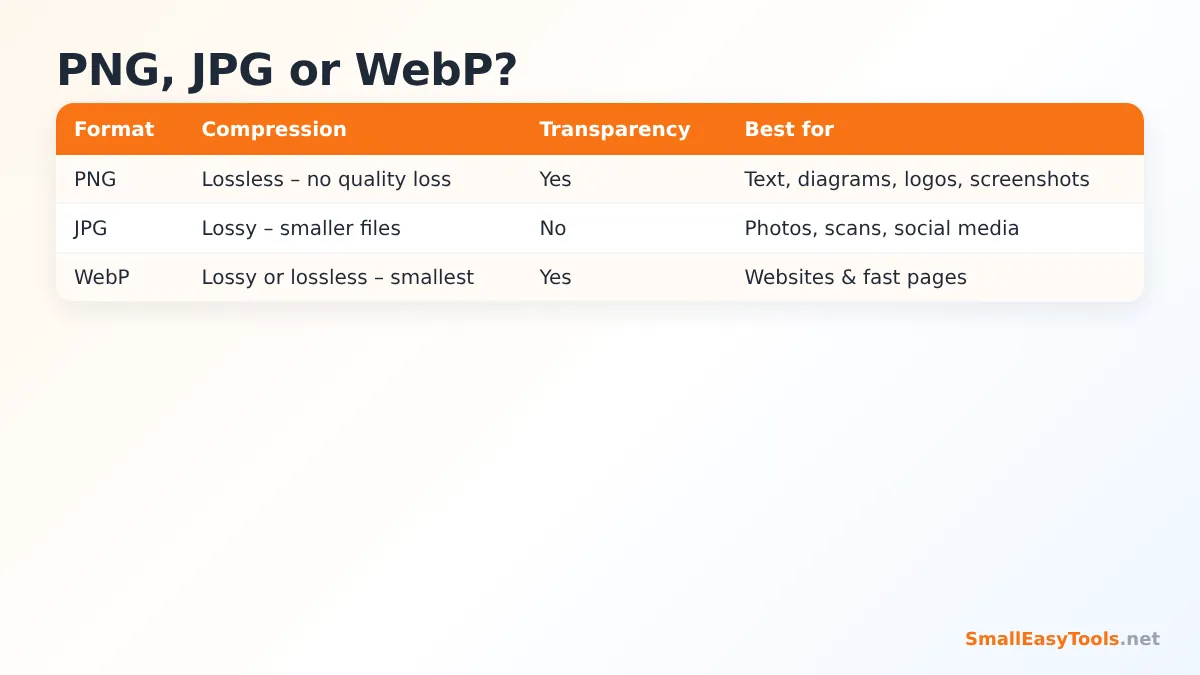
All three formats can show a PDF page well, but they are built for different content:
- PNG is lossless. It is the best choice for pages made of text, tables, charts, diagrams, line drawings, logos and screenshots — anything with sharp edges and flat colours. It also supports transparency. The downside is larger files for photo-heavy pages.
- JPG is lossy and designed for photographs. It creates smaller files for scans and photo-rich pages but can blur sharp text slightly. Use PDF to JPG for brochures, scanned documents and social media posts.
- WebP is a modern format that is usually smaller than both at similar quality, and supports transparency. It is ideal for websites — use PDF to WebP.
A simple rule: text and graphics → PNG; photos and scans → JPG; websites → WebP.
Choosing the Right Resolution
The resolution, measured in DPI (dots per inch), sets how many pixels each page gets. An A4 page measures about 8.3 × 11.7 inches, so the pixel size grows quickly with DPI:
- 72 DPI – about 595 × 842 pixels. Thumbnails and quick previews.
- 110 DPI – about 910 × 1290 pixels. Messaging apps and small web images.
- 150 DPI – about 1240 × 1754 pixels. The recommended default for screens, documentation and presentations.
- 200 DPI – about 1654 × 2339 pixels. Extra detail for zooming in on small text or technical drawings.
- 300 DPI – about 2480 × 3508 pixels. Print quality.
- 600 DPI – about 4961 × 7016 pixels. Archiving, large-format printing and very fine technical detail. Conversion is slower and files are large.
Because PNG is lossless, file size depends mostly on resolution and on how complex the page is. A clean text page at 150 DPI is often only a few hundred kilobytes, while a full-colour photo page at 300 DPI can be several megabytes.
Transparent Backgrounds Explained
A PDF page normally has a white background. When you tick Transparent background (PNG only), the converter renders the page without that white fill, so only the actual content — text, lines, logos and images — remains, and everything else becomes see-through. This is extremely useful when you want to:
- Reuse a logo that only exists inside a PDF, for example in a brand guideline or an old letterhead.
- Extract a signature or stamp to place on another document or design.
- Put a chart or diagram on a coloured slide in PowerPoint, Keynote or Google Slides without an ugly white box around it.
- Create overlays for video, web graphics or design mock-ups.
Keep in mind that transparency only affects areas the PDF leaves empty. If a page contains a white rectangle or a scanned image, those parts stay white because they are real content. Scanned documents are complete photographs of paper, so they cannot become transparent this way.
Popular Uses for PDF to PNG
Documentation and tutorials
Technical writers often need images of diagrams, forms or screens that exist in PDF manuals. PNG keeps small labels readable and lines crisp in help centres, wikis and knowledge bases.
Presentations
Converting a chart or table page to PNG at 150–200 DPI gives a clean image that scales well on a projector. With a transparent background, the chart blends into any slide design.
Design work
Designers receive logos, icons and illustrations as PDF files. Converting them to PNG at a high resolution with transparency produces assets that can be used directly in Canva, Figma, Photoshop or GIMP.
Sharing exact copies of forms and receipts
When the precise appearance of a document matters — a receipt, a ticket, a form with small print — PNG avoids the compression artefacts that can make numbers hard to read in a JPG.
Website content
PNG is perfect for infographics and screenshots on websites. For large photo-like pages, consider WebP or JPG to keep pages fast, and run the result through our Image Optimizer.
Converting Only Certain Pages
For long documents you rarely need every page. The page grid makes selection visual: click thumbnails to toggle them, or type a range such as 2-4, 9. The Odd and Even buttons are handy for two-sided scans, and Invert quickly selects “everything except these pages”. If you want to choose a different output format for a specific selection, the PDF selected pages to images tool lets you pick PNG, JPG or WebP for each job.
Converting PNG Files to Other Formats Afterwards
Once you have PNG images, our image converters can turn them into whatever format you need:
- PNG to JPG for smaller photo files.
- PNG to WebP for fast websites.
- PNG to ICO to create a favicon from a logo.
- Image to Base64 to embed a small graphic directly in HTML or CSS.
And to turn PNG images back into a document, use PNG to PDF.
How the Conversion Works
The converter uses PDF.js, the open-source PDF engine built into the Firefox browser. Each selected page is drawn onto an off-screen canvas at the resolution you chose, exactly as a high-quality PDF viewer would display it: fonts are rendered from the embedded font data, vector graphics are drawn at full precision, and images are scaled smoothly. The canvas is then saved as a PNG file. Because everything happens inside your browser tab, there is no upload, no server queue and no waiting.
Tips for the Best Quality
- Use 200–300 DPI for small text such as footnotes, legal print or technical labels.
- Remove passwords first. Encrypted PDFs must be unlocked with Remove PDF password before conversion.
- Fix orientation before converting with Rotate PDF pages, so images come out upright.
- Trim large margins with Crop PDF when you only need part of a page.
- Use ZIP download for more than a few pages.
- Want the original embedded photos rather than images of whole pages? Use Extract images from PDF.
Privacy and Security
Many PDFs contain private details: contracts, invoices, bank statements or ID documents. Online converters that upload files to a server create a copy of your document somewhere you cannot control. Our converter does not upload anything. The PDF is read from your device, rendered in your browser’s memory, and the PNG files are handed to you as downloads. When you close the tab, nothing remains.
Troubleshooting
The PNG files are very large
PNG is lossless, so photo-heavy pages at high DPI create big files. Lower the DPI, or use PDF to JPG or PDF to WebP for those pages.
The background is not transparent
The page probably contains a white shape or a scanned image behind the content. Only empty page areas become transparent.
Conversion is slow or the browser freezes
At 600 DPI each page has about 35 million pixels. Convert fewer pages at once or choose a lower resolution, especially on phones.
Some fonts look different
If a PDF does not embed its fonts, a similar font is substituted. Re-export the PDF from the original program with fonts embedded for an exact match.
The file cannot be opened
Run Repair PDF first and convert the repaired copy.
Real-World Examples
Software documentation
A product team maintains its user manual as a PDF but also publishes a help centre online. Converting the diagrams and form pages to PNG at 150 DPI gives crisp images for the help articles, where small labels and arrows must stay readable on every screen.
Reusing a logo from a brand guide
A marketing assistant needs the company logo for a social media banner, but the only high-quality copy is inside a brand guideline PDF. Converting that page at 300 DPI with a transparent background, then cropping it to the logo, produces a clean asset that sits nicely on any colour.
Teaching materials
A teacher wants to project a worksheet page in an online lesson and annotate it on a digital whiteboard. A PNG at 200 DPI keeps handwriting fields and small text sharp when zoomed in.
Archiving receipts exactly
An accountant keeps image copies of digital receipts for an expense system that only accepts images. PNG keeps every digit of the amounts perfectly legible, with no compression noise that could cause doubts during an audit.
Frequently Asked Questions
Is PDF to PNG free?
Yes — no registration, no watermark and no page limits.
Is PNG better than JPG for PDF pages?
For text, tables and diagrams, yes: PNG keeps edges perfectly sharp. For photos and scans, JPG creates much smaller files with similar visible quality.
Can I get a transparent background?
Yes. Tick “Transparent background” before converting. Empty page areas become transparent.
Can I convert just one page?
Yes. Select only that page in the grid or type its number.
What resolution should I use?
150 DPI for screens, 300 DPI for printing, 200 DPI when you need to zoom in on small text.
Does it work on phones?
Yes, in Chrome, Safari, Firefox and other modern mobile browsers.
Are my files uploaded?
No. Everything is processed locally in your browser.
Related Tools
- PDF to JPG – smaller images for photos and scans.
- PDF to WebP – the lightest images for websites.
- PNG to PDF – turn PNG images back into a PDF.
- Extract images from PDF – save the original embedded pictures.
- PDF to ZIP – split pages into separate PDFs inside a ZIP.
Similar tools Maybe You Like or need
Convert PDF pages to high-quality WebP images online. Choose 72–600 DPI, adjustable quality, all pages or selected pages. Free, private, no upload.
Convert PDF pages to high-quality JPG images online. Choose 72–600 DPI, adjustable quality, all pages or selected pages. Free, private, no upload.
Merge PDF files online for free. Combine multiple PDFs into one document, reorder files by drag and drop, add blank separator pages. Private, no upload, no watermark.
Most Popular Online Tools
Convert kilometers per hour to miles per hour (km/h to mph) instantly. 1 km/h = 0.621371192 mph. Free speed converter with formula and chart.
Free WhatsApp link generator. Create a wa.me click-to-chat link with your phone number and a pre-filled message for websites, ads and social bios.
Free hosting checker. Find out which company hosts any website, plus its IP address and server location. Ideal for research and migrations.
Free DNS lookup tool. Check A, AAAA, CNAME, MX, NS, TXT and SOA records of any domain instantly to verify DNS settings and troubleshoot email or website issues.
Free strong password generator. Create secure random passwords with custom length, numbers, symbols and upper/lowercase letters instantly.
Free IP lookup tool. See your IP address or check any IP to find its country, city, ISP, time zone and more. Fast, accurate and no sign-up.