Rotate PDF pages
Rotate PDF pages permanently by 90°, 180° or 270°. Rotate all or selected pages, with a smart mode that fixes only sideways pages. Free and private.
Rotate PDF Pages – The Complete Guide
Few things are more annoying than a PDF where some pages lie on their side. It happens all the time: a scanner feeds a landscape page in the wrong direction, a phone photo of a document is saved sideways, a report mixes portrait text pages with landscape spreadsheets, or someone scans a two-sided document and every second page is upside down. Turning the view in your PDF reader only helps for a moment — the next time you, or the person you send it to, opens the file, the pages are sideways again.
Our free Rotate PDF pages tool fixes the orientation permanently. Select exactly which pages to turn, choose 90° clockwise, 180° or 90° anticlockwise, or let smart mode rotate only the pages that do not match the rest of the document. The rotated PDF opens the right way up in every viewer, on every device. Your file is processed in your browser and never uploaded.
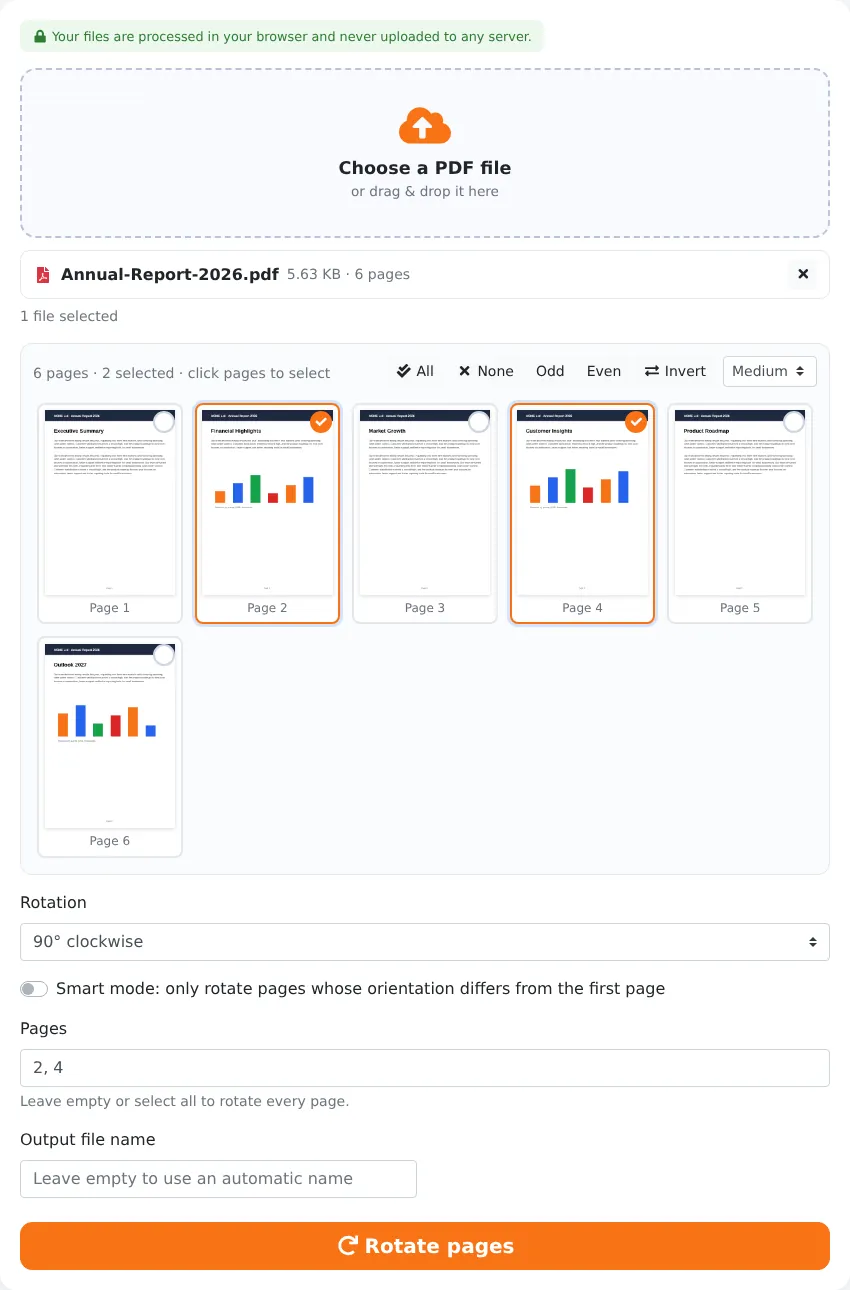
How to Rotate PDF Pages in 4 Steps
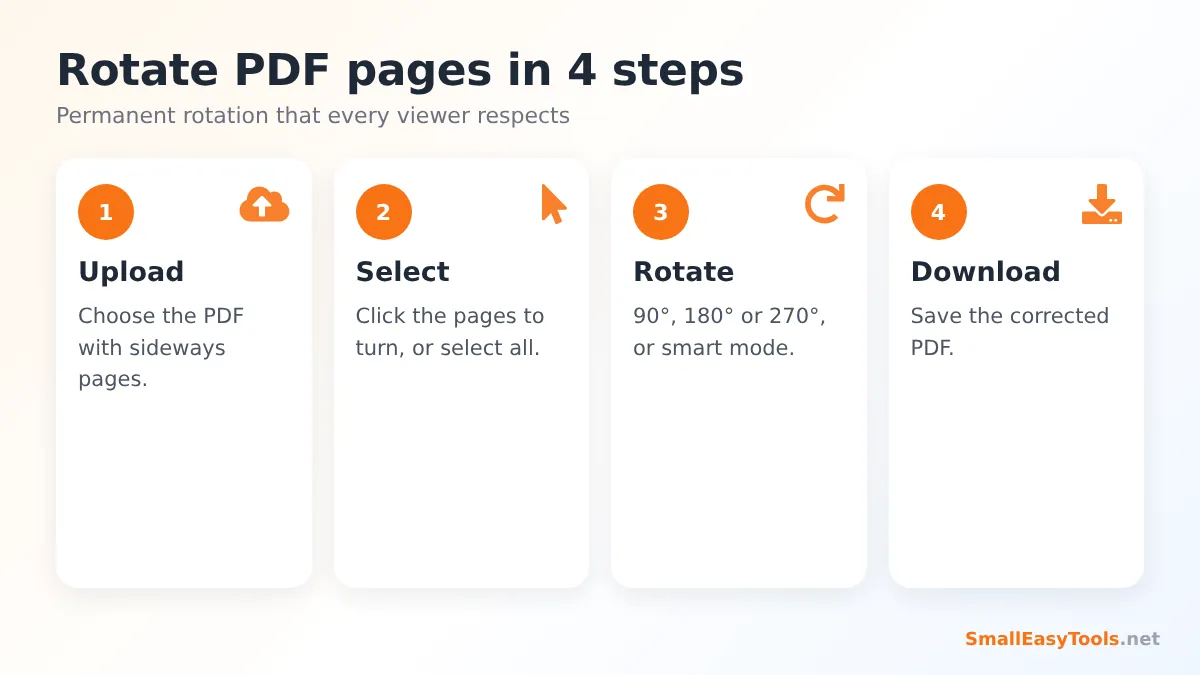
- Upload the PDF. Click the upload area or drag the file onto it. Thumbnails of every page appear so you can spot the sideways ones at a glance.
- Select the pages to rotate. Click the thumbnails of the pages that need turning, use the All, Odd, Even or Invert buttons, or type page numbers such as 2, 4, 7-9.
- Choose the rotation: 90° clockwise, 180° (upside down) or 90° anticlockwise. Tick smart mode if you only want mismatched pages rotated.
- Click “Rotate pages” and download the corrected PDF.
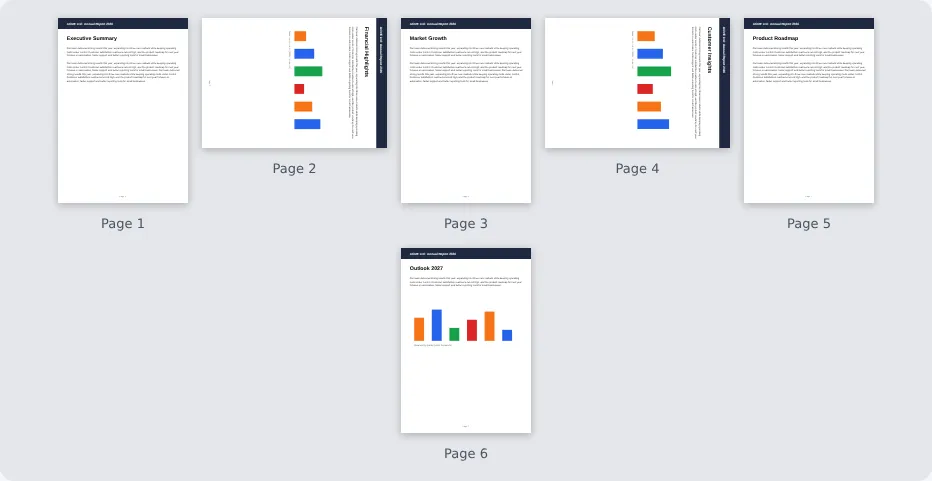
Which Rotation Do You Need?
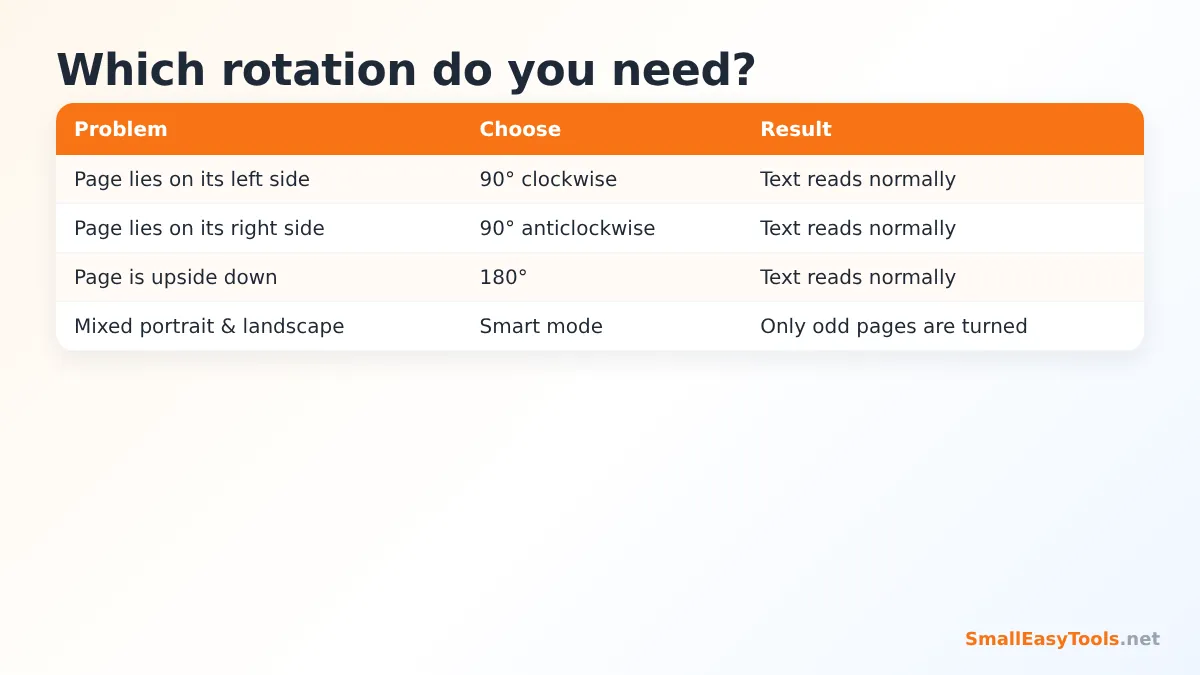
It is easy to get confused about clockwise and anticlockwise. Look at the top of the text on the sideways page:
- The top of the text points left (the page lies on its left side): choose 90° clockwise.
- The top of the text points right: choose 90° anticlockwise (equivalent to 270° clockwise).
- The text is upside down: choose 180°.
If you choose the wrong direction, nothing is lost: simply upload the result and rotate the same pages by 180°.
Smart Mode: Fix Mixed Orientations Automatically
Large scanned documents sometimes contain a handful of landscape pages among dozens of portrait ones, or the other way around. Finding them manually is tedious. With smart mode enabled, the tool compares the orientation of every selected page with the first page and only rotates pages whose orientation is different. Select all pages, tick smart mode, choose the angle, and only the odd ones out are turned.
Smart mode looks at the page shape (portrait or landscape), not at the direction of the text. It is ideal for making a document consistent — for example making every page portrait. For pages that are upside down but have the correct shape, select them manually and rotate by 180°.
Why Pages End Up Sideways
Scanners and copiers
Automatic document feeders scan every sheet in the same direction. When you insert a landscape document, or mix landscape and portrait sheets, some pages come out sideways. Double-sided scanning can also flip every second page upside down.
Phone scans and photos
Phones use a motion sensor to decide whether a photo is portrait or landscape. When you photograph a document lying flat on a table, the phone cannot tell which way is up, so the result is often sideways.
Mixed documents
Reports often contain wide tables, charts or engineering drawings in landscape format. When such documents are combined with Merge PDF or printed to PDF, the landscape pages may be rotated incorrectly.
Is the Rotation Permanent?
Yes. Every PDF page has a rotation property that tells all PDF readers how to display it. When you rotate the view in Adobe Reader, a browser or a phone app, that setting is usually not saved. Our tool changes the page’s rotation property in the file itself, so the page appears correctly in every program, on every device, and when printed.
Rotation is also lossless. The page content — text, images, vector graphics — is not re-rendered or recompressed. Text stays selectable and searchable, and image quality is unchanged. The file size stays practically the same.
Rotate vs Organize vs Other Page Tools
- Rotate PDF pages is the fastest way to fix orientation for many pages at once.
- Organize PDF lets you rotate individual pages, drag pages into a new order and delete pages, all in one visual editor.
- Reorder PDF pages changes the sequence without rotating.
- Resize PDF pages changes the paper size, for example from Letter to A4.
- Crop PDF trims borders and unwanted areas.
Real-World Examples
Office scanning
An accounts department scans 80 supplier invoices in one batch. Six of them were inserted sideways. Using smart mode on all pages fixes them in one step, without looking for each page.
Two-sided documents
A contract scanned double-sided has every even page upside down. Click Even, choose 180°, and the whole document reads correctly.
Reports with wide tables
A student’s thesis has three landscape tables that appear sideways after exporting. Selecting those three pages and rotating them 90° anticlockwise makes them readable on screen, while the printed version still binds correctly.
Phone scans
A photographed receipt converted with JPG to PDF came out lying on its side. One click on 90° clockwise fixes it before the expense report is submitted.
Tips
- Zoom the thumbnails with the size selector to check text direction on small pages.
- Rotate before converting with PDF to JPG or PDF to PNG, so images come out upright.
- Rotate before adding page numbers with Add page numbers, so numbers appear at the bottom of the readable page.
- Unlock protected files first with Remove PDF password.
Privacy
Rotating a page is a tiny change, so there is no reason to send your document to a server. Our tool uses the pdf-lib library in your browser to update the page rotation and save a new file on your device. Your PDF is never uploaded, stored or seen by anyone else.
Troubleshooting
Nothing was rotated in smart mode
All selected pages had the same shape as the first page. Turn off smart mode and select the pages manually.
The page turned the wrong way
Rotate the same page again by 180°.
The PDF will not load
If it is password protected, unlock it first. If it is damaged, run Repair PDF.
Understanding PDF Page Orientation
Every page in a PDF has two properties that decide how it looks: its size (width and height) and its rotation (0°, 90°, 180° or 270°). A page that is wider than it is tall appears as landscape; a page that is taller appears as portrait. The rotation property turns the page on top of that. This is why a scanner can produce a portrait-sized page whose content is sideways, and why simply changing the rotation property fixes it perfectly without touching the content.
Because rotation is stored as a simple number, rotating pages is instant even for documents with hundreds of pages, and it can be undone at any time by rotating again. Rotations also add up: rotating a page by 90° twice is the same as rotating it by 180° once.
Rotating Pages in Other Programs vs Our Tool
Most PDF readers have a rotate button, but it often only changes the view. In Adobe Acrobat Reader, for example, “Rotate View” is not saved into the file. Browser PDF viewers in Chrome, Edge and Firefox also rotate only the current view. Desktop editors that can save rotation, such as Adobe Acrobat Pro, are paid software. Our tool saves the rotation permanently for free, and it works the same on Windows, Mac, Linux, Android and iPhone because it runs in the browser.
Preparing Scanned Documents: A Complete Clean-Up Workflow
Rotation is often one step in tidying up a scanned document. A good order of operations is:
- Rotate sideways and upside-down pages with this tool.
- Reverse the page order if the scanner fed the stack from the back, using Reverse PDF pages.
- Remove blank pages, such as empty backs of single-sided sheets.
- Crop dark scanner borders with Crop PDF.
- Compress the result with Compress PDF so it is small enough to email.
- Add page numbers so the document is easy to reference.
Each of these tools works in your browser in the same way, so you can clean up an entire scan in a few minutes without installing any software.
Rotating Pages for Printing and Binding
When a document contains landscape pages, there is a choice to make. For on-screen reading, rotating landscape pages so that they display upright is most comfortable. For printed and bound reports, many style guides prefer landscape tables to be rotated so that the top of the table faces the binding edge (the left side), meaning readers turn the book clockwise to read it. In both cases, consistency matters most — rotate all landscape pages in the same direction.
Once the orientation is fixed, the document is much more pleasant to read on any screen, prints correctly and looks professional when you send it to colleagues, clients or teachers. It is one of those small improvements that people notice immediately — and with this tool it takes only a few seconds, for one page or for hundreds.
Frequently Asked Questions
Is Rotate PDF pages free?
Yes, with no registration, watermark or page limit.
Can I rotate only one page?
Yes. Select only that page’s thumbnail.
Can I rotate all pages at once?
Yes. All pages are selected by default.
Does rotation reduce quality?
No. It only changes the page orientation setting; content is untouched.
Will the rotation be saved?
Yes. The downloaded PDF keeps the new orientation in every PDF reader.
Is my file uploaded?
No. Everything happens in your browser.
Can I rotate pages on my phone?
Yes. The tool works in mobile browsers. Tap the thumbnails to select pages, choose the angle and download the rotated file.
Can I rotate odd or even pages only?
Yes. Use the Odd or Even buttons above the thumbnails, then choose the rotation. This is perfect for double-sided scans where every second page is upside down.
Does rotating change the page size?
No. A rotated A4 page is still an A4 page; it is simply displayed in the other orientation. To change the paper size, use Resize PDF pages.
What does smart mode compare against?
The first page of the document. Pages with a different orientation (portrait vs landscape) than the first page are rotated; matching pages are left alone.
Will links and bookmarks still work?
Yes. Rotation does not remove links, bookmarks or text, so the document remains fully functional and searchable.
Related Tools
- Organize PDF – rotate, reorder and delete pages visually.
- Reverse PDF pages – flip the page order of back-to-front scans.
- Remove blank PDF pages – clean up scanned documents.
- Scan to PDF – create clean PDFs from phone photos.
- Merge PDF – combine your corrected files.
Similar tools Maybe You Like or need
Add page numbers to a PDF in any position and style: 1, Page 1 of 10, Roman numerals, custom text. Skip cover pages, choose font and colour. Free.
Rearrange PDF pages by dragging thumbnails or typing a new order like 3,1,2. Reverse order in one click. Free online and private.
Merge PDF files online for free. Combine multiple PDFs into one document, reorder files by drag and drop, add blank separator pages. Private, no upload, no watermark.
Most Popular Online Tools
Convert kilometers per hour to miles per hour (km/h to mph) instantly. 1 km/h = 0.621371192 mph. Free speed converter with formula and chart.
Free WhatsApp link generator. Create a wa.me click-to-chat link with your phone number and a pre-filled message for websites, ads and social bios.
Free hosting checker. Find out which company hosts any website, plus its IP address and server location. Ideal for research and migrations.
Free DNS lookup tool. Check A, AAAA, CNAME, MX, NS, TXT and SOA records of any domain instantly to verify DNS settings and troubleshoot email or website issues.
Free strong password generator. Create secure random passwords with custom length, numbers, symbols and upper/lowercase letters instantly.
Free IP lookup tool. See your IP address or check any IP to find its country, city, ISP, time zone and more. Fast, accurate and no sign-up.