PNG to PDF
Convert PNG images to PDF online. Combine many images into one PDF, choose A4 or Letter, orientation, margins and quality. Free and private.
PNG to PDF Converter – The Complete Guide
Screenshots are the way we capture almost everything today: a bank transfer confirmation, an online order, a chat conversation, an error message for IT support, a slide from a webinar, a design draft. Most of these screenshots are saved as PNG files. But when you need to submit them as evidence, attach them to a report or keep them in order for your records, a single PDF is far more practical than a folder of separate images.
Our free PNG to PDF converter combines one or many PNG images into a tidy PDF document. Arrange the images by dragging, choose a page size such as A4 or Letter, decide how each image fits on the page, add margins and optionally reduce the file size. The PDF is created right in your browser — your screenshots, which often contain private information, are never uploaded.
How to Convert PNG to PDF in 4 Steps
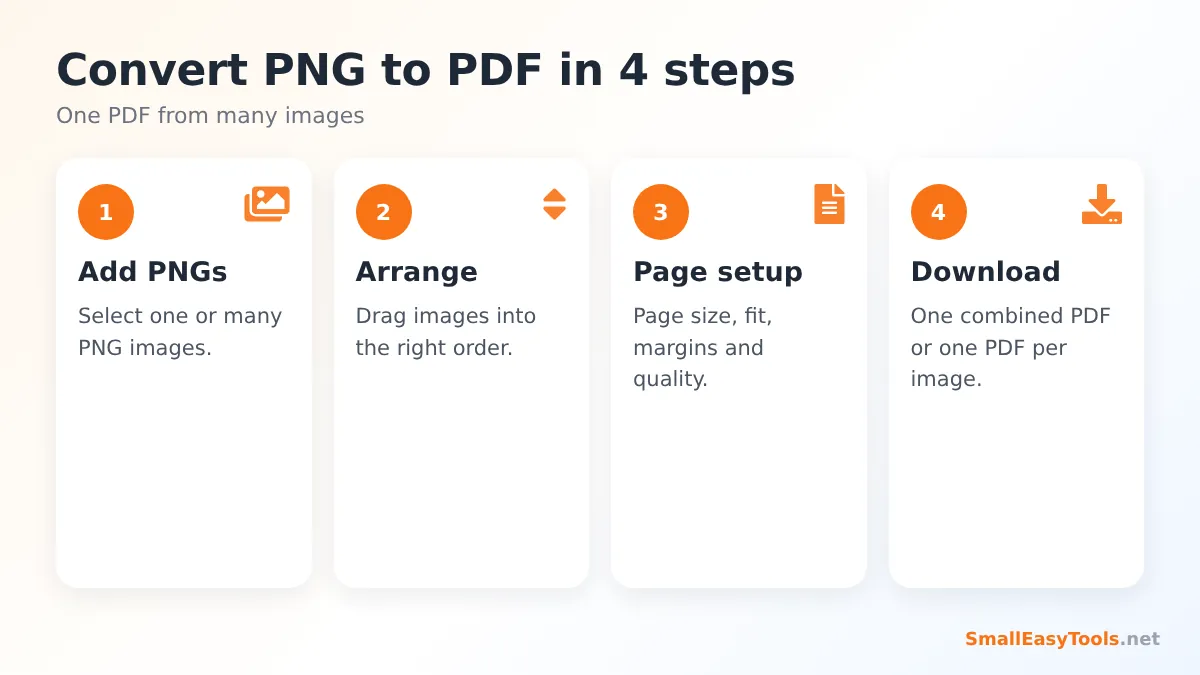
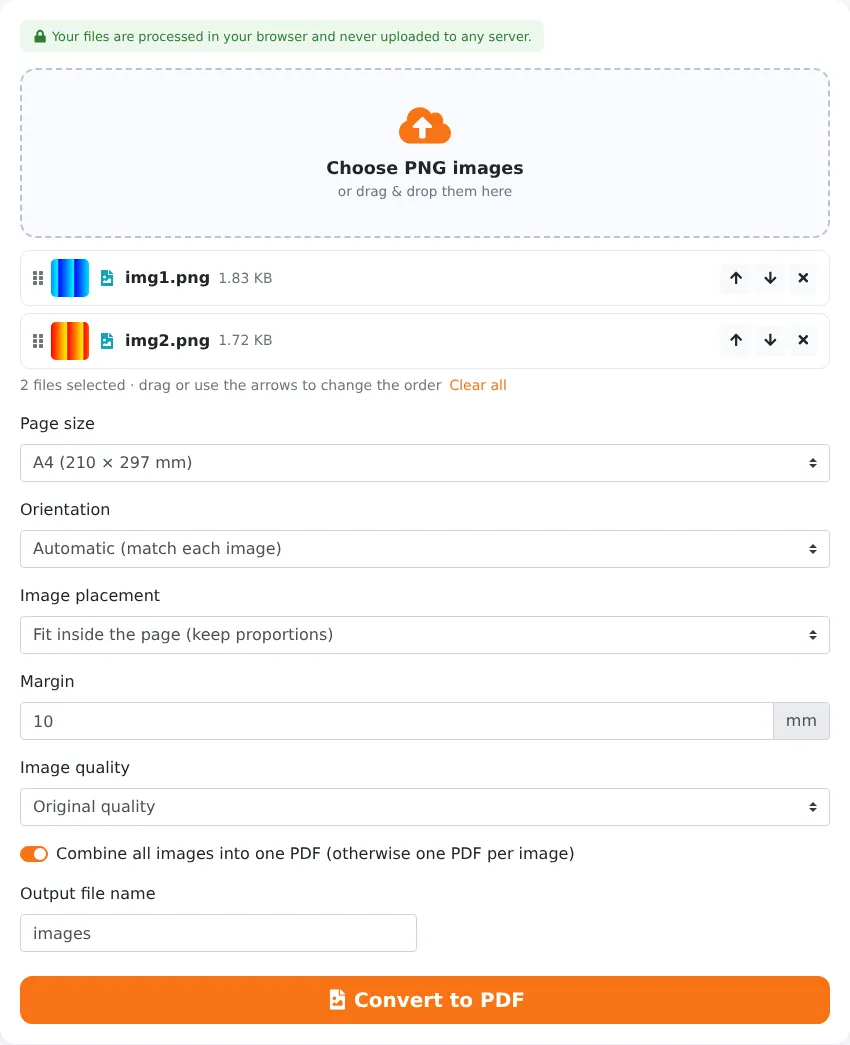
- Add your PNG images. Click the upload area or drag the files onto it. You can select several images at once.
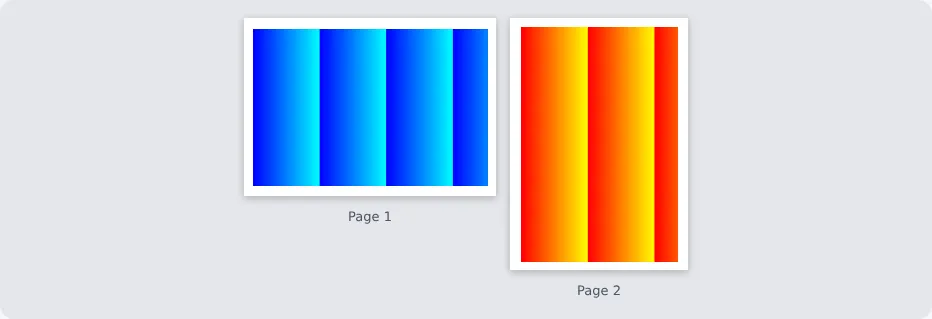
- Arrange them. Each image becomes one page. Drag the cards or use the arrows to change the order; remove any image you do not need.
- Set up the pages. Choose the page size, orientation, image placement (fit, fill or stretch), margin and image quality.
- Click “Convert to PDF” and download. Enter a file name first if you want something more meaningful than “images.pdf”.
When Converting PNG to PDF Makes Sense
Proof of payment and transactions
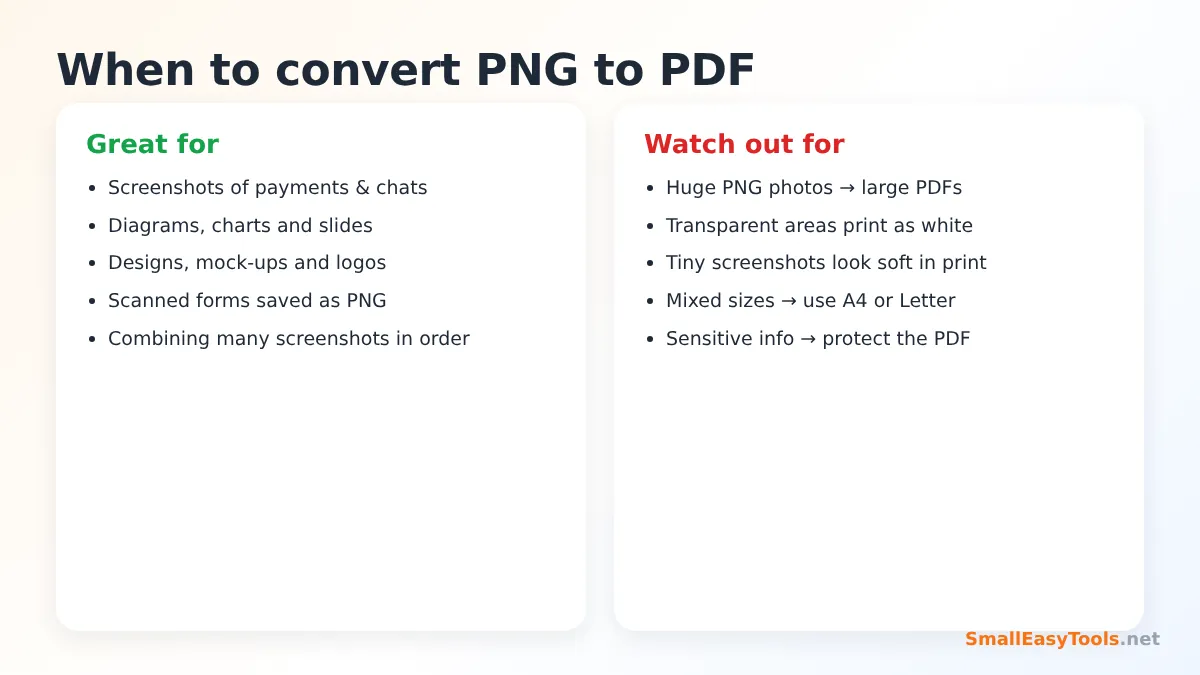
Landlords, employers, customer service teams and courts often ask for proof that a payment was made. A screenshot of the banking app is common evidence, but several screenshots sent separately are easy to lose or misorder. Combining them into a dated PDF — for example rent-payments-2026.pdf — creates a clear, professional record.
Bug reports and IT support
When reporting a software problem, a sequence of screenshots showing each step is extremely helpful. Converting them into one PDF keeps the steps in order and makes the report easy to attach to a ticket or email.
Chat and email records
Conversations on WhatsApp, Messenger or social media sometimes need to be kept as a record — for a dispute with a seller, a workplace issue or simply personal archiving. A PDF of the screenshots in chronological order is much easier to read and share than dozens of separate files.
Design proofs and mock-ups
Designers export drafts as PNG images. A PDF with one design per page is an easy way to present several options to a client for feedback, especially when using “Same as each image” so every design keeps its exact proportions.
Diagrams, charts and slides
Charts exported from spreadsheet software and slides saved as images are usually PNG files. Putting them together in a PDF creates a handout or appendix that prints cleanly.
Page Size and Layout Options
Same as each image
Each page takes the exact size of its image, with no borders. This is the best choice for designs, presentations and screenshots that will be viewed on screen. Note that tall phone screenshots then become tall, narrow pages.
Standard paper sizes
Choose A4, Letter, Legal or another standard size when the PDF will be printed or submitted formally. All pages then have the same dimensions, regardless of the image sizes, and images are scaled to fit.
Orientation
Automatic gives landscape pages to wide images (like desktop screenshots) and portrait pages to tall images (like phone screenshots), so each image is displayed as large as possible. You can also force all pages to portrait or landscape.
Fit, fill or stretch
- Fit shows the complete image without distortion — the right choice for screenshots and documents, where every detail matters.
- Fill covers the whole page area and crops the edges that do not fit — good for decorative images.
- Stretch forces the image to the page shape, which can distort it. Use it only when the image already has almost the same proportions as the page.
Margins
A margin of around 10 mm looks clean and keeps content away from the edge of the paper, where printers cannot print. Set 0 mm for edge-to-edge pages.
Managing File Size
PNG is a lossless format, so PNG files are often larger than JPG files — especially screenshots of photos, videos or colourful websites. Ten large screenshots can easily produce a PDF of 20–30 MB. The Image quality option helps:
- Original quality keeps every pixel exactly as in the PNG. Best for diagrams and small text.
- High re-encodes images more efficiently, producing a much smaller PDF with no visible difference for most screenshots.
- Medium creates the smallest files, ideal for upload forms with tight limits.
If the PDF is still too big, use Compress PDF afterwards. For mostly photographic images, converting them first with PNG to JPG also reduces size.
What Happens to Transparent Areas?
PNG images can contain transparency — for example a logo with no background. PDF pages are white by default, so transparent areas will appear white in the finished document and when printed. If you choose a quality option other than “Original”, images are re-encoded without transparency and transparent areas are filled with white. For logos that must keep their transparency inside a design, keep the original quality.
Tips for Better Screenshot PDFs
- Crop screenshots before converting to remove status bars, menus and unrelated windows. Smaller, focused images look more professional and produce smaller files.
- Blur or hide private details such as account numbers you do not need to share.
- Name your images in order (01, 02, 03…) before uploading so they appear in the right sequence automatically.
- Use landscape pages for desktop screenshots and portrait for phone screenshots, or leave orientation on Automatic.
- Add page numbers to long collections with Add page numbers, so you can refer to “page 7” in an email.
- Protect sensitive PDFs with Protect PDF with password before sending them.
Other Image Formats
This converter is designed for PNG. For other formats, use the dedicated tools:
- JPG to PDF for photos and phone camera pictures.
- WebP to PDF for images saved from websites.
- Images to PDF to mix JPG, PNG, WebP, GIF and BMP in one document.
- Scan to PDF to turn photos of paper into clean scanned pages.
Need images in a format these tools do not accept? Convert them first, for example with HEIC to PNG or TIFF to PNG.
Privacy: Your Screenshots Stay on Your Device
Screenshots often reveal more than we realise: account balances, names, phone numbers, addresses and private messages. That is why our converter works completely offline once the page has loaded. The images are read and placed into a PDF by JavaScript running in your browser tab. Nothing is uploaded, stored or logged on our server.
Troubleshooting
The images are in the wrong order
Drag the cards in the file list before converting. If the PDF is already made, reorder the pages with Organize PDF.
Phone screenshots look tiny on A4 pages
Tall, narrow screenshots leave white space on the sides of an A4 page. Choose “Same as each image”, or reduce the margin to 0 mm.
The text in a screenshot is blurry
The screenshot itself has a low resolution. Take screenshots at full screen size, and keep image quality on “Original”.
The PDF is too large
Choose “High” or “Medium” image quality, or compress the finished PDF.
Real-World Examples
Online shopping dispute
A buyer has an issue with a seller who never delivered an order. The buyer takes screenshots of the order page, the payment confirmation and the chat with the seller, converts them in chronological order into one PDF, and attaches it to the complaint to the payment provider. The case is easy to follow, and nothing gets lost in a pile of attachments.
Website feedback for a developer
A small business owner reviews a new website and takes twelve screenshots of things to fix. Converted into one landscape PDF and numbered with page numbers, the feedback becomes a clear checklist the developer can work through page by page.
Online course notes
A student saves important slides from a recorded webinar as screenshots. Combining them into a PDF with “Same as each image” creates a compact study guide that can be read on a tablet or printed.
Monthly utility records
A household keeps screenshots of monthly meter readings and online bill payments. At the end of the year they are converted into one PDF per year — a tidy record for budgeting or a landlord.
PNG to PDF vs Printing to PDF
Many computers offer a “Print to PDF” option, and you could print each image to a PDF. That approach has drawbacks: you create one PDF per image, the operating system may add margins or scale the image unpredictably, and you then still need to merge the files. A dedicated converter puts all images into one document in a single step, with consistent page sizes, margins and image placement you control.
Frequently Asked Questions
Is PNG to PDF free?
Yes. There is no registration, watermark or limit.
Can I combine many PNG files into one PDF?
Yes. Add as many images as you need; each becomes one page in the order you choose.
Can I create a separate PDF for each PNG?
Yes. Untick “Combine all images into one PDF” and download all files as a ZIP.
Will the PNG lose quality?
Not with “Original quality”. The High and Medium options deliberately reduce size.
Does it work on phones?
Yes. You can select screenshots directly from your phone’s gallery.
Are my images uploaded?
No. The conversion runs entirely in your browser.
How many screenshots can I combine?
There is no fixed limit. Dozens of screenshots work smoothly on any device; for hundreds of large images, a computer is faster than a phone because all processing happens on your device.
Can I mix PNG and JPG files?
This tool is designed for PNG. To combine different formats in one document, use Images to PDF, which accepts JPG, PNG, WebP, GIF and BMP together.
Why are transparent parts white in my PDF?
PDF pages have a white background, so transparent image areas show the white page underneath — exactly as they would when printed on white paper.
Can I edit the PDF afterwards?
Yes. You can reorder, rotate or delete pages with Organize PDF, add page numbers, add a watermark or merge it with other PDFs.
Related Tools
- PDF to PNG – turn PDF pages back into PNG images.
- JPG to PDF – convert photos into a PDF.
- Merge PDF – add your new PDF to other documents.
- Compress PDF – reduce the size of image-heavy PDFs.
- PNG to JPG – make large PNG photos smaller.
Similar tools Maybe You Like or need
Reduce PDF file size online for free. Lossless optimisation or strong compression for scanned PDFs, with before/after size comparison. Private, no upload.
Convert JPG images to PDF online. Combine many images into one PDF, choose A4 or Letter, orientation, margins and quality. Free and private.
Merge PDF files online for free. Combine multiple PDFs into one document, reorder files by drag and drop, add blank separator pages. Private, no upload, no watermark.
Most Popular Online Tools
Convert kilometers per hour to miles per hour (km/h to mph) instantly. 1 km/h = 0.621371192 mph. Free speed converter with formula and chart.
Free WhatsApp link generator. Create a wa.me click-to-chat link with your phone number and a pre-filled message for websites, ads and social bios.
Free hosting checker. Find out which company hosts any website, plus its IP address and server location. Ideal for research and migrations.
Free DNS lookup tool. Check A, AAAA, CNAME, MX, NS, TXT and SOA records of any domain instantly to verify DNS settings and troubleshoot email or website issues.
Free strong password generator. Create secure random passwords with custom length, numbers, symbols and upper/lowercase letters instantly.
Free IP lookup tool. See your IP address or check any IP to find its country, city, ISP, time zone and more. Fast, accurate and no sign-up.