Images to PDF
Convert Images images to PDF online. Combine many images into one PDF, choose A4 or Letter, orientation, margins and quality. Free and private.
Images to PDF Converter – The Complete Guide
Real life does not come in one image format. Your phone saves photos as JPG, screenshots come out as PNG, pictures downloaded from websites are often WebP, an old scanner produces BMP files and a quick graphic might be a GIF. When you need to put all of them into one document — a project report, an expense claim, an application pack or a photo record — converting each format separately and then merging the results is a chore.
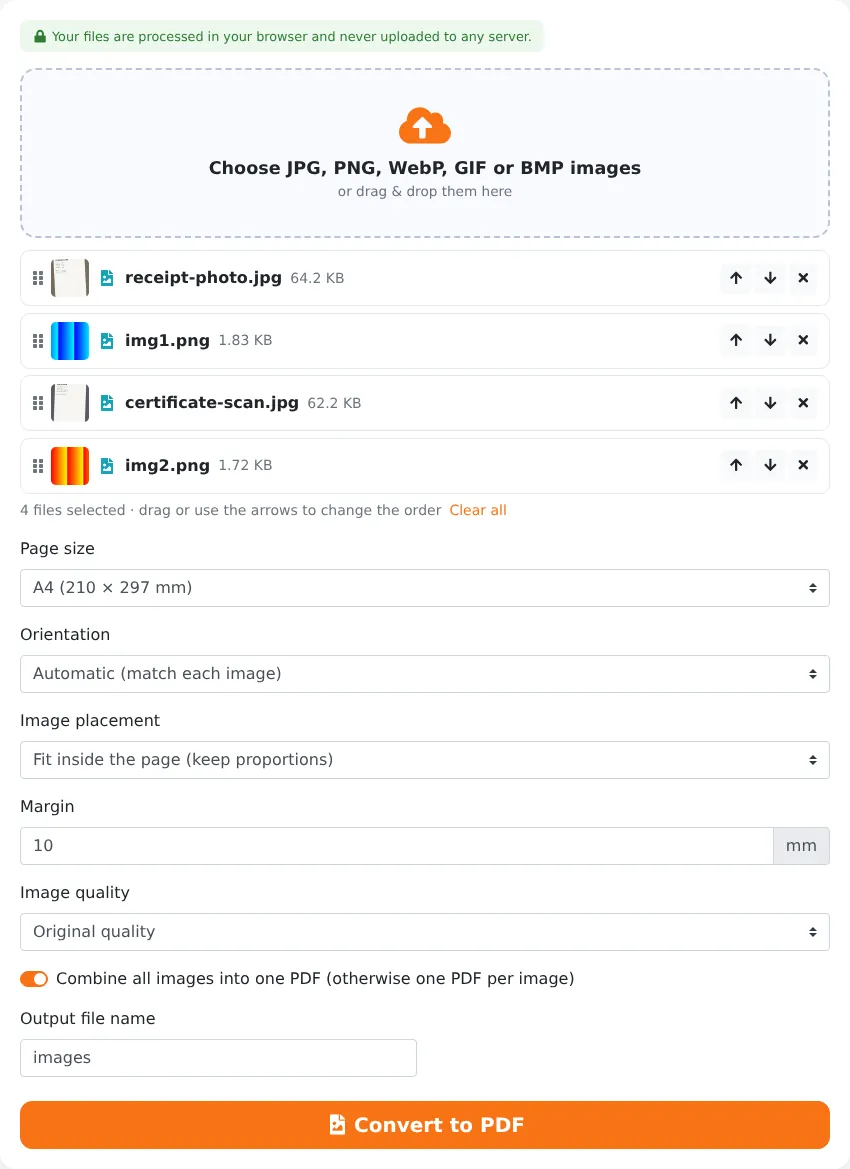
Our free Images to PDF converter accepts JPG, PNG, WebP, GIF and BMP images together and turns them into one PDF in a single step. Drag the images into the right order, choose the page size, orientation, placement and margins, and reduce the file size if needed. Everything runs in your browser, so your images stay on your device.
Key Features at a Glance
- Accepts JPG, PNG, WebP, GIF and BMP in the same document.
- Drag-and-drop ordering with arrow buttons for precise control.
- A4, Letter and other standard sizes, or pages matching each image.
- Automatic orientation per image, or fixed portrait or landscape.
- Fit, fill or stretch placement with adjustable margins.
- Optional image compression for smaller PDFs.
- One combined PDF or one PDF per image, with ZIP download.
- Private processing in your browser, with no upload or watermark.
How to Convert Images to PDF in 4 Steps
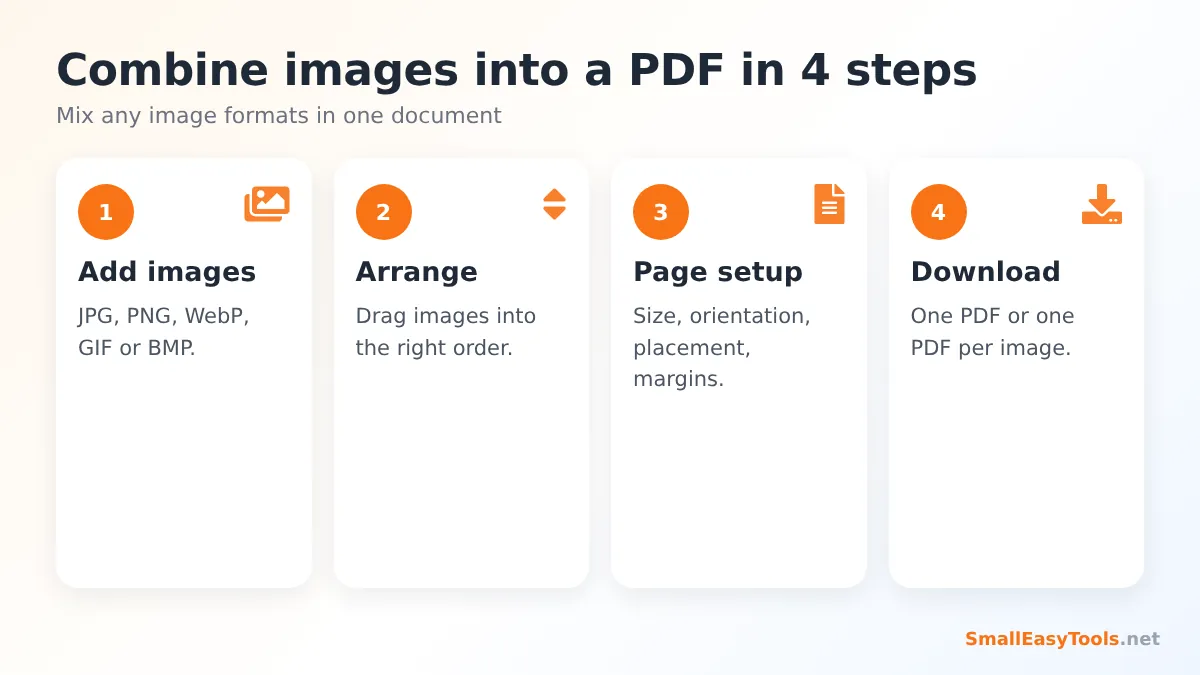
- Add your images. Click the upload area or drag image files onto it. You can select files of different formats in one go.
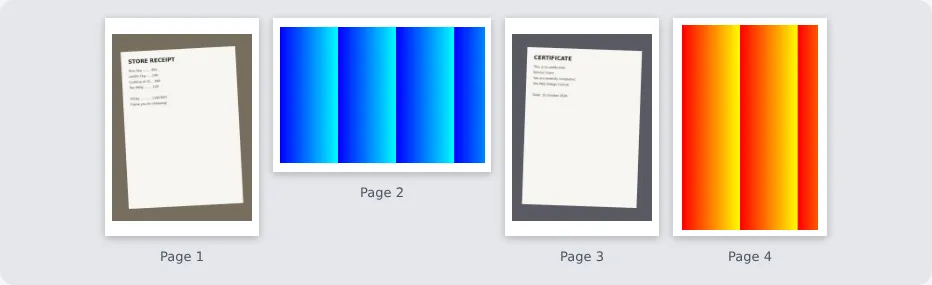
- Arrange them. Each image becomes one page. Drag the cards, or use the arrow buttons, to put them in the order you want. Remove any image you added by mistake.
- Set up the pages. Choose a page size (A4, Letter, other standard sizes, or the same size as each image), orientation, placement (fit, fill or stretch), margin and image quality.
- Click “Convert to PDF” and download. Give the file a clear name before converting, for example project-photos-november.
Supported Image Formats
JPG / JPEG
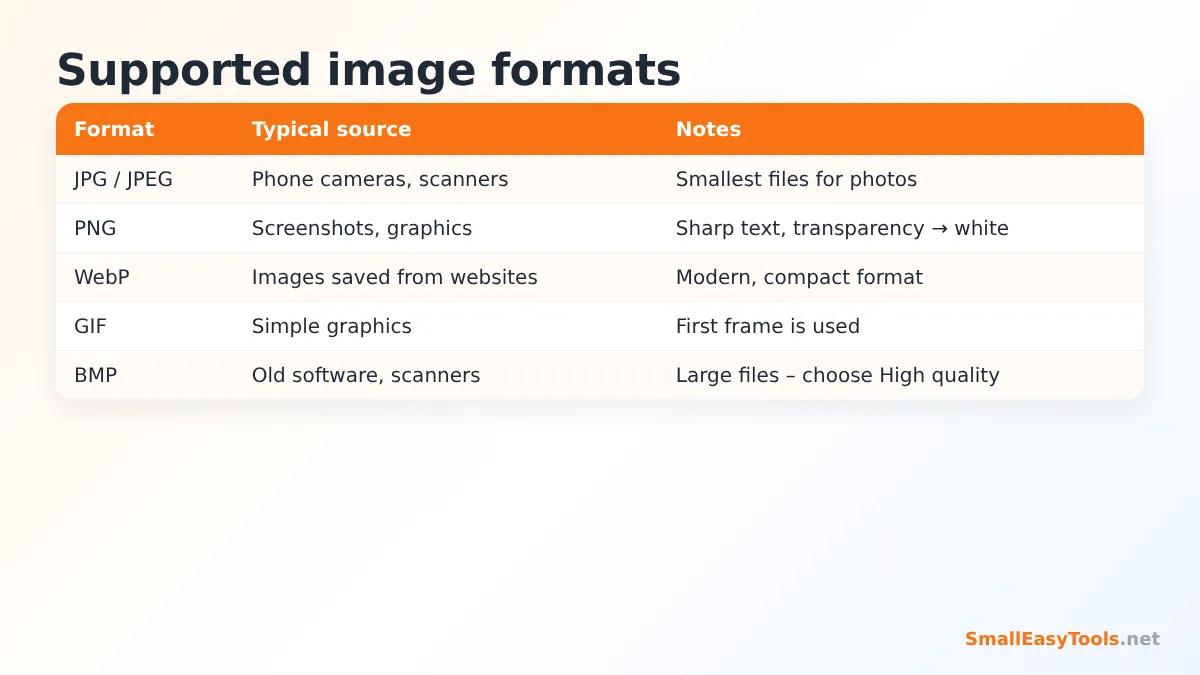
The standard format for photos from phones, cameras and scanners. JPG images are embedded efficiently, so photo PDFs stay reasonably small.
PNG
Used for screenshots, diagrams, logos and graphics with sharp edges. Transparent areas appear white on the PDF page, just as they would when printed on white paper.
WebP
A modern format used by many websites because of its small file sizes. Images saved from web pages are often WebP. They are converted for embedding in the PDF automatically.
GIF
An older format for simple graphics and animations. For animated GIFs, the first frame is used, because PDF pages cannot animate.
BMP
An uncompressed format produced by some older software and scanners. BMP files can be very large; choosing the High image quality option compresses them efficiently in the PDF.
iPhone photos in HEIC format, and professional formats such as TIFF and AVIF, can be converted first with our image converters — for example HEIC to JPG, TIFF to JPG or AVIF to JPG — and then added here.
Page Layout Options Explained
Page size
Choose A4 or Letter when the PDF will be printed or submitted formally; every page then has the same size, regardless of the image dimensions. Choose Same as each image for on-screen viewing without white borders — ideal for photo albums and design portfolios.
Orientation
Automatic uses a landscape page for wide images and a portrait page for tall images, so every image is displayed as large as possible. Or force all pages to portrait or landscape for a uniform look.
Image placement
- Fit shows the whole image without distortion, adding white space where proportions differ. Best for documents and screenshots.
- Fill covers the whole page area and crops edges that do not fit. Best for photos where a full-page look matters.
- Stretch forces the image to the exact page shape. Only use it for images that already have nearly the page’s proportions.
Margin
The white border around each image, in millimetres. 10 mm is a neat default for printing; 0 mm gives edge-to-edge pages.
Image quality
Original embeds images without additional compression. High and Medium re-encode images to create much smaller PDFs — useful for email and upload portals with size limits. If the result is still too large, run it through Compress PDF.
One PDF or several
All images are combined into one PDF by default. Untick “Combine all images into one PDF” to create one PDF per image and download them all as a ZIP.
When to Use Images to PDF
Project and site reports
Engineers, inspectors, builders and property managers collect photos from site visits — some from a phone (JPG), some from a drone or camera app, some as screenshots of plans (PNG). Combining them into one PDF report makes them easy to share with clients and attach to records.
Expense claims
Receipts arrive as photos, email screenshots and downloaded images. Put them into one PDF in date order and attach it to the expense claim.
Application packs
University, job, visa and loan applications often require several documents in one upload. If your documents are a mix of photos and screenshots, this tool produces a single, orderly PDF.
Portfolios
Designers, illustrators and photographers can present work in a PDF portfolio with “Same as each image” page sizes, so every piece keeps its exact proportions.
Family archives and memories
Scanned old photos, digital camera pictures and images from social media can be combined into a PDF album that is easy to share with relatives or print.
School and homework
Students who photograph handwritten pages and screenshot online exercises can submit everything as one PDF.
Tips for Great Results
- Use the original images rather than copies saved from messaging apps, which reduce resolution.
- Name images in order (01, 02, 03…) before uploading, so they appear in the right sequence automatically.
- Crop and rotate images first if needed; otherwise fix the finished PDF with Rotate PDF pages.
- For photos of paper documents, use Scan to PDF, which whitens the paper and sharpens text.
- Add page numbers to long reports with Add page numbers.
- Choose High quality for large BMP or PNG photos to keep the PDF small.
Images to PDF vs Format-Specific Converters
We also offer dedicated converters for single formats: JPG to PDF, PNG to PDF and WebP to PDF. They work in the same way. Images to PDF is the most flexible choice when your files come in different formats or you are not sure which format they are.
Privacy and Security
Photos and screenshots can contain more personal information than you realise: faces, addresses, licence plates, bank details or location data. Our converter never uploads your images. The PDF is created by JavaScript in your browser tab using your device’s memory, and nothing is stored on our server. Once you close the tab, everything is gone.
Troubleshooting
An image is not accepted
Check the format. HEIC, TIFF, AVIF and RAW camera files must be converted to JPG or PNG first.
Images are in the wrong order
Drag them in the list before converting, or reorder the PDF afterwards with Organize PDF.
The PDF is too large
Choose High or Medium image quality, or compress the finished PDF.
A GIF shows only one frame
PDF pages are static, so only the first frame of an animated GIF is used.
There is a lot of white space around images
Choose “Same as each image” as page size, reduce the margin, or use “Fill”.
Understanding Image Resolution in PDFs
A PDF page has a physical size, such as A4 (210 × 297 mm), while an image has a size in pixels. When an image is placed on a page, its pixels are spread across the area it occupies. The more pixels per inch, the sharper the printed result:
- 300 pixels per inch or more – excellent print quality. An A4-width image needs about 2,400 pixels across for this.
- 150–200 pixels per inch – good for office printing and on-screen reading.
- Below 100 pixels per inch – may look soft or pixelated when printed, though fine on a phone screen.
Modern phone photos (typically 3,000–4,000 pixels wide) easily exceed print quality on A4. Small images, such as thumbnails or images saved from social media, may look blurry when stretched across a full page. If that happens, choose a smaller page size, increase the margin, or use “Same as each image” so the page matches the image’s natural size.
Creating PDFs on a Phone
The converter works directly in mobile browsers. Tap the upload area and select images from your gallery or Files app — you can usually select many at once. Drag the cards to reorder them, tap “Convert to PDF” and save or share the result. On iPhone, photos are often stored as HEIC; when selected through the browser, they are typically converted to JPG automatically, but if an image is rejected, convert it first with HEIC to JPG.
Real-World Examples
Insurance claim after water damage
A homeowner collects phone photos of the damage (JPG), screenshots of the purchase receipts for damaged items (PNG) and a WebP image of the product listing. Images to PDF combines everything into a single, ordered claim document in one step.
Monthly progress report
A renovation contractor sends clients a monthly PDF of progress photos. Using A4 pages with “Fit” and a 10 mm margin, and High image quality, a 40-photo report stays under 10 MB and looks consistent when printed.
Online seller records
A small online shop keeps proof of packaging and shipping: photos of packed parcels and screenshots of tracking pages. A PDF per week makes disputes easy to resolve.
Frequently Asked Questions
Is Images to PDF free?
Yes — no registration, no watermark and no limits.
Can I mix JPG and PNG in one PDF?
Yes. You can mix JPG, PNG, WebP, GIF and BMP freely.
How many images can I add?
There is no fixed limit. Very large numbers of high-resolution images are faster on a computer than on a phone.
Will image quality be reduced?
Not with Original quality. High and Medium reduce file size deliberately.
Can I create one PDF per image?
Yes. Untick “Combine all images into one PDF”.
Does it work on phones?
Yes. You can choose images straight from your phone’s gallery.
Are my images uploaded?
No. Conversion happens entirely in your browser.
Can I change the order after converting?
Yes. Use Organize PDF to drag pages into a new order, rotate or delete them.
Related Tools
- JPG to PDF – convert photos to PDF.
- PNG to PDF – convert screenshots to PDF.
- Scan to PDF – turn photos of paper into scans.
- Merge PDF – combine the result with other PDFs.
- PDF contact sheet – show many images or pages on one sheet.
Similar tools Maybe You Like or need
Convert WebP images to PDF online. Combine many images into one PDF, choose A4 or Letter, orientation, margins and quality. Free and private.
Convert PDF pages to high-quality WebP images online. Choose 72–600 DPI, adjustable quality, all pages or selected pages. Free, private, no upload.
Merge PDF files online for free. Combine multiple PDFs into one document, reorder files by drag and drop, add blank separator pages. Private, no upload, no watermark.
Most Popular Online Tools
Convert kilometers per hour to miles per hour (km/h to mph) instantly. 1 km/h = 0.621371192 mph. Free speed converter with formula and chart.
Free WhatsApp link generator. Create a wa.me click-to-chat link with your phone number and a pre-filled message for websites, ads and social bios.
Free hosting checker. Find out which company hosts any website, plus its IP address and server location. Ideal for research and migrations.
Free DNS lookup tool. Check A, AAAA, CNAME, MX, NS, TXT and SOA records of any domain instantly to verify DNS settings and troubleshoot email or website issues.
Free strong password generator. Create secure random passwords with custom length, numbers, symbols and upper/lowercase letters instantly.
Free IP lookup tool. See your IP address or check any IP to find its country, city, ISP, time zone and more. Fast, accurate and no sign-up.