Remove PDF pages
Remove unwanted pages from a PDF. Click the pages to delete or type page numbers, then download a clean PDF. Free, private, no upload.
Remove PDF Pages Online – The Complete Guide
Most PDFs contain pages you do not need. A downloaded bank statement includes three pages of terms and conditions, a scanned contract has empty backs of every sheet, a report still contains an outdated draft page, or a presentation export includes hidden backup slides. Sending or printing those extra pages wastes paper, makes files bigger and can even reveal information you did not intend to share.
Our free Remove PDF pages tool deletes the pages you choose and gives you a clean copy of the document with everything else exactly as it was. Click the thumbnails of the pages to delete, or type their numbers, and download the shorter PDF. It works in your browser, so your document stays private on your device.
Key Features at a Glance
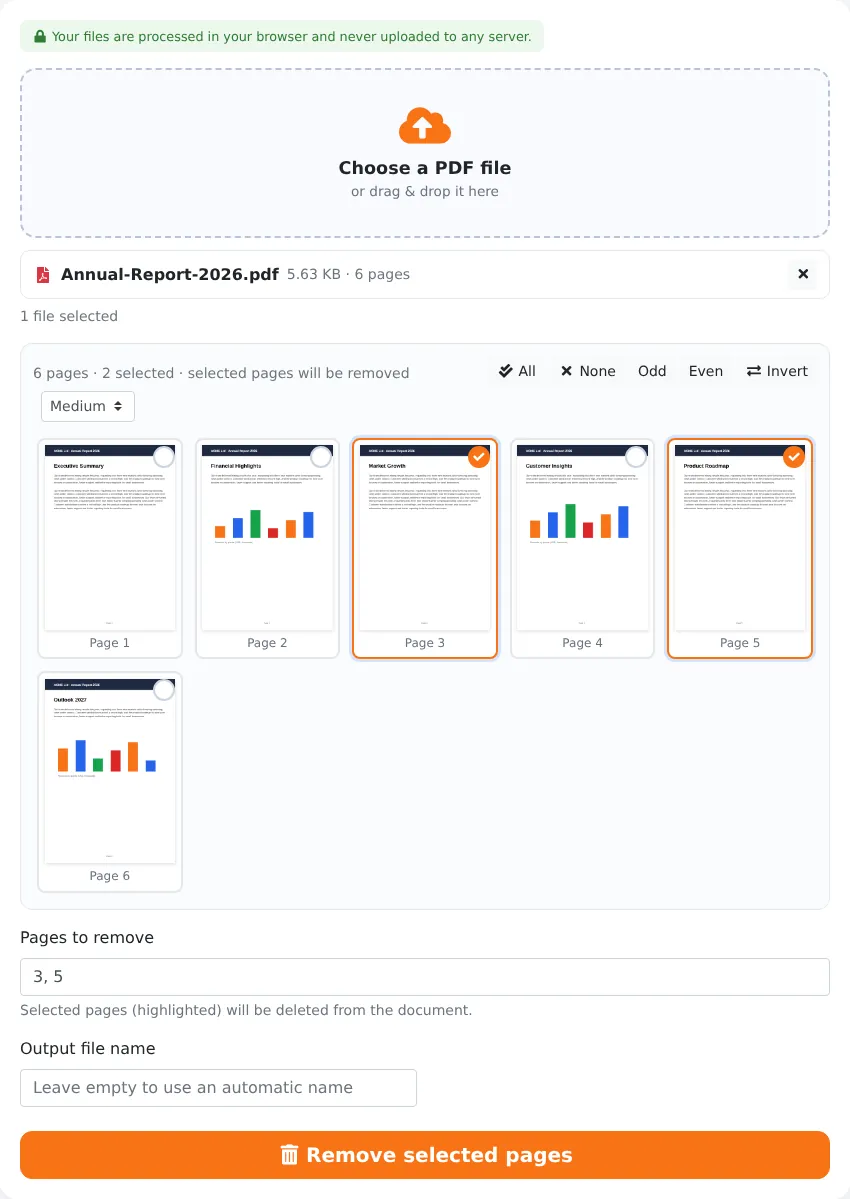
- Visual page selection with clear highlighting of the pages that will be deleted.
- Type page numbers and ranges such as 2, 5-8, 20- for long documents.
- Odd, Even, All, None and Invert buttons for quick pattern selection.
- Adjustable thumbnail size to recognise pages by their content.
- Lossless: remaining pages keep their text, links, images and quality.
- Safety checks that prevent removing every page or running with nothing selected.
- Your own output file name, or an automatic one based on the original.
- No upload, no account, no watermark and no page limits.
How to Delete Pages from a PDF in 4 Steps
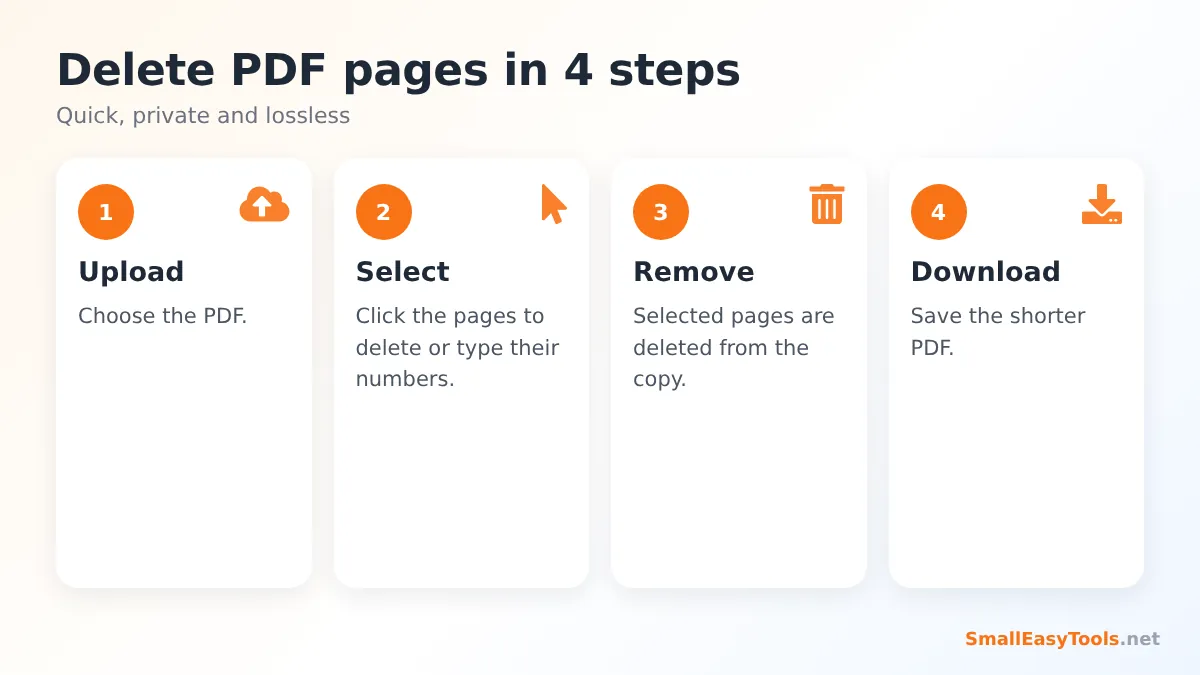
- Upload the PDF. Click the upload area or drag the file onto it. Thumbnails of all pages appear.
- Select the pages to delete. Click each page you want to remove — selected pages are highlighted. Alternatively, type numbers and ranges in the “Pages to remove” field, such as 3, 5, 10-12.
- Click “Remove selected pages”. The new document is created instantly.
- Download the PDF without the removed pages. The original file on your device is not changed.
What Happens When You Remove Pages
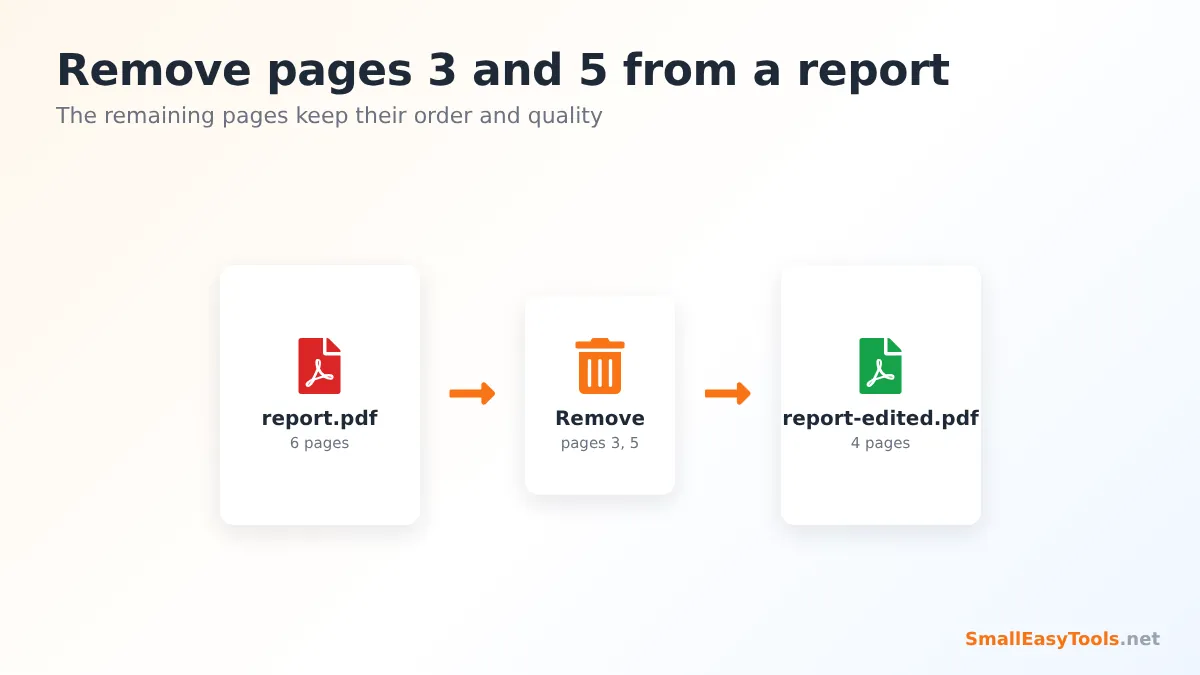
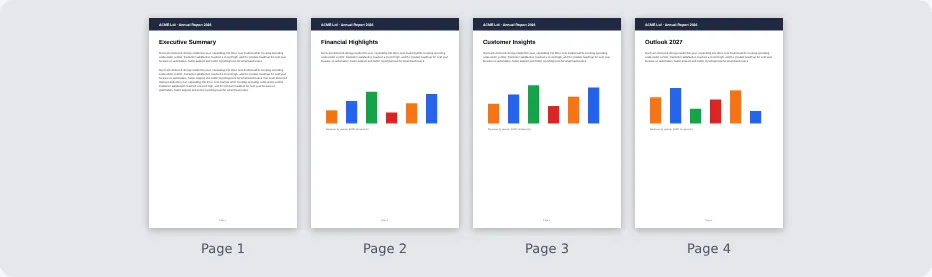
The tool builds a new PDF that contains every page except the ones you selected. The remaining pages are copied without any conversion, so text stays searchable and selectable, images keep their original resolution, and links and form fields on the remaining pages continue to work. The pages simply move up to close the gaps: in a 6-page document where you remove pages 3 and 5, the old page 4 becomes page 3 and the old page 6 becomes page 4.
To prevent accidents, the tool will not let you remove every page — a PDF must contain at least one page — and it warns you if you click the button without selecting anything.
Smart Ways to Select Pages
Click thumbnails
The most intuitive method: look at the previews and click the pages you do not want. Change the thumbnail size to Large if you need to read the content to decide.
Type page numbers and ranges
For long documents, typing is faster. Separate pages with commas and use a hyphen for ranges: 1, 4-6, 20- removes page 1, pages 4 to 6 and everything from page 20 to the end. The thumbnails update to show your selection, so you can double-check before removing.
Use the selection buttons
The toolbar above the thumbnails has All, None, Odd, Even and Invert buttons. They make special cases easy:
- Remove every even page — perfect for single-sided documents scanned in duplex mode, where every second page is the empty back of a sheet.
- Select the pages you want to keep, then click Invert to select everything else for removal.
When to Use Remove Pages vs Other Tools
- Remove PDF pages is best when you know which pages you don’t want, and you want to keep one document.
- Extract PDF pages is better when you know which few pages you do want — for example “just pages 7 and 8”.
- Remove blank PDF pages finds and deletes empty pages automatically, which is ideal for scans with many blank backs.
- Organize PDF lets you delete, reorder and rotate in one visual editor.
- Split PDF divides the document into several files instead of discarding pages.
Common Reasons to Remove PDF Pages
Protecting privacy before sharing
A landlord asks for proof of income, but your bank statement also lists every purchase you made. A university wants your diploma, but the PDF from the registrar includes your full transcript. Removing pages you do not need to share is a simple, effective way to protect your personal information. For extra privacy, also clean hidden document details with Remove PDF metadata.
Reducing file size for uploads and email
Every page adds to the file size, and scanned pages add a lot. Removing unnecessary pages can be the easiest way to get under an upload limit. If the file is still too large, follow up with Compress PDF.
Cleaning up scans
Scanners capture everything — empty back sides, separator sheets, accidentally double-fed pages. Removing them makes the document shorter, cheaper to print and easier to read.
Saving paper and ink
Before printing a long manual, catalogue or report, remove cover pages, blank pages, advertising and appendices you will not read. Over a year, this adds up to a lot of paper.
Updating documents
When a page in a document becomes outdated — an old price list, a superseded policy page — delete it and insert the new version with Insert PDF pages.
Preparing excerpts
Teachers, trainers and researchers often share only the relevant part of a long document. Removing the irrelevant pages keeps the focus where it belongs.
Real-World Examples
Rental application
A tenant needs to provide three months of bank statements. Each statement is six pages long, but only the first page with the account holder’s name and balance is required. Removing pages 2–6 from each file, then merging the first pages with Merge PDF, produces a compact three-page document that reveals far less personal spending information.
Product catalogue for a client
A sales representative has a 120-page catalogue but the client is only interested in garden furniture. Instead of sending the whole file, the rep removes everything except the relevant section and sends a 14-page PDF that loads quickly on the client’s phone.
Scanned meeting minutes
A secretary scans 30 pages of minutes on a duplex scanner. Every second page is empty. Selecting Even and removing them cuts the file in half in one click.
Tips
- Check the page count shown above the thumbnails before typing ranges.
- Use Invert when it is easier to select the pages you want to keep.
- Keep the original until you are sure the new document is correct.
- Renumber afterwards with Add page numbers if the document will be printed or referenced.
- Unlock protected files first with Remove PDF password.
Is It Safe to Delete PDF Pages Online?
With many online services, “removing pages” means uploading your entire document — including the private pages you want to get rid of — to someone else’s server. Our tool avoids that completely. The PDF is processed by the pdf-lib library inside your browser, and the new file is created on your device. Nothing is uploaded or stored.
One important note about privacy: removing pages deletes them from the new file completely, which is different from covering content with a black box. If you need to hide part of a page that you are keeping, a black rectangle drawn in some editors may still leave the underlying text in the file. Removing whole pages is the safest approach when it is possible.
Troubleshooting
“Please select the pages you want to remove”
No pages are selected. Click at least one thumbnail or type a page number.
“You cannot remove every page”
All pages were selected. Deselect at least one page that should remain.
The wrong pages were removed
Remember that the numbers refer to the physical position in the PDF, not to page numbers printed on the pages. Use the thumbnails to confirm. Start again with the original file.
The file does not open
Try Repair PDF first, or remove the password if the file is protected.
Removing Pages on a Phone
You do not need a computer to delete pages from a PDF. The tool works in mobile browsers such as Chrome and Safari. Tap the upload area, choose the PDF from your Files app or downloads, tap the pages you want to remove — they turn highlighted — and tap “Remove selected pages”. On iPhone, the finished file opens in a preview; use the Share button to save it to Files or send it by email or WhatsApp. On Android, it is saved to your Downloads folder. If thumbnails are too small to recognise on a phone screen, switch the thumbnail size to Large or type the page numbers instead.
Mistakes to Avoid
- Confusing printed and physical page numbers. A report may print “1” on its fifth physical page. Always check the thumbnails, because the tool counts physical pages from the start of the file.
- Deleting the only copy. Keep the original document until you have checked the new version, especially for contracts and official records.
- Removing pages from a signed contract. A contract with pages missing may not be considered complete. Extract a copy for sharing instead and keep the full signed document intact.
- Forgetting references. If the document refers to pages (“see page 12”), removing earlier pages changes the numbering. Re-number the document or update the references.
- Relying on black boxes for privacy. As explained above, removing whole pages is the reliable way to keep information out of a shared document.
Frequently Asked Questions
Is Remove PDF pages free?
Yes, with no registration, watermark or limit.
Can I delete several pages at once?
Yes. Select as many pages as you like, or type ranges such as 4-9, 15.
Does removing pages reduce quality?
No. The remaining pages are copied exactly as they were.
Will removed pages really be gone?
Yes. They are not included in the new PDF at all.
Can I remove pages on my phone?
Yes. Tap the thumbnails to select pages in any modern mobile browser.
Can I get the removed pages back?
Your original file is never changed, so you can always start again from it.
Is my file uploaded?
No. All processing happens in your browser.
What is the difference between removing and hiding pages?
PDFs do not really have hidden pages. Removing a page deletes it from the new file entirely, so it cannot be recovered from that file, viewed or printed by the recipient.
Can I remove pages from a scanned PDF?
Yes. Scanned pages are removed in exactly the same way as any other page.
Related Tools
- Extract PDF pages – keep only the pages you choose.
- Remove blank PDF pages – delete empty pages automatically.
- Organize PDF – delete, reorder and rotate visually.
- Insert PDF pages – add replacement pages.
- Compress PDF – make the shorter file even smaller.
Similar tools Maybe You Like or need
Rearrange PDF pages by dragging thumbnails or typing a new order like 3,1,2. Reverse order in one click. Free online and private.
Organize PDF pages visually: drag to reorder, rotate, duplicate, delete and add blank pages. Free online PDF organizer that works in your browser.
Merge PDF files online for free. Combine multiple PDFs into one document, reorder files by drag and drop, add blank separator pages. Private, no upload, no watermark.
Most Popular Online Tools
Convert kilometers per hour to miles per hour (km/h to mph) instantly. 1 km/h = 0.621371192 mph. Free speed converter with formula and chart.
Free WhatsApp link generator. Create a wa.me click-to-chat link with your phone number and a pre-filled message for websites, ads and social bios.
Free hosting checker. Find out which company hosts any website, plus its IP address and server location. Ideal for research and migrations.
Free DNS lookup tool. Check A, AAAA, CNAME, MX, NS, TXT and SOA records of any domain instantly to verify DNS settings and troubleshoot email or website issues.
Free strong password generator. Create secure random passwords with custom length, numbers, symbols and upper/lowercase letters instantly.
Free IP lookup tool. See your IP address or check any IP to find its country, city, ISP, time zone and more. Fast, accurate and no sign-up.