Grayscale PDF
Convert colour PDFs to grayscale (black and white) for cheaper printing and smaller files. Choose resolution and contrast. Free and private.
Convert PDF to Grayscale – The Complete Guide
Colour is wonderful on screen, but it is expensive on paper. Printing a 40-page colour report can empty a colour cartridge, and many offices charge several times more for colour copies than for black-and-white ones. Some organisations also require documents in black and white: certain courts, government agencies, exam boards and printers ask for grayscale submissions, and some print shops will reject colour files for black-and-white jobs.
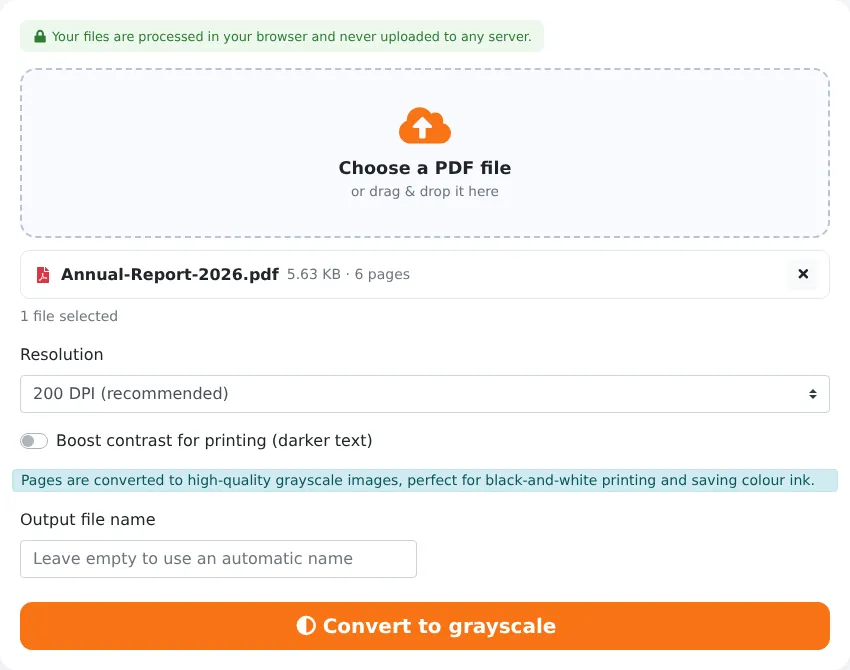
Our free Grayscale PDF tool converts every page of a colour PDF into high-quality shades of grey. Choose the resolution, optionally boost contrast so text prints darker, and download a black-and-white version of your document. The conversion runs in your browser, so your file stays private.
Key Features at a Glance
- Converts every page — text, charts, photos and logos — to grayscale.
- Four resolutions from 100 DPI (small files) to 300 DPI (print quality).
- Optional contrast boost for darker, crisper printed text.
- Shows the new file size compared with the original.
- Works on any device in your browser, with no upload and no watermark.
How to Convert a PDF to Grayscale in 4 Steps
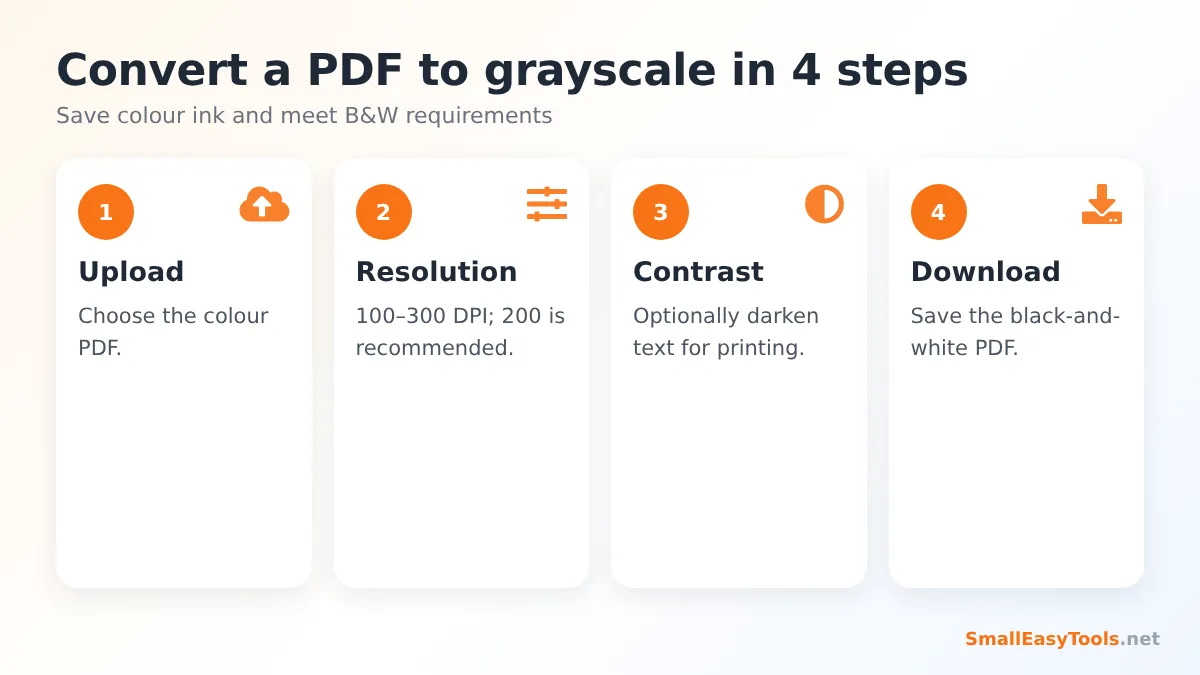
- Upload the colour PDF by clicking the upload area or dragging the file onto it.
- Choose a resolution. 200 DPI is recommended — sharp text and reasonable file size. Use 300 DPI for professional printing or 100–150 DPI for small files.
- Tick “Boost contrast” if the document will be printed and you want text to appear darker.
- Click “Convert to grayscale” and download the result.
How Grayscale Conversion Works
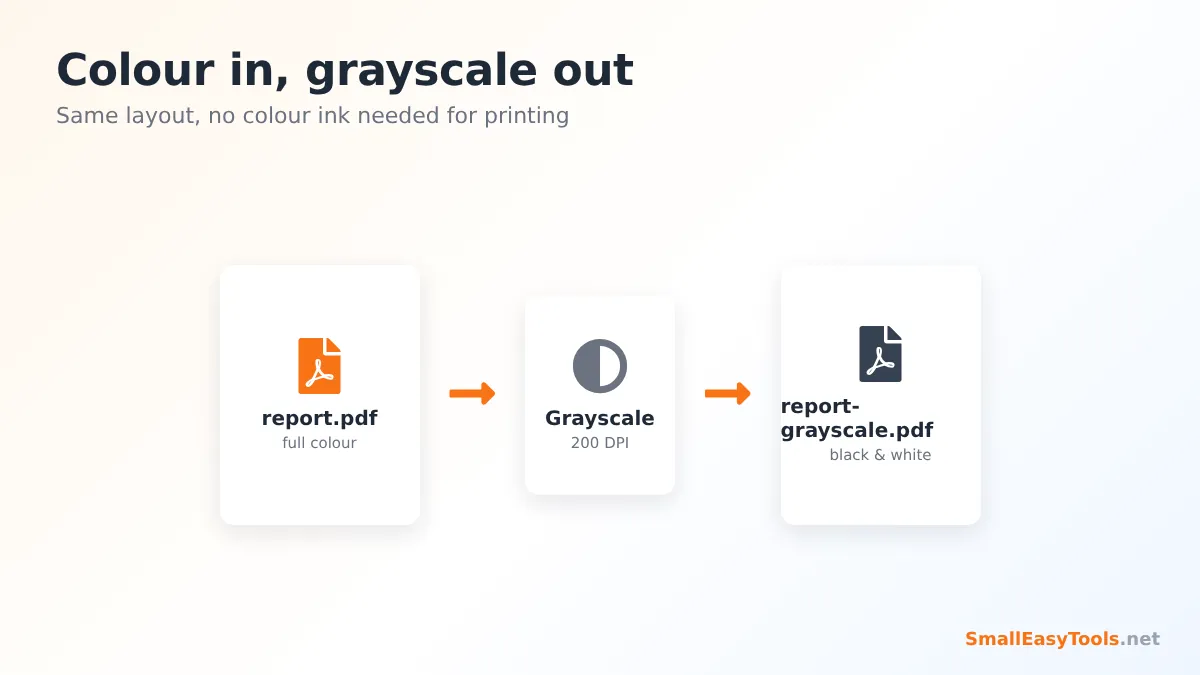
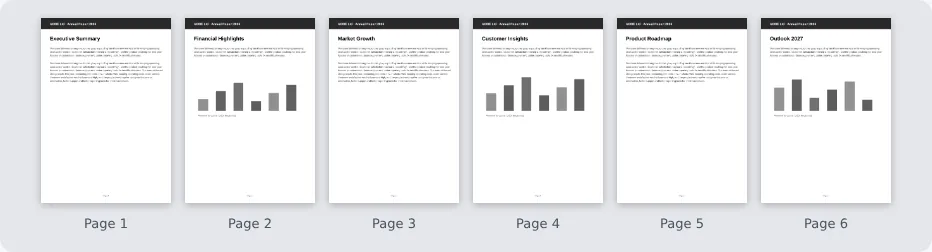
Each page is rendered at the resolution you chose, exactly as a PDF viewer would display it. Every pixel’s colour is then converted to a brightness value using the standard weighting the human eye uses — green appears brighter than red, and red brighter than blue — so the grey version keeps the same visual contrast as the original. The grey pages are saved into a new PDF with the same page sizes as the original.
Because pages are converted to images, the text in the grayscale version is no longer selectable or searchable. Keep the colour original if you need to copy text later. This approach has an important benefit, though: it works reliably with every PDF, regardless of how the colours were defined in the original file, and the output looks exactly the same in every viewer and on every printer.
Choosing the Right Resolution
- 100 DPI – smallest files, fine for reading on screen and quick previews. Small print may look soft.
- 150 DPI – good for on-screen reading and everyday office printing.
- 200 DPI (recommended) – crisp text on paper with moderate file sizes. The best all-round choice.
- 300 DPI – professional print quality for reports, books and documents with fine detail. Larger files.
For text-only documents that were originally created on a computer, the grayscale file can be larger than the original, because vector text is stored very efficiently. For colour scans and photo-heavy documents, the grayscale version is often smaller. If you need the smallest possible file, follow up with Compress PDF.
When to Use “Boost Contrast”
Colour documents often use coloured or light grey text — for example orange headings, blue links or pale captions. Converted to grayscale, those can become a light grey that prints faintly. The contrast boost darkens mid-tones and pushes text closer to black, so the printed document is easier to read. It is especially helpful for:
- documents with coloured headings or light text;
- scans with a yellowish or grey paper background;
- printing on budget office printers that produce lighter output;
- photocopying the printed page again later.
For documents with many photographs, leave the boost off to keep a natural range of grey tones.
Reasons to Convert a PDF to Grayscale
Save colour ink and printing costs
Even when you choose “black and white” in the print dialog, some printers still use colour ink to mix dark greys. A true grayscale PDF ensures that only black ink or toner is used, and print shops can bill the job at black-and-white prices.
Meet submission requirements
Some courts, tax offices, universities and publishers require black-and-white documents. Converting ensures there are no colour elements that might lead to rejection.
Check how a document will look in black and white
Designers and report authors often need to know whether charts remain understandable when printed in grayscale. If two lines in a chart become the same grey, readers of a printed copy cannot distinguish them. Converting a draft reveals such problems early.
Accessibility and readability
For some readers, including some people with colour vision deficiency, high-contrast grayscale documents can be easier to read than colourful ones. The contrast boost helps further.
Consistent printed handouts
Teachers and trainers who photocopy handouts in black and white get more predictable results when they start from a grayscale PDF rather than letting the copier decide how to translate colours.
Grayscale vs Black and White
These terms are often used interchangeably, but there is a difference. Grayscale uses up to 256 shades of grey, so photographs, shading and anti-aliased text edges look smooth and natural. Pure black and white (also called bitonal or 1-bit) has only two values: black and white. It creates very small files and very crisp text, but photographs turn into rough patterns. This tool produces grayscale. For scanning paper documents into pure black and white, use the Black and white mode in Scan to PDF.
Tips for Designing Documents That Work in Grayscale
- Do not rely on colour alone to distinguish chart series — add labels, patterns or different line styles.
- Use strong contrast between text and background colours; light yellow text on white disappears in grey.
- Test early by converting a draft to grayscale and printing a page.
- Mark highlights with bold or underline as well as colour.
Real-World Examples
Law firm filing
A legal assistant must submit exhibits in black and white. Converting the colour exhibits at 300 DPI with contrast boost produces a compliant, readable filing.
School worksheets
A teacher downloads colourful worksheets from the internet but the school copier only prints black and white. Converting them first with contrast boost ensures that light-coloured instructions remain readable on the copies.
Annual report print run
A small charity wants to print 200 copies of its annual report cheaply. A grayscale version at 200 DPI lets the print shop quote the black-and-white rate, saving a significant amount on the print run.
Grayscale PDFs on a Phone
The tool works in any modern mobile browser. Upload a PDF from your Files app or downloads, choose the resolution and tap “Convert to grayscale”. Higher resolutions and long documents take longer on phones, because every page is rendered on the device.
Privacy
Converting a document does not require a server. Your PDF is rendered and converted in your browser’s memory and the grayscale copy is created directly on your device. Nothing is uploaded or stored.
Troubleshooting
The text is no longer selectable
Pages are converted to images. Keep the colour original for copying text, or extract the text first with Extract PDF text.
The file is larger than the original
This is normal for text-based documents. Choose a lower resolution or use Compress PDF.
Light text is hard to read when printed
Tick “Boost contrast for printing”.
The PDF is password protected
Unlock it first with Remove PDF password.
Conversion is slow
Choose a lower resolution, or convert a large document on a computer instead of a phone.
How Much Can You Save by Printing in Grayscale?
Exact savings depend on your printer, cartridges and the amount of colour on each page, but the principle is simple: colour pages use cyan, magenta and yellow ink or toner in addition to black, and colour cartridges are often more expensive per page than black ones. Commercial print shops usually charge several times more for a colour page than for a black-and-white page. For documents that do not need colour — internal reports, study notes, drafts, forms and reference material — printing a grayscale version is one of the easiest ways to cut printing costs, especially for large print runs.
Grayscale for Accessibility and Clarity
Not every reader sees colour the same way. Charts that use red and green to distinguish categories can be hard to read for people with the most common types of colour vision deficiency. Viewing a grayscale version is a quick way to test whether information is conveyed by more than colour alone. If two categories look identical in grey, add labels, patterns or different shapes to the original design before publishing it.
Mistakes to Avoid
- Converting the only copy. Always keep the colour original — you cannot restore colour from a grayscale file.
- Using too low a resolution for print. 100 DPI is fine on screen but small text may look soft on paper; use 200–300 DPI for printing.
- Forgetting about selectable text. If the recipient needs to copy text or search the document, send the colour original as well, or provide the text separately.
- Ignoring light colours. Yellow and light green turn into very pale grey. Enable contrast boost or adjust the original design.
In short, a grayscale copy is a quick, reliable way to make any PDF printer-friendly, compliant with black-and-white requirements and easier to check for colour-only information — while your colour original stays safe for screen use.
Frequently Asked Questions
Is Grayscale PDF free?
Yes, with no registration, watermark or limits.
Will my PDF look the same, just without colour?
Yes. Layout, page sizes and content stay the same; only the colours become shades of grey.
What resolution should I choose?
200 DPI for most documents, 300 DPI for professional printing.
Can I convert only some pages?
The tool converts the whole document. To convert only some pages, extract them first with Extract PDF pages.
Does it save printer ink?
Yes. A grayscale PDF ensures only black ink or toner is needed.
Are my files uploaded?
No. Conversion happens entirely in your browser.
Can I convert a grayscale PDF back to colour?
No. Colour information is removed during conversion, so keep your colour original.
Does it work on scanned PDFs?
Yes. Scanned pages are converted like any other page, and contrast boost helps with yellowed paper.
Will the page size change?
No. Every page keeps its original dimensions and orientation.
Does it work on phones?
Yes, in any modern mobile browser. Long documents at high resolution take longer on phones.
Related Tools
- Compress PDF – compress with optional grayscale conversion.
- Scan to PDF – create black-and-white scans from photos.
- PDF N-up – print several pages per sheet to save paper.
- PDF booklet – print documents as folded booklets.
- PDF to PNG – turn pages into images.
Similar tools Maybe You Like or need
Pick specific PDF pages with visual thumbnails and convert them to PNG, JPG or WebP images at any resolution. Free and private.
Reduce PDF file size online for free. Lossless optimisation or strong compression for scanned PDFs, with before/after size comparison. Private, no upload.
Merge PDF files online for free. Combine multiple PDFs into one document, reorder files by drag and drop, add blank separator pages. Private, no upload, no watermark.
Most Popular Online Tools
Convert kilometers per hour to miles per hour (km/h to mph) instantly. 1 km/h = 0.621371192 mph. Free speed converter with formula and chart.
Free WhatsApp link generator. Create a wa.me click-to-chat link with your phone number and a pre-filled message for websites, ads and social bios.
Free hosting checker. Find out which company hosts any website, plus its IP address and server location. Ideal for research and migrations.
Free DNS lookup tool. Check A, AAAA, CNAME, MX, NS, TXT and SOA records of any domain instantly to verify DNS settings and troubleshoot email or website issues.
Free strong password generator. Create secure random passwords with custom length, numbers, symbols and upper/lowercase letters instantly.
Free IP lookup tool. See your IP address or check any IP to find its country, city, ISP, time zone and more. Fast, accurate and no sign-up.